
Sales Overview Report 2
Debtors >Reports >Report list
Sales figures based on Quotes and Sales Order
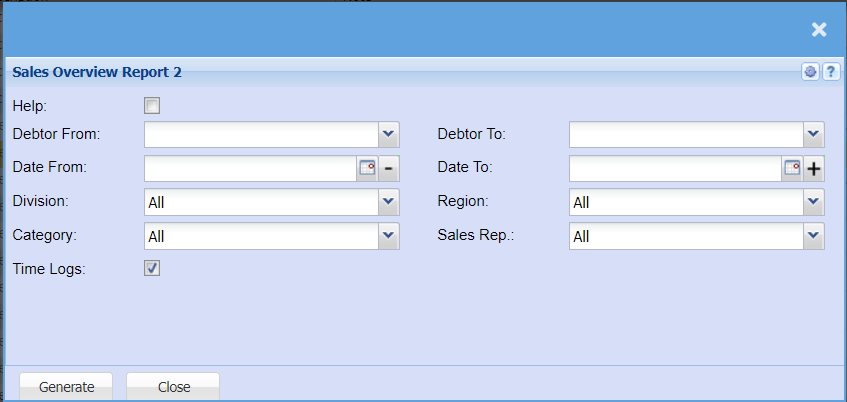
| Help | |
| Debtor From / Debtor To | Select a Customer/Debtor you wish to view the report from. Select the Customer/Debtor you wish to see up to in the report. |
| Date From / Date To | Choose the date range for which you want to view the report from / Select a date range of when you want to see up to on the report. |
| Division | If you have set up divisions for your debtors, you can pull the report for all your debtors or you can select a specific Division from the drop-down menu. |
| Category | To generate the report, the user has to select the category from the drop-down menu |
| Time Logs | If you would like a time log of the sales transactions, tick the box |
| Region | You can pull the report for all your debtors, or you can select a specific Region from the drop-down menu if you have set up Regions for your debtors. |
| Sales Rep | If you want to run a report by a specific sales rep, then you will need to select the sales rep on the drop down menu. If you leave the sales rep on all the report will run by all sales rep. |
No Comments