
Logistics Report
Debtors >Reports >Report list
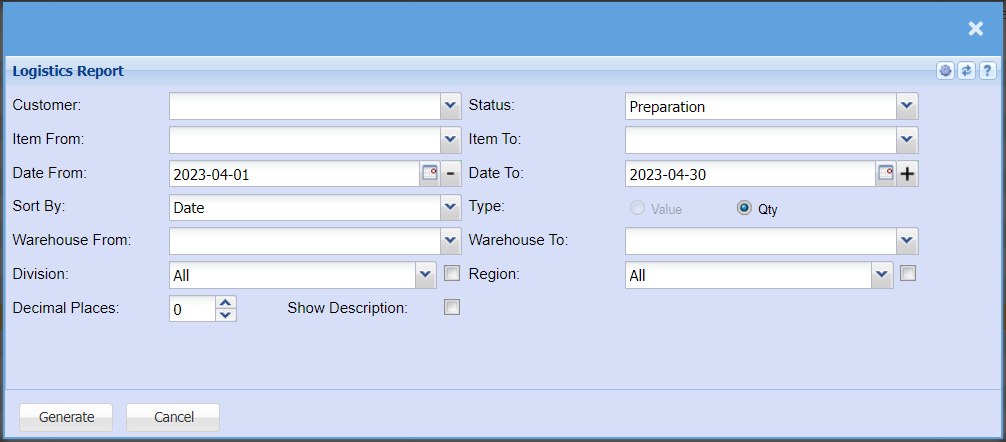
| Customer | Select a custom from the drop-down menu that you want to pull a report for. |
| Item From / Item To | Select the items from the drop-down menu that you want to pull the report from and to. |
| Date From / Date To | Choose the date range for which you want to view the report from / Select a date range of when you want to see up to on the report. |
| Sort By | Select a sort criteria on the drop-down menu |
| Warehouse From / Warehouse To | Select the warehouse the report will fetch data from and to. |
| Division | If you have set up divisions for your debtors, you can pull the report for all your debtors or you can select a specific Division from the drop-down menu. |
| Decimal Places | It is advisable to set decimals to two places. You can View the report with any number of decimal places. |
| Show Description | By ticking the box, this will add a column to the report containing the description of the item |
| Status | |
| Type | Here you can select if you want to pull a report for the Value or Quantity of the item |
| Region | It is advisable to set decimals to two places. You can View the report with any number of decimal places. |
No Comments