
Sales Leads Statistics Report
Debtors >Reports >Report list
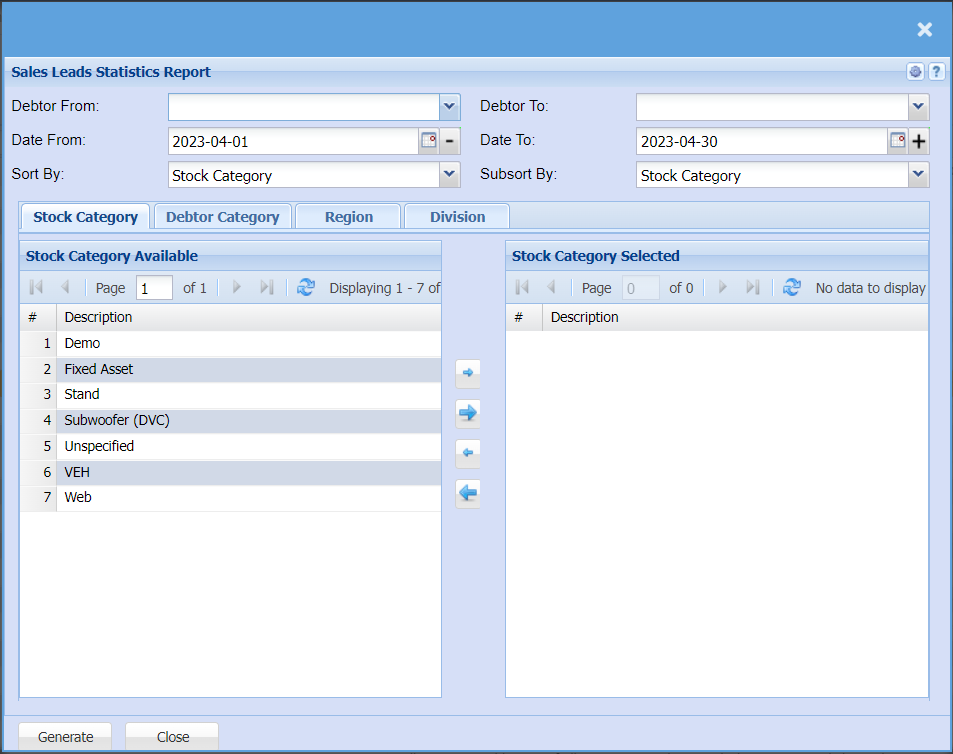
| Debtor From / Debtor To | Select a Customer/Debtor you wish to view the report from. Select the Customer/Debtor you wish to see up to in the report. |
| Date From / Date To | Choose the date range for which you want to view the report from / Select a date range of when you want to see up to on the report. |
| Sort By | Choose from the drop-down menu how you would like your report sorted, your options are by Stock Category, Debtor or Debtor Category. |
| Sub sort By | You can choose a Sub Sort column by selecting one option from the drop-down menu allows the user to pull a report with a secondary criteria that will be sorted by either, Stock Category, Debtor or Debtor Category. |
| Stock Category | In the Stock Category Tab, you will see a list of Stock Categories that you can pull the report for, by double click on the stock category or categories you would like to pull the report for will put them over to the selected column. |
| Debtor Category Tab | If you have set up Debtor Categories you can refine your report by selecting specific debtor groups by double clicking on them, they will then move over to the Selected column. |
| Region Tab | If you have set up Regions, you can select specific Region by double clicking on them, they will them move over to the selected column. |
| Division Tab | If you have set up Divisions, you can select specific Divisions by double clicking on them, they will them move over to the selected column. |
No Comments