
Sales Order Back Dated
Debtors >Reports >Report list
The report gives the value or quantity outstanding on sales orders in different status levels.
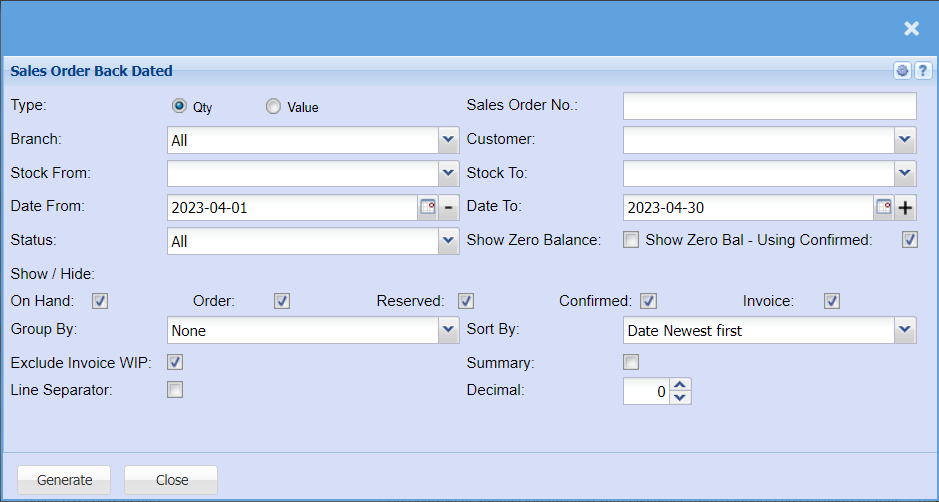
| Type | Type allows you to refine your report to only show Item Quantity of sales, Sales Value, Cost of Sales or Quantity and Sales together. |
| Branch | When working with multiple branches this drop-down allows the user to select a specific branch to pull a report for. |
| Stock From / Stock To | Select Stock from and Stock to fields from the drop-down menus to limit what will be displayed on the report. |
| Date From / Date To | Select the date range for which you want to view the report from / Select a date range of when you want to see up to on the report. |
| Status | If you select all the report will pull all statuses. If you want to view report by status, select the status on the drop-down menu |
| Show / Hide | Tick the boxes of the back orders you would like to include in your report, if they are not ticked, they will be excluded from the report. |
| Group By | Select group by from the drop-down menu |
| Exclude Invoice WIP | Tick the box to exclude invoice in WIP status |
| Line Separator | Ticking this box will include a darker line between each sales order. |
| Sales Order No | IF you know the sales order number, you can add it here. |
| Customer | You can select to pull the back-order report for a specific customer by choosing them from the drop-down menu, or you can leave it blank, and it will pull sales orders for all customers. |
| Show Zero Balance | By ticking the box, the sales order back dated report will include zero balance |
| Show Zero Bal - Using Confirmed | By ticking the box, the sales order back dated report will include zero balance confirmed on invoices. |
| Sort By | Sort the report by selecting either Date Newest First, Date Oldest First, Customer or Stock Code from the drop-down menu |
| Summary | Select from the drop-down menu if you want to have a full detailed report or just summery report. |
| Decimal | It is advisable to set decimals to two places. You can View the report with any number of decimal places. |
No Comments