
Debtor Sales Distribution By Groups
Debtors> Reports> Report list
Debtor Sales Distribution by Groups.
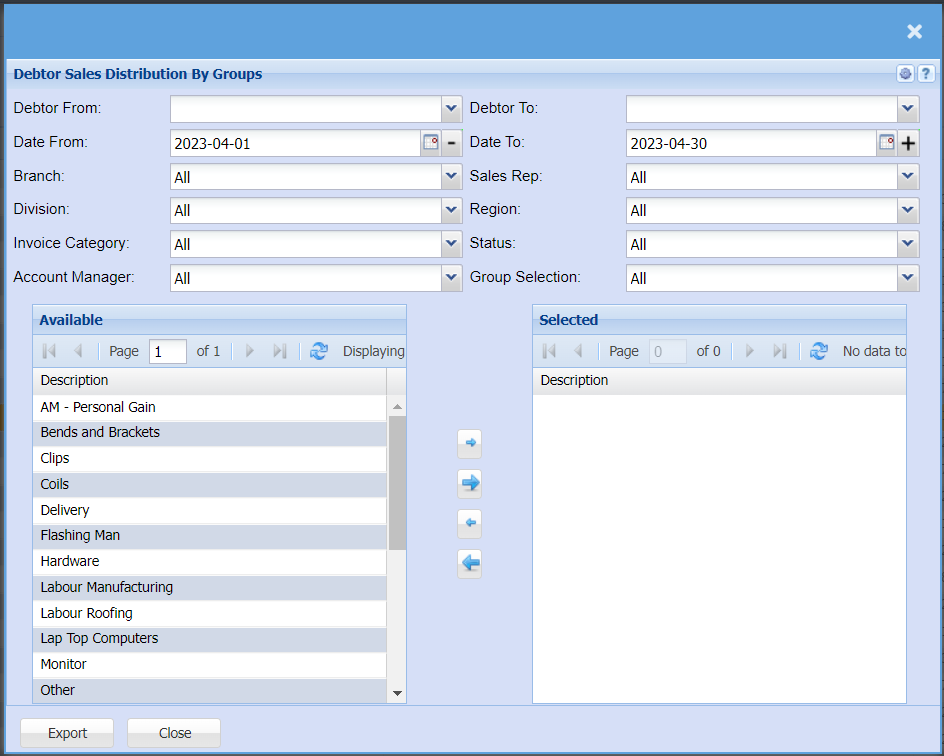
This is debtor’s sales distribution from different groups
| From Debtor / To Debtor | Select a Customer/Debtor you wish to view the report from. Select the Customer/Debtor you wish to see up to in the report. |
| Date From / Date To | Choose the date range for which you want to view the report from Select a date range of when you want to see the report to |
| Branches | When working with multiple branches this drop-down allows the user to select a specific branch to pull a report for. |
| Sales Rep | If you want to run a report by a specific sales rep, then you will need to select the sales rep on the drop-down menu. If you leave the sales rep on all the report will run by all sales rep. |
| Division | If you have multiple Divisions, by selecting this will add this column to your report. |
| Region | If you have Regions, this will add Regions to the report. |
| Invoice Category | to select the category from the drop-down arrow |
| Debtor Status | to select the status from the drop-down arrow |
| Account Manager | If you have Account Managers and want to pull a report for a specific Account Manager, you can select one from the drop-down menu. |
| Group Selection | |
| Generate button | Click the "Generate" button to open the report. You will have options to copy, email, or print the report. To view the report in an Excel document, copy the report and paste it into an Excel file. |
No Comments