
Debtors Age Analysis
Age analysis a listing of debtors' accounts (i.e., the amounts owing to a business), usually produced monthly, which analyses the age of the debts by splitting them into categories.
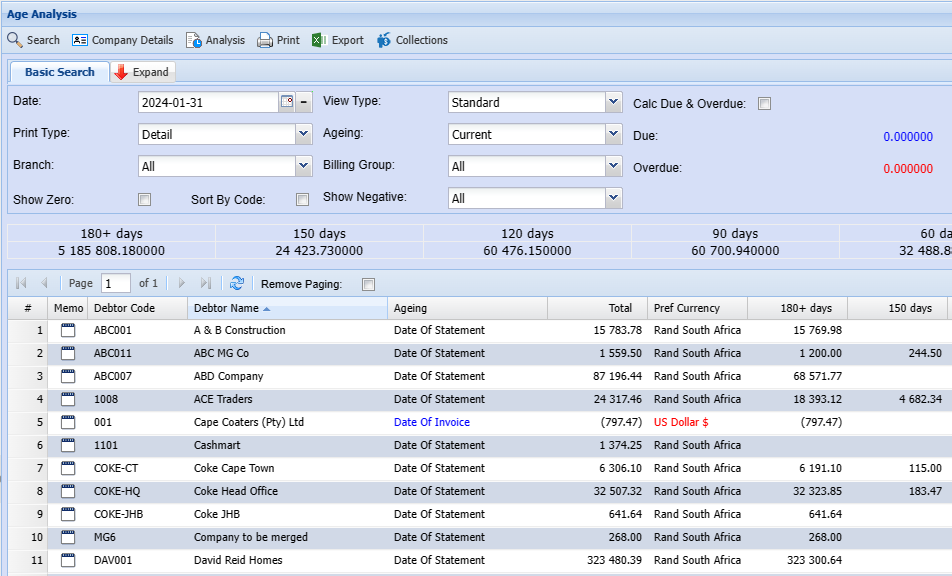
| Basic Tab | Select from the following in order to generate age analysis list |
| Date | Select the date for generating age analysis |
| Print Type | Select the print type from the drop-down menu |
| Currency | Select currency from the drop-down menu |
| Add Zero Balance | If the box is ticked, the age analysis run will include debtors with zero balances |
| Contact Person | Enter the contact person |
| Division | If you have multiple Divisions, by selecting this will add this column to your report. |
| Account Mgr. | To enter the account manager |
| Status | To select the status from the drop-down menu |
| Branch | To select branch from the drop-down menu |
| Print Columns | To select print columns from the drop-down menu |
| Aging | The process of investigating a company's accounts receivable according to how long individual invoices have been outstanding |
| Exclude Negative | Allows a user to tick a box to exclude negative amounts on the report |
| To enter the debtors email address | |
| Region | To select the region from the drop-down arrow |
| Head Office | To select the head office from the question mark Button |
| Include (Exclude Debtors) | Allows a user to tick or untick the box according to preference |
Standard Tab has three buttons
| Contact Details button | to view debtors contact details |
| Debtor History | shows debtors financial record history |
| to print debtor’s age analysis report according to the selected date |
View Types Explained
There are three types of view types in the age analysis, the default is the standard view.
Standard View
The standard view takes into account whether the customer is set as date of invoice or date of statement.
It also looks at the terms of the customer and then works out the ageing based on that.
Invoice date and Due date
The other two view types are Invoice date and due date.
Invoice Date
If you select the invoice date the following will happen.
The ageing periods will look at the months that the invoice was processed.
The date of the ageing will still retain invoices in those dates and not age 30 or 60 days from invoice but put the figures in those months.
Payments and allocations are taken into account for those of you type ageing.
Due Date
The due date view type takes into account the due date of the invoice and slotted into that month.
So, if an invoice of 500 was processed in January on the 15th of the month and the due date of the invoice is on the 20th of February.
And the payment was made in March the 15th for a value of 100.
If you run the ageing for invoice date on the 14th of March, then an amount of 500 will show in the January column.
If you run the ageing for invoice date on the 15th of March and have not allocated the payment, then an amount of 500 will show in the January column.
The payment of 100 will show in March as a negative figure, the total due amount will then be 400
If you run the ageing for invoice date on the 16th of March and have allocated the payment, then an amount of 400 will show in the January column.
The above process works in a similar manner for the Due date.
It just means that the ageing will look at the date the invoice is due, in which case the amount will show up in February.
.png)
Analysis
High a debtor and jump to the Debtor analysis window to view all transactions linked to this debtor
Open up more information on Debtors analysis - Debtor Analysis
.png)
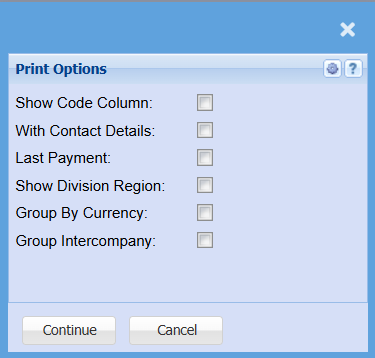
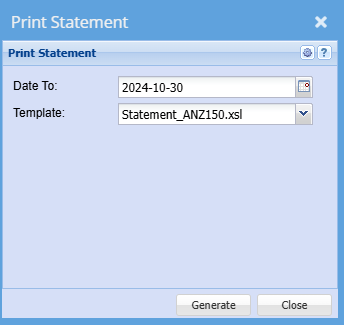
Print Statement PDF
Company Details
When a debtor is selected from the grid list - and you click on company / contact details - the user will have immediate access to the debtor information.
this makes it easier to interact with the debtor without having to go to different windows
.png)
Export
Debtors> Reports> Age analysis > Export Button
Export the information to excel
.png)
Collections
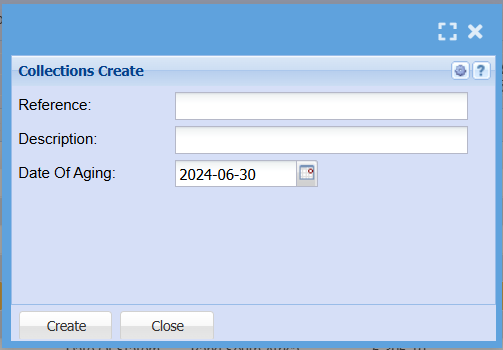
No Comments