
Debtors Summary Report
Debtors>Reports>Report List
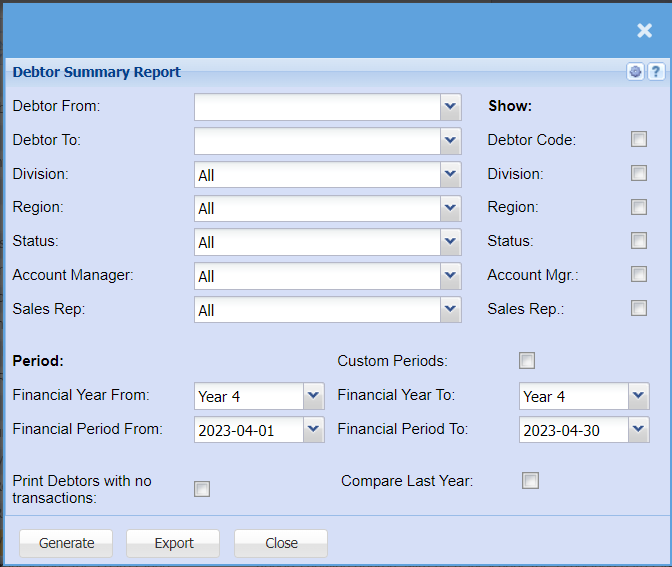
This is a debtor’s summary report
| Debtor From / Debtor To | Select a Customer/Debtor you wish to view the report from. Select the Customer/Debtor you wish to see up to in the report. |
| Division | If you have multiple Divisions, you can either select a specific division to pull a report for or if you select all, it will include all divisions. |
| Region | If you have Regions, you can either select a specific region to pull a report for or if you select all it will include all divisions. |
| Status | You can choose a specific group that you want to pull a report for, you can select from a different module or specific product group. You can also select all to add all statuses to the report. |
| Account Manager | If you have Account managers set up, you can either select a specific manager to pull a report for or if you select all it will include all Account Managers in the report. |
| Sales Rep | If you have Sales Reps set up, you can either select a specific Sales Rep to pull a report for or if you select all it will include all Sales reps in the report. |
| Debtor Code | By ticking the Debtor Code box a column will be added to the report containing the Debtors code used at setup. |
| Division | If you have chosen All from the drop-down menu and If you have multiple Divisions, ticking the box will add this column to your report so you can filter per Division once report has been generated. |
| Region | If you have chosen All from the drop-down menu and If you have multiple Regions, ticking the box will add this column to your report so you can filter per Region once report has been generated. |
| Status | If you have chosen All from the drop-down menu and If you have chosen All Statuses, ticking the box will add this column to your report so you can filter per Status once report has been generated. |
| Account Mgr | If you have chosen All from the drop-down menu and If you have Account managers setup, ticking the box will add this column to your report so you can filter per Account manager once report has been generated. |
| Sales Rep | If you have chosen All from the drop-down menu and If you have Sales Reps setup, ticking the box will add this column to your report so you can filter per Sales Rep once report has been generated. |
| Financial Year From / Financial Year To | Select the Financial Year From and To range that you want to pull a report for. |
| Financial Period From / Financial Period To | Select the Financial Period From and To date range that you want to pull a report for. |
| Print Debtors with no transactions | By ticking the box the report will include customers without transactions on the report |
| Custom Periods | By ticking the box the report will include a Custom Period field in the report |
| Compare Last Year | By Ticking Compare Last year will add a column month by month so you can compare one period to another side by side. |
No Comments