
Sales Orders
Debtors >Reports >Report list
The report displays the different status of sales orders which includes what has been ordered, received, processed and the balance
Criteria can be run by debtors or date or stock.
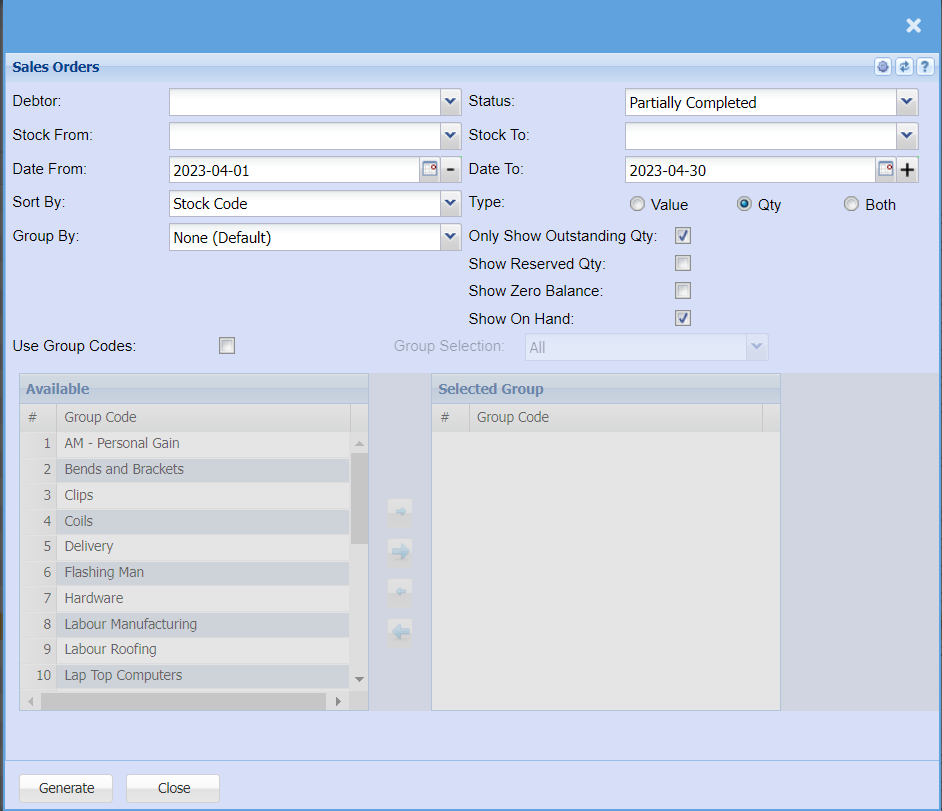
| Debtor | Select debtor if you wish to run the report by debtor/customer |
| Stock From / Stock To | Select Stock from and Stock to fields from the drop-down menus to limit what will be displayed on the report. |
| Date From / Date To | Choose the date range for which you want to view the report from / Select a date range of when you want to see up to on the report. |
| Sort By | Select from the drop-down menu what you would like your report to be sorted by, select form Date, Sales Order Number, Customer Order Number, Customer or Stock Code |
| Group By | Select what you would like your report to be grouped by from the drop-down menu. If you don't wish to group your report leave the selection on none |
| Status | If you select all the report will pull all statuses. If you want to view report by status, select the status on the drop-down menu |
| Type | Type allows you to refine your report to show by Value, Quantity or both. |
| Only Show Outstanding Qty | Tick this box if you would like to only show the outstanding quantities on your sales orders. |
| Show Reserved Qty | Tick this box if you would like the report to show Item quantities that are on reserve. |
| Show Zero Balance | Tick this box to include items that have zero balance. |
| Show On Hand | Tick this box if you would like the report to show Item quantities that are currently in stock. |
| Use Group Codes | If you would like to refine your report to be on specific group codes only you can tick this box and then double click on the group codes, you would like to pull a report on. |
| Selected Group | When you double click on the group code in the available group code column it will move over to the selected group column, and these are the items the report will be pulled on. |
No Comments