
Debtors Inventory Filter
Debtors >Reports >Report list
This report shows all transactions by debtor, invoice and displaying all lines completed on the invoice.
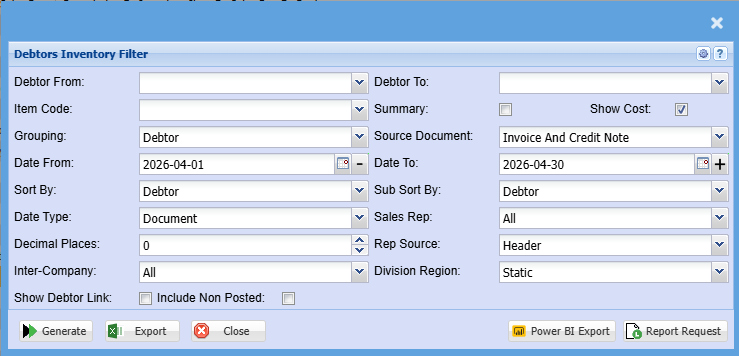
| Debtor From / Debtor To | Select a Customer/Debtor you wish to view the report from. Select the Customer/Debtor you wish to see up to in the report. |
| Item Code | Select an item code from the drop-down menu |
| Grouping | Select grouping of the report from the drop-down menu. If you don't wish to group your report leave the selection on none |
| Date From / Date To | Choose the date range for which you want to view the report from Select a date range of when you want to see the report to |
| Sort By | Select a sort criteria on the drop-down menu |
| Date Type | Select a date type on the drop-down menu selection |
| Decimal Places | It is advisable to set decimals to two places, you can view the report with up to 9 decimal places. |
| Summary Tick | Tick the box in order to include summary on the report |
| Show Cost Tick | Tick the box in order to include cost on the report |
| Source Document |
Select source document from the drop-down menu All: Includes invoices, credit notes, quotes and sales orders Invoice: Only invoices will be in this report Credit Note: Only credit notes will be in this report Invoice and Credit Note: Invoices less credit notes which is the most common selection for true sales Quotes: Only quotes will be in this report Sales Orders: Only sales orders will be in this report |
| Sub Sort By | Sub Sort the report by selecting one option from the drop-down menu allows the user to pull a report with a secondary criteria that will be sorted by either, Code, Description, Warehouse or Bin location. |
| Sales Rep | If you want to run a report by a specific sales rep, then you will need to select the sales rep on the drop-down menu. If you leave the sales rep on all the report will run by all sales rep. |
| Rep Source |
Select the source of where the data must correlate for the sales Rep. There are three options: Header: The sales Rep that is selected on the header of the sales document Lines: The sales Rep that is selected per item line on a document, This could mean that there can be multiple sales reps per document Customer: Override the document and sales line sales reps allocated, just take the default sales Rep at customer to run report. |
| Inter-Company |
Select the option to include or exclude invoices and credit notes that are intercompany for reporting These are customers that are flag as Inter-Company |
| Division Region |
Select the source of how you want to select division and regions, there are two options: Static: This is taking the division and region that is specified at the customer setup level Dynamic: This takes the division and region specified on the document, this can be different to the division and region set up at the customer |
| Include Non-Posted Tick | Tick the box if you want to include non-posted transactions in your report |
| Generate | Click the "Generate" button to open the report. You will have options to copy, email, or print the report. To view the report in an Excel document, copy the report and paste it into an Excel file. |
| Export | This allows you to export the report to an Excel file |
| Power BI Export | This exports the data ready for a power BI import |
| Report Request | Set up a report request to run the report for a later in the day if the report takes long and include multiple people to have access to this report |
Overall discount and line discount
This report will display line discount versus overall discount which is the net effect of the discount.
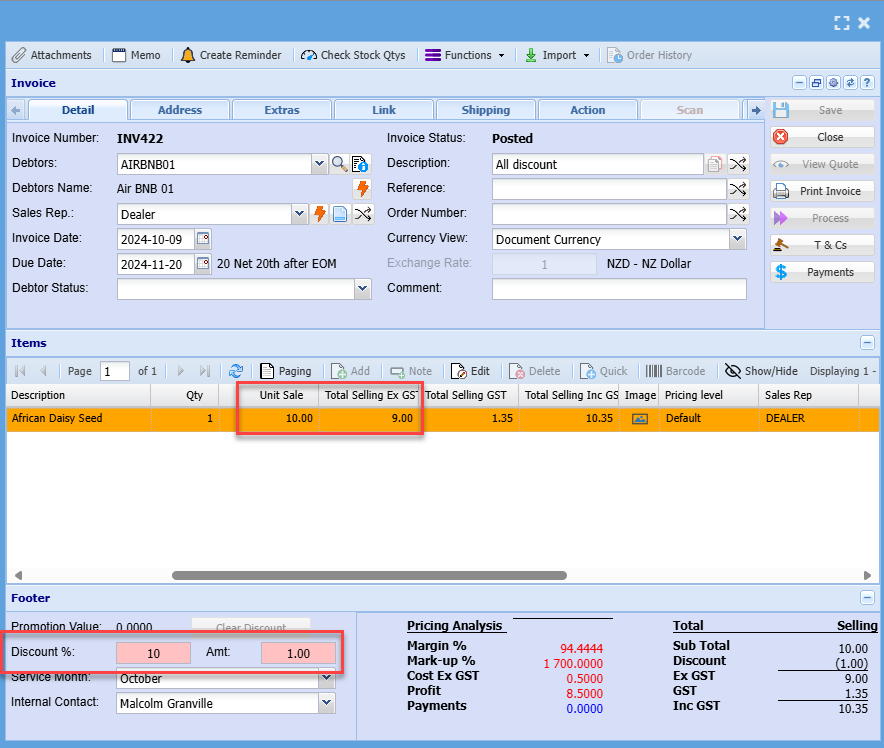
See example below of overall discount given to an invoice and the report result
If we take a line item that costs 10.00 and give and overall discount of 10%, the net effect of the line is 9.00 .
Therefore the report will show 9.00 as the value
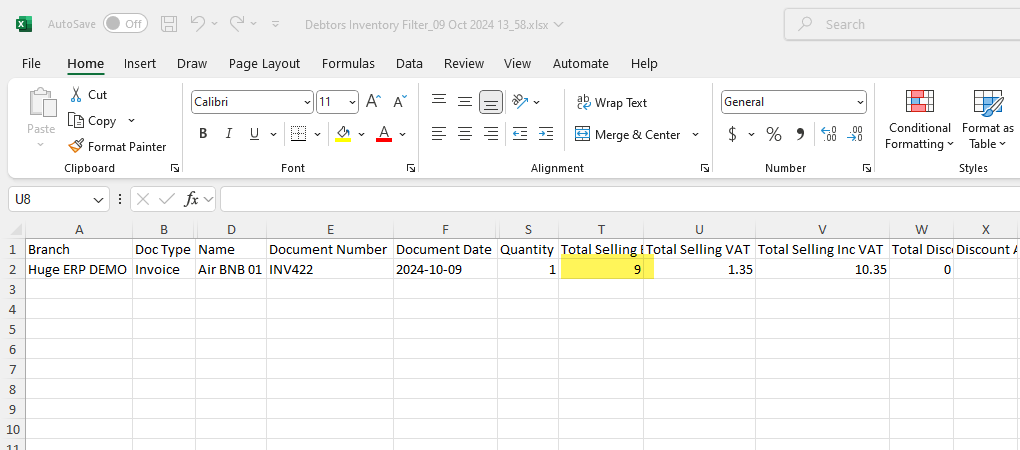
Invoice example
Using overall discount can be problem as it will give discount on a line that may also contain a line discount. Thereby resulting in a double discount given.
No Comments