
Bill Of Material Setup Add
Go to Inventory Module> Configuration> Bill of Materials Setup
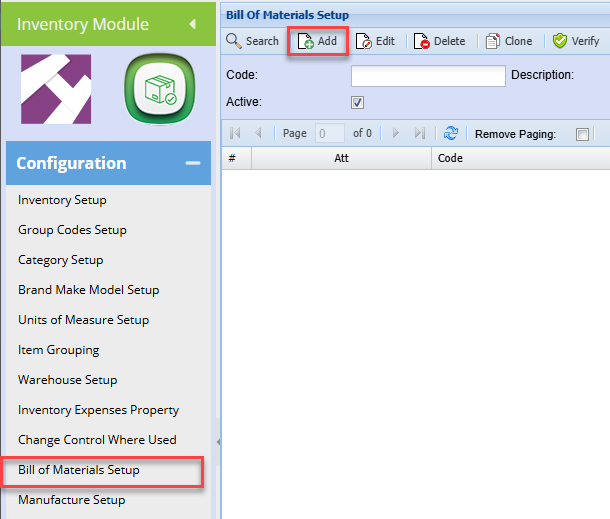
Click Add
Enter a BOM code
Enter a Description
Select the BOM Resultant Item - this is the Stock item created in the previous step
Check the Active box is ticked
Click the Save button
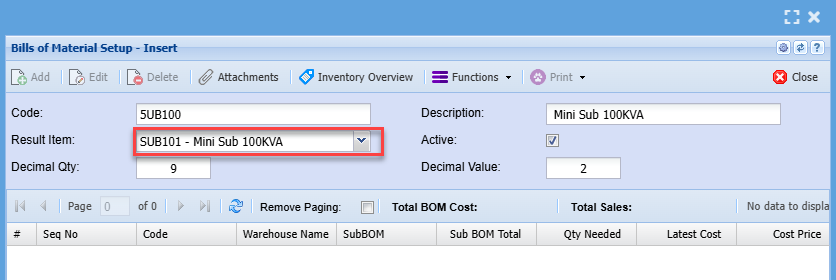
You will notice the Add button becomes active
Click Add to begin adding the components of the Bill of materials (BOM)
Select the Component item
Enter the required quantity, this is the quantity of the component required in the manufacture of one of the resultant item
Click Save and New to add the next component and quantity
Repeat this step until all components are added
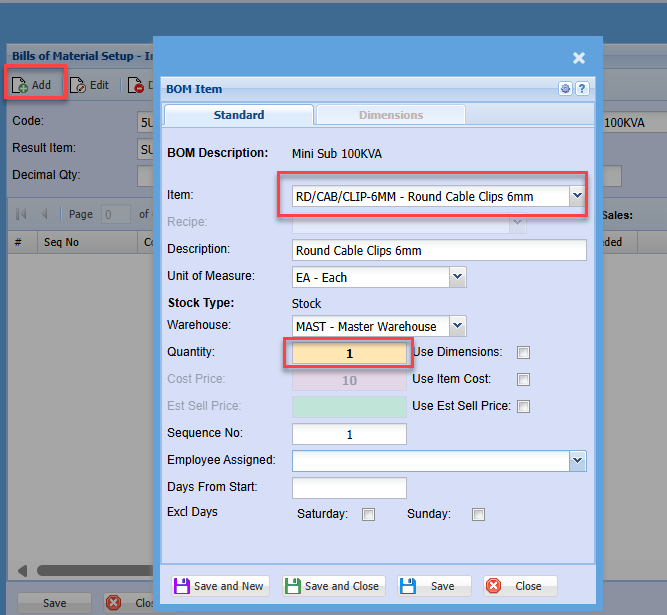
Once you have added all the components, click Save and Close.
You will notice the components will be listed in the grid.

Click and Close
Setting up the Build item
The build item is always a Custom item
Go to Inventory Module> Configuration> Inventory Setup
Enter a Code and description
Select the Category as Custom
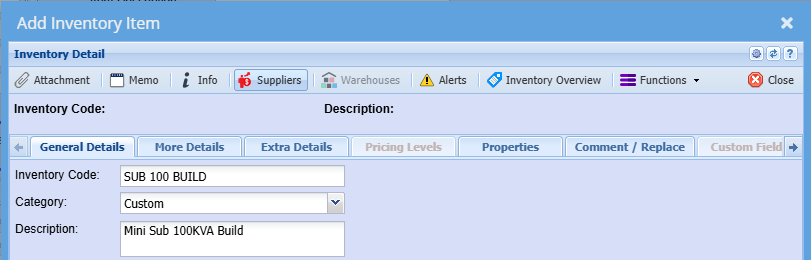
Click Save
You will be prompted to enter the cost and selling prices
Enter the Sell Price
Once again, the cost price will be the total of the BOM component's costs
Click Continue
Click the Properties Tab
Tick the Build Kit Box – this identifies this item as a build item
Select the BOM resultant Item
Select the BOM Recipe
Tick Update Qty Box – This allows you to edit the quantity of the builds when adding on sales documents or jobs.
Use Kit Parent Group
This will dictate the posting to the respective sales and cost of sales GL accounts using the group code selected on the parent which is the Stock item created above.
Each component of the recipe may have its own group code setup. If this box is not ticked, the postings will be based on the various groups on the individual components of the build (recipe).

Click Save and close
This concludes the Build Kit Setup
The Build can now be used on Sales documents and Jobs
Old Video Training Manual 2019 - Click Here
No Comments