
Inventory Import / Export
Inventory Module> Configuration> Import& Export Drop Down
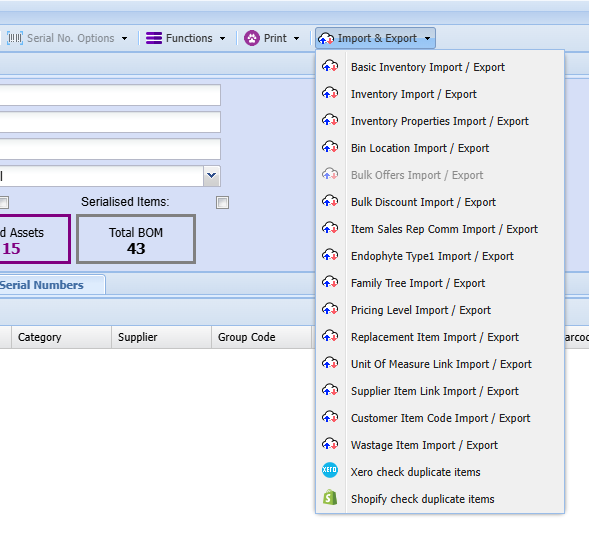
Basic Inventory Import/ Export
Inventory > Configuration> Inventory Setup> Print
.png)
This function is used to export the basic inventory data out the system
This is a summarized version contains less information than the master inventory export
the information will be exported to excel.
Inventory Import/ Export
Inventory > Configuration> Inventory Setup> Print
.png)
This function is used to export the master inventory data out the system.
This is detailed it contains more information than the basic inventory export
the information will be exported to excel.
Inventory Properties Import/ Export
This manual applies to updating the additional properties fields on the inventory item setup
To update the existing data in these fields, you will need to export the item list
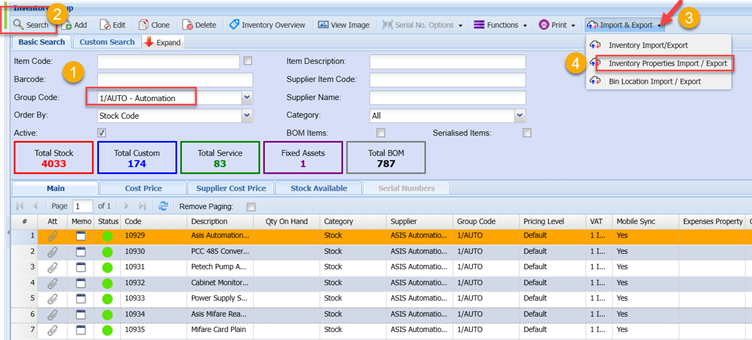
To do this, go to Inventory Module> Configuration> Inventory Setup>
Enter the filters required (if applicable) and click Search
Once the list of items is returned on screen, click the Import & Export Drop down
And select Inventory Properties Import/ Export option
Click the export button on the screen that pops up
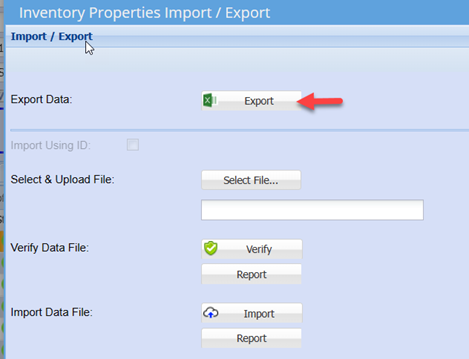
This will export the list of items in the correct import template
You can now edit the data in the respective columns
Note: Do not edit the Stock Code and Description fields
Once you have completed updating the data, save the file as a normal excel file.
Notes on edit data:
1. Existing data in the field will be overwritten
2. If you wish to remove existing data in any field, delete the existing data and enter a space in that respective field.
Once the file has been edited and saved, you can now import the file back into the system which will update the items with the changes made.
To import, click the Import & Export drop down
Select Inventory Properties Import/ Export option
Click on Select File
Search for the file you saved
Click Verify
This is to check for any errors
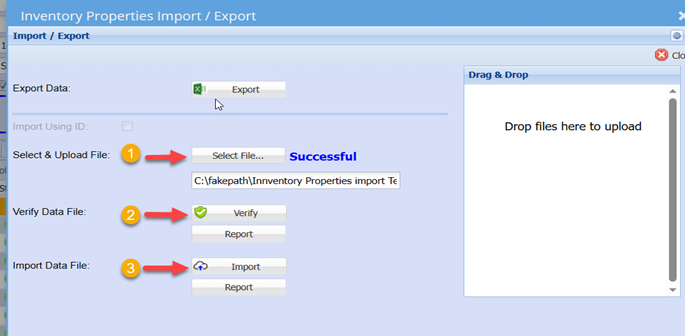
You should ideally have a successfully result on all functions
If so, click close
You can now check random item on the system to see that the changes have uploaded successfully.
Bin Location Import/ Export
The function of this window is to bulk import stock item bin locations as well as minimum, maximum, preferred and reorder quantities.
Inventory> Configuration> Inventory Setup
Click search to return the list of all items
alternatively, enter the required filter and then search to limit the list of items return of a specific range
Click the Import & Export button
Select the Bin Location Import / Export
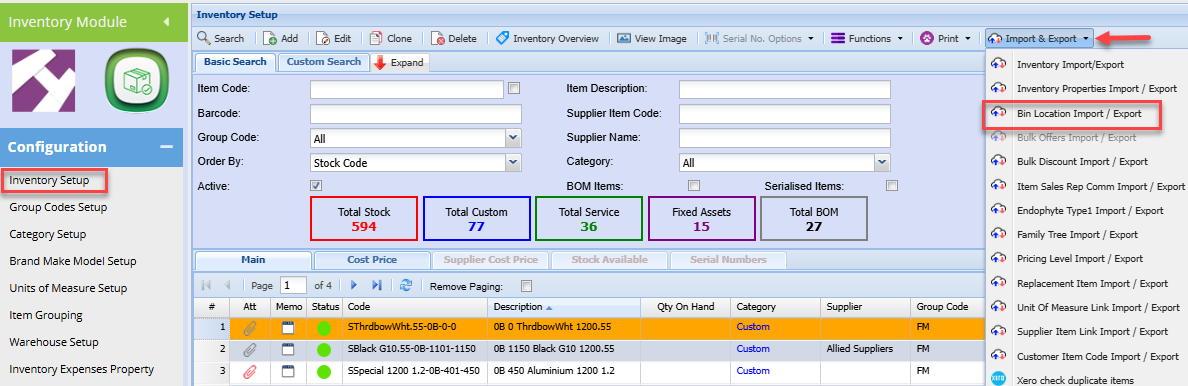
Click the Export button
This will export the listed items into excel with the require columns / fields

Enter the required quantities in the respective columns and save the file
Open the Bin location export / import function again
Select the file you saved
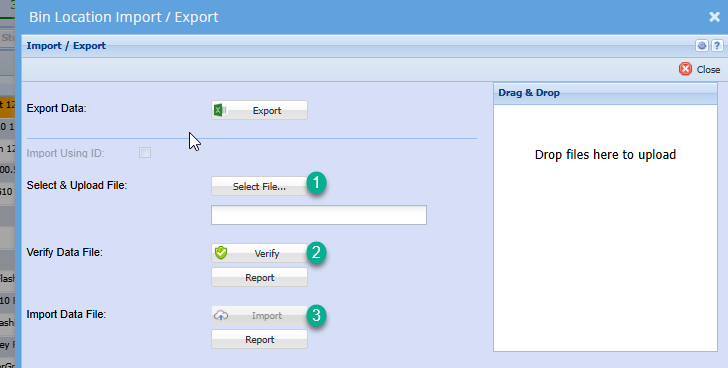
alternatively, click the Report button to view any errors
Click Import Button. Should return successful result
Click Close to exit this window.
You can do random searches on the item setup to ensure all details have uploaded successfully
Bulk offers Import/ Export
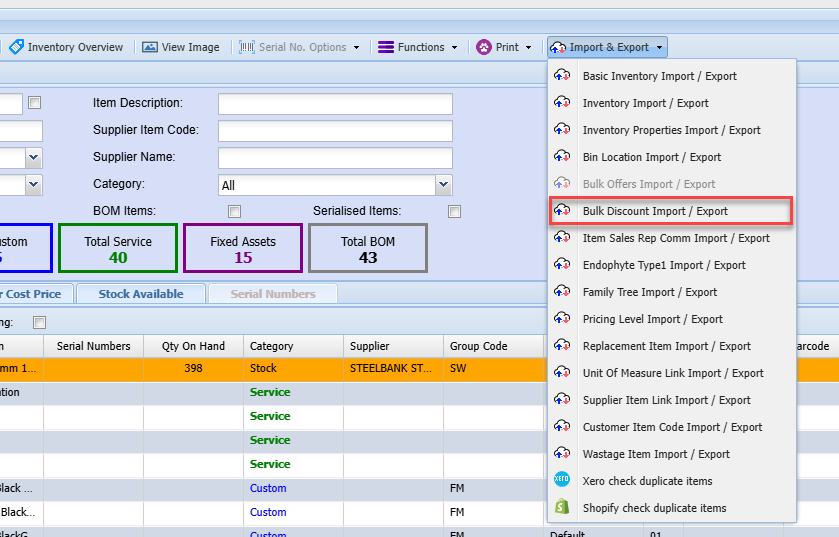
Bulk Discount Import/ Export
This allows you to import and export bulk Discounts
Item Sales Reo Comm Import/ Export
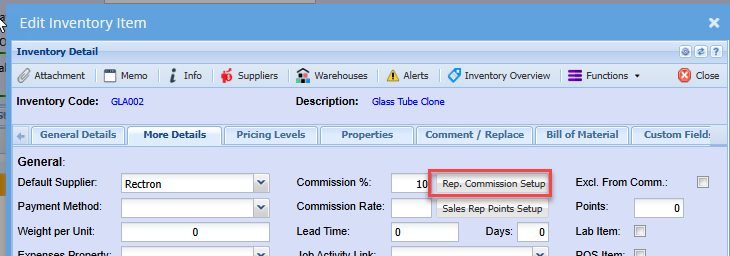
This function is used to update the sales rep item commission on multiple items
You could have items that may have a different commission structure per sales rep
This function allows you to update these commission structures in a bulk manner without having to edit each item and each rep setup individually
| 1 | The heading row can be left in the import file. |
| 2 | All values in red are compulsory. |
| 3 | The Stock Code must be as it appears in the Inventory Module -> Inventory Setup |
| 4 | The SalesRep column can have either the Sales Reps name or the word Default. |
| 4.1 |
When the word Default is used the system will update the Commission % on the actual Stock Item with the specified percentage. |
| 4.2 |
When using the Sales Rep name, the Sales Rep name must be exactly as it appears in the Sales Rep Commission -> Sales Rep Entity. |
| 5 |
The Active column must be either a 1 or 0 when a Sales Rep name is specified. |
| 5.1 |
The Active value will be ignored if the Sales Rep column contains the word Default |
| 6 |
The import file must be saves as a CSV file. |
Below is an example of the template layout for the import file.
|
StockCode |
Description |
SalesRep |
Percentage |
Active |
|
PEN001 |
Red Pen |
John French / Default |
10 |
1 / 0 |
Endophyte Type1 Import/ Export
Import the list of Facts at the inventory item setup screen
File to be imported is saved as Excel
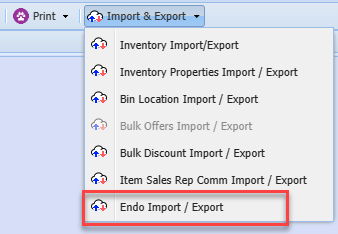
Export Facts
Export to see all list of Facts for items
Exports in single line for each Facts per item
If an item has 5 Facts linked to it, the export will export five lines repeating the item code
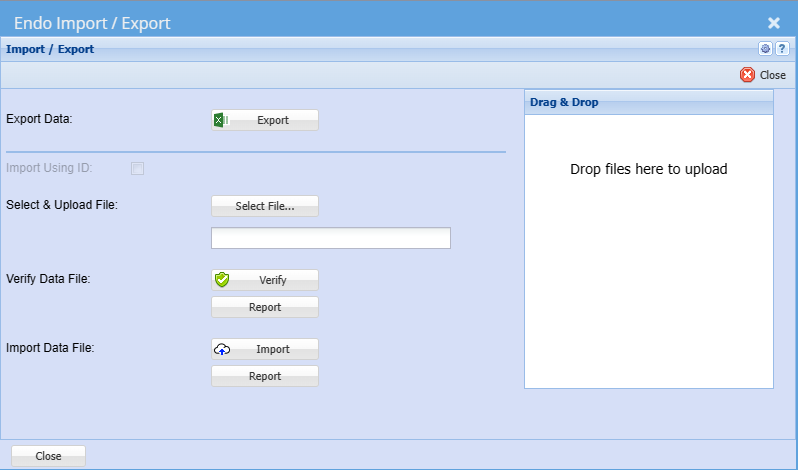
Import is done in two methods:
- Simple row by row
- Combination of all the endophytes with the separator
| ItemCode | ItemDescription | Fact Code | Predicted | Fact | Value | Percentage | Comment |
| ABC001 | A | 1/0 | 1/0 | 50 | 40 | ||
| ABC001 | B | ||||||
| ABC001 | C | ||||||
| ABC001 | A|B|C | 1/0 | 1/0 | 50 | 40 |
File must contain the headers.
| Item Code | Item code of the item |
| Item Description | Item description (this will not update the item description |
| Endophyte Code |
The code of the Fact Can be entered a single code or multiple code with separator |
| Predicted | indicated with a 1 for tick on (Yes) or 0 No |
| Fact | indicated with a 1 for tick on (Yes) or 0 No |
| Value | Enter a value |
| Percentage | Enter as a value and not as a percentage |
| Comment | Enter a comment |
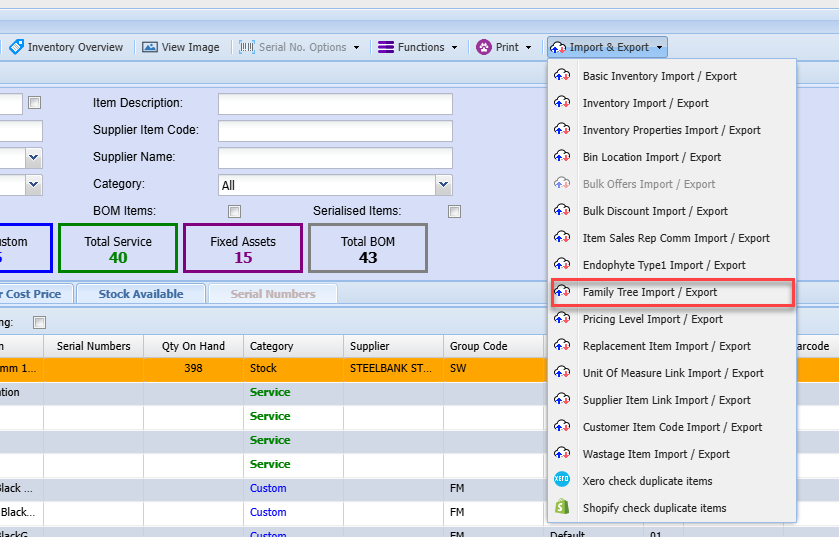
Family Tree Import/Export
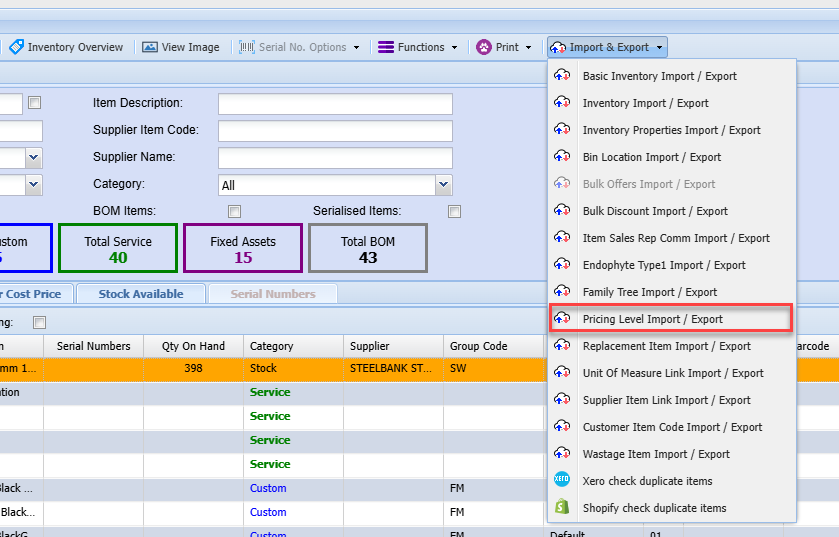
Pricing Level Import/ Export
Inventory > Configuration> Inventory Setup> Print
This function is used to export the pricing level information out the system
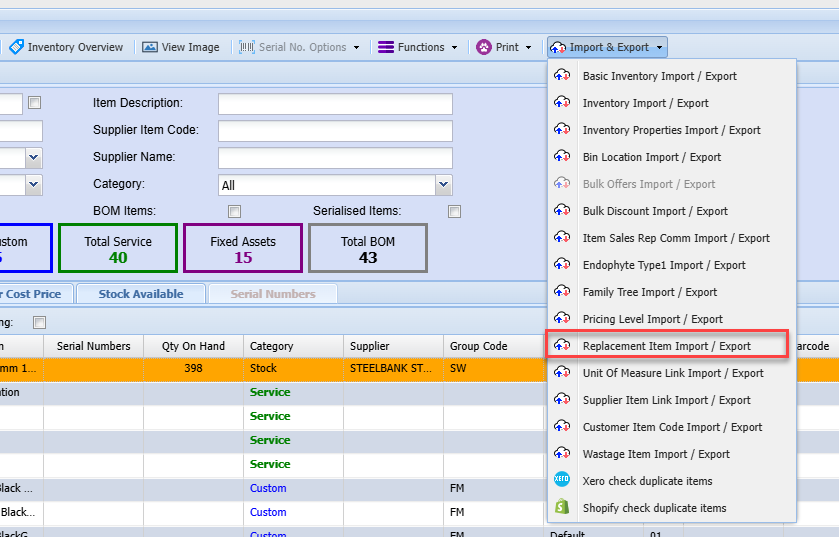
Replacement Item Import/ Export
This function is used to import and export the replacement item information out of the system
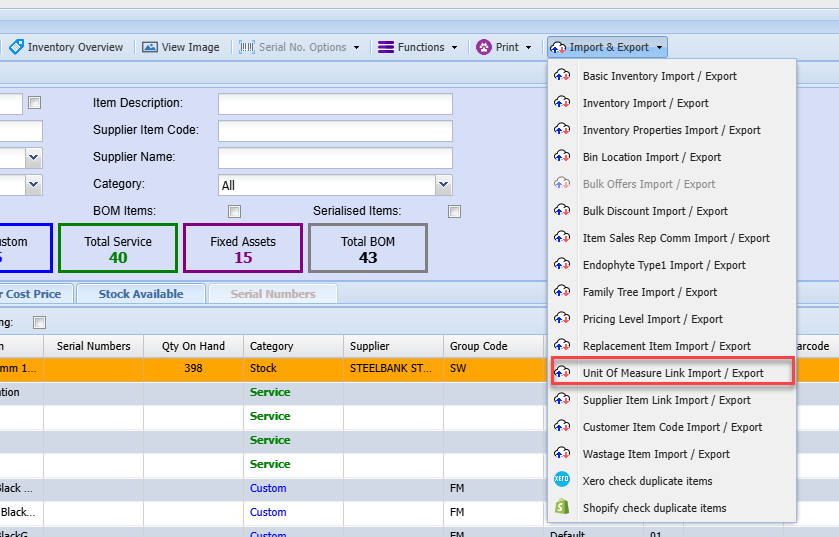
Unit of Measure Link Import/ Export
This function is used to import and export the unit of measure information out of the system
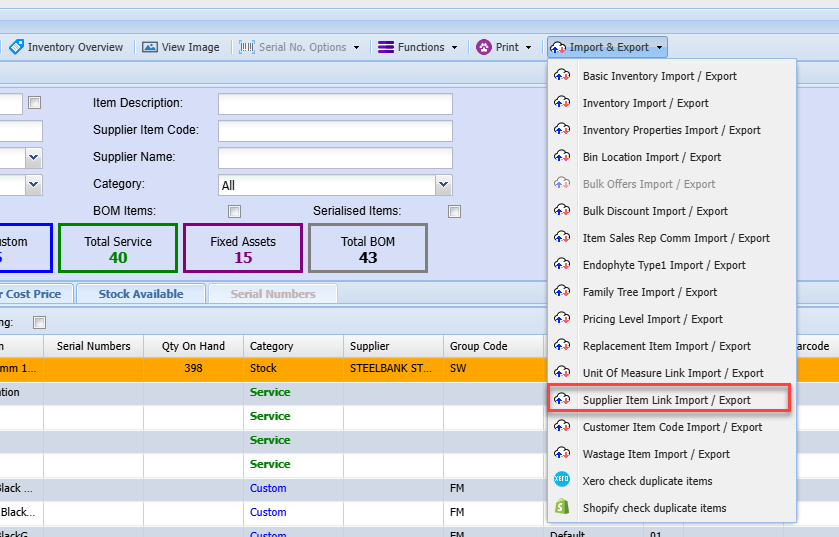
Supplier Item Link Import/ Export
This function is used to import and export the supplier item link information out of the system
Customer Item Code Import/ Export
This function is used to import and export the customer item code information out of the system
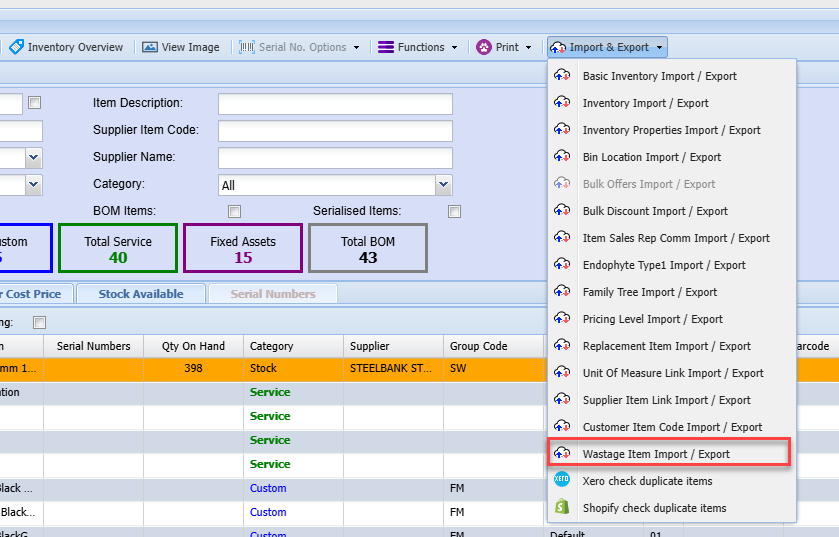
Wastage Item Import/ Export
This function is used to import and export the wastage item information out of the system
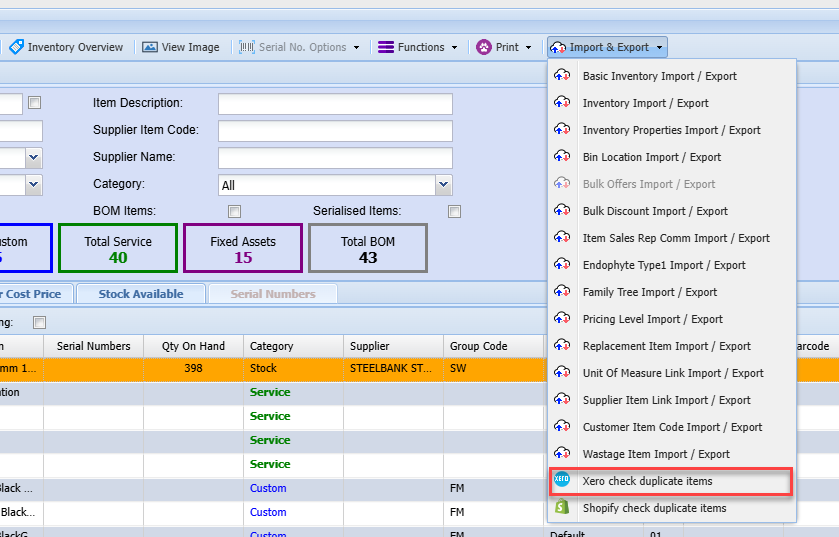
Xero Check duplicate items
This function allows a user to check duplicate items on Xero
This only you have Xero integration
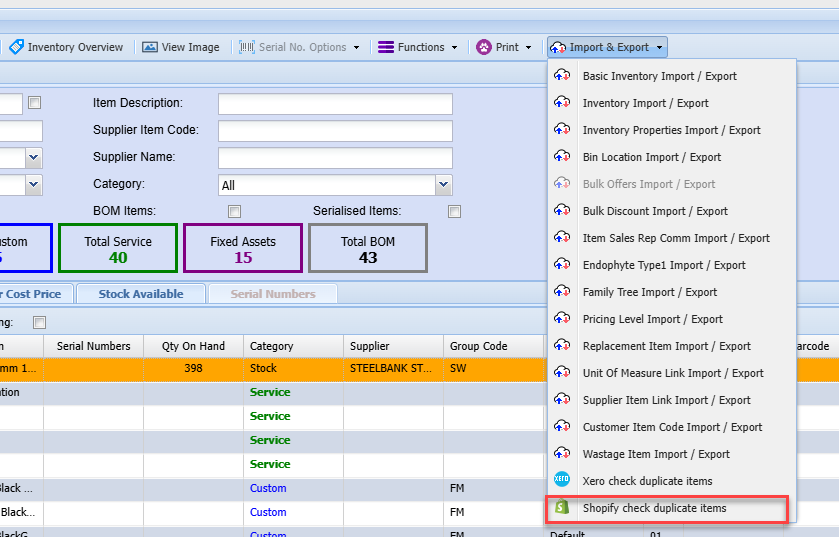
Shopify Check duplicate items
This will enable you to check any duplicated items on Shopify
This will only work if you have an integration with Shopify
No Comments