
Add Custom Item
Custom Item Setup
A custom item is a non stock item or intangible item that does not form part of your stock holding or stock control. Typically a custom item will be used for expenses that you wish to run through the creditors module and generate Purchase orders for.
Custom items can also be used for small consumables, such as screws, washers, etc used in manufacturing that you do not necessarily control stock quantities on.
There are 2 methods to create a custom item:
1. From Inventory Item setup
2. From the GL account setup
Custom item create from Inventory Setup:
Should you not have access to the General Ledger module, you can create a custom item as follows:
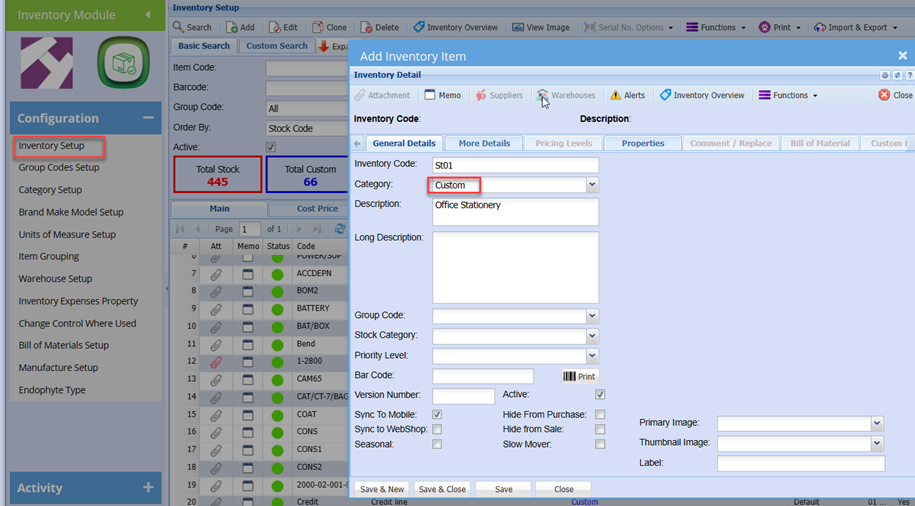
Go to: Inventory Module > Configuration > Inventory Setup
Click Add button
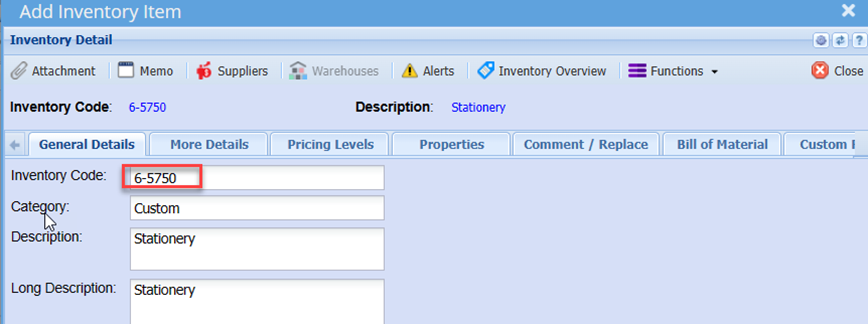
Enter a code
Enter a Description
Select the category: Custom
Enter any other relevant details such as group code, etc
You can tick the “Hide from Sales” box, which will exclude this item of sales document searches.
Click the more details tab
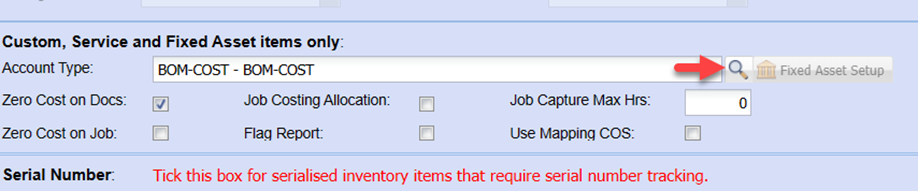
Select the required GL account for posting.
This is the GL account that the GRV needs to be posted to.
Leaving the default account: Cost of Sales General will result in the GRV entry being posted to Cost of sales instead of the requires Expense Account.
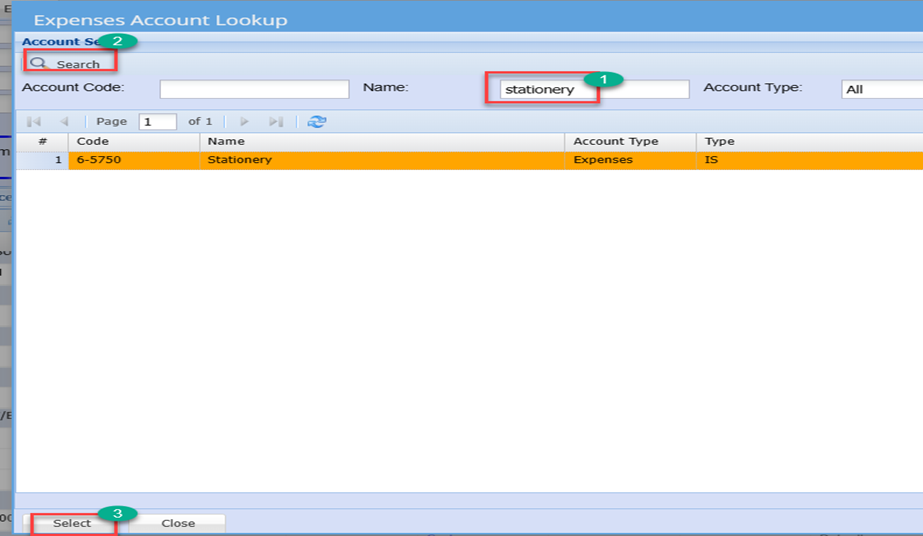
To search the required GL Account, click the long search icon
Then enter the account description
Click Search
Click Select
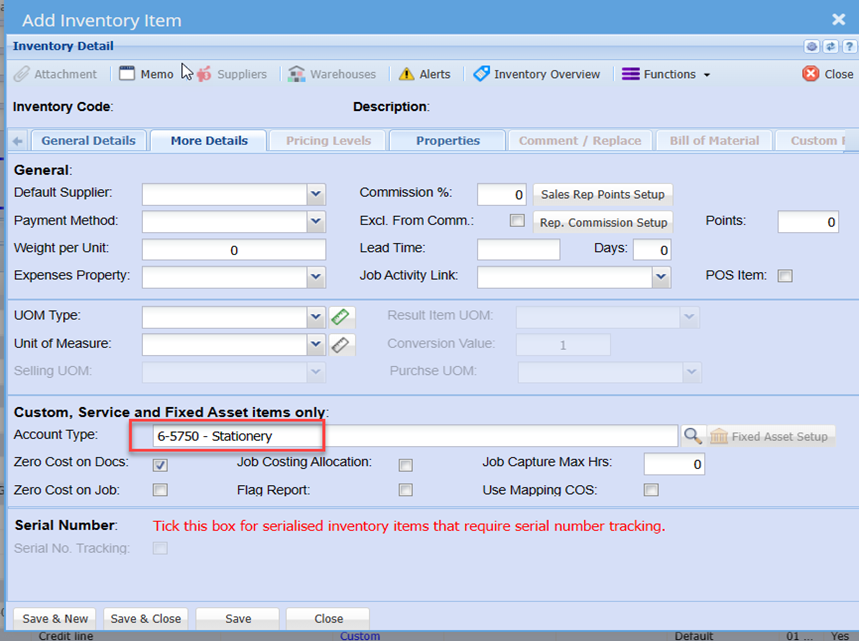
You will note the selected account is populated
Click Save
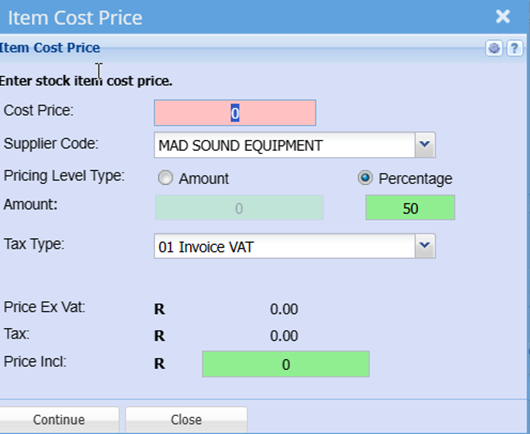
Enter a cost if required
Click Continue
Click save and close
To create a custom Item from General Ledger:
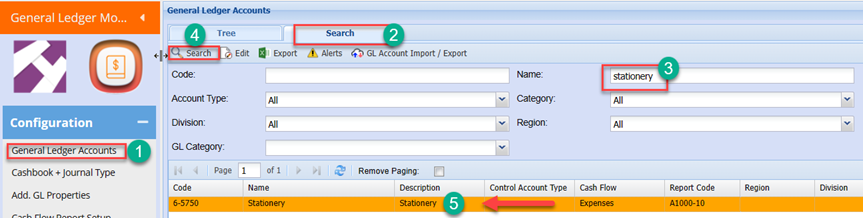
Go to General Ledger Module
Configuration > General Ledger Account
Search for the require GL account using the Tree structure, or
Click the Search Tab
Enter the GL account Code or Description
Click Search
Edit the GL Account
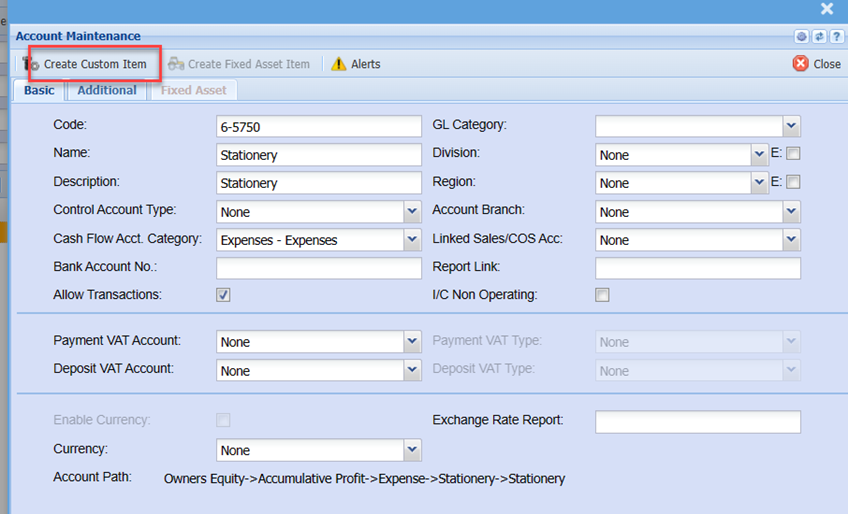
Click the Create Custom item Button
You will notice all the details have been populated as per the setup shown in creating Custom item from inventory above
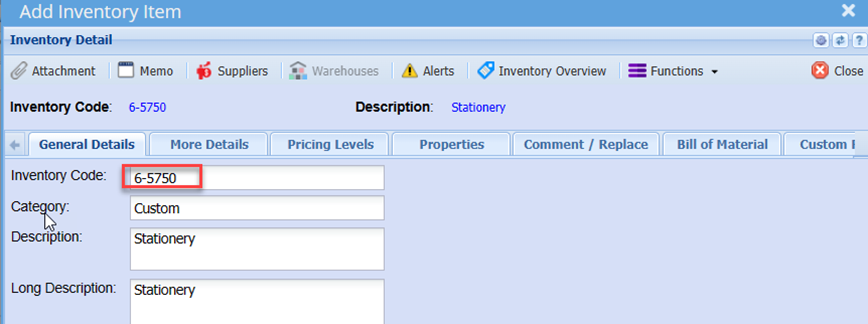
Click Save And Close
No Comments