
Serial Number Import (Sales Order Confirm)
When picking large orders leaving from CSN, serials can be picked using this import.
An example XML file is attached.
See attached video. Click Here
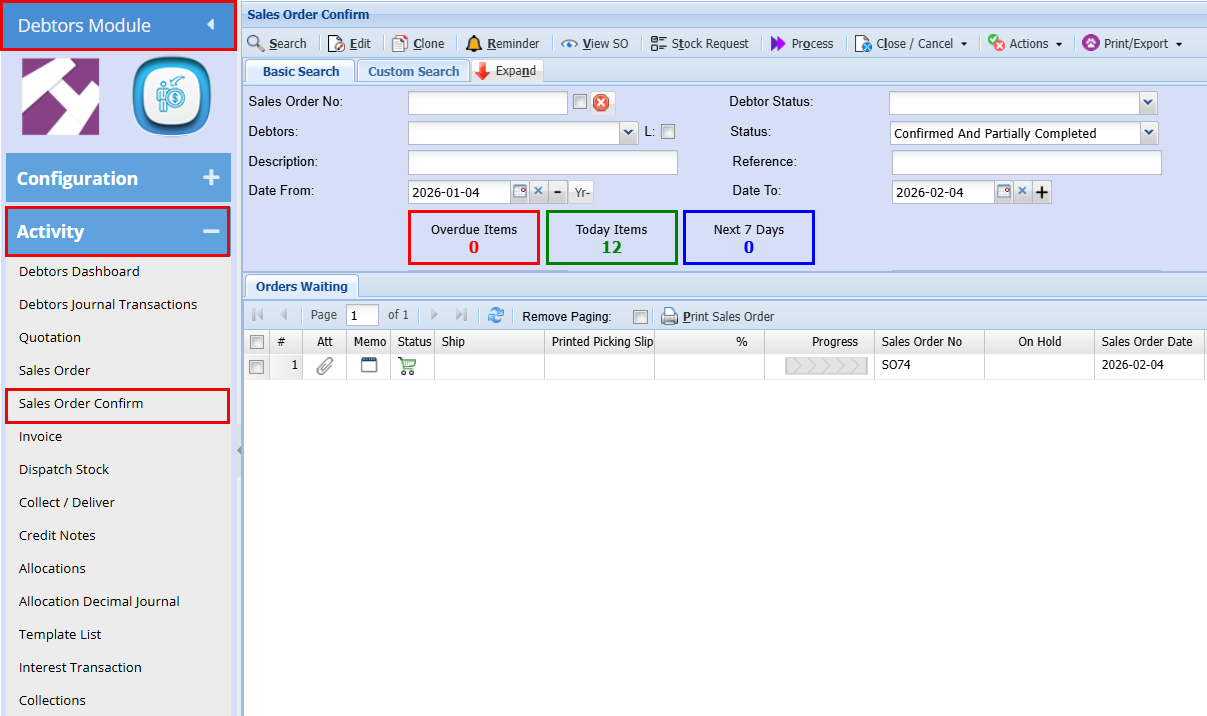
Debtors Module > Activity > Sales Order Confirm
- Find the sales order you are wanting to import serial numbers for
- Double click to open the sales order
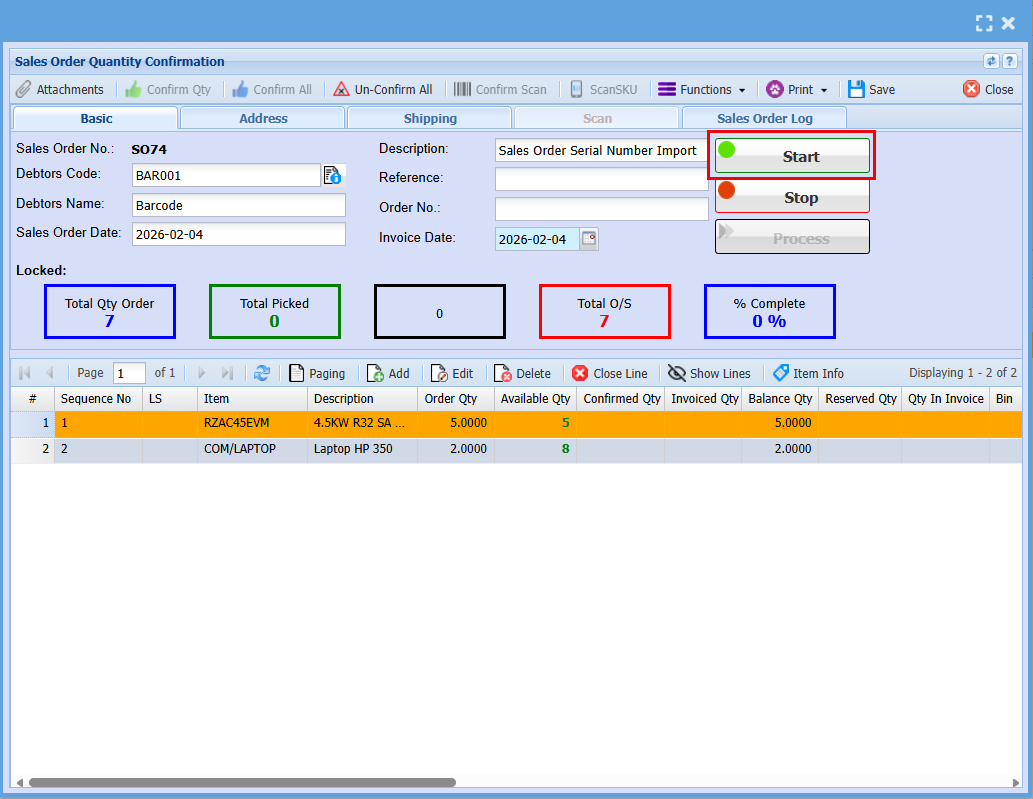
-
Click Start to begin your picking. You won’t be able to import serial numbers until you have clicked Start.
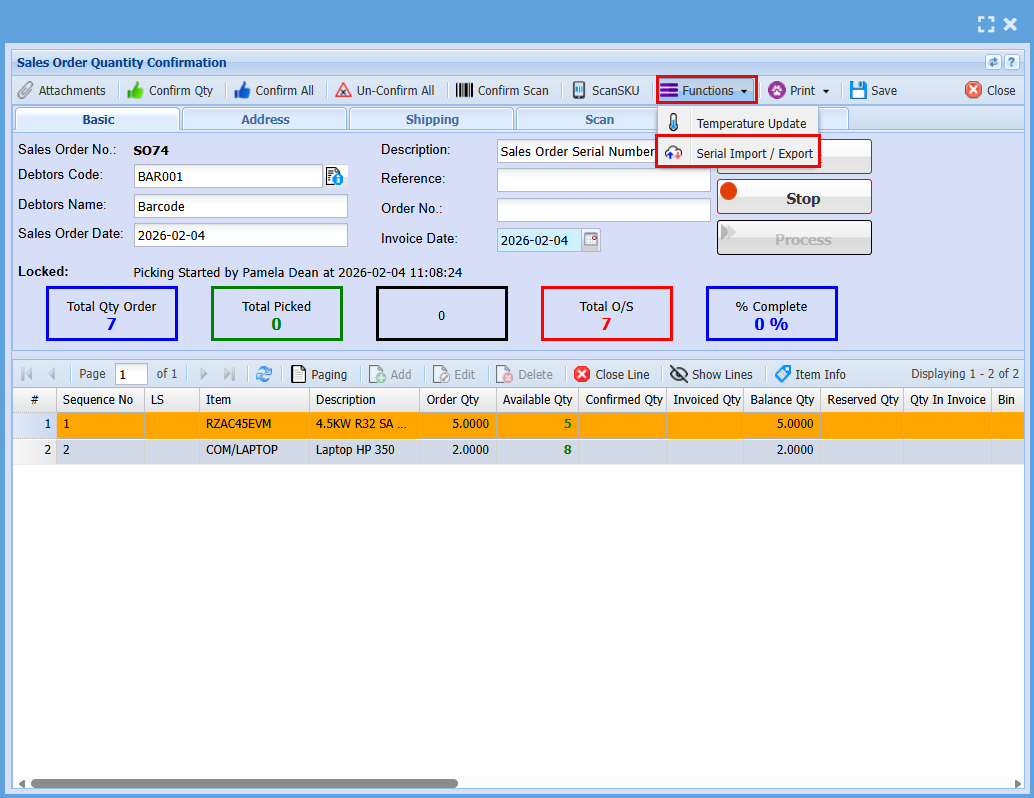
- Click the "Functions" drop-down menu
- Click on "Serial Import/Export"
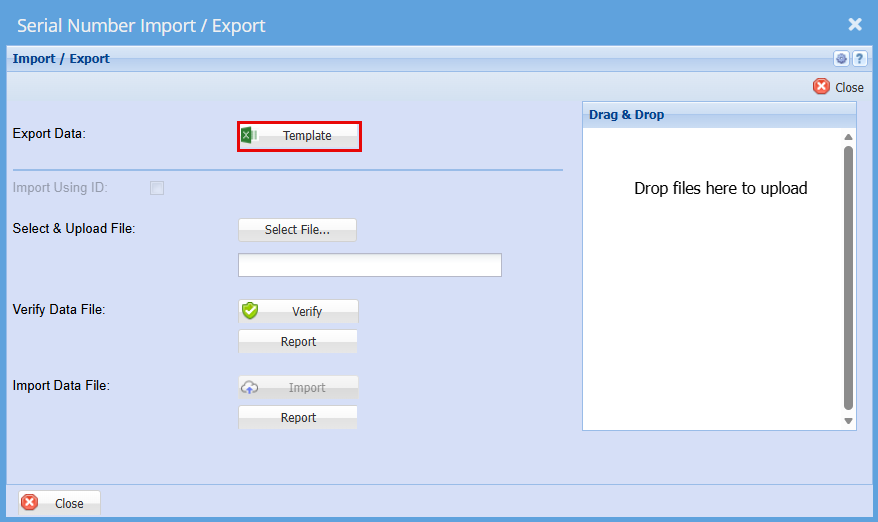
A window will appear allowing you to export a template that can be used for the import.
- Click on "Template" this will download an excel file
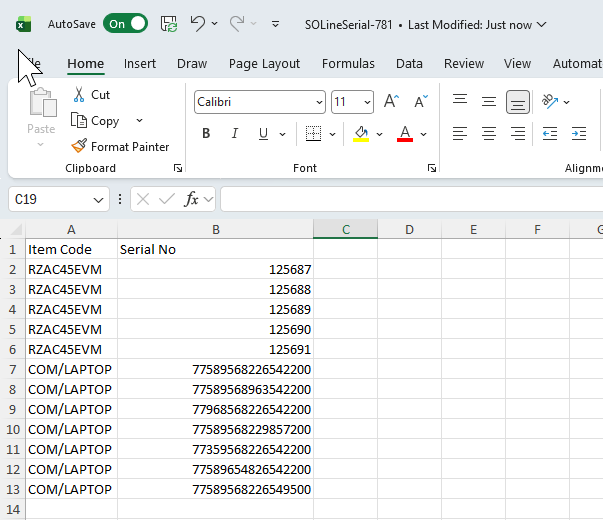
- Enter the serial numbers into the spreadsheet, with each item listed on a separate line as shown below.
- Save the file to your computer.
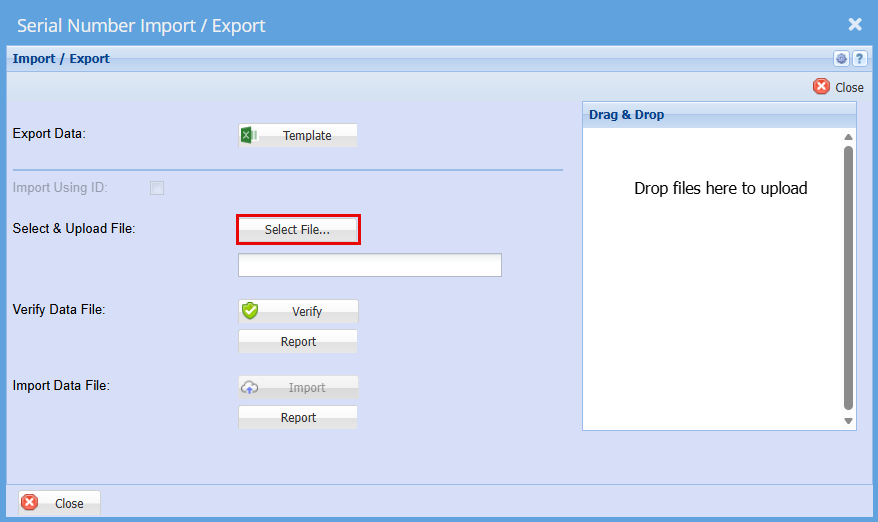
- Go back to the "Serial Number Import/Export" Screen
- Click "Select File"
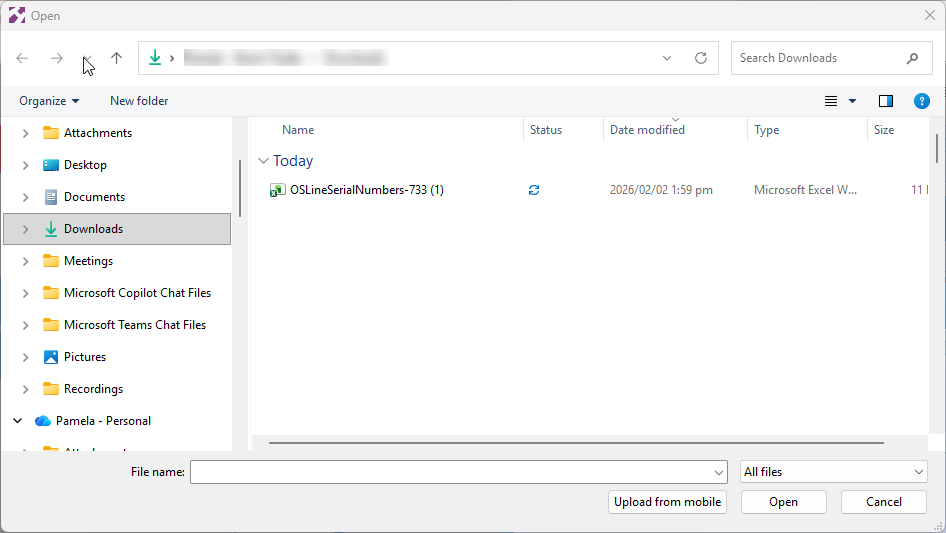
- Find the file you have saved.
- "Double Click" the file or click "Open"
You should get a Successful Import
- Click "Verify"
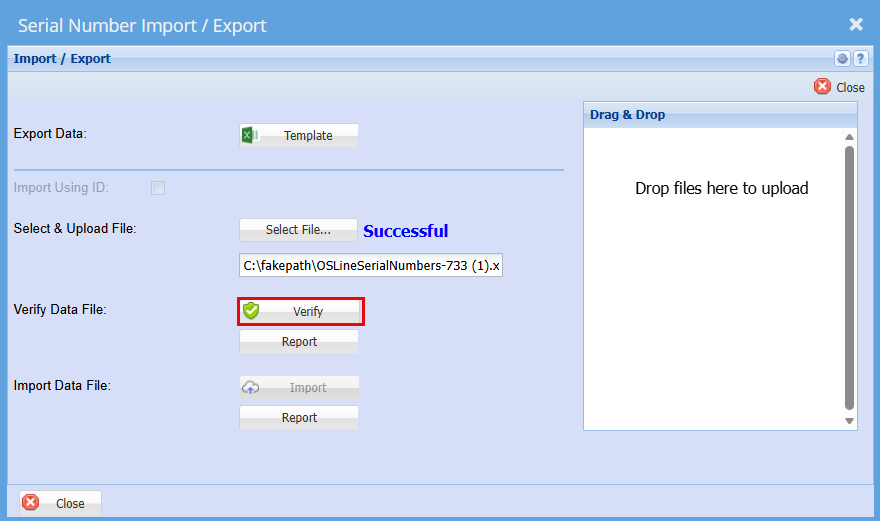
You should again get a successful for verification
- Click "Import"
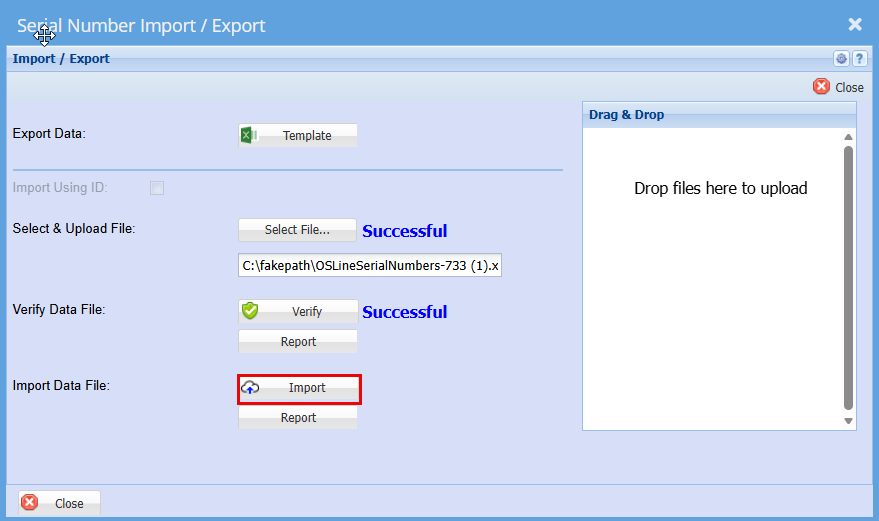
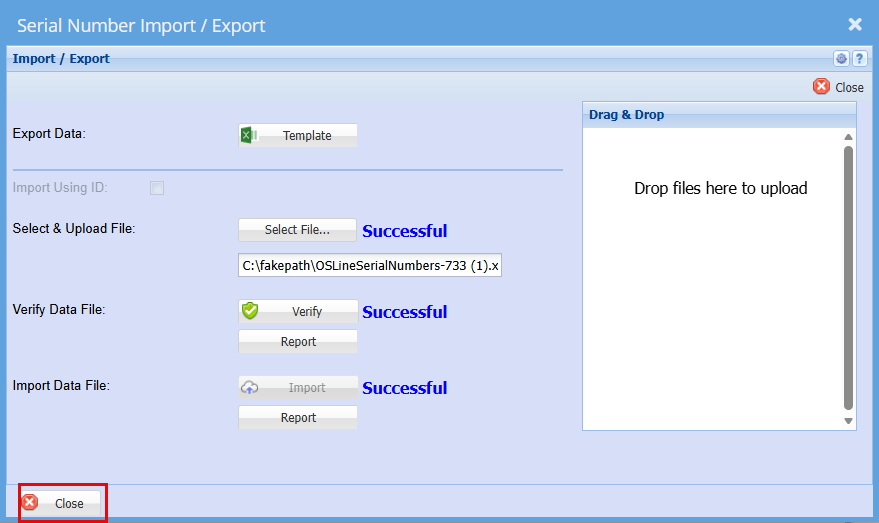
You should then get a Successful for Import.
Click "Close"
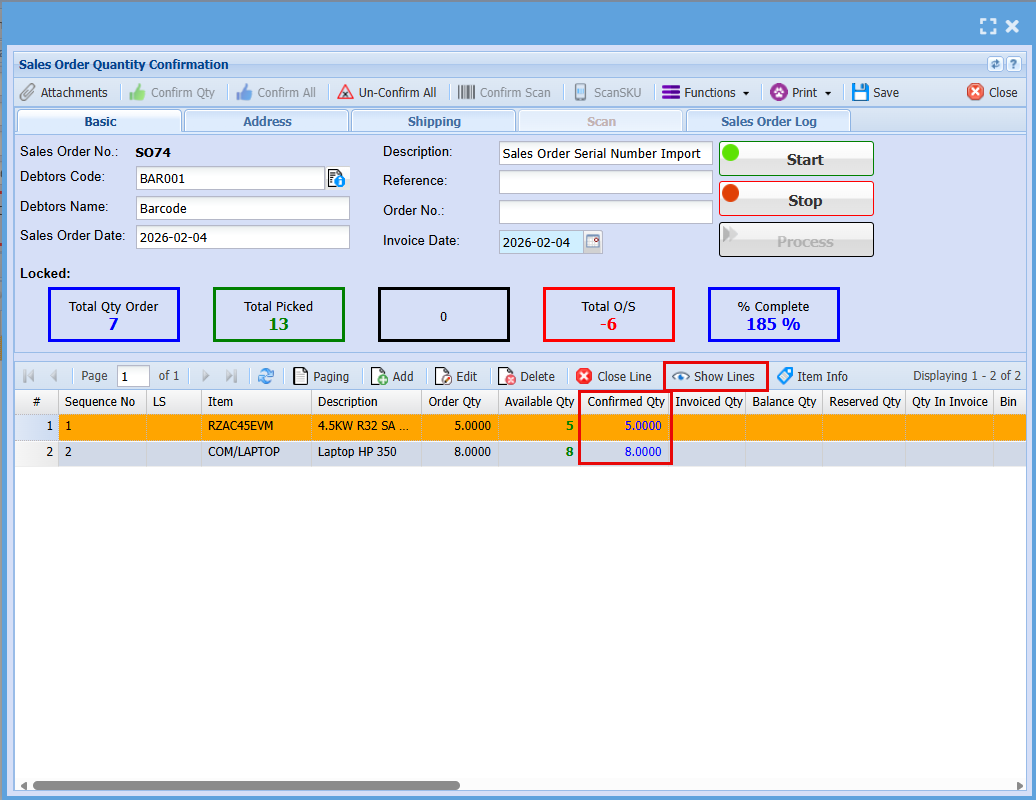
You can go check to make sure by clicking the "Show Lines" button
You will see the "Received Qty" values update.
No Comments