
Add Sales Order
Detail Tab
Debtors Module> Activity> Sales Order
The Sales Orders screen will open
To search for existing Sales Orders, select your search criteria and click search
Search criteria can be sales order description, order number, customer name, etc
Select a date range
To create a new Sales Order, Click the Add Button as shown below

After clicking Add the screen below will appear
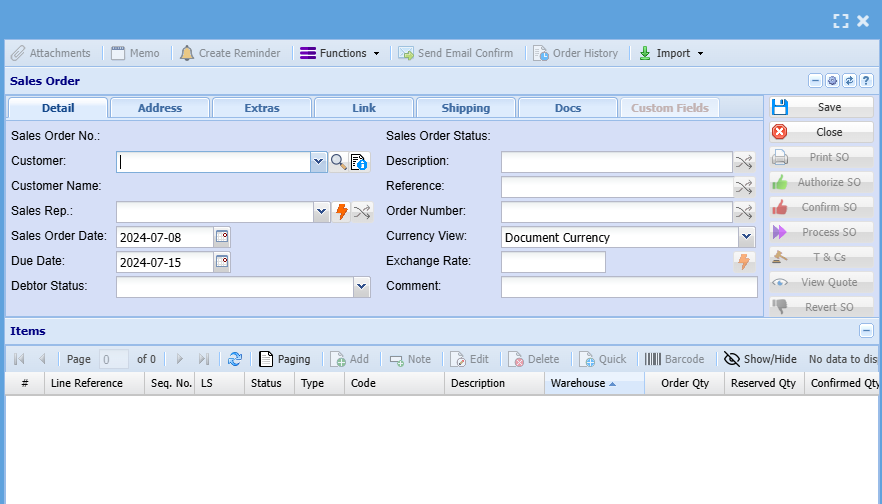
Add information below so that the greyed-out buttons can appear:
- Select the customer/ debtor you are creating a sales order for, from the drop-down menu.
- Select the sales rep on the drop-down selection, if applicable
- Update dates if necessary
- Add description and reference
- Add order number, if applicable
Then, once you are done adding all relevant information click Save and all the greyed-out buttons will be opened as shown

Add Line Items
You can only add a line item after adding all the necessary information needed on the sales order details tab and all greyed buttons have been greyed out
To add line items click on the middle Add Button shown below
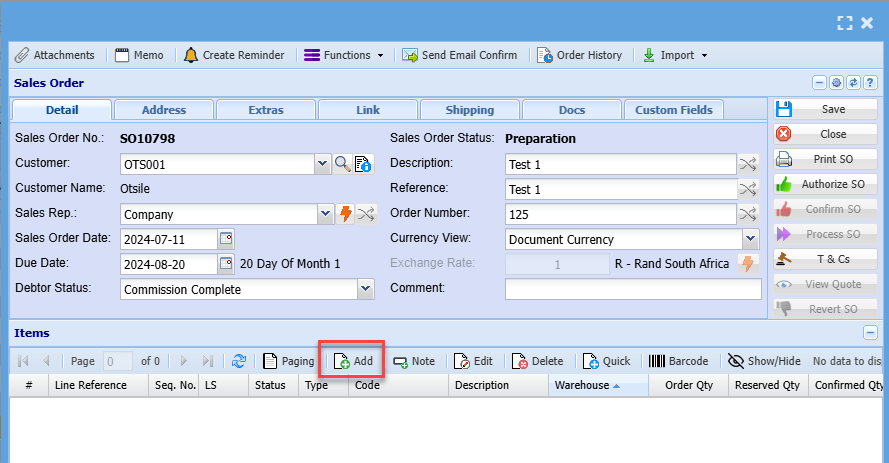
Then the screen below will appear
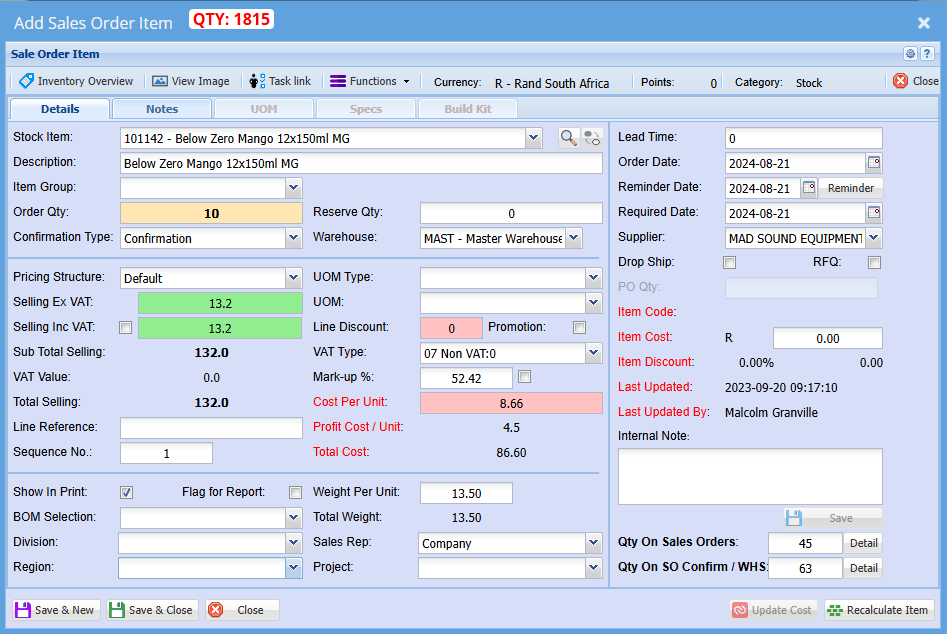
Select the item you wish to create a sales order for on the drop-down selection
You can also search for the item by using part of the code or the name of the item
You can change the description to match what you want to see on a sales order or leave it as it is
Enter the quantity or how many items you creating a sales order for
Make sure pricing is correct
Select a relevant warehouse if you have multiple warehouses
Select the correct VAT Type
Click Save & Close if capturing numerous line items
Click Save & Close if capturing a single line item
Once done
All line items will appear on the grid below
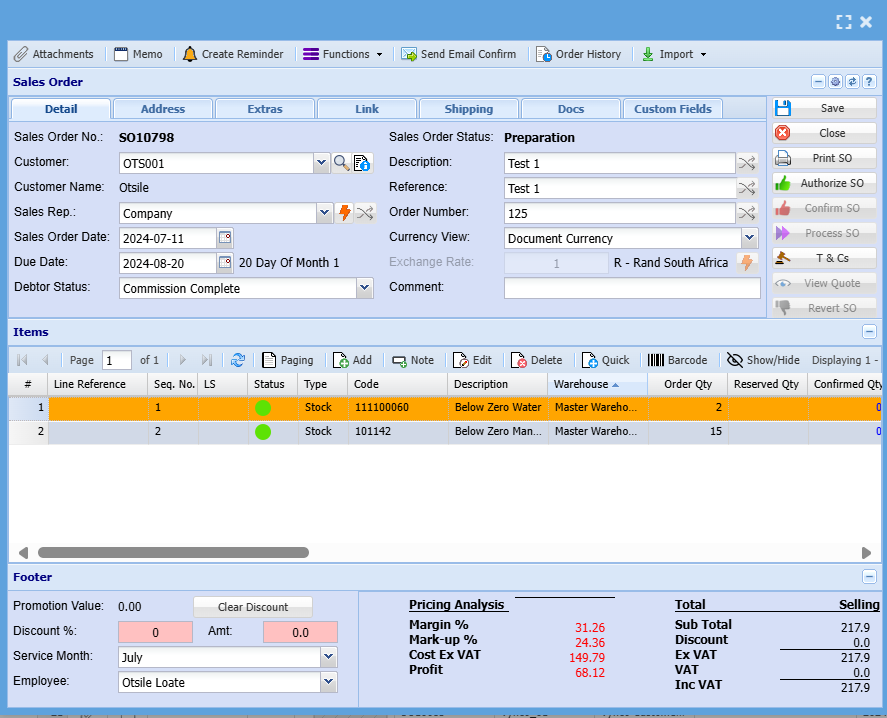
After capturing you can send it to a relevant person to authorize the SO
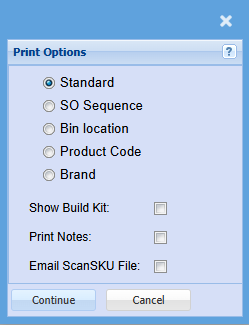
Sales order Printing Options
After clicking confirm the printing options will pop up below:
Click here to see a manual on how to confirm sales order quantity
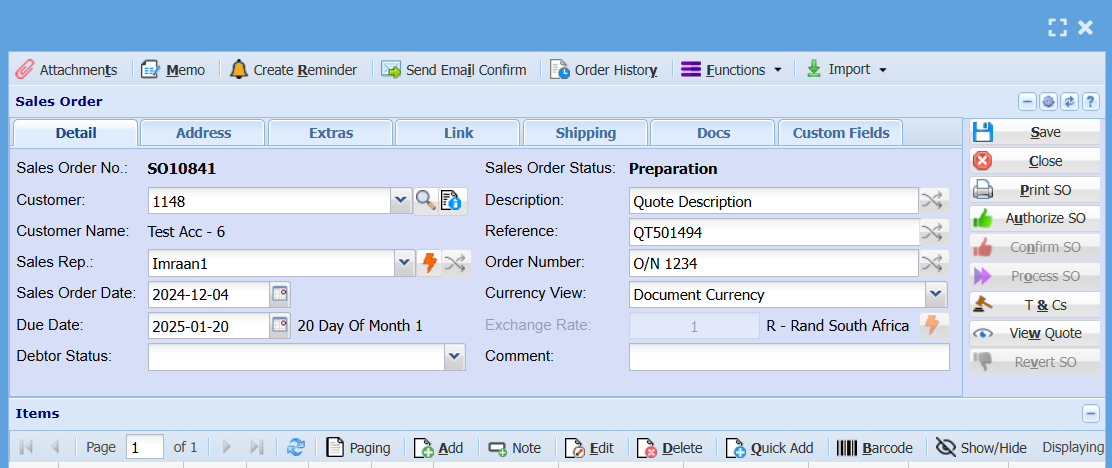
Keyboard quick keys for Sales Order Detail
Quick keys help access functions using the keyboard
Used with Alt + Letter
| Attachment | Alt + t | Opens the Attachment window |
| Memo | Alt + m | Opens the Memo window |
| Create Reminder | Alt + r | Opens the Reminder window |
| Send Email Confirmation | Alt + i | Sends an email to the contact person on Confirmation of Sales Order |
| Order History | Alt + o | Opens the Order History window |
| Functions | Alt + f | Focus on the Function split button |
| Save | Alt + s | Saves the sales order |
| Close | Alt + c | Closes the sales order window |
| Print SO | Alt + p |
Print the Sales Order |
| Authorize SO | Alt + u |
Authorize the Sales Order |
| Confirm SO | Alt + n |
Confirm the Sales Order |
| Process SO | Alt + o |
Process the Sales Order |
| T & Cs | Alt + & |
Opens the Terms and Conditions window |
| View Quote | Alt + w |
Opens the associated quote for viewing (if applicable) |
| Revert SO | Alt + v |
Resets the Sales Order to Preparation Status |
| Add |
Alt + a |
Opens a New Sales Order Line Detail window |
| Edit | Alt + e |
Opens the Sales Order Line Detail window for the selected sales order line |
| Delete | Alt + d |
Deletes the selected line from the sales order |
| Quick Add | Alt + q |
Opens the quick add window to add a sales order line to the sales order |
| Barcode | Alt + b |
Opens the Barcode window to add an item using barcode scanning |
| Attachment Button | Alt + 0 | Focus on the Attachment button |
| Tab Sales Order Detail | Alt + 1 | Sets the tab notebook to the Sales Order Detail tab |
| Alt + 2 | Pressing Alt + 2 repeatedly will step through the various tabs in the tabnotebook |
Keyboard quick keys for Sales Order Line Item Detail
Quick keys help access functions using the keyboard
Used with Alt + Letter


| Inventory Overview | Alt + o | Opens the Inventory Overview window |
| View Image | Alt + i | Opens the View Image window |
| Task Link | Alt + t | Opens the Special Item window |
| Close | Alt + c | Closes the Sales Order window |
| Reminder | Alt + r | Opens the Reminder window |
| Functions | Alt + f | Focus on the Function split button |
| Save & New | Alt + n |
Saves the Sales Order Item Detail window and opens a new SO Item window |
| Save & Close | Alt + v |
Saves the Sales Order Item Detail window and then closes the window |
| Update Cost |
Alt + u |
Updates the cost of the selected item to the latest cost price |
| Recalculate Item | Alt + l |
Recalculates the Sales Order Item's values Mark-Up %, Costs etc. |
| Inventory Overview | Alt + 0 |
Focus on the Inventory Over button |
| Tab Quote Item Detail | Alt + 1 | Sets the tab notebook to the Quote Item Detail tab |
| Alt + 2 | Pressing Alt + 2 repeatedly will step through the various tabs in the tab notebook |
No Comments