
Debtors Journal Transactions Import
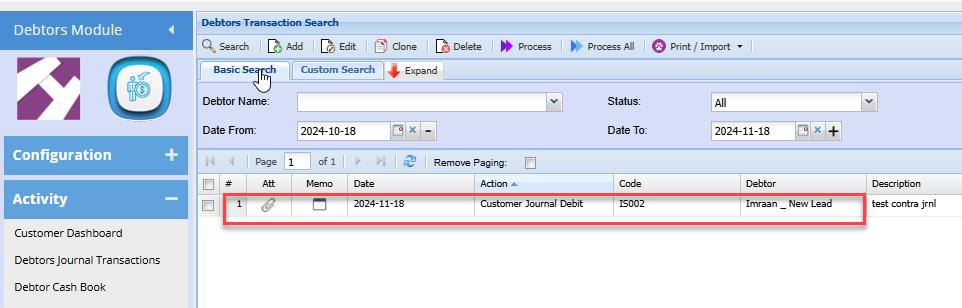
Print / Import function
This function allows you to print existing debtor/customer journal transactions and import new journals to the system.
Import clone refers to loading an existing debtor from the system. All you need to do is make changes as per current journal.
Debtors Module >Activity > Debtors Transactions > Print /Import
.png)
Print option will take you to print the selected debtor's transaction.
.png)
Import takes you to the option of bringing in data from a saved csv file
.png)
See the process of importing a debtor/ customer journal transaction into the system:
- Click Select
- Upload
- After, uploading the CSV file the import button will open allowing you to import the file into the system
- Once, complete click close
Important CSV File notes and format tips:
- The file must be saved as a CSV
- Don't put commas in your file
- Fields for values mostly require codes of those fields
- The date format must be 2020/01/01 YYYY/MM/DD
- The column headings can be left in the import file.
See the file Layout for CSV file:
|
1 |
AccountCode |
Required |
|
2 |
Date |
Required |
|
3 |
Reference |
Required |
|
4 |
Description |
Required |
|
5 |
Amount Inc Vat |
Required |
|
6 |
ExchangeRate |
Required (Default 1) |
|
7 |
Action |
Required |
|
8 |
TaxType |
Enter the applicable VAT type |
|
9 |
AutoAllocate |
1/0 |
|
10 |
CheckZero |
1/0 |
|
11 |
Division |
Enter the Division code (if applciable) |
|
12 |
Region |
enetyr the Region code (if applciable) |
|
13 |
GL Account |
Required |
Import Clone
To import a cloned journal, one will need to create the clone form an existing journal transaction.
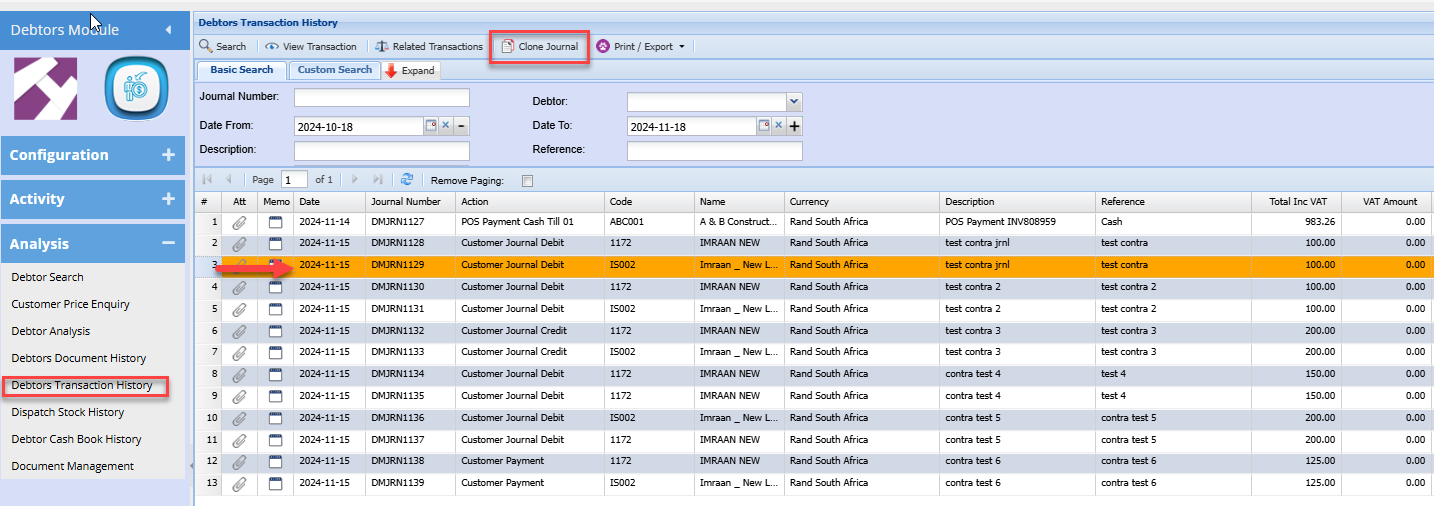
To create a journal clone go to:
Debtor module> Analysis> Debtors Transaction history
Search the required Journal
Click the Clone Journal button
Continue
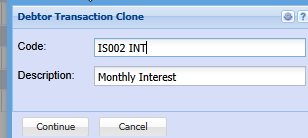
This will create a clone that can be used anytime in the future
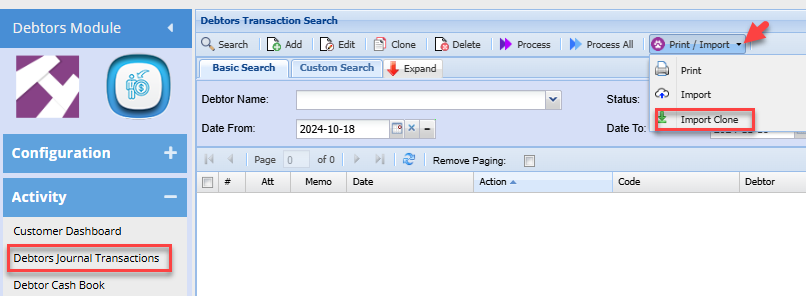
to import the cloned journal go to:
Debtors > Activity > Debtors Journal transactions
Click the Print / import Drop down
Select Import clone
Search the required clone
Click Import
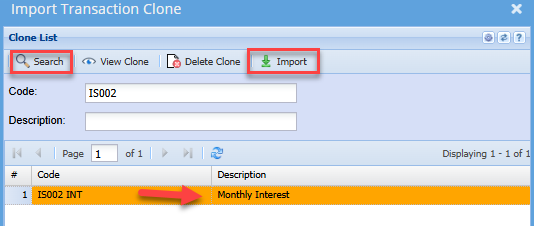
This creates a clone of the initial journal.
You can then make any necessary edits and process the journal as normal
No Comments