
Move a payment to another customer
Debtors Module> Analysis> Debtor Analysis
Move a payment to another customer when payment was incorrectly processed to the wrong customer account.
They currently show an outstanding balance of $115 but have confirmed payment.
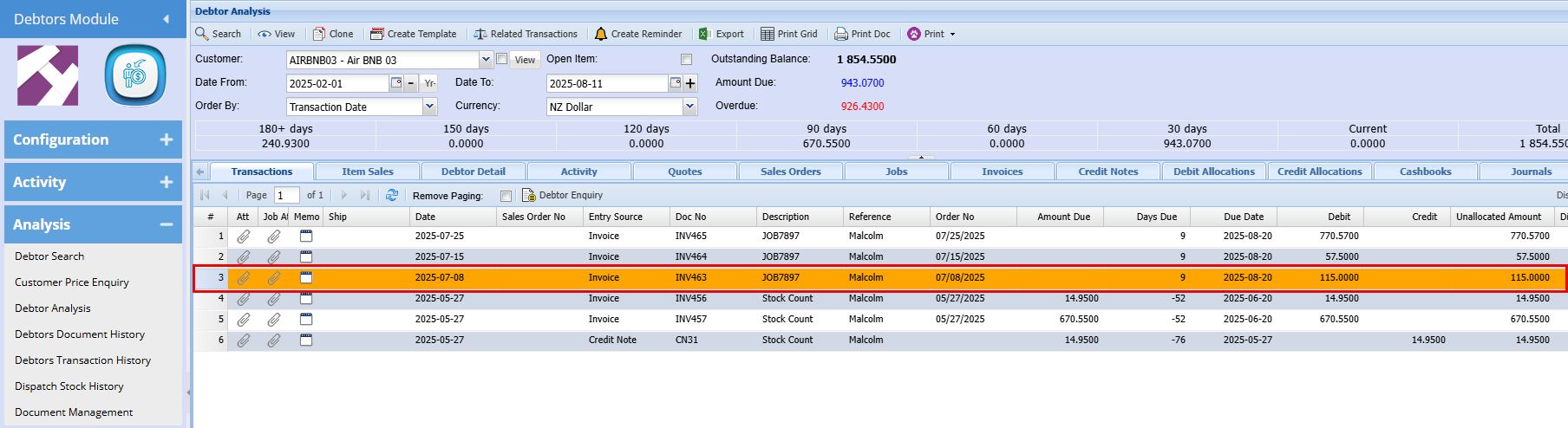
A payment was mistakenly applied to the wrong customer account. Upon review of the cashbook, you find the funds were incorrectly allocated to AIR BMB 01 instead of AIR BMB 03.
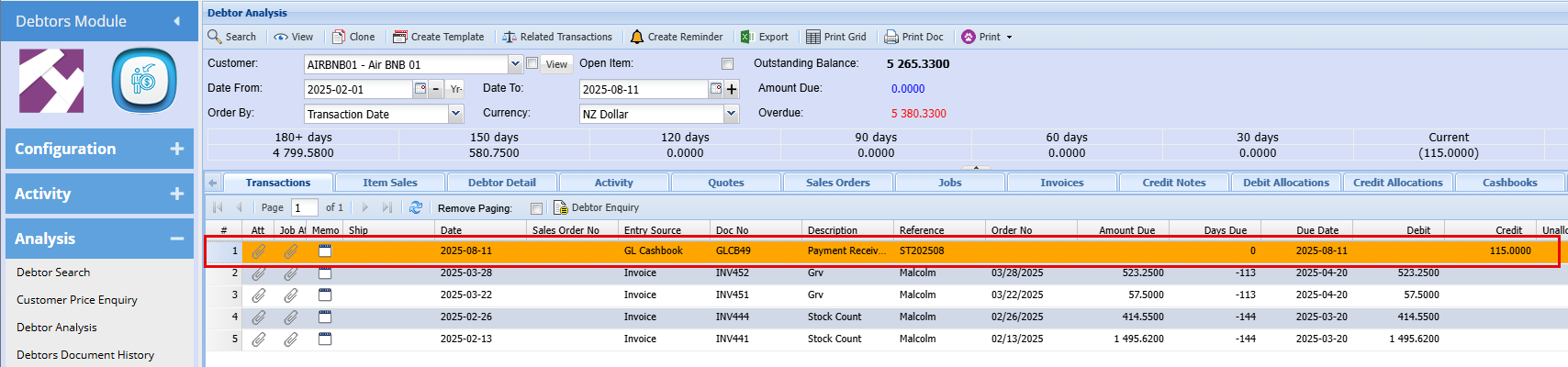
To resolve this, we need to adjust the incorrect account which in this case is AIR BMB 01. When determining whether to apply a debit or credit, simply perform the opposite of what currently appears in the account.
In this case, as shown below the $115 is in the Credit column and you’ll therefore need to process a Debit to AIR BMB 01 to reverse the misallocation.
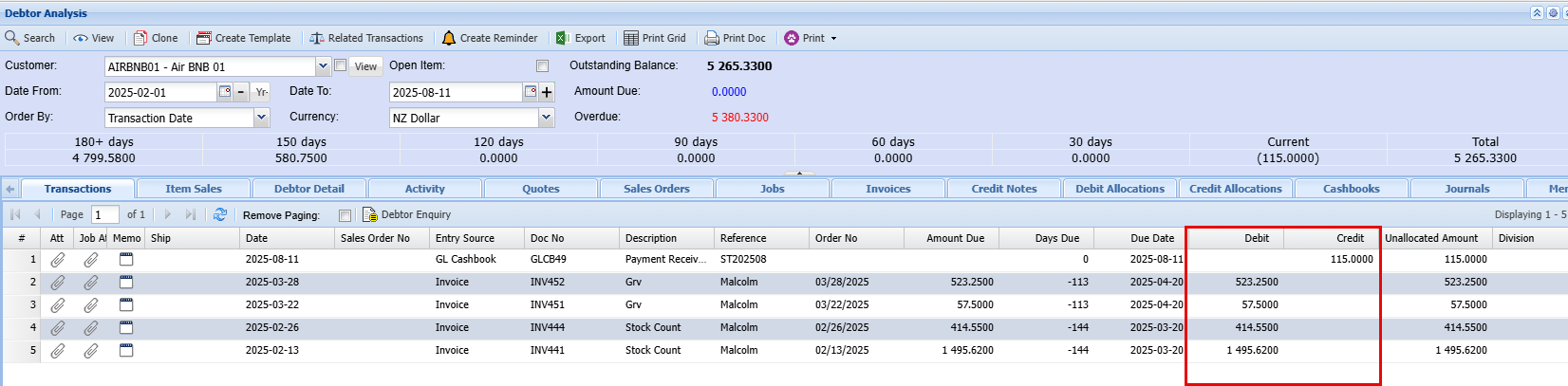
If you're working within the Allocations screen, the same principle applies:
When the amount appears in the Credit lines, you’ll need to process a Debit to correct it
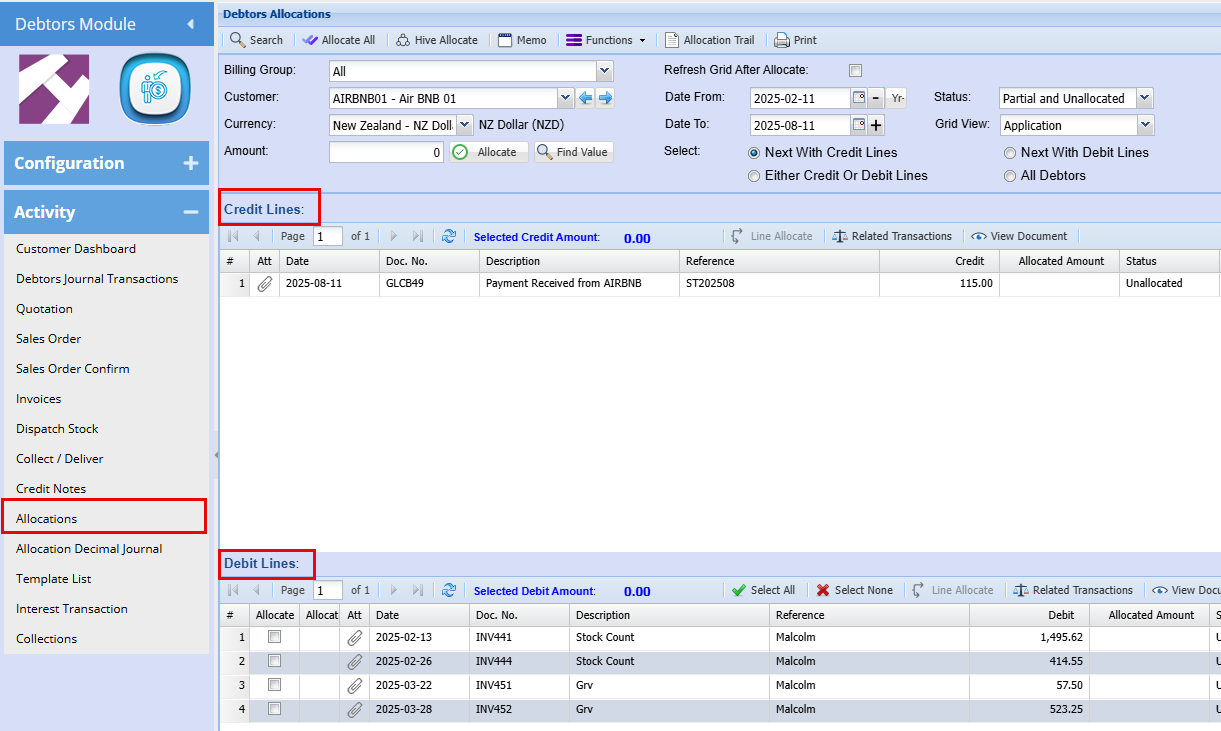
We now need to process a Debtors Journal Transaction to counter this error
Creating a Debtors Journal Debit
Debtors Module> Activity> Debtors Journal Transaction
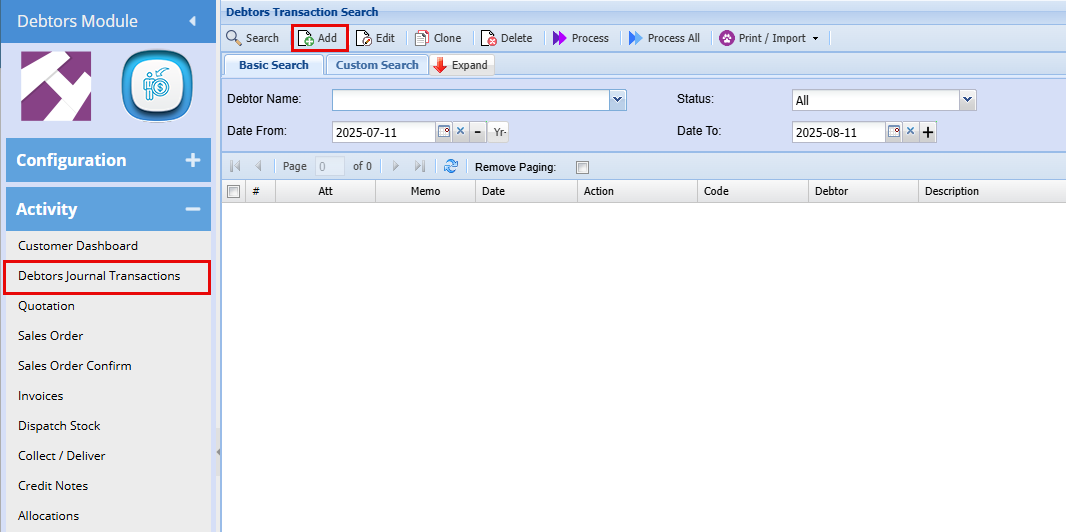
Click “Add” to begin a new transaction.
Complete the required fields, then click “Next.
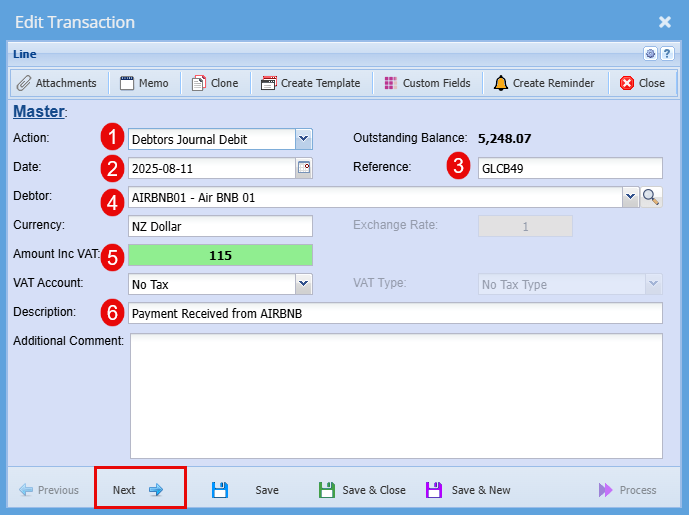
| Action | Select Debtors Journal Debit |
| Date |
Ideally, use the same date the payment was received to ensure accurate reconciliation |
| Reference |
Use a reference that links directly to the transaction you're correcting—such as the original document number. |
| Debtor | Select the name of the debtor associated with the correction. |
| Amount | Enter the exact amount being corrected, inclusive of GST if applicable. |
| Description | For consistency, use the same description that appeared on the original payment (e.g., “Payment Received from AIRBNB”). |
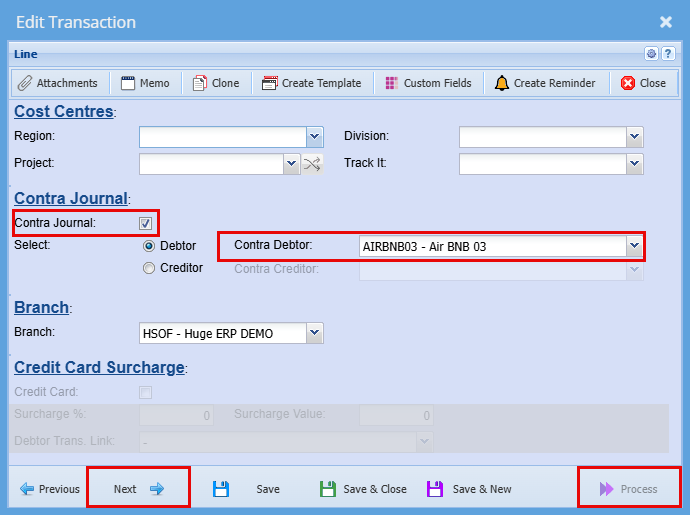
Applying a Payment via Contra Journal
- Tick the “Contra Journal” checkbox to indicate this is a contra entry.
- Select the appropriate debtor from the “Contra Debtor” dropdown, this is the account the payment will be applied to.
- Once all relevant fields are completed, click “Next" this will open the Process button.
- Click “Process” to apply the journal entry and update the debtor’s account accordingly.
If you have a look at each of the customers now you will see the correction.
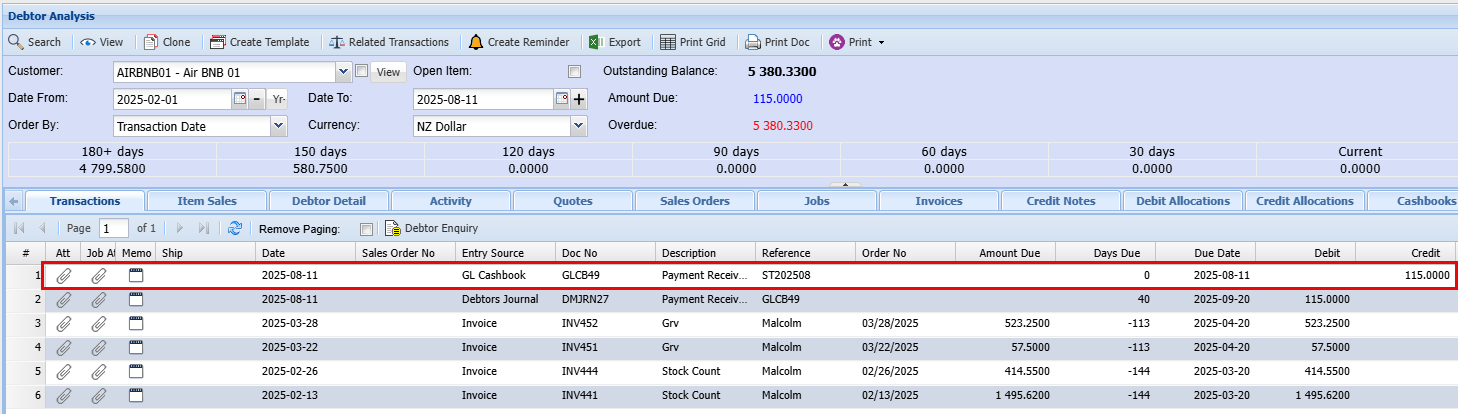
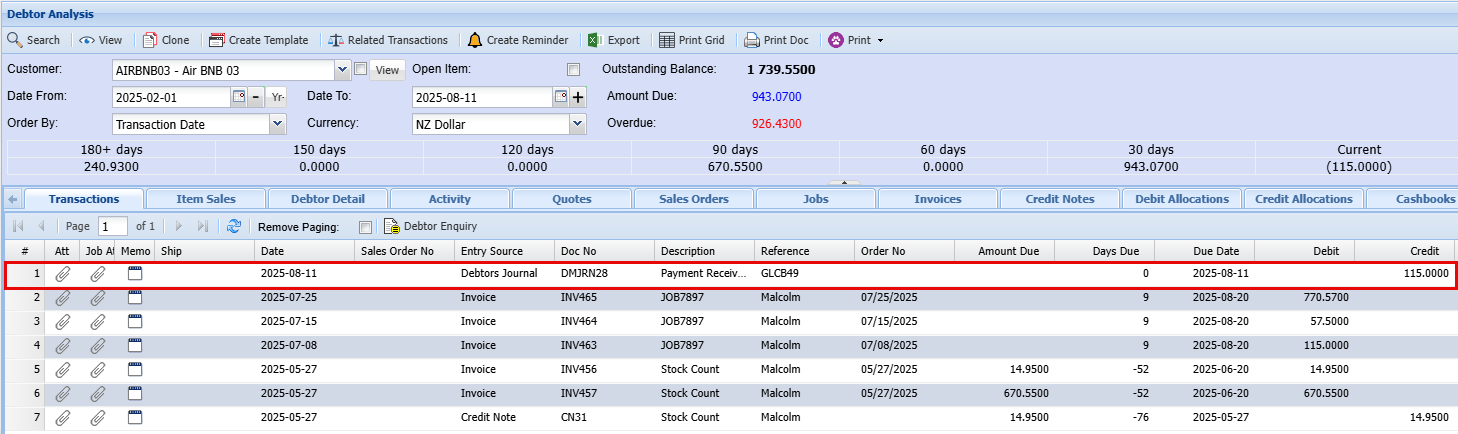
To finalize the process correctly, you’ll need to complete allocations on both debtor accounts. This ensures that all transactions are accurately reconciled, and the accounts reflect the intended balances
Allocations
Debtors Module> Activity> Allocations
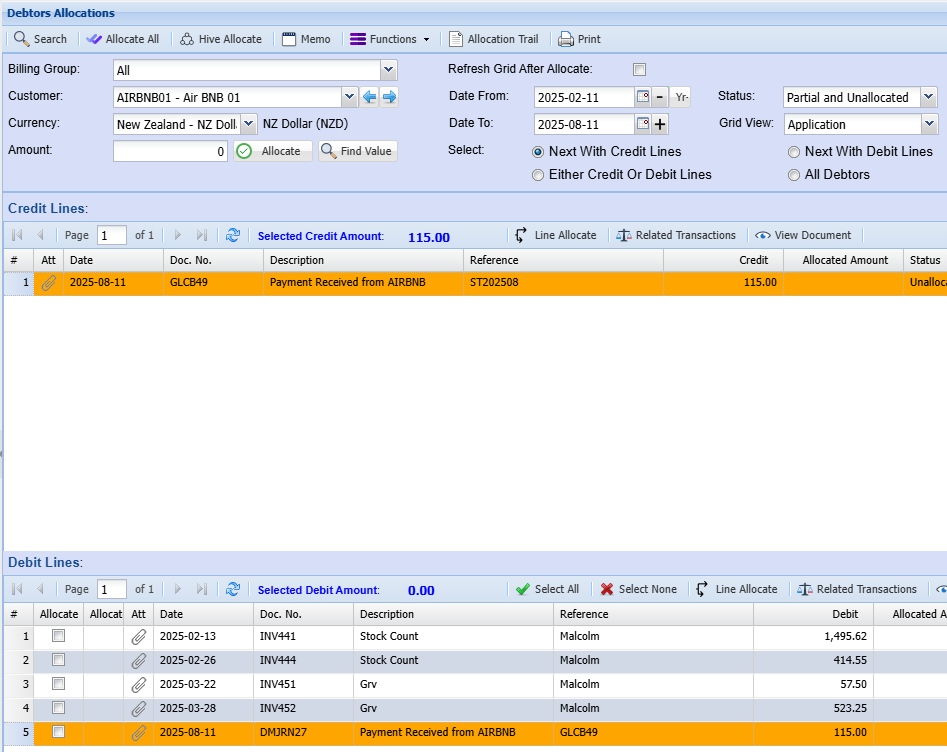
-
Locate matching entries in both the Credit and Debit sections.
Focus on transactions with the same amount, date, and reference—such as a payment received and its corresponding invoice or debit note.- Select the matching lines by highlighting the relevant transaction in the Credit section and ticking the checkbox beside the corresponding entry in the Debit section.
- Once both lines are selected, click Allocate to process the transaction.
This action reconciles the payment against the appropriate debit entry, ensuring accurate account alignment.
No Comments