
Invoice Search
To search for invoices go to:
Debtors Module> Activity Invoice
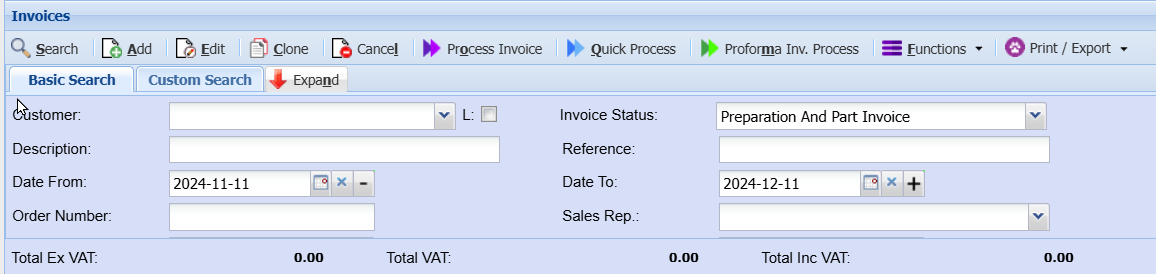
The screen recalls invoices based on the invoice status and date range selected.
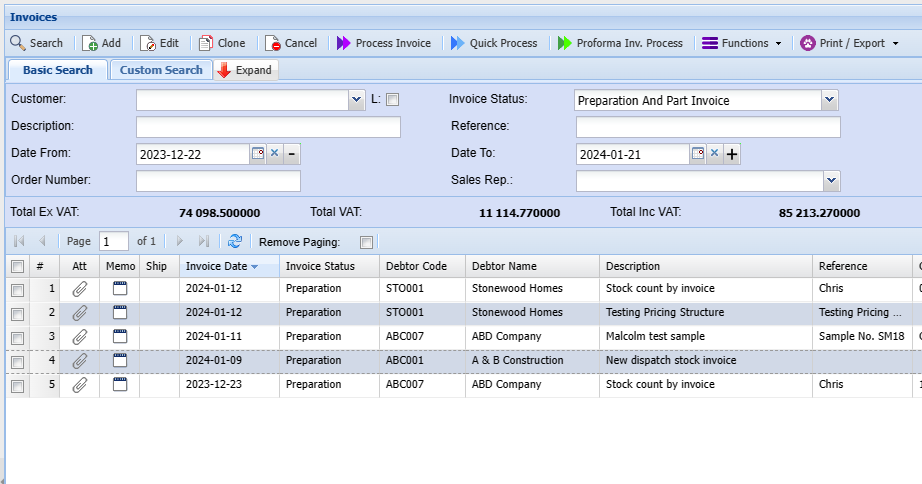
| Search | Search open invoices, Preparation, Pro-forma invoices |
| Add | Add a new invoice |
| Edit | Edit an existing invoice |
| Clone | Copy an existing invoice |
| Cancel | Cancel Invoice |
| Process invoice | Process a single invoice |
| Quick Process | Process multiple selected invoices |
| Proforma Invoice Process | Process a Proforma invoice |
| Functions | Click drop-down for the function |
| Print / Export |
Print invoice Print grid Export |
L Tick in Search
The L tick searches for the customer link and not the customer
.png)
The customer link is on the Link tab
.png)
Functions dropdown
Debtors/Customers> Activity> Invoice> Functions Dropdown
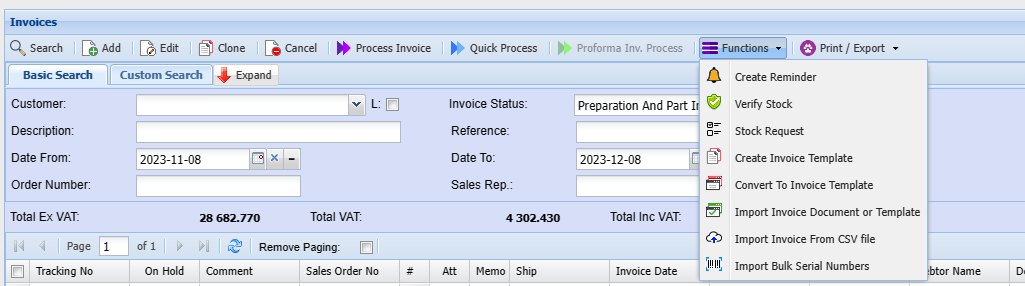
| Create Reminder | Create reminder allows you to create a reminder on a specific invoice or invoices |
| Verify Stock | A report gets generated that confirms if stock items are available to process the invoice. |
| Stock Request | Stock request - In a case where stock is not available a stock request can be generated |
| Create Invoice Template | Create a template for later use. |
| Convert To Invoice Template |
Allows you to change an invoice to a template |
| Import Invoice Document or Template | This feature allows one to import posted, non-posted and template invoices and quotes into a new invoice or quote. |
| Import Invoice From CSV File | Allows you to bring in multiple invoices to the system |
| Import Bulk Serial Numbers | Allows you to bring in multiple serial numbers into the system |
Verify Stock
Verify Stock- A report gets generated that confirms if stock items are available to process the invoice.
Stock request - In a case where stock is not available a stock request can be generated.
.png)
Stock Request
This function creates a stock request automatically for the items on the invoice. The stock request is then used bt the storeman to draw the require stock form the stores.
Create Invoice Template
Create Invoice Template - create a template for later use.
Convert to Invoice Template
.png)
Clone Invoice Help
An Invoice Clone is a copy of the selected invoice.
Once a clone has been created the clone can be used repeatedly to create that same invoice
by importing the invoice clone.
When creating a clone a Code and Description is required.
Enter a suitable Code and Description and click Continue.
If the cloning process was successful a message stating “Invoice Clone created successfully.”
Click the Close button to return to the Invoice Search window.
Import Invoice Template
Clicking on the Search button with a combination of a Code and/or Description entered will return a result of the search in the grid.
The Code and Description can be left empty which will return all templates.
Clicking the Edit button will allow you to edit the invoice template.
Clicking the Delete button will allow you to delete the selected invoice template.
Clicking the Import Template will import the selected template and create a new invoice.
Once the import has been completed the new invoice will open
Convert To Invoice Template
This function will create an invoice template, which can be used to import for future invoices or recurring invoices
In order to do this, one needs to capture the invoice to begin with
Capture the invoice as follows:
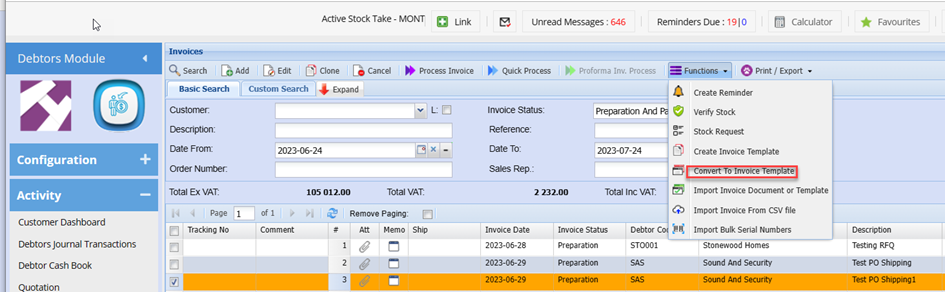
Debtors Module> Activity> Invoices> Functions Drop Down> Convert To Invoice Template
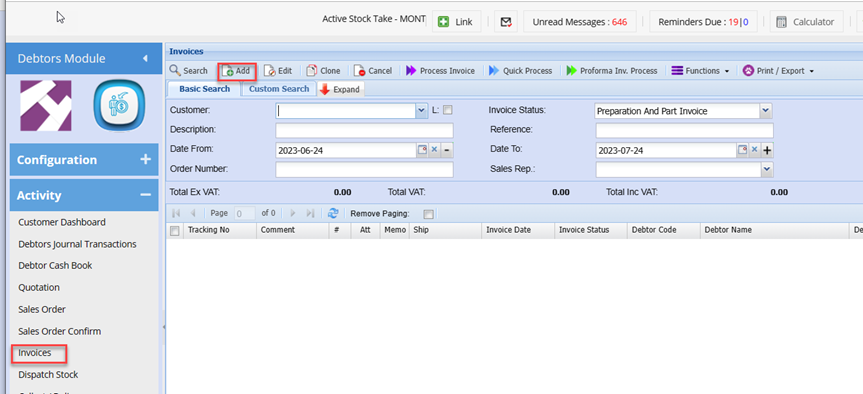
Capture the invoice as normal
Once the invoice detail has been captured and saved, click the extra Drop Down
Select Convert to invoice template
Enter the code for your template
Enter the description for your template.
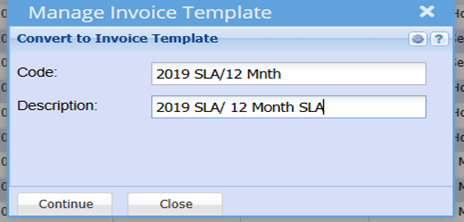
Click Continue
This now completes the creation for your invoice Template
Import Invoice Document or Template
Invoice and quote import
This feature allows one to import posted, non-posted and template invoices and quotes into a new invoice or quote.
Note the following when you import an invoice or quote that the following is set
| 1 | All information on Header and grid will be copied |
| 2 | Date of document will be set to current date |
| 3 | Due Date is 7 days forward from current date |
| 4 | Service date is set to the current month |
Go to Extras drop down and click on Import Invoice template or document
.png)
Select to import as a quote or invoice
.png)
Import Invoice From CSV File
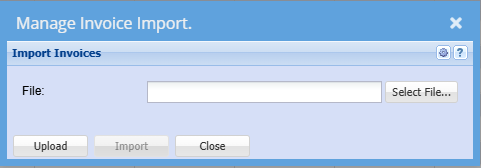
Click on the Select File… button, this will open a window to allow you to navigate to the location of the file to be imported.
Click on the Upload button to upload the file onto the server where the actual import will take place.
Once the Upload has been successfully completed click on the Import button to launch the actual import.
An Invoice Import Report will open indicating any errors that may have occurred during the import or a success message if there were no errors during the import.
If there were error during the import the whole import is rolled back i.e. no invoices are imported.
Please Note : The file to be imported must be in CSV format.
Please contact the Huge ERP office for the Invoice Import template to be emailed to you.
Import Bulk Serial Numbers
Import Serial Numbers into Invoices
| 1 | Click the Browse button to locate the CSV file to be imported. |
| 2 | Click Upload to upload the CSV file into the Huge ERP file structure. |
| 3 | Click Import S/N to import the Serial Numbers as specified in the CSV file. |
| 4 | A report will be produced on the import process. If there are any errors during the import the user will be informed of these errors in the report. All these errors need to be corrected before the import will be successful. |
The CSV file requires the following columns;
Debtor Code, Stock Code, Warehouse Code and Serial Number.
.png)
In the event that the invoice item has a quantity greater than 1 then as per the example above separate the serial numbers with an under score (Shift Minus).
If for example the item requires a quantity of 3 then column D would appear as follows: SerialNumber1_SerialNumber2_SerialNumber3
If the item requires 1 serial number, then column D will appear as follows: SerialNumber1
Please Note: This import process will add the serial number(s) in the import file to any invoice in the system that is in a Preparation state is linked to the same debtor as in the import file and also has the same stock item. This applies to any invoices that are outside of the search range of the search criteria
Keyboard quick keys
Quick keys help access functions using the keyboard
Used with Alt + Letter
| Search | Alt + s | Search for Invoices |
| Add | Alt + a | Add a new Invoice |
| Edit | Alt + e | Edits the Invoice that is highlighted |
| Clone | Alt + c | Clone the highlighted Invoice |
| Cancel | Alt + l | Cancel the Invoice that is highlighted |
| Process Invoice | Alt + o | Process selected Invoice(s) |
| Quick Process |
Alt + q | Quick Process selected Invoice(s) |
| Proforma Invoice Process | Alt + m | Only Invoices marked as Part Invoice can be processed from this option |
| Expand / Contract | Alt + n | Expands / Contracts the header section of the window |
| Create Reminder | Alt + r | Creates a reminder to highlighted Quote |
| Print Invoice | Alt + p | Print the selected Invoice |
| Functions | Alt + f | Focus on the Function split button |
| Tab Basic Search | Alt + 1 | Basic Search |
| Tab Custom Search | Alt + 2 | Custom Search |
No Comments