
Layby Invoices
Work Procedure (Structured Step-by-Step)
-
Genre: Accounting System / Lay-by Invoice Workflow
- Invoice Creation and Lay-by Designation
-
-
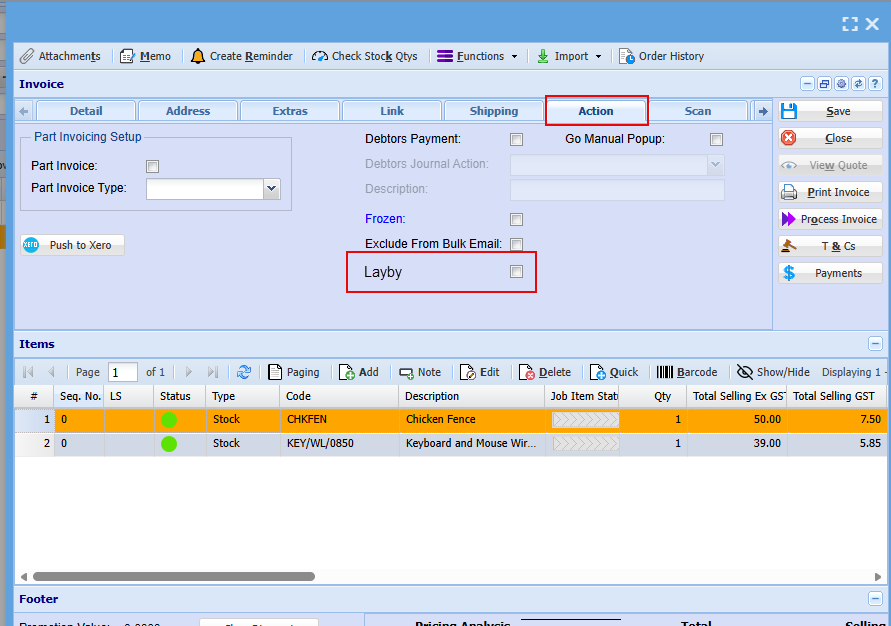
① In the main system, open/create the invoice.
-
② Navigate to the Action tab.
-
③ Tick the “Lay-by” checkbox to designate the invoice as a lay-by invoice.
-
④ Process/save the invoice; the system will mark it as lay-by and display a lay-by icon in the invoice column.
-
2. Payment Allocation
-
-
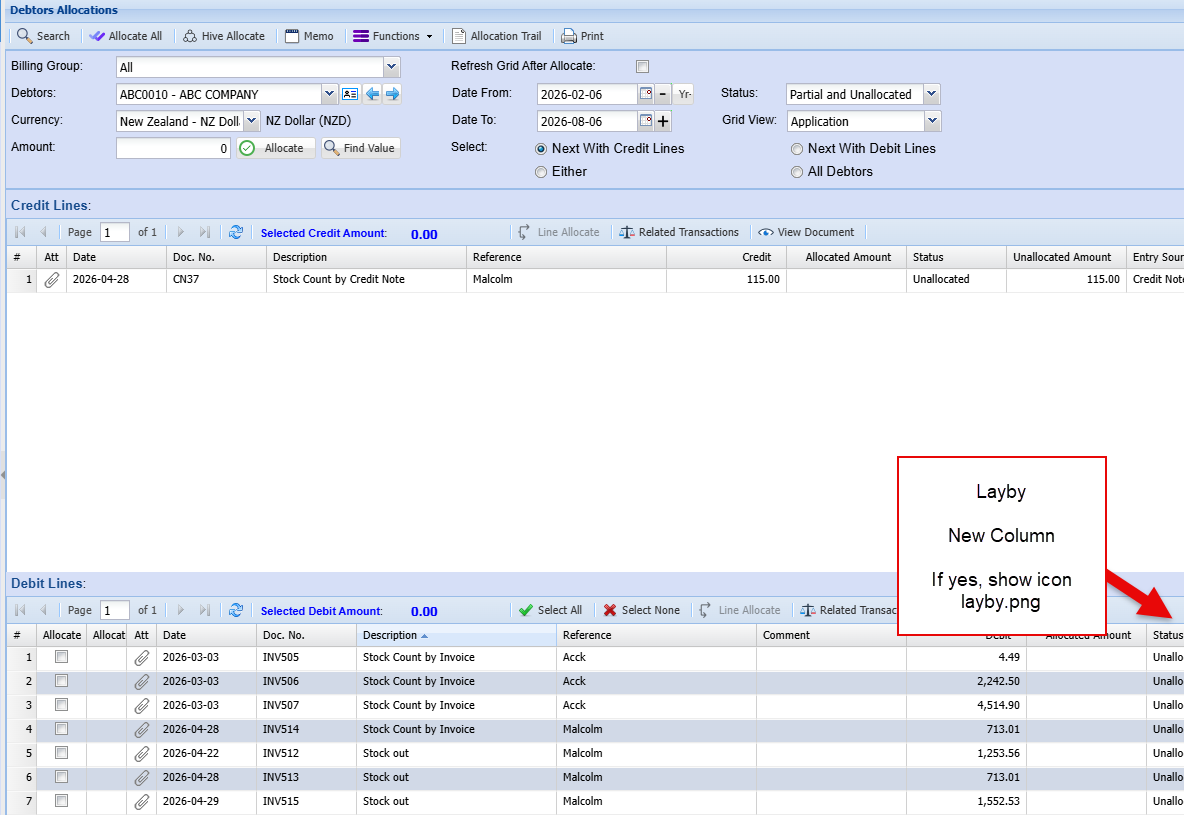
① When the client makes payments, go to Debtors Allocations.
-
② Locate the outstanding amounts on debit lines.
-
③ Allocate each payment to the corresponding lay-by invoice (identified by the lay-by icon).
-
④ Continue allocating until the lay-by invoice is fully allocated (paid off).
-
-
Notification Setup and Dispatch
-
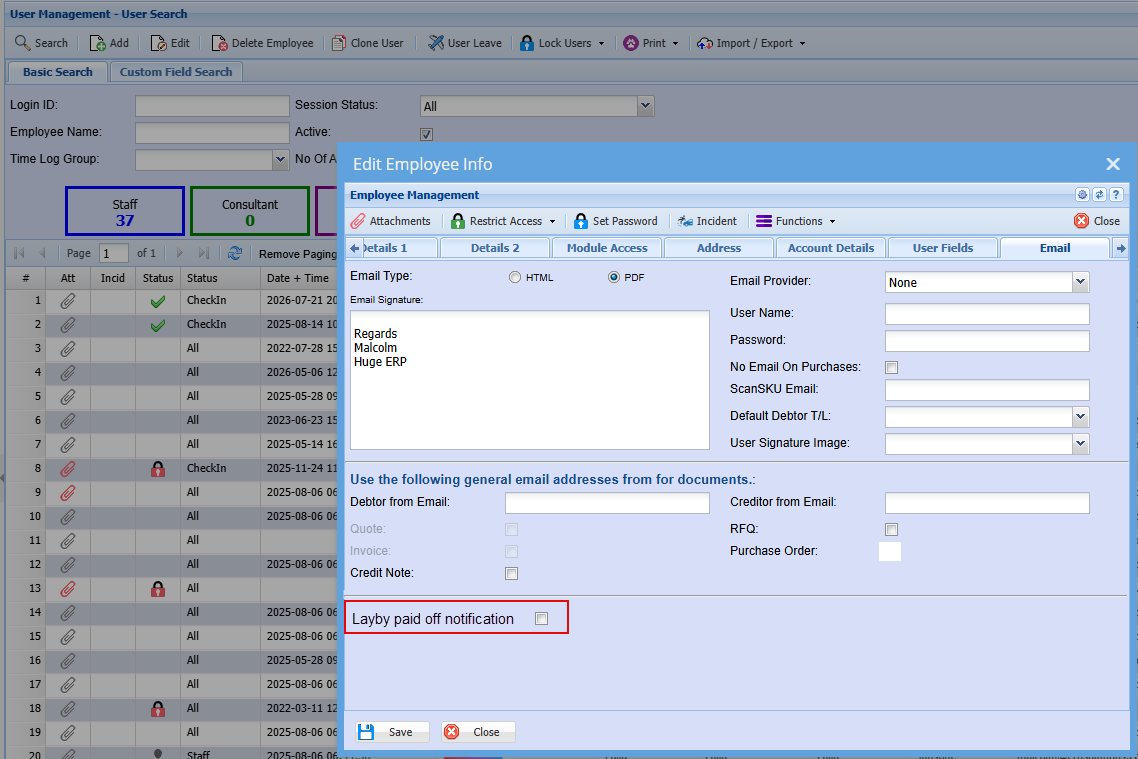
① In User Setup, specify the staff member(s) to receive “lay-by fully paid” emails.
-
② Ensure the notification option for lay-by payoff is enabled for the designated user(s).
-
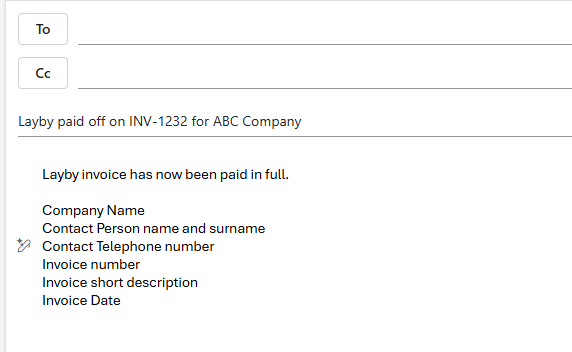
③ Upon full allocation, verify that the system sends an email to the specified staff member indicating the invoice has been fully paid by the client.
-
Standard email sent to users who have Layby paid off notification tick on
Key Points (Techniques / Precautions)
-
Dangers:
-
Misallocating payments to non-lay-by invoices can cause reconciliation errors.
-
-
NG examples:
-
Creating an invoice but failing to tick the lay-by checkbox.
-
Allocating payments without verifying the lay-by icon in the invoice column.
-
-
Tips:
-
Use the lay-by icon as a visual confirmation before allocating payments.
-
Keep a running check of outstanding debit lines to ensure the correct invoice is targeted.
-
-
Common failures and reasons:
-
No email notification sent: user setup for lay-by payoff emails not configured or disabled.
-
Invoice not treated as lay-by: Action tab checkbox not ticked at creation/processing.
-
Trouble Cases & Countermeasures
-
Case: Payments allocated to the wrong invoice.
-
Countermeasure: Reverse or reallocate the payment in Debtors Allocations and confirm the lay-by icon before reallocation.
-
-
Case: Lay-by invoice not showing icon.
-
Countermeasure: Edit the invoice, confirm the lay-by checkbox is ticked in the Action tab, then save/process again.
-
-
Case: Staff did not receive payoff email.
-
Countermeasure: Verify User Setup for the intended recipient; ensure “lay-by fully paid” notification is enabled and email address is correct.
-
-
Case: Invoice not marked as fully allocated despite payments.
-
Countermeasure: Reconcile allocations; check for partial payments or unapplied amounts on debit lines and allocate remaining balances.
-
No Comments