You can only add a line item after adding all the necessary information needed on the sales order details tab and all greyed buttons have been greyed out
To add line items click on the middle Add Button shown below [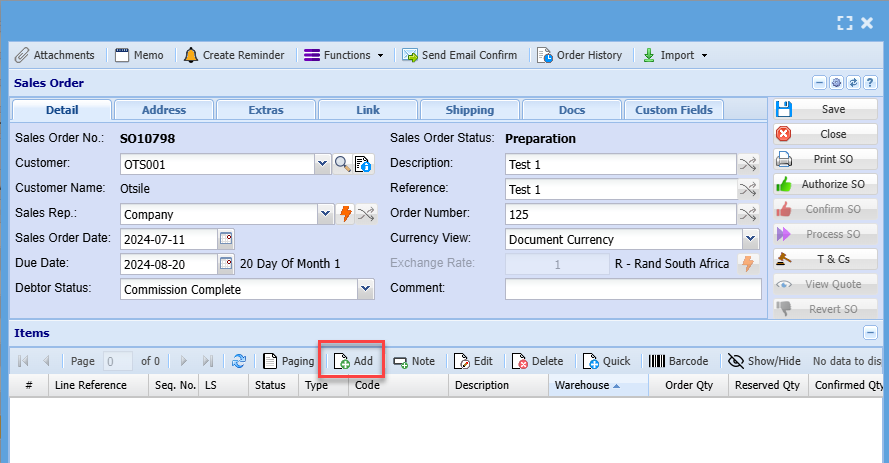](https://hugeerp10.co.za/hsofmanual/uploads/images/gallery/2024-08/kRGimage.png) Then the screen below will appear [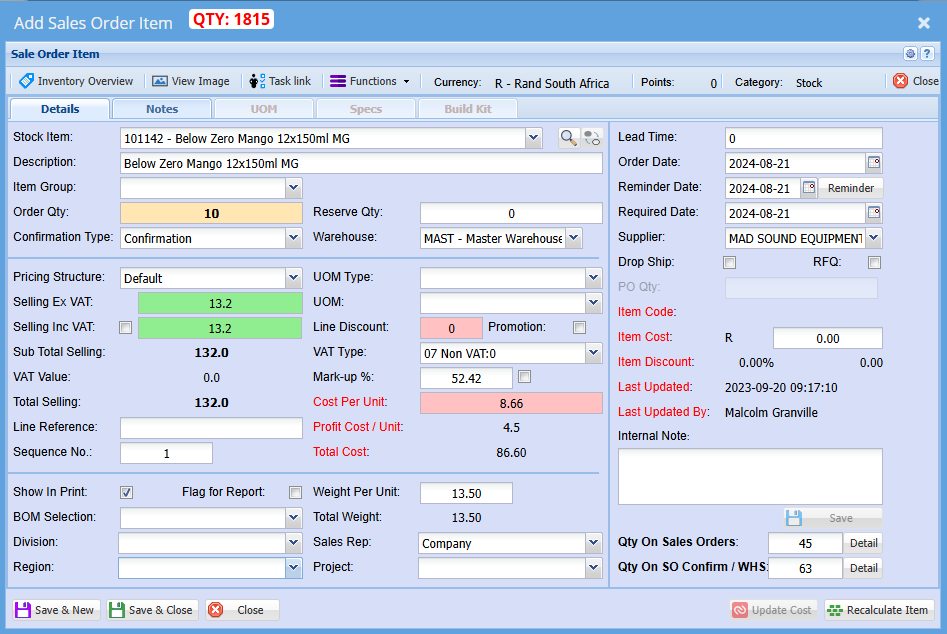](https://hugeerp10.co.za/hsofmanual/uploads/images/gallery/2024-08/v78image.png) Select the item you wish to create a sales order for on the drop-down selection You can also search for the item by using part of the code or the name of the item You can change the description to match what you want to see on a sales order or leave it as it is Enter the quantity or how many items you creating a sales order for Make sure pricing is correct Select a relevant warehouse if you have multiple warehouses Select the correct VAT Type Click Save & Close if capturing numerous line items Click Save & Close if capturing a single line item Once done All line items will appear on the grid below [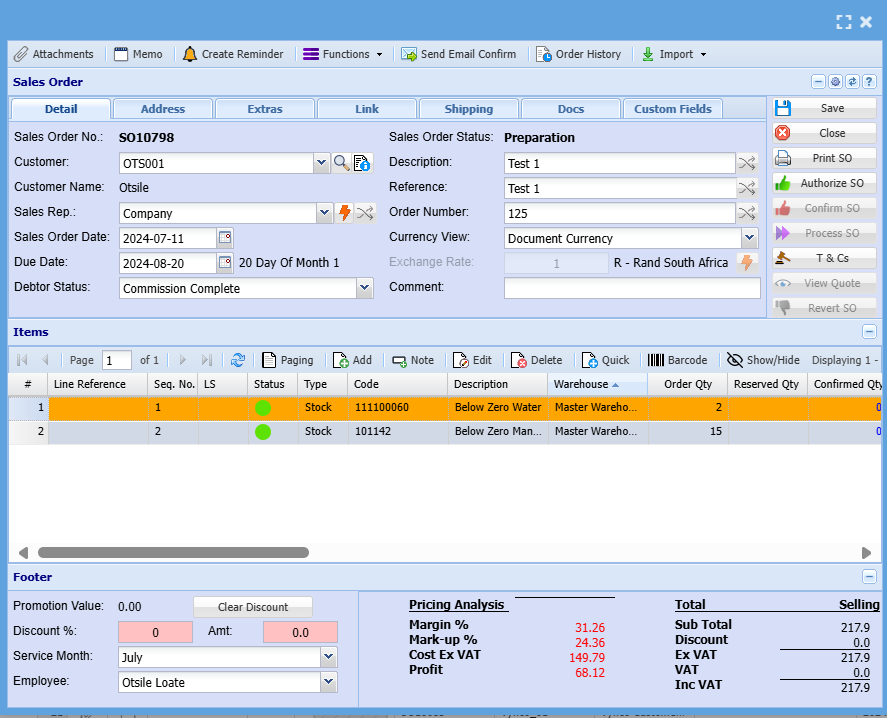](https://hugeerp10.co.za/hsofmanual/uploads/images/gallery/2024-08/ujTimage.png) After capturing you can send it to a relevant person to authorize the SO Once a PO is authorized you can confirm it so the warehouse staff can confirm the quantity and start picking stock --- #### Sales order Printing Options After clicking confirm the printing options will pop up below: [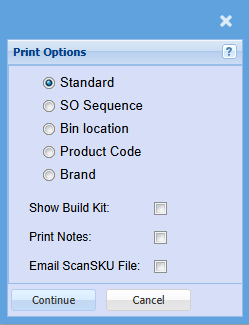](https://hugeerp10.co.za/hsofmanual/uploads/images/gallery/2024-08/IBpimage.png) Click [here](https://hugeerp10.co.za/hsofmanual/books/bdm-activity/page/sales-order-confirm-qty "Confirm Sales order quantity") to see a manual on how to confirm sales order quantity #### Keyboard quick keys for Sales Order Detail Quick keys help access functions using the keyboard Used with Alt + Letter [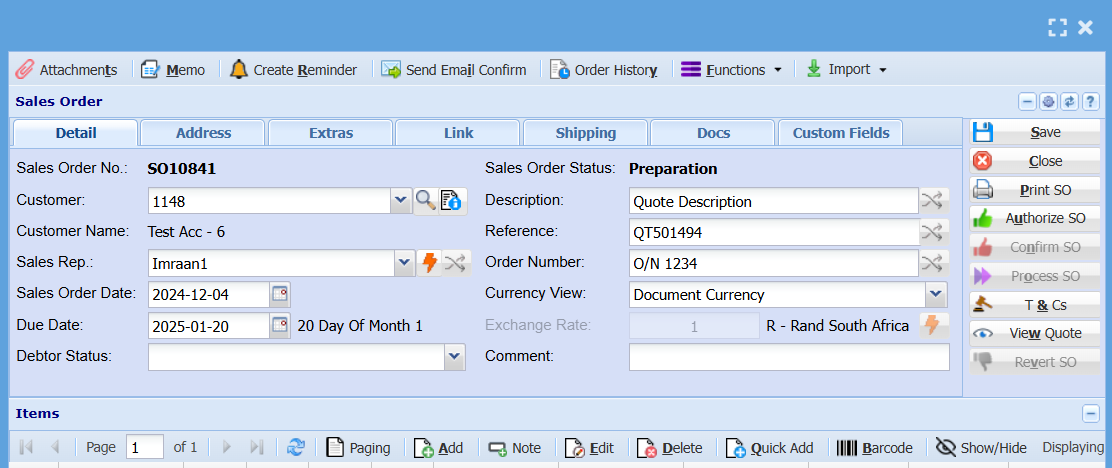](https://hugeerp10.co.za/hsofmanual/uploads/images/gallery/2024-12/DJoimage.png)| Attachmen**t** | Alt + t | Opens the Attachment window |
| **M**emo | Alt + m | Opens the Memo window |
| Create **R**eminder | Alt + r | Opens the Reminder window |
| Send Ema**i**l Confirmation | Alt + i | Sends an email to the contact person on Confirmation of Sales Order |
| Order Histor**y** | Alt + o | Opens the Order History window |
| **F**unctions | Alt + f | Focus on the Function split button |
| **S**ave | Alt + s | Saves the sales order |
| **C**lose | Alt + c | Closes the sales order window |
| **P**rint SO | Alt + p | Print the Sales Order |
| A**u**thorize SO | Alt + u | Authorize the Sales Order |
| Co**n**firm SO | Alt + n | Confirm the Sales Order |
| Pr**o**cess SO | Alt + o | Process the Sales Order |
| T **&** Cs | Alt + & | Opens the Terms and Conditions window |
| Vie**w** Quote | Alt + w | Opens the associated quote for viewing (if applicable) |
| Re**v**ert SO | Alt + v | Resets the Sales Order to Preparation Status |
| **A**dd | Alt + a | Opens a New Sales Order Line Detail window |
| **E**dit | Alt + e | Opens the Sales Order Line Detail window for the selected sales order line |
| **D**elete | Alt + d | Deletes the selected line from the sales order |
| **Q**uick Add | Alt + q | Opens the quick add window to add a sales order line to the sales order |
| **B**arcode | Alt + b | Opens the Barcode window to add an item using barcode scanning |
| Attachment Button | Alt + 0 | Focus on the Attachment button |
| Tab Sales Order Detail | Alt + 1 | Sets the tab notebook to the Sales Order Detail tab |
| Alt + 2 | Pressing Alt + 2 repeatedly will step through the various tabs in the tabnotebook |
| Inventory **O**verview | Alt + o | Opens the Inventory Overview window |
| View **I**mage | Alt + i | Opens the View Image window |
| **T**ask Link | Alt + t | Opens the Special Item window |
| **C**lose | Alt + c | Closes the Sales Order window |
| **R**eminder | Alt + r | Opens the Reminder window |
| **F**unctions | Alt + f | Focus on the Function split button |
| Save & **N**ew | Alt + n | Saves the Sales Order Item Detail window and opens a new SO Item window |
| Sa**v**e & Close | Alt + v | Saves the Sales Order Item Detail window and then closes the window |
| **U**pdate Cost | Alt + u | Updates the cost of the selected item to the latest cost price |
| Reca**l**culate Item | Alt + l | Recalculates the Sales Order Item's values Mark-Up %, Costs etc. |
| Inventory Overview | Alt + 0 | Focus on the Inventory Over button |
| Tab Quote Item Detail | Alt + 1 | Sets the tab notebook to the Quote Item Detail tab |
| Alt + 2 | Pressing Alt + 2 repeatedly will step through the various tabs in the tab notebook |