
Purchase Order Serial Number Import
Once you receive your order, you many have multiple serial numbers to import into the Purchase Order before pushing it through to GRV,
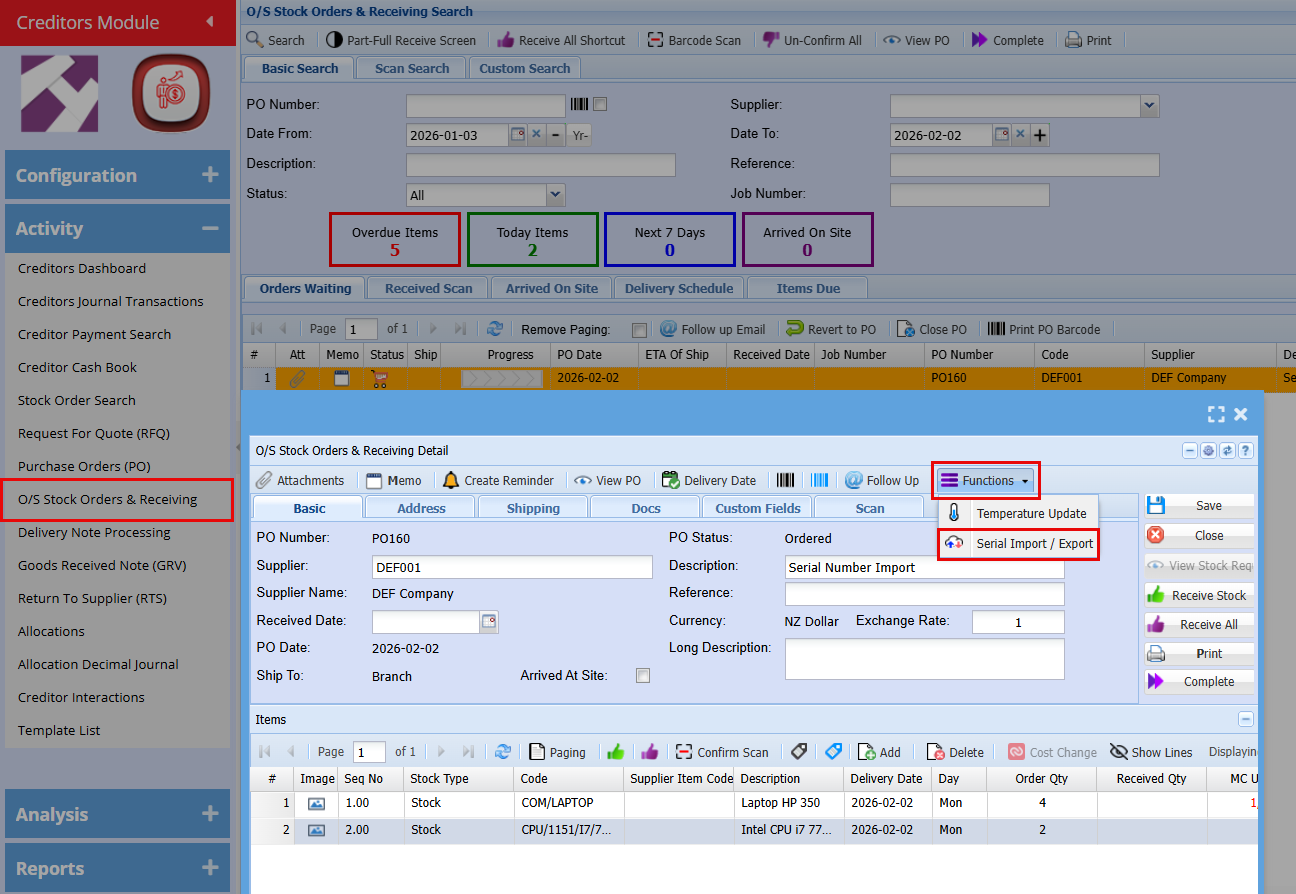
Creditors Module > Activity > O/S Stock Orders & Receiving
- Click on the "Functions" drop-down menu
- Click on "Serial Import/Export"
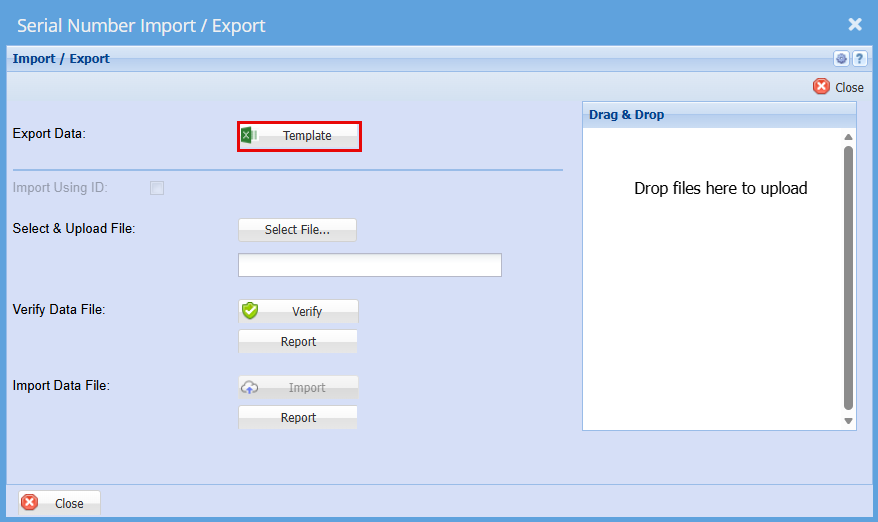
A window will appear allowing you to export a template that can be used for the import.
- Click on "Template" this will download an excel file
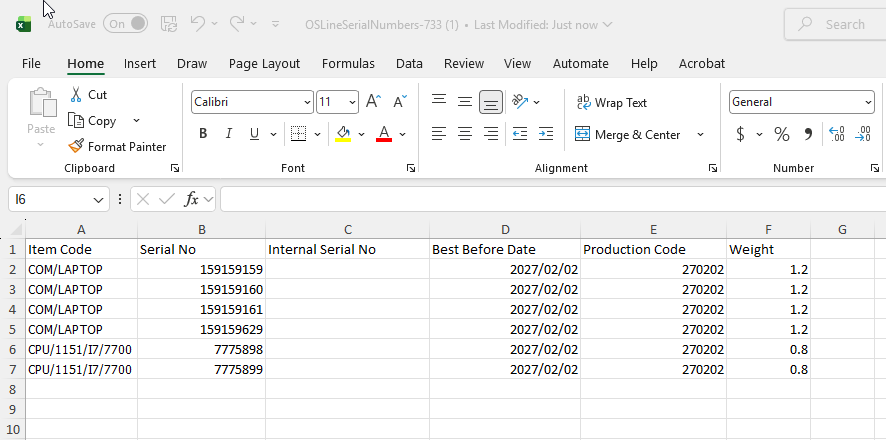
- Enter the serial numbers here, with each item listed on a separate line as shown below.
- Save the file to your computer.
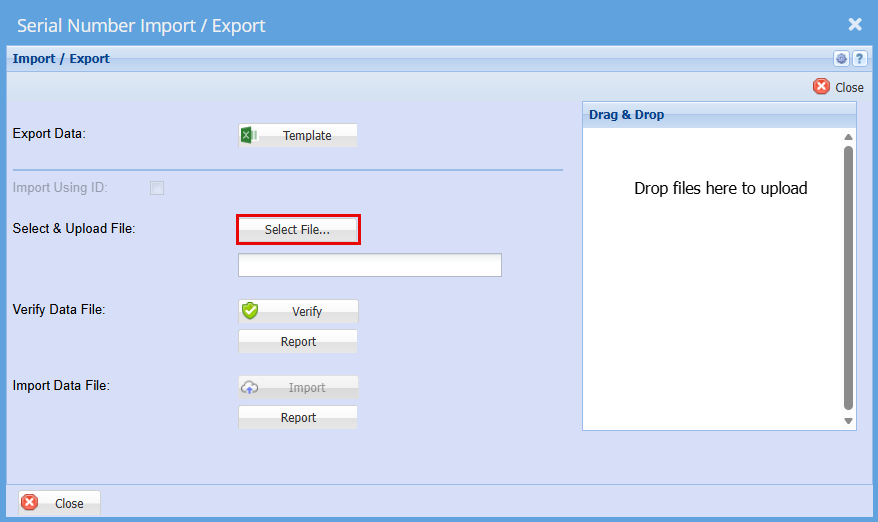
- Go back to the "Serial Number Import/Export" Screen
- Click "Select File"
- Find the file you have saved.
- "Double Click" the file or click "Open"
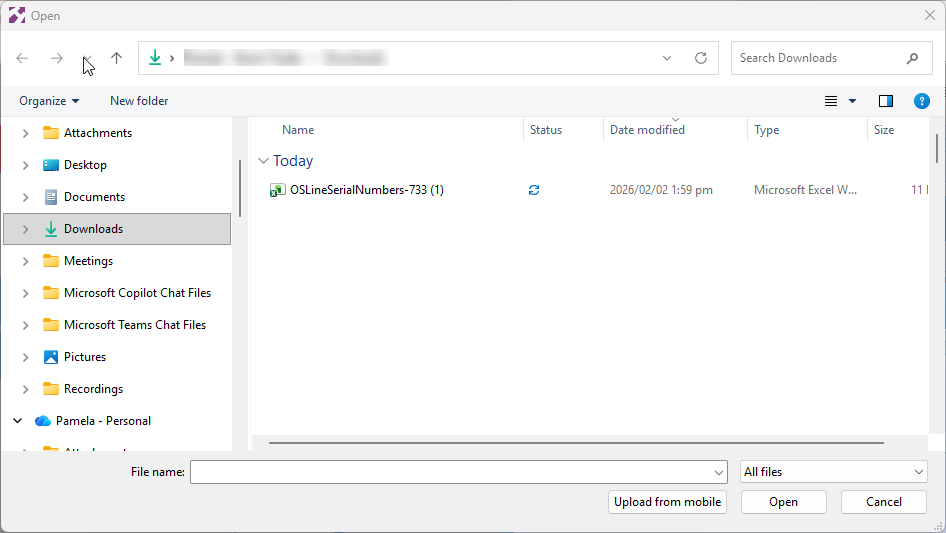
You should get a Successful Import
- Click "Verify"
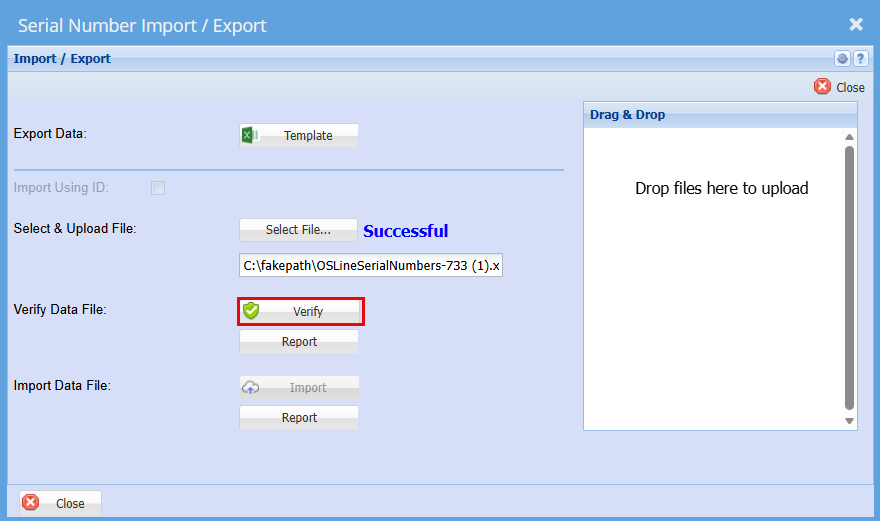
You should again get a successful for verification
- Click "Import"
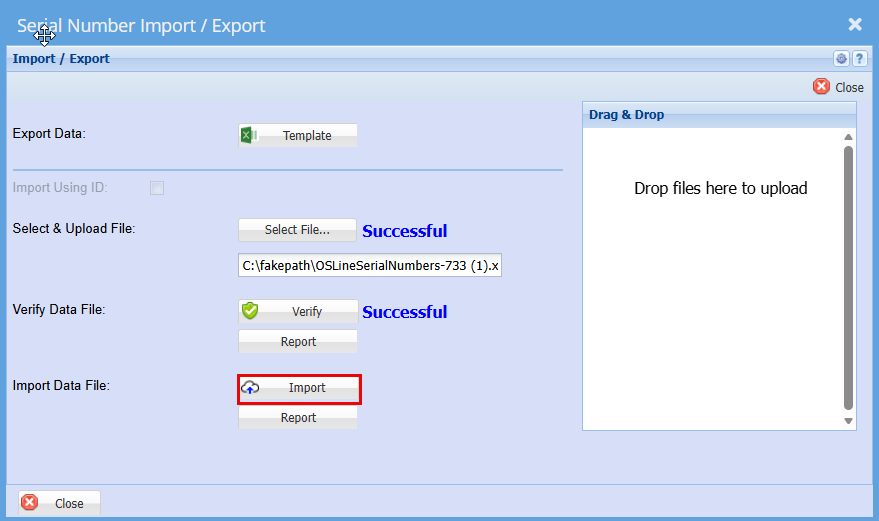
You should then get a Successful for Import.
Click "Close"
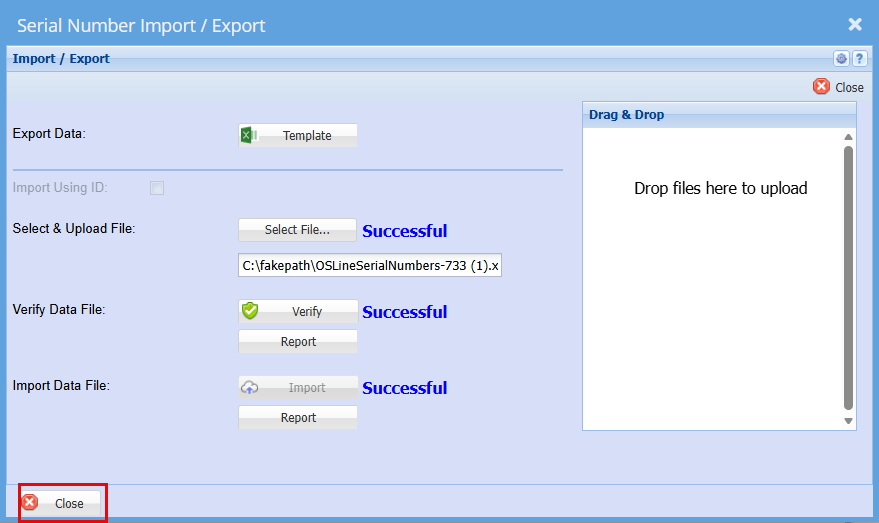
You can go check to make sure by clicking the "Show Lines" button
You will see the "Received Qty" values update.
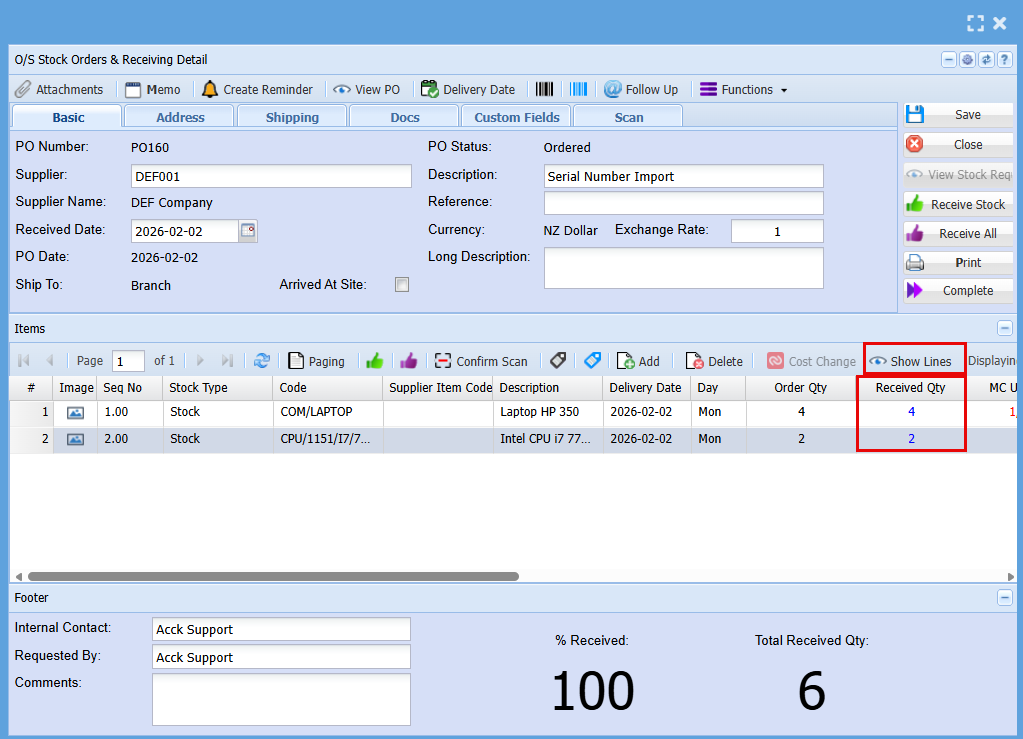
- To view the serial number, double click on the Serialised item line.
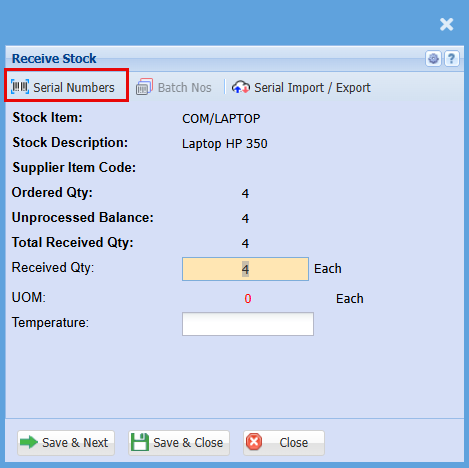
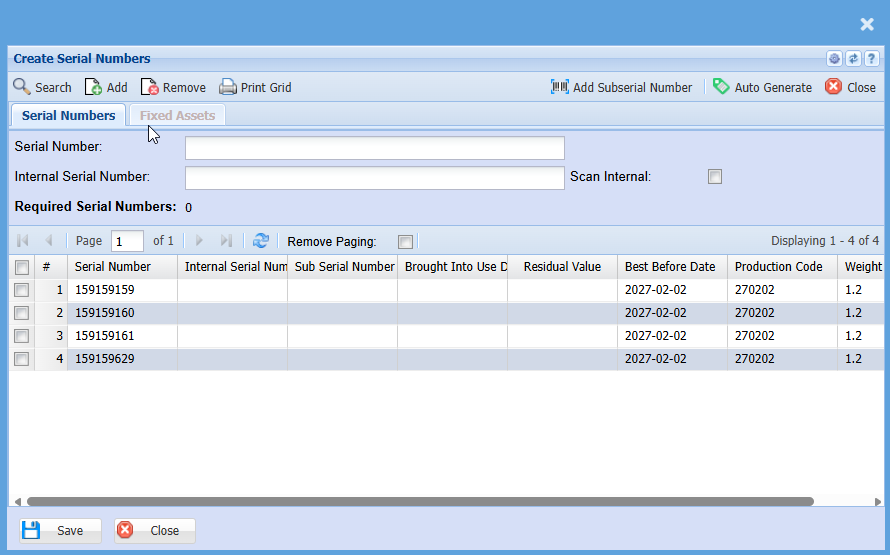
- Click on "Serial Numbers"
No Comments