
GRV with Importation Split from Purchase Order (Generic)
GRV with Importation Split from Purchase Order
Once you receive stock from a supplier and added all the serial numbers as required, you now need to GRV the stock in.
Go to the Goods Received Note tab under activity: Double click on the PO you are bringing in. To add the costs of freight to your landing costs you need to add the freight amount at the bottom of the Footer section, as per the screen below, or you can add this as a separate Creditors Shipping line item when you do the importation split.
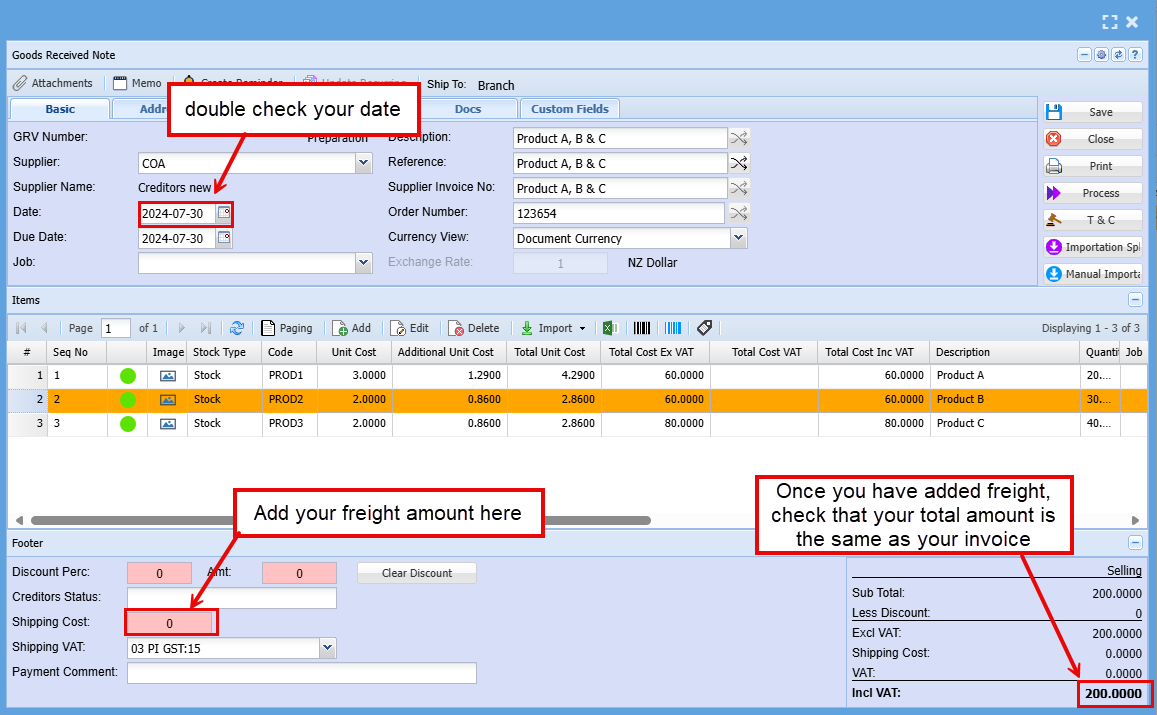
Once all the items have been captured, you can proceed to capture the Shipping invoice:
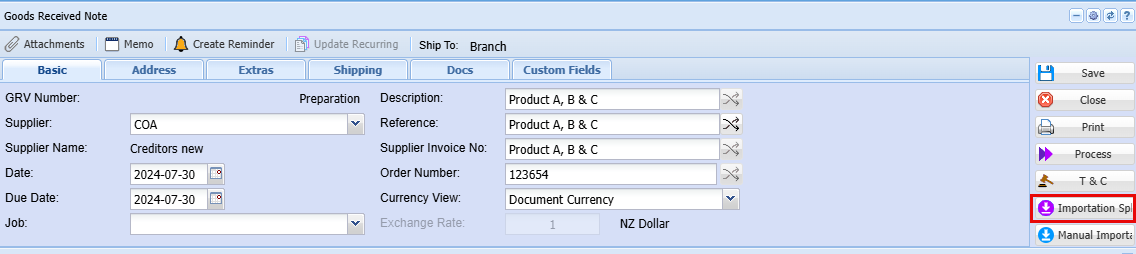
Click Importation Split Button found at the Top right of the Goods Received Note (GRV)
Then click the Add Button
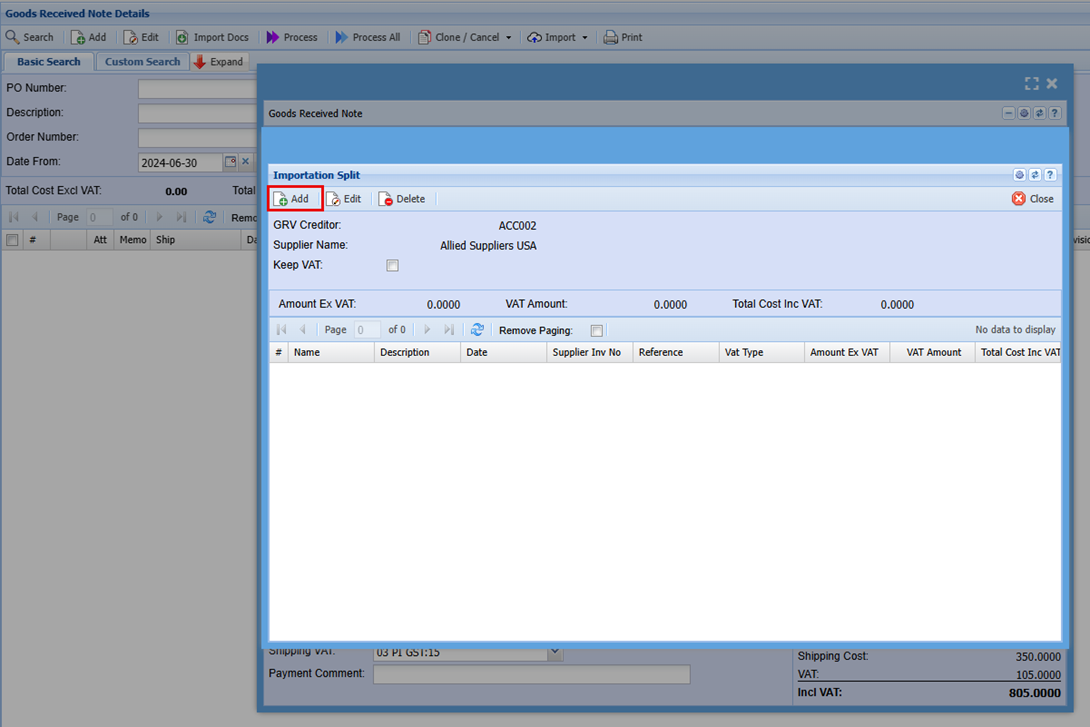
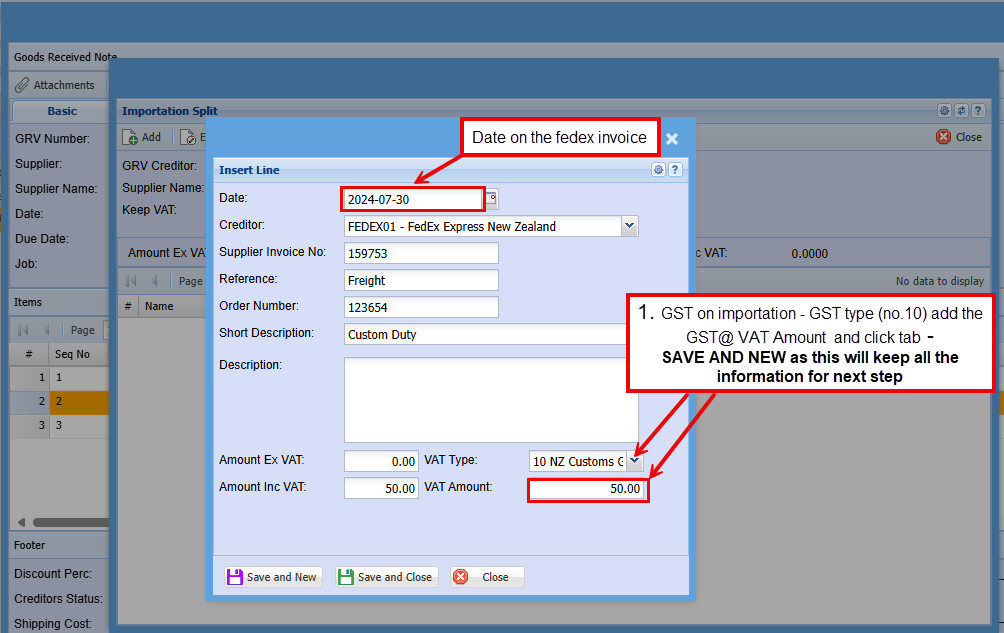
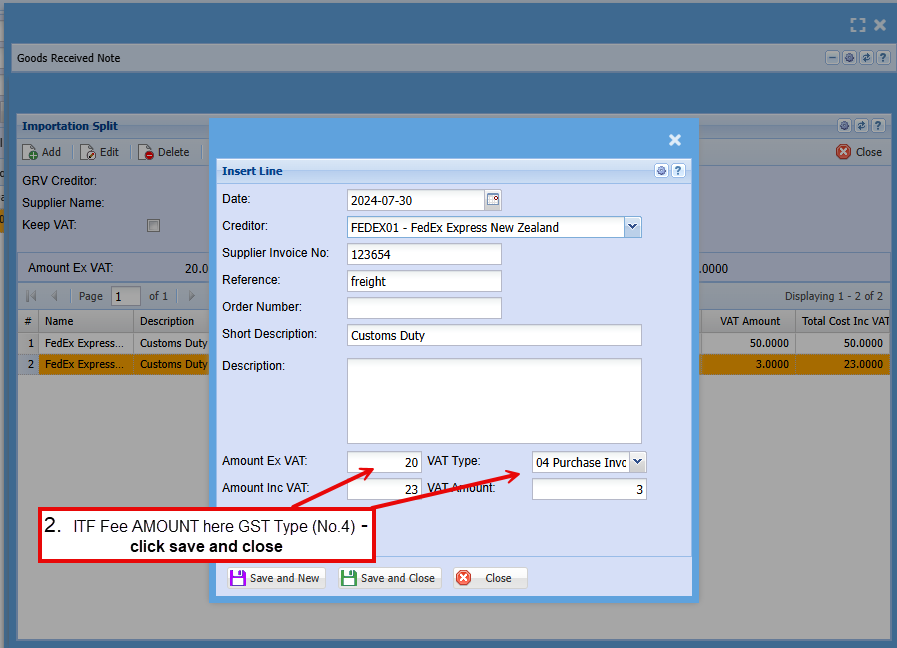
On this screen you are going to enter the details on the Shipping or Cartage company Invoice
Select the shipping Company in the Creditor field
Enter the invoice number (invoice number of the shipping company)
Enter a Reference
Enter the Order number
Enter the Description: The description could be the line-item description on the shipping invoice, if you are capturing each line individually.
OR you could capture all the Non-Vatable Line Items as a single line and the al the Vatable Lines items as another line
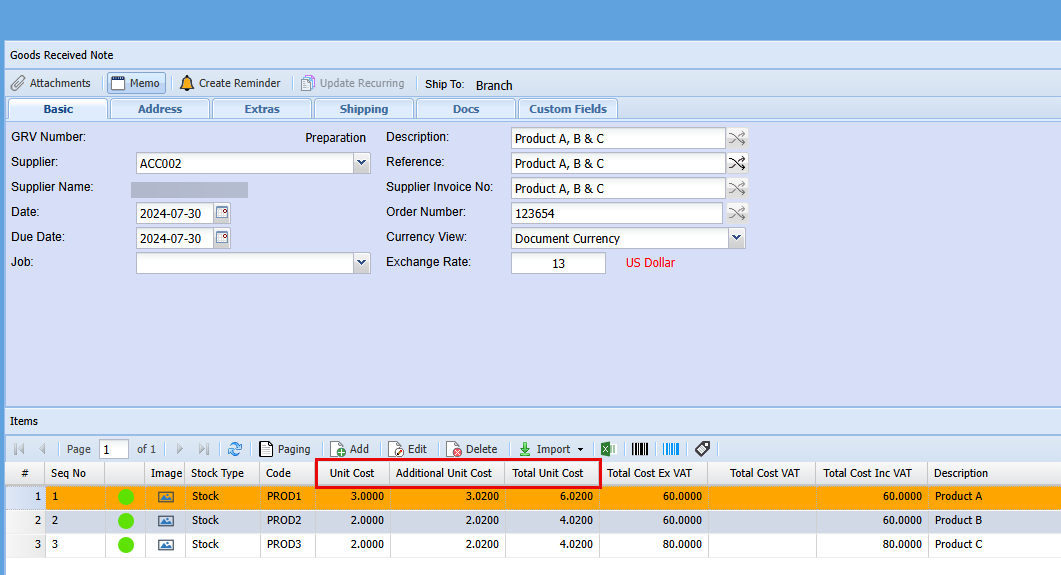
Once you have added your lines you can look back at the GRV Note and you will see the additional cost added to the landing cost of each stock item.
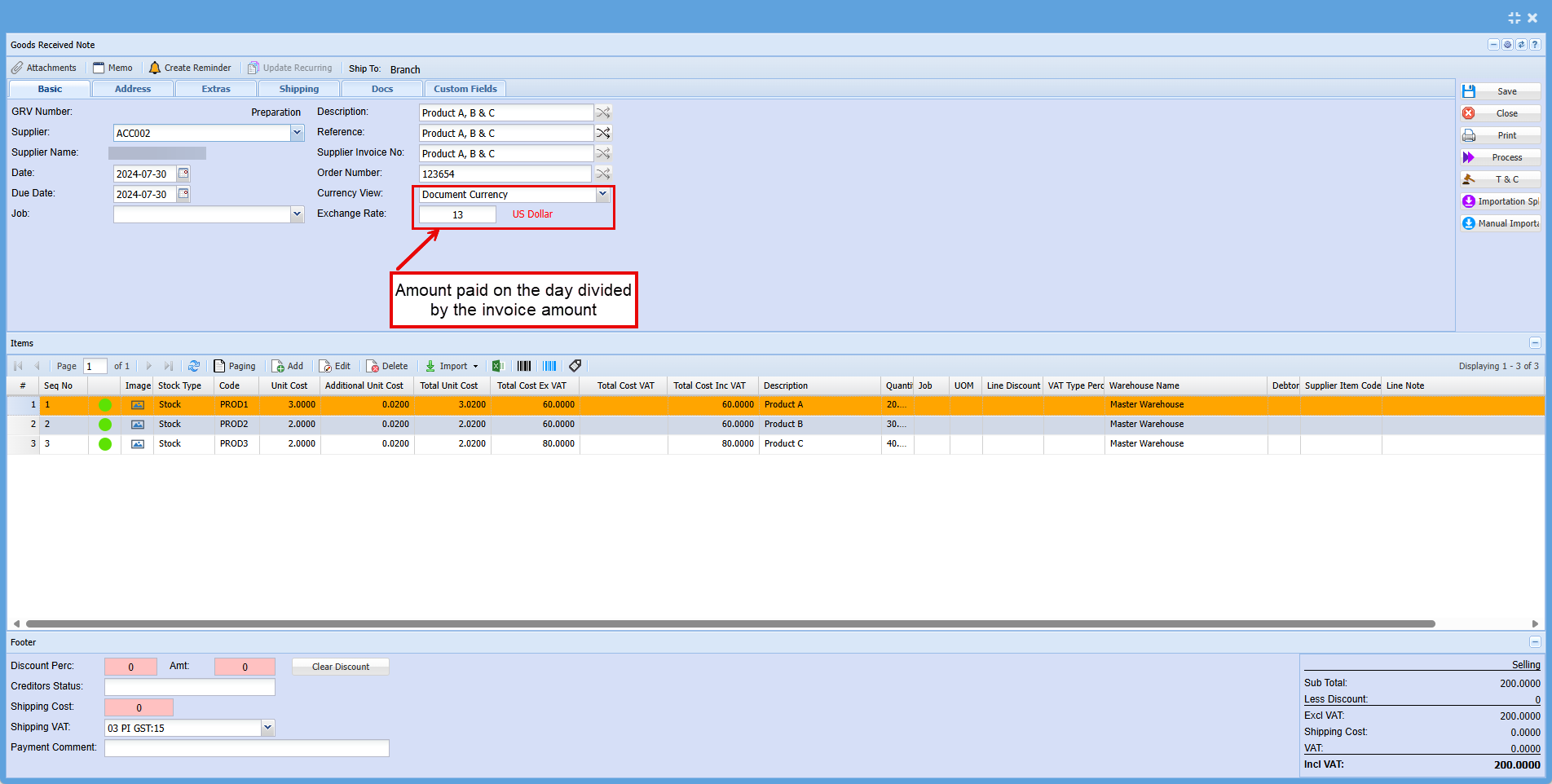
Before processing the GRV we would recommend updating the Exchange rate to reflect what it was the day payment was made to the supplier, this will save you having to do another entry later to offset the difference.
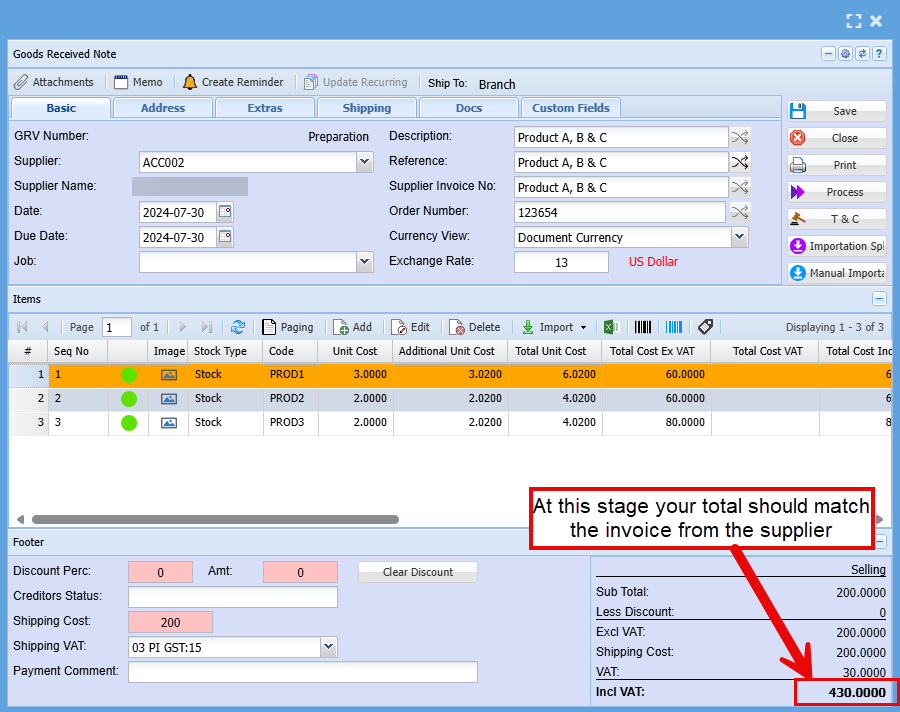
At this stage you should be able to process your invoice as long as the amount on the supplier invoice and the system are the same.
No Comments