# Purchase Order Serial Number Import
Once you receive your order, you many have multiple serial numbers to import into the Purchase Order before pushing it through to GRV,
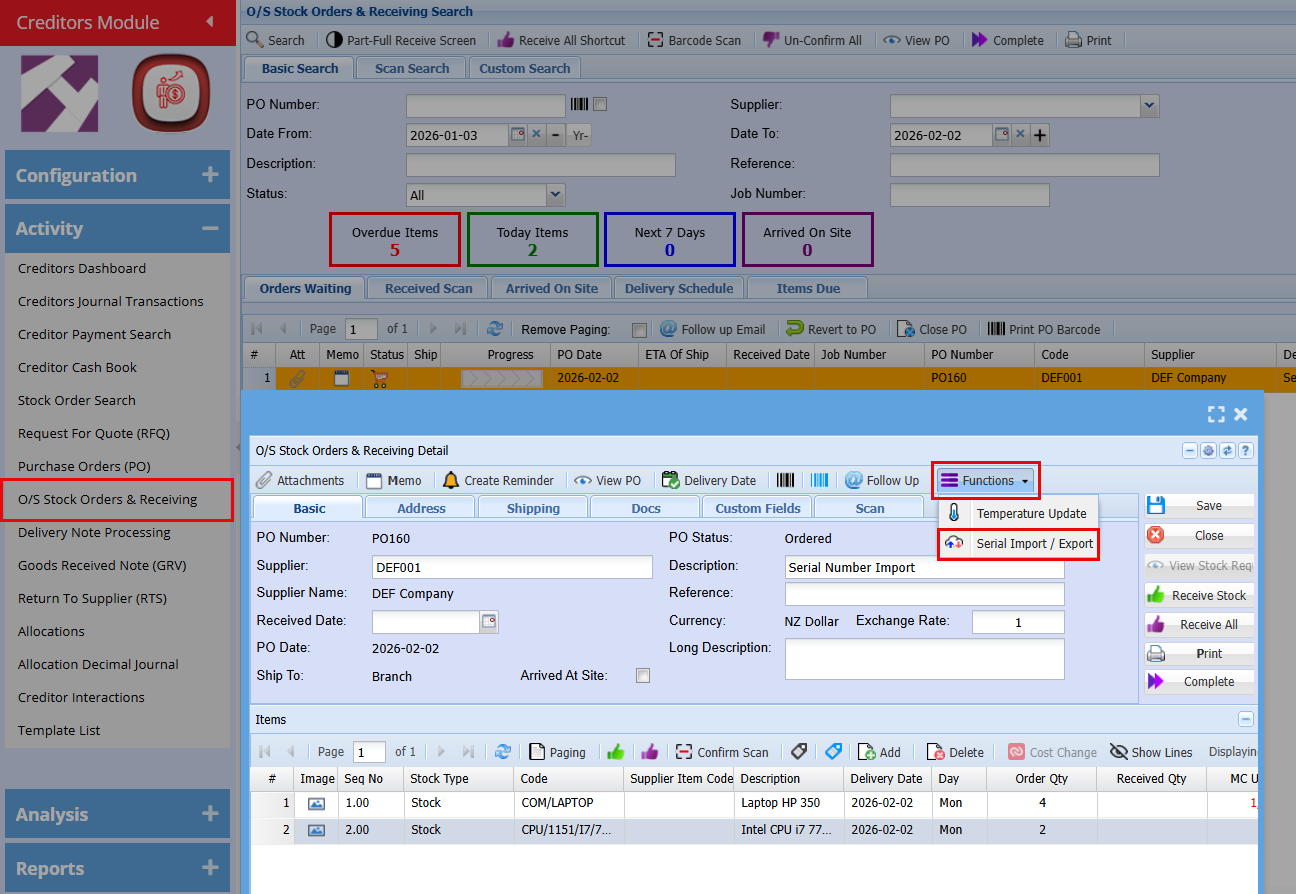
**Creditors Module > Activity > O/S Stock Orders & Receiving**
- Click on the "**Functions**" drop-down menu
- Click on "**Serial Import/Export**"
[](https://hugeerp10.co.za/hsofmanual/uploads/images/gallery/2026-02/image.png)
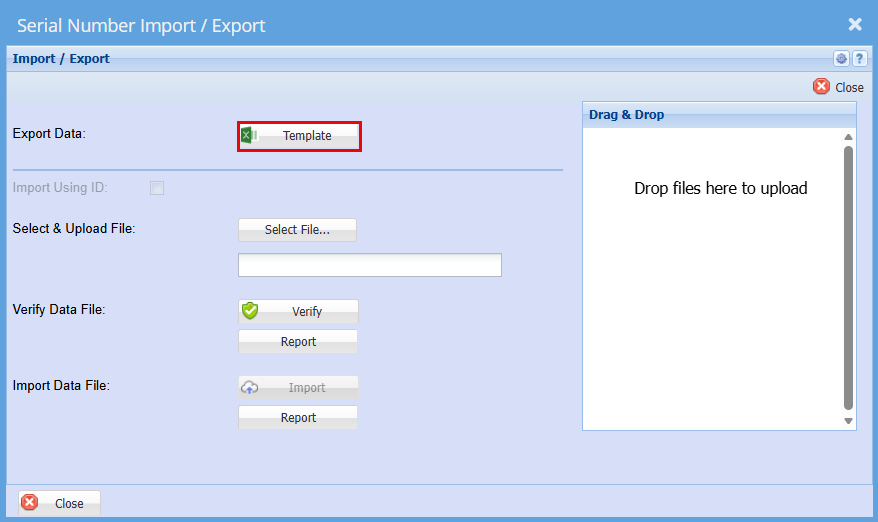
A window will appear allowing you to export a template that can be used for the import.
- Click on "**Template**" this will download an excel file
[](https://hugeerp10.co.za/hsofmanual/uploads/images/gallery/2026-02/mNtimage.png)
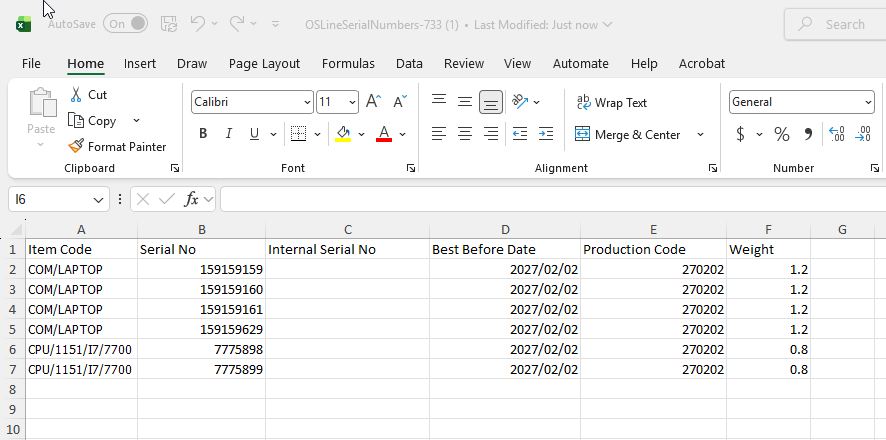
- Enter the serial numbers here, with each item listed on a separate line as shown below.
- Save the file to your computer.
[](https://hugeerp10.co.za/hsofmanual/uploads/images/gallery/2026-02/Np5image.png)
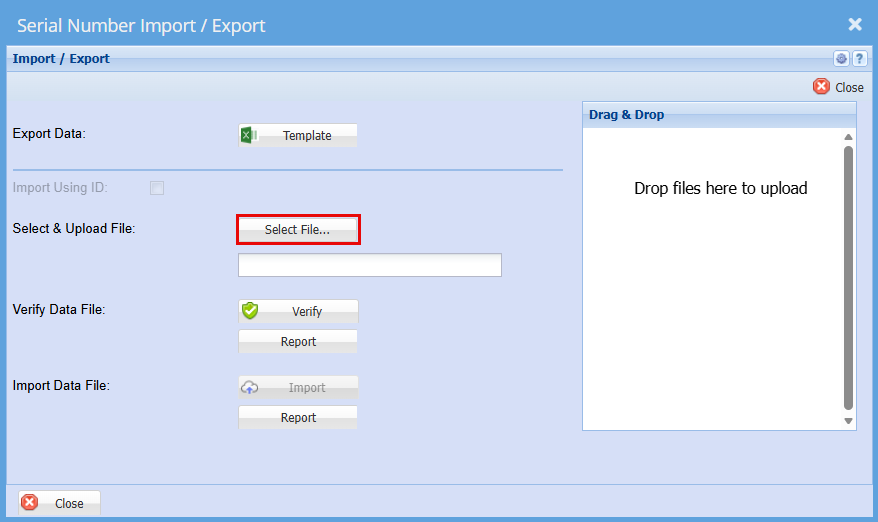
- Go back to the "**Serial Number Import/Export**" Screen
- Click "**Select File**"
[](https://hugeerp10.co.za/hsofmanual/uploads/images/gallery/2026-02/xzzimage.png)
- Find the file you have saved.
- "**Double Click**" the file or click "**Open**"
[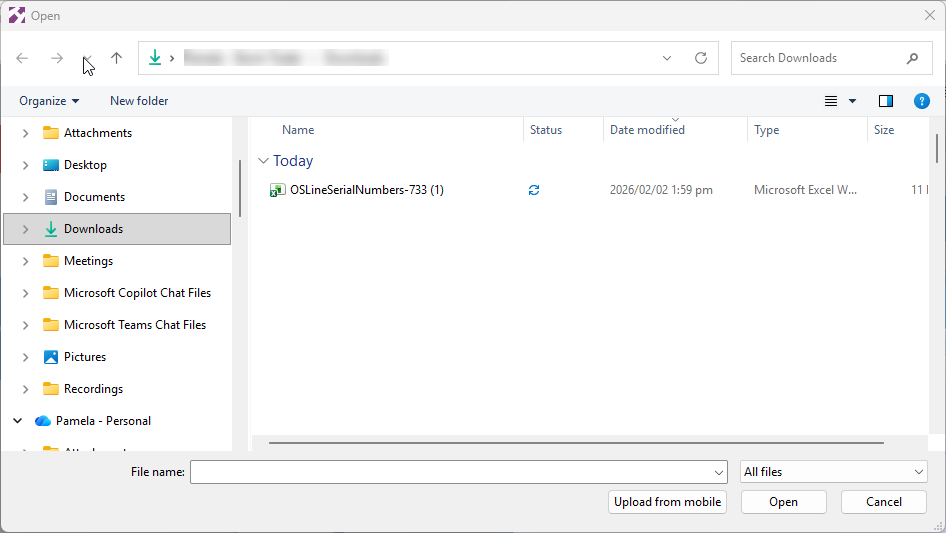](https://hugeerp10.co.za/hsofmanual/uploads/images/gallery/2026-02/wz2image.png)
You should get a Successful Import
- Click "**Verify**"
[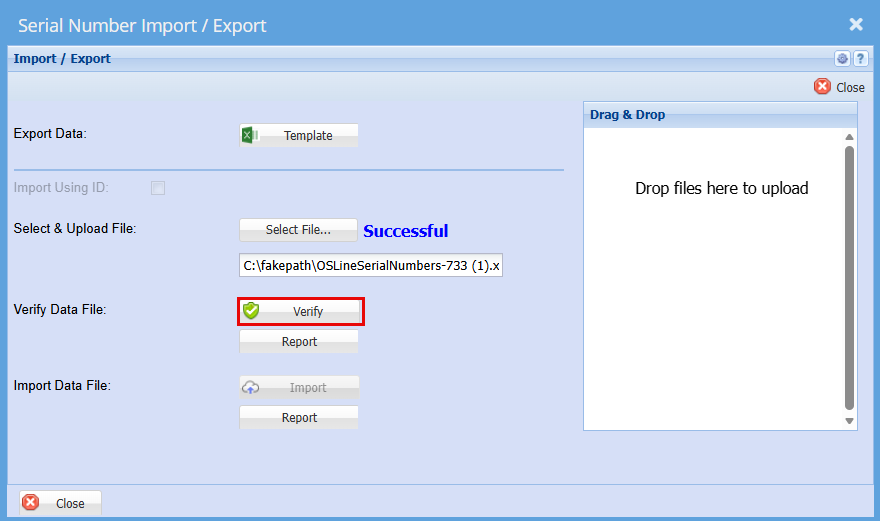](https://hugeerp10.co.za/hsofmanual/uploads/images/gallery/2026-02/QRLimage.png)
You should again get a successful for verification
- Click "**Import**"
[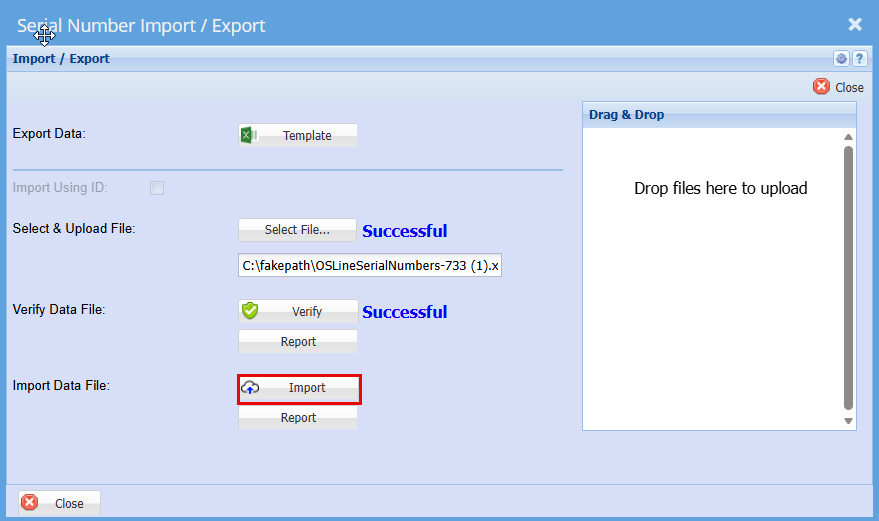](https://hugeerp10.co.za/hsofmanual/uploads/images/gallery/2026-02/FNRimage.png)
You should then get a Successful for Import.
Click "**Close**"
[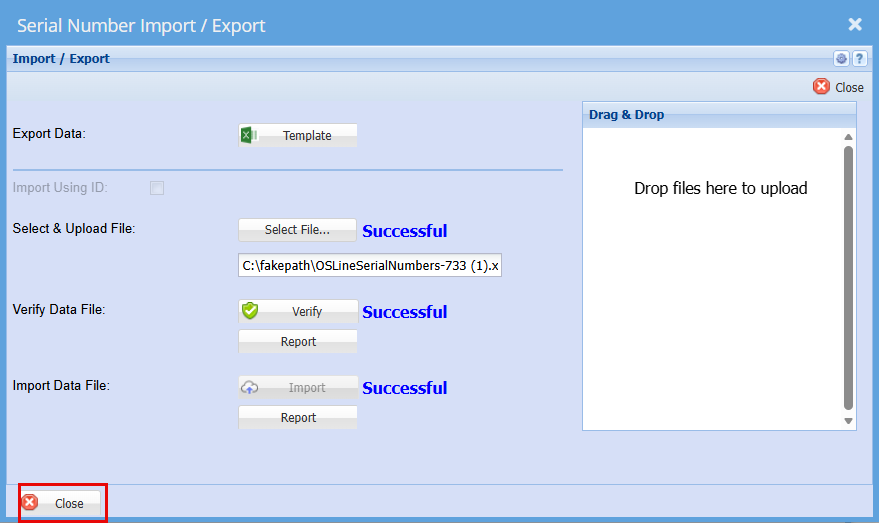](https://hugeerp10.co.za/hsofmanual/uploads/images/gallery/2026-02/GZ6image.png)
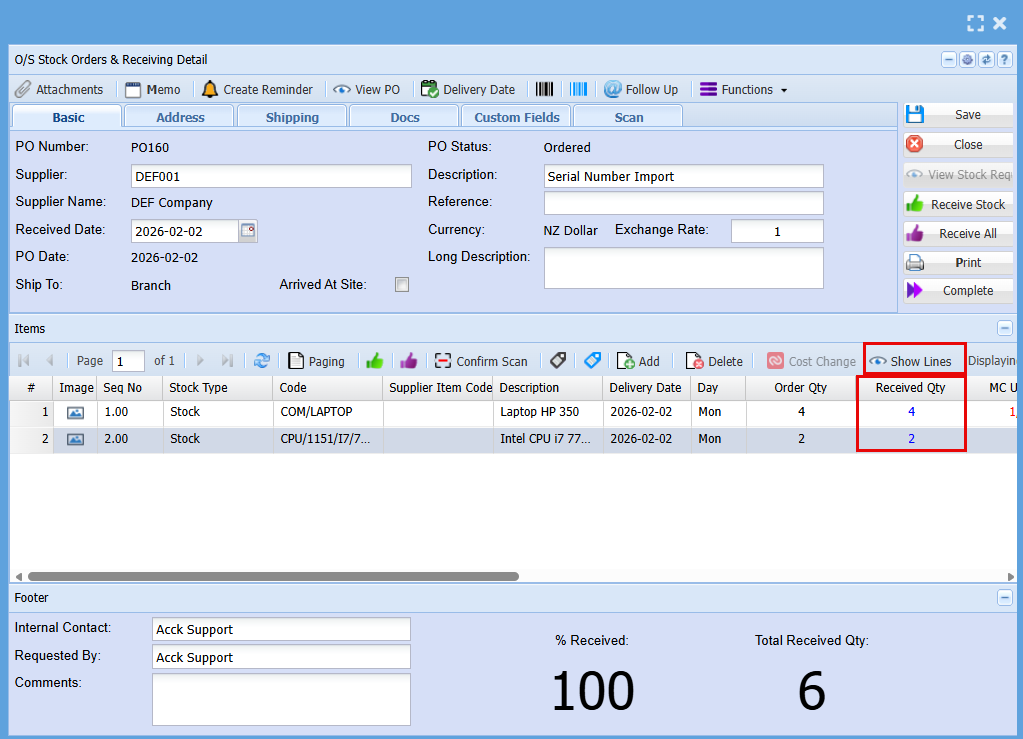
You can go check to make sure by clicking the "**Show Lines**" button
You will see the "**Received Qty**" values update.
[](https://hugeerp10.co.za/hsofmanual/uploads/images/gallery/2026-02/7tmimage.png)
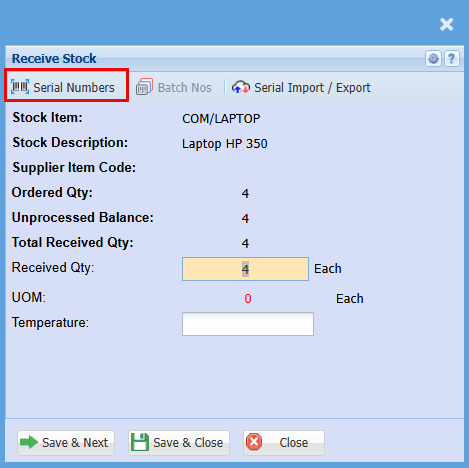
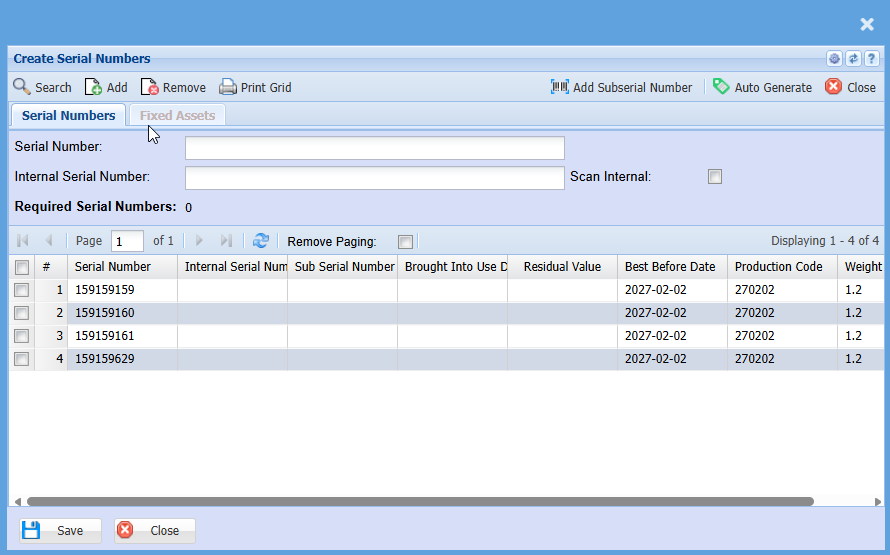
- To view the serial number, double click on the Serialised item line.
- Click on "**Serial Numbers**"
[](https://hugeerp10.co.za/hsofmanual/uploads/images/gallery/2026-02/Mulimage.png)
[](https://hugeerp10.co.za/hsofmanual/uploads/images/gallery/2026-02/GWHimage.png)