
Adding Purchase Order
Creditors>Activity>Purchase Orders
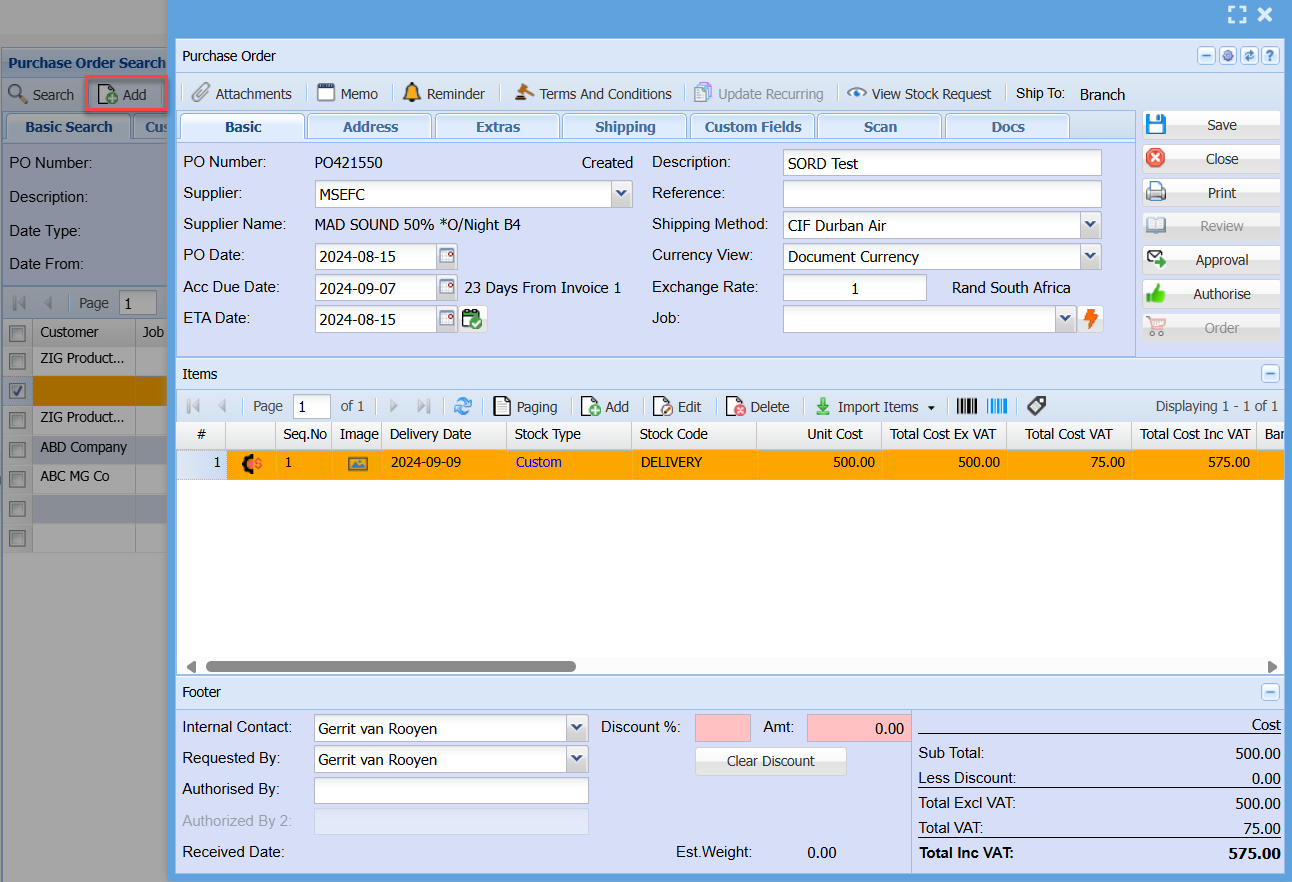
Select a Supplier: Short Search – just type in part of the code or name and hit enter on the keyboard and select the Creditor.
Drop down Search - Clicking on the arrow allows you to find the Creditor via the drop-down menu
Click on Insert button.
Basic Tab
Description - e.g. PO – Hard drive
Reference - Type in the Reference for your Purchase order
Date - Is the current date of the document
Due Date - Allows you to select the due date of the supplier
Save/ close - Click on the save Button to save your information
Close if you wish to close your Purchase order window without saving
Notice that: as you click save, the other buttons that were greyed out they are now accessible
Currency View - The Drop-Down menu gives you a list of Multi currency views you can select the currency type you want to view
Currency - This is the default currency of the Purchase order.
Note - Accknowledge allows users to maintain Creditors accounts in foreign and local currencies, as well as send invoices and statements in foreign currencies. In addition, the application also maintains the foreign rate of exchange used at the time of the transaction.
Address Tab – Shows the Default address of the Supplier
Contact Person – Shows the Default contact person for that supplier
Extras Tab
Job - Select in the drop-down menu a job number if this purchase order is linked to a JOB
Completion Date - Type in or select on the calendar the completion date
Long Description – Add a detailed description
Process GRV to Job - Tick this box if you want to process GRV to JOB
Print Custom fields - Tick This Box if you want custom fields to appear in Print
Notes – Add notes in here relevant to your Purchase order and Save
Custom Fields Tab
Request By - The System User requesting stock
Costing Centres - Will be the centre requesting stock
Special Notes - Add special notes
Use the arrows down or up to see more details
Job - Is the Job Number this stock will typically be required for and click on Save
No Comments