
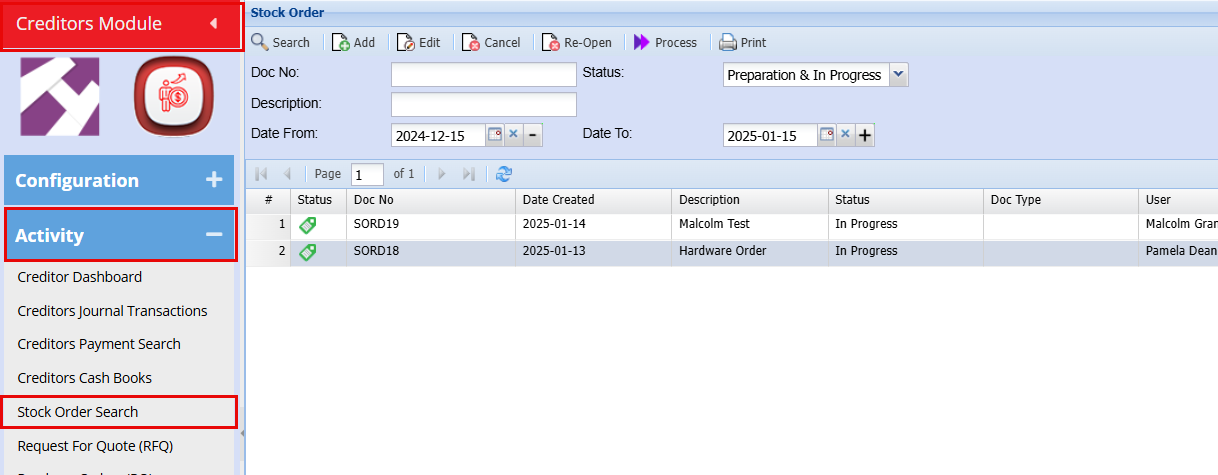
Stock Order Search
Creditors Module > Activity > Stock Order Search
Double click on the Stock Order you are wanting to continue working on.
Stock Order Features
Stock Order feature does require a few setups to be in place for optimum use:
|
Default supplier setup on each item |
|
| Minimum, Maximum, Preferred, Reorder levels on each item |
|
| Using Brand / Make setup |
|
| Using Item Group setup |
|
Enter a description that will be used on the Purchase order(s)
Click Save on the top Right
This will activate the Update button
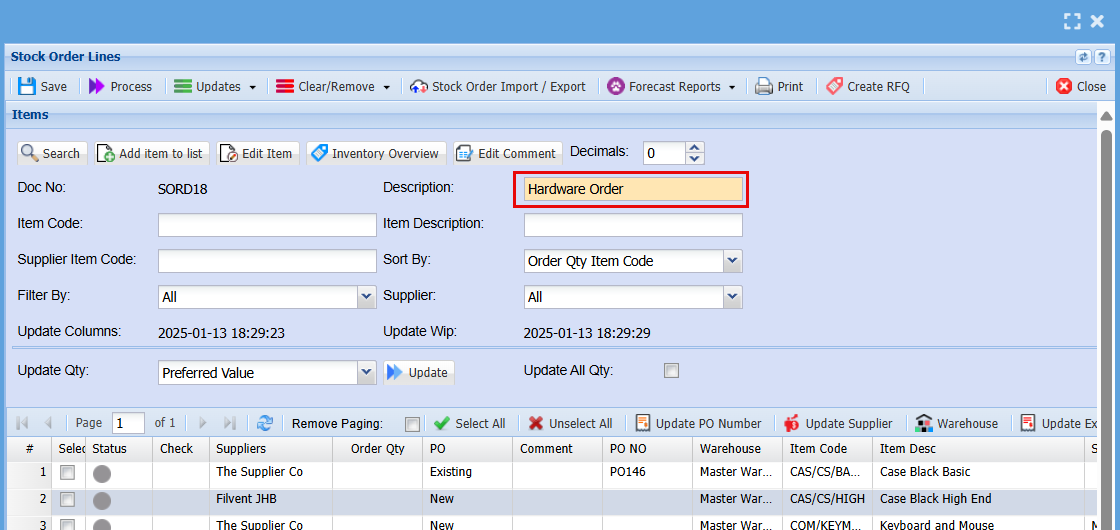
You now need to determine which calculation you wish to apply in order to update the required order quantities for each item.
The order quantities applied to each respective item can be determined from a number of options:
Click the Update Qty drop down to see the list of options:

1. Max Value
Populates the order quantities to equal the Maximum qty as per item setup
2. Preferred Value
Populate the order quantities to equal the Preferred Quantity as per item setup
3. Min Order Qty (MOQ)
Will populate the Order Quantities to equal Minimum order quantity as per item setup.
Note the Minimum quantity and the Minimum order Quantity are different
Minimum quantity is the minimum holding quantity.
Minimum order quantity is the minimum quantity that can be ordered from the supplier.
4. Order to Max + Purchase from on hand
Populates the order quantities to be Item Maximum Qty less Qty on Hand less qty on open Purchase orders
5. Order to Max from on hand
The difference between the maximum quantity and the on hand quantity
6. Order to Preferred from on hand
The difference between the Preferred item Quantity and the on hand quantity
7. Order to Reorder from on hand
8. The difference between the Reorder quantity and the quantity on hand
You can then review the quantities to be ordered
Should you wish to override any of the quantities, click the select box
Then click on the order quantity field
Enter the amended quantity
Once you are satisfied with the quantities to be ordered from supplier, click the Process button to create the Purchase order(s)
Minimum Order Quantity (MOQ) rules
In stock order there is an option for Minimum order quantity MOQ
Works with Update docs columns for MOQ values
If Order quantity is greater than MOQ then ignore updating column.
If Order quantity is less than MOQ, take MOQ quantity as order quantity
No Comments