
Add Stock Return Note
Stock return notes are usually done in the event that stock purchased and received from a supplier are incorrect or faulty and need to be returned to the supplier for credit.
There are 2 ways one can create a stock return note:
| 1 | Capture manually |
| 2 | Import from GRV Document |
Capture Manually
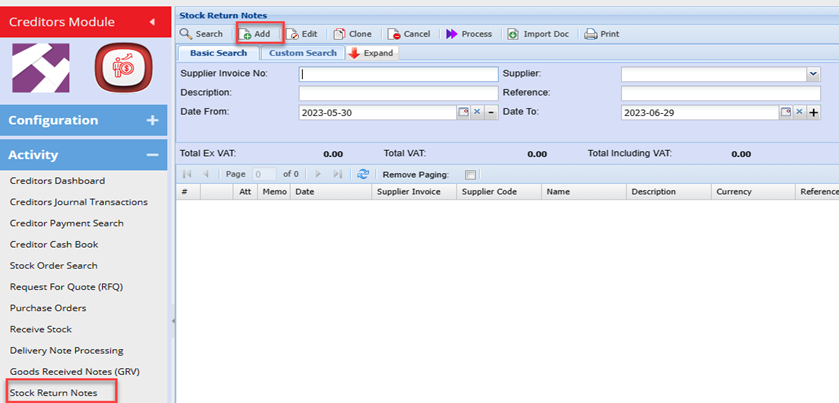
Creditors Module>Activity Menu>Stock Return Notes
Select the Creditor
Enter the description
Enter a Reference: this could be the original Supplier invoice number
Enter the respective date
Click Save
You can create standard reason typically for stock being returned and select the respective reason from the Drop down
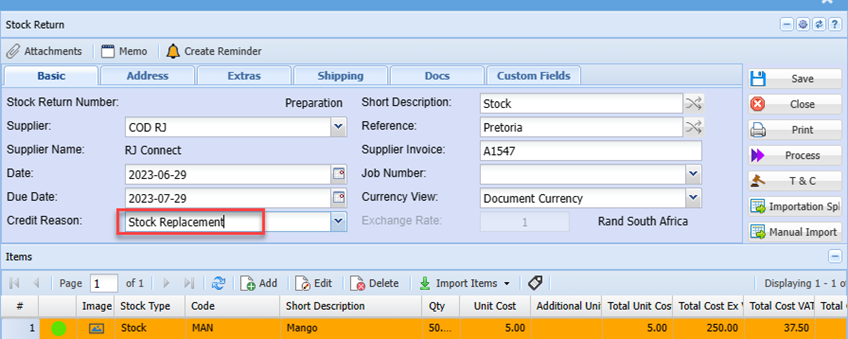
Click Add to enter the item details being returned
The capture process here is the same as one would capture a Purchase order
Enter the Quantity of the items you are returning.
Enter the Cost Price per item.
Select the VAT Type from the drop down box which will be Stock Return VAT
Click on save and new button to add another item
Or Save an Close if no other items are being returned
Click on Process button
The document will be generated and you can print if needs to be send with the Stock being returned.
The Stock return note can also be emailed directly to the Creditor from the system.
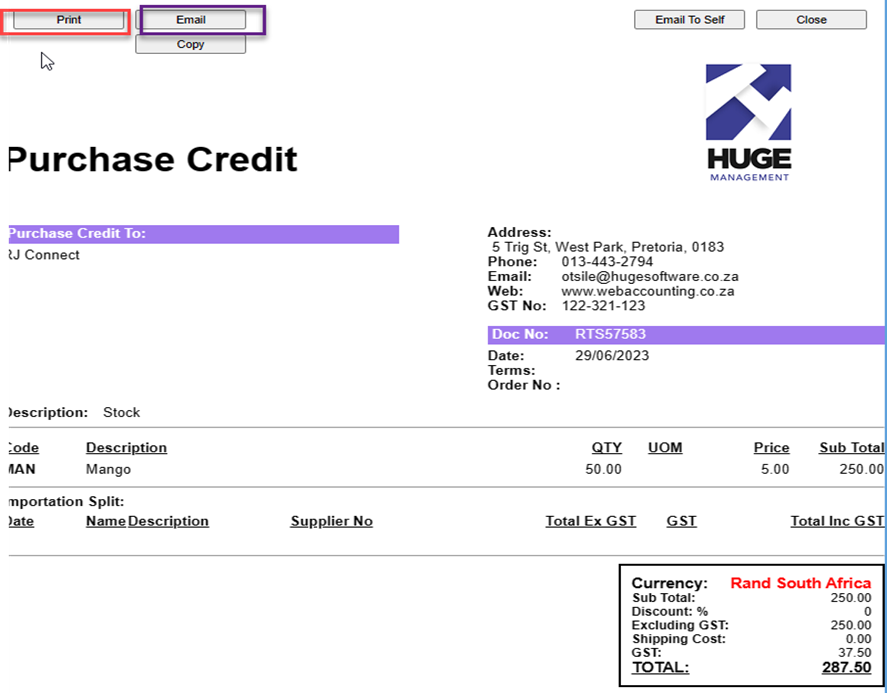
Import from GRV Document
Go to Creditors > Activity> Stock Return Note
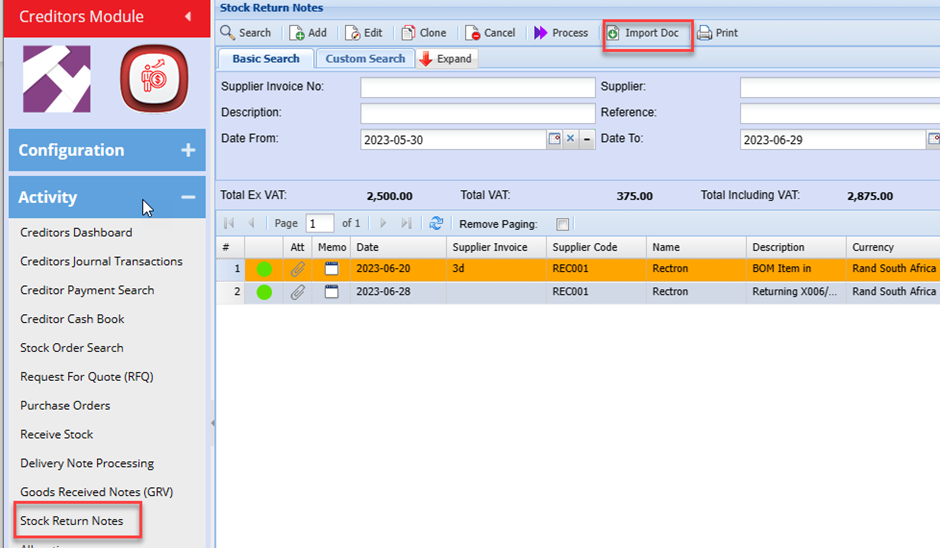
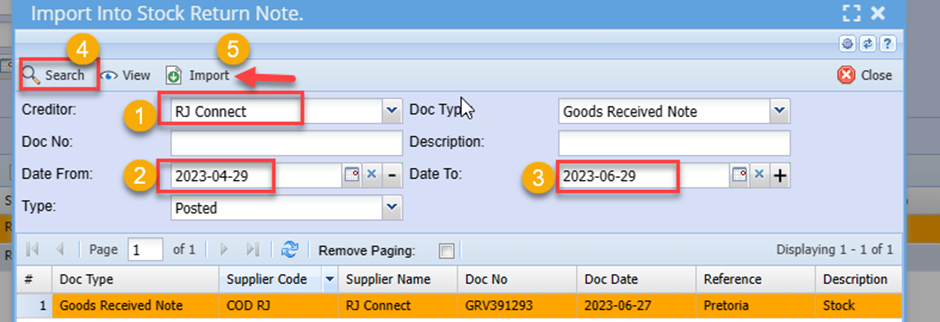
Search for the required Goods Received Voucher (GRV)
Select and Click the Import Button
Edit and details on the document header
Double click the item line if any edit is required. Eg. Changing the quantity being returned
Delete any item not be returned ( in the event the Imported GRV had more than 1 item line)
Process the Stock return note and Print/ email in the same manner as with manually capturing (see above)
No Comments