
Receive Stock
Creditors Module > Activity> Receive Stock
The Receive Stock process is the procedure to properly inspect all incoming ordered goods in the system.
Once your Purchase Order has been Ordered, the next step is to receive the items and that process is done in the receive stock menu item.
Huge ERP allows to receive all ordered items at once or
Partially receive items.
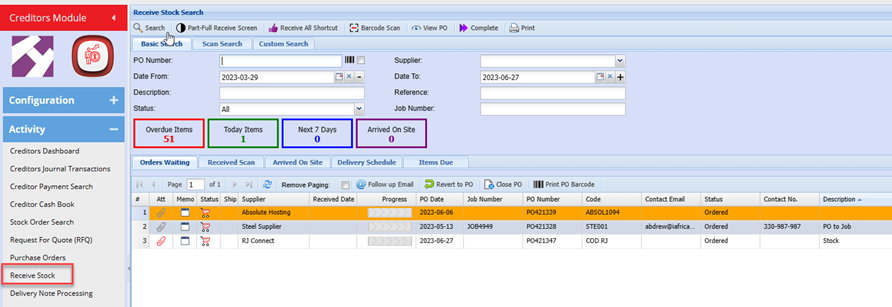
Select the Receive Stock Menu Item
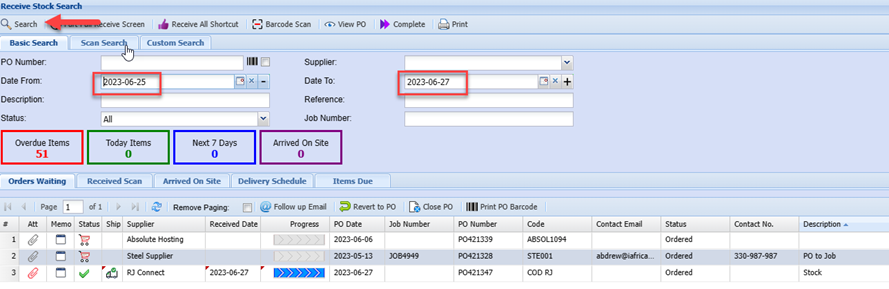
The search criteria allows to search by Entering the name of the Supplier or Supplier account code and Press enter (You need only enter the first few letters of the name)
Click on the required Supplier from the drop-down list
Check the date range that the purchase order was done
Click Search.
If you know the Purchase Order Number, you can enter the number and click search as well
Double Click on the required Purchase Order Line
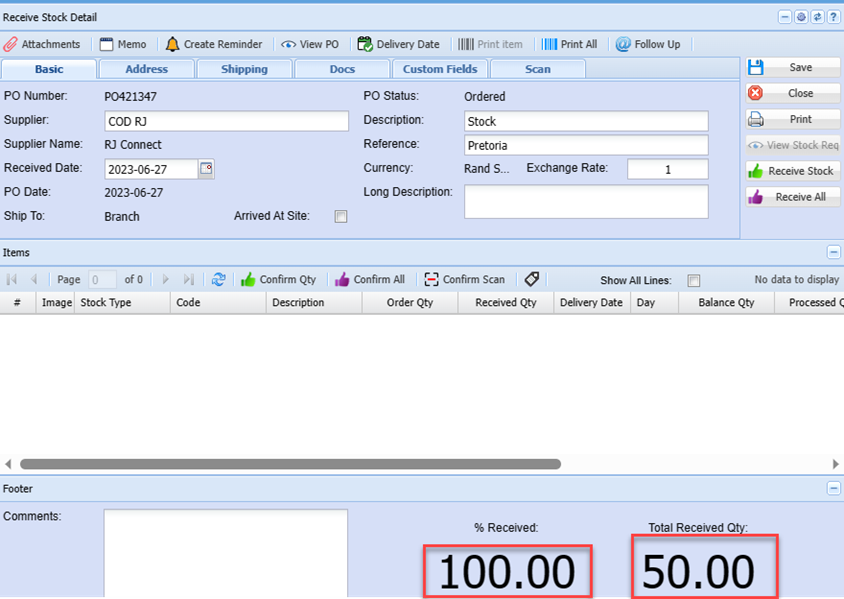
The receive stock window will open up
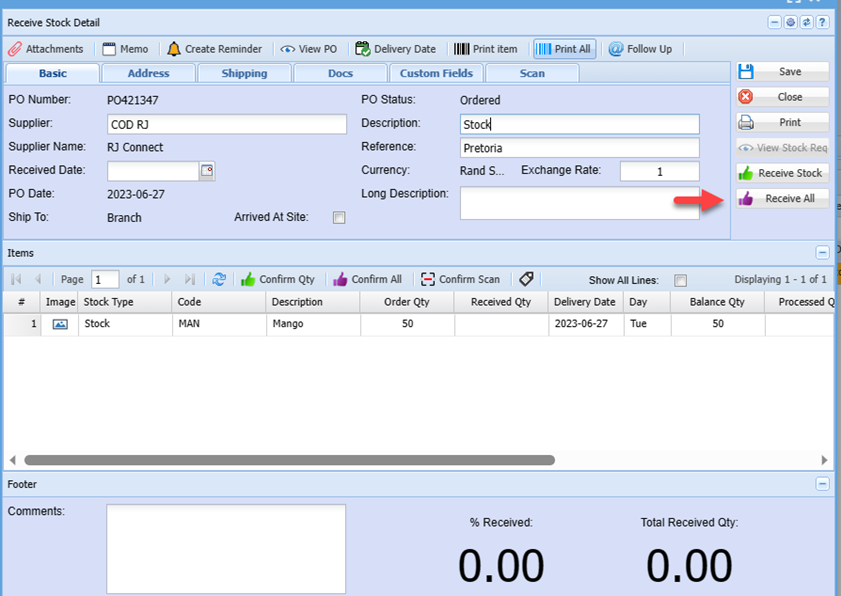
If you are sure that you physically received all the correct items and quantities, you can click on the “Receive All” button.
This saves you time from having to receive each item individually. (in the case where you have ordered several items).
Alternatively, click the Receive Stock button
Enter the quantity of the respective item received
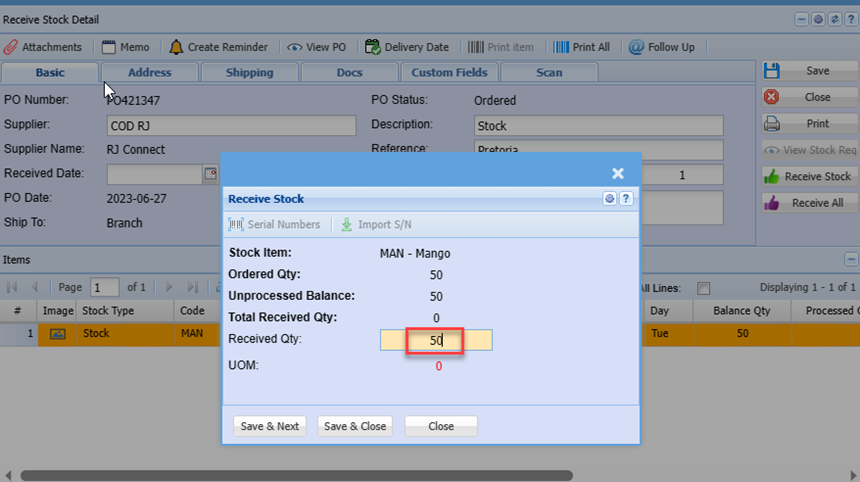
Enter the Actual quantity received of the item.
Click Save and close.
Or Save and Next (if there are more than one item)
The window below shows you at the bottom how much quantity of this Purchase order items was received you can then close the window.
Click Close
Complete Receive Stock process to GRV
Once the items have been received, the transaction can now be moved to either a delivery note route or GRV route
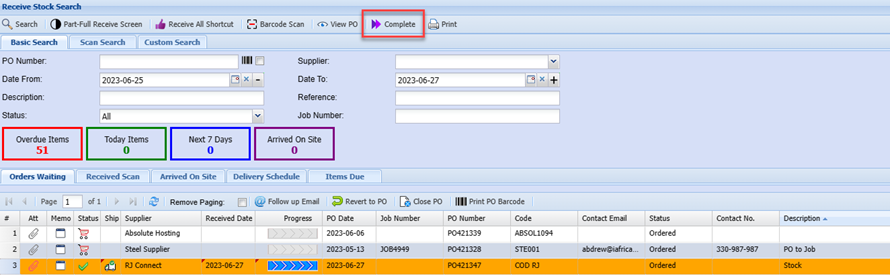
Select the required PO (Receive stock) from the grid and click the Complete Button
Click the Process button and select complete function in the drop down
On the document type drop down select - GRV
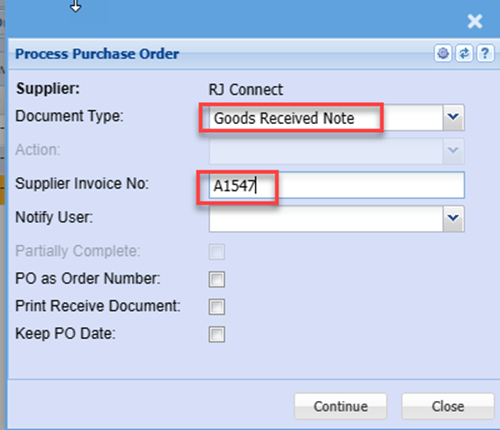
Enter the Supplier Invoice Number
Click continue
The entry now moves to Goods received (GRV).
Note: At this point even though the stock has been physically received, the system will not show the stock available until the GRV is Processed.
If you receive the stock via a Delivery note or wish the stock to be available immediately, even though the GRV is not processed, then you need to select the “Delivery Note” option from the document type drop down on the above screen.
To complete the procurement cycle, you need to process the Goods Received Voucher (GRV) process.
Refer to GRV processing Manual>>>>
No Comments