
Stock Order columns explained
Stock Order Columns
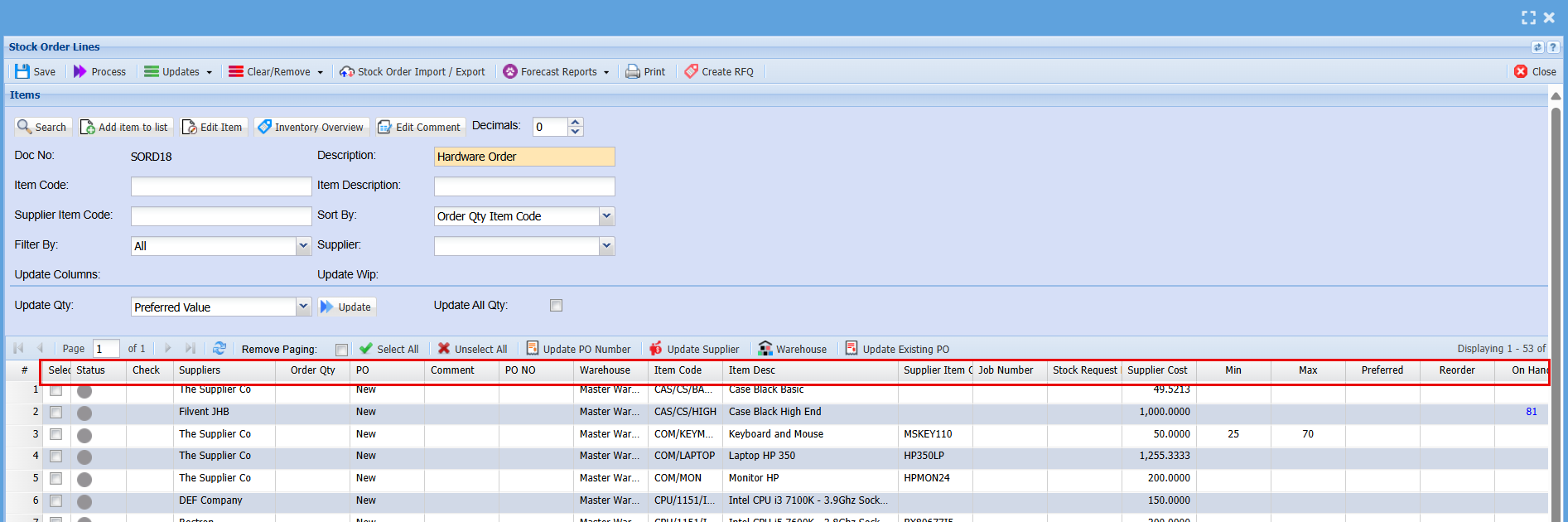
| Select | Tick the box of the items you would like to select, you can select more than one item at a time. |
| Status | The Status colour will change as it moves through the ordering process eg: Grey means you have no current order for this item. |
| Check | |
| Supplier | This will be the supplier you will be ordering from, if you have multiple suppliers, you can change the supplier here by ticking the Select box and then clicking the "Update Supplier" button to change the supplier. |
| Order Qty | This will show the quantity of each inventory item you are ordering |
| PO | All purchase orders will show as new when a Stock order is created. If there is already a purchase order created for a supplier, and you just want to add this item to the existing purchase order by ticking the select box for this line and clicking the "Update Existing PO" Button. This will change the PO from New to Existing. |
| PO No. | Once you have updated the PO to show existing, you can select a Purchase Order from the list you want to add an item to and when you click "Save" the PO number will show in this column. |
| Warehouse | If you are working with multiple Warehouses, you can select the Warehouse you are ordering for here. |
| Item Code | This will show your item Code |
|
Supplier Item code |
This will show the Suppliers Item Code |
|
Job Number |
If you were ordering an item for a specific Job, you can add the Job number here |
|
Stock Request |
If you have a Stock Request number, you can add it here. |
|
Supplier Cost |
If you have Stock Costs in your setup it will show here |
|
Min / Max |
If you have set up you Min and Max stock Quantities at Setup for each stock Item, that will show here. |
|
Preferred |
If you have set up you Preferred stock Quantities at Setup for each stock Item, that will show here. |
|
Reorder |
If you have set up you Reorder stock Quantities at Setup for each stock Item, that will show here. |
|
Onhand |
If you have set up you Onhand stock Quantities at Setup for each stock Item, that will show here. |
No Comments