
Restore Procedure
RESTORING OF A BACKUP
1. Ensure that you have a backup of your current data before
restoring.
To restore a backup of your company, there are two steps:
- Create a restore Password
To do this: System Configuration> Administration>Company Profile
Click the Functions dropdown
Select: Set backup Restore Password
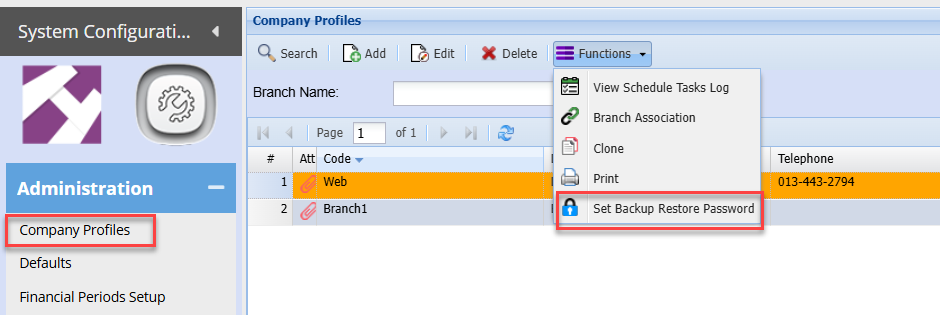
Enter a required password
could be only a number if so deemed, eg. 1
Note: There is no specific criteria for this Password. ie. number of characters, etc
Password could be anything really.
Save and close
2. Restoring the Back up
Go to: System Configuration>Administration>Backups
Search the required backup
Click Functions
Select Extract Backup

Allow the system to unzip the backup file. (if the company data volume is not excessively large, allow approximately 3-5 min)
Search
Then click once on the unzipped file .. this will be indicated by .xml at the end
Click Functions Dropdown again
Select restore
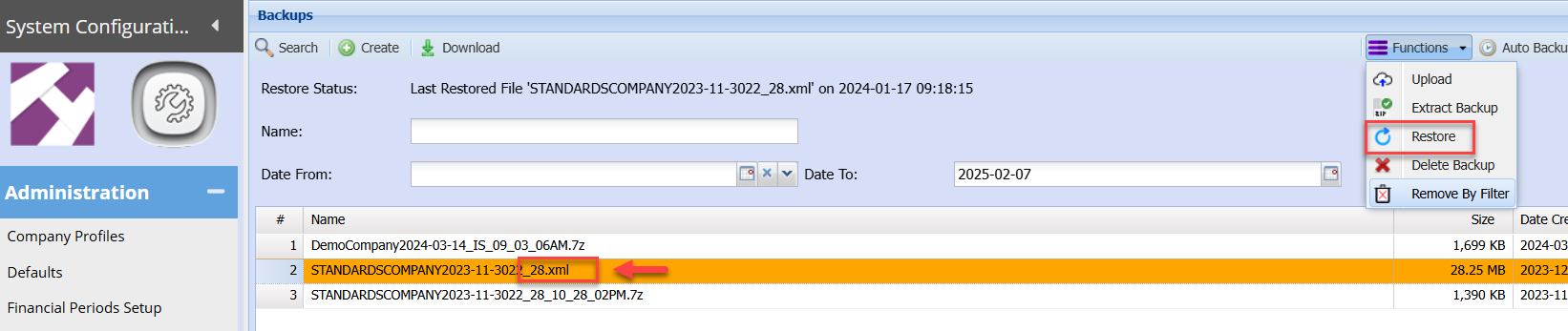
Enter the password created in step 1

Click Ok
Click Ok Again
The system will then start restoring the backup and display on the top next to restore status
Once complete, the status will read "backup... has been restored"
Once the backup has completed please log out and log back into company.
No Comments