
Escalation and Debit Order Message Setup
Escalation Setup
To ensure that the escalation of outstanding reminders works correctly it is essential that each employee in the system that receives reminders has a manager assigned to him or her.
To assign a manager to the employee go to System Configuration -> General -> User Setup.
Search for the desired employee and click amend.
Go to the User Details 2 tab, find the Manager box and click on the [...] button.
Search for the desired manager and then click on Select.
Save the employee's details.
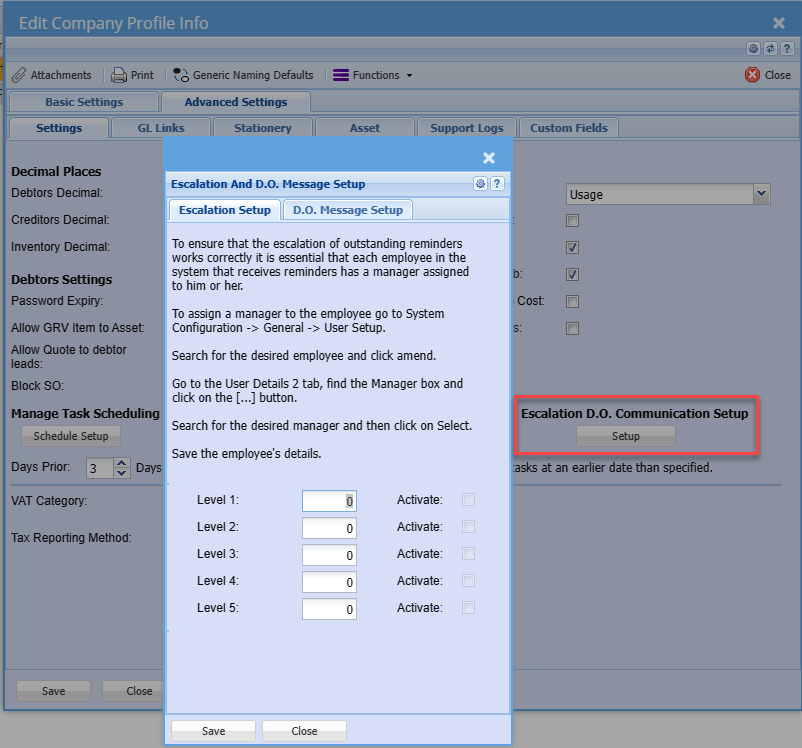
There are five levels of escalation provided for in the system.
In the Level 1 box enter the number of days that will be allowed for the recipient of a reminder to take the necessary action required by the reminder and to complete the reminder before it will be escalated to the recipient’s manager.
E.g. If the reminder date for the reminder is the 5th and the Level 1 value is 3 then the escalation date will be the 8th allowing the recipient 3 days to complete the reminder. So therefore as a rule based on the above example all reminders will be escalated to the first level manager 3 day after the reminder date if it has not been completed.
Level 2 through 5 can be setup to escalate to the next management level by various day increments e.g. 10 days to the 2nd Level 15 to the 3rd level etc.
The tick boxes are to be selected to actually activate the level’s escalation.
Debit Order Message Setup
The Debit Order Message is to provide a mechanism whereby an email message, sms message or both can be sent to a selected contact person/persons at a company a predetermined number of days before the debit order is due to ensure that sufficient funds will be available in the debtor’s bank account on the debit order date.
There is a tick box for both messages types to enable either one or both.
Enter the number of days before the debit order is due, that the message must be sent.
With the scheduler activated this mechanism will run every day or night and will calculate each time if there are debit orders due on a date calculated from today plus the number of days entered and an email or sms or both will be sent to the identified contact persons.
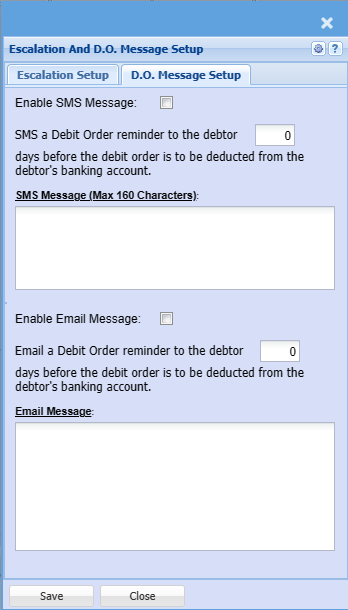
A message box is provided for both email and sms where a custom message can be created that is to be sent.
The sms message is limited to 160 characters and any text exceeding this limit will be removed. There is a counter above the text box displaying the number of characters used.
Special key words have been defined for the messages and will be replaced with actual text for the message. Be very careful when entering these key words as any spelling error will result in the text not being replaced. The square brackets must be included as they are part of the key word.
Key Word Replaced With
[ContactPersonFirstName] Selected contact persons first name
[DebitOrderDate] Debit Order Date
[DebitOrderAmount] The debit order amount to be processed
[CompanyName] Customer name
Example of a SMS Message
This can be copied and pasted into the SMS message box and edited
Hi [ContactPersonFirstName],
On the [DebitOrderDate] the amount of R[DebitOrderAmount] will be processed from the company bank account.
Example of an Email Message
This can be copied and pasted into the Email message box and edited
Dear [ContactPersonFirstName],
Please be informed that on the [DebitOrderDate] the amount of R[DebitOrderAmount] will be processed from [CompanyName] bank account as per the Debit Order agreement.
Please ensure that there are sufficient funds available in the account to cover this amount.
Regards
Huge ERP Accounts Department.
No Comments