
Debtor Functions
Functions Drop Down
Debtors Module> Configuration> Debtor Setup> Functions Drop Down
This drop down defines actions against a Debtor or Customer
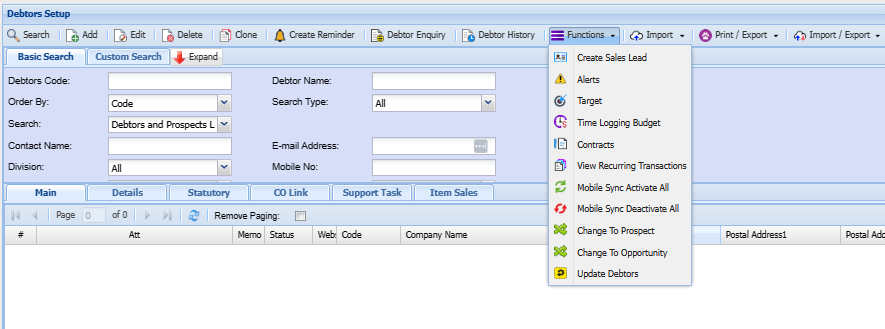
| Create Sales Lead | Allows you to easily create a sales lead from a debtor or customer screen if they want more business or services without having to recapture all information that already exists within the system. |
| Alerts | Set up an alert for a customer in the system |
| Target | Allows you to set monthly targets for the year |
| Time Logging Budget | Allows you to setup time logging budget |
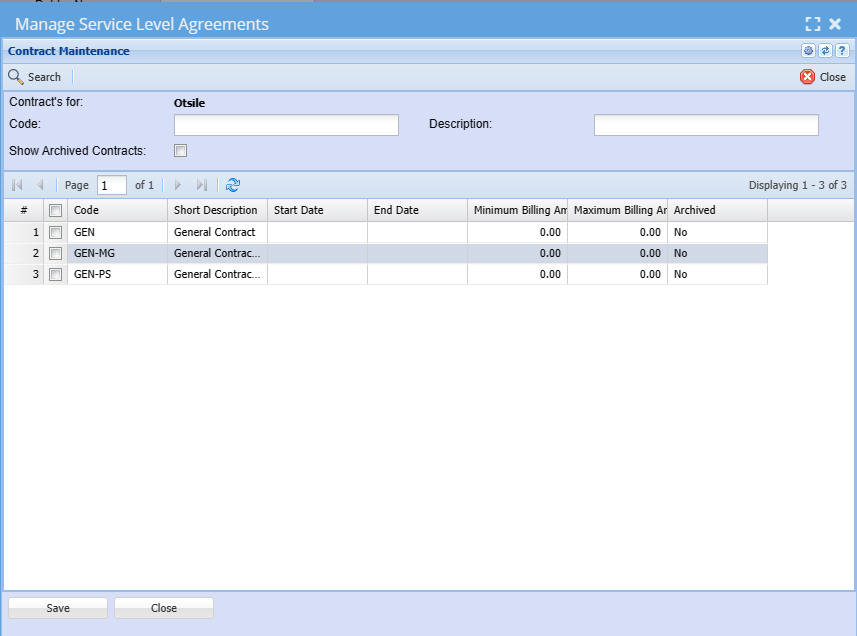
| Contracts | Allows you to view maintenance contracts |
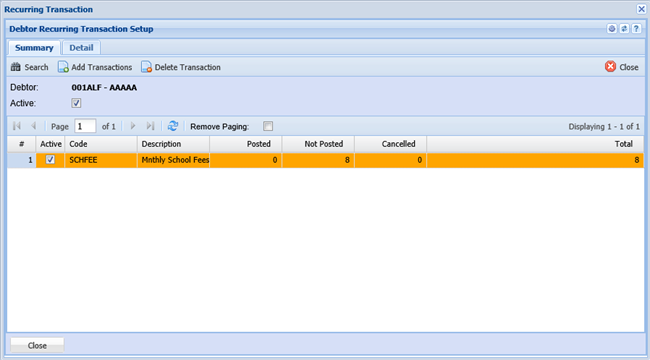
| View Recurring Transactions | Allows you to set and view recurring transactions |
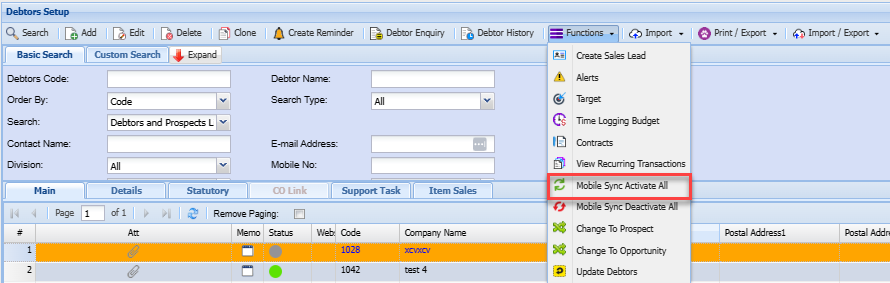
| Mobile Sync Activate All | Allows you to activate mobile sync on all debtors |
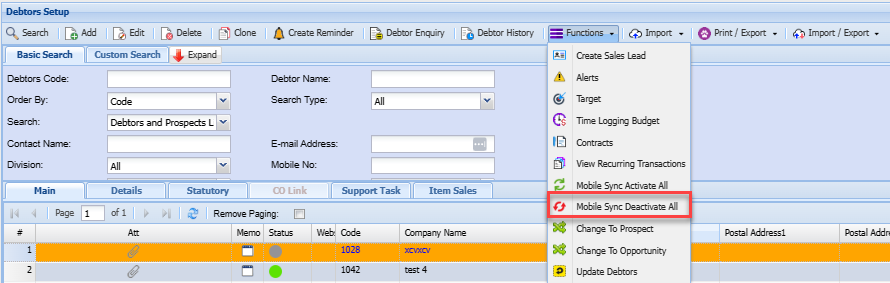
| Mobile Sync Deactivate All | Allows you to deactivate mobile sync on all debtors |
| Change to Prospect | Allows you to change a debtor/ customer to a prospect |
| Change to Opportunity | Allows you to change a debtor/ customer to an opportunity |
| Update Debtors | Allows you to update debtors/ customer properties |
Create Sales Lead
Sometimes your debtors or customers switch to sales leads when there is a change in their interest or want more business from you. The button helps with easily changing the debtor/ customer to a sales lead without having to recapture information that already exists within the system. Creating a sales lead also helps with marketing and sales efforts effectively to maximise revenue and maintain a well-organised debtor/ customer database.
When the sales lead button is selected from the functions drop down the create sales lead screen will pop-up
You need to click yes to create a sales lead

When you click yes it will take you directly to the created sales Lead
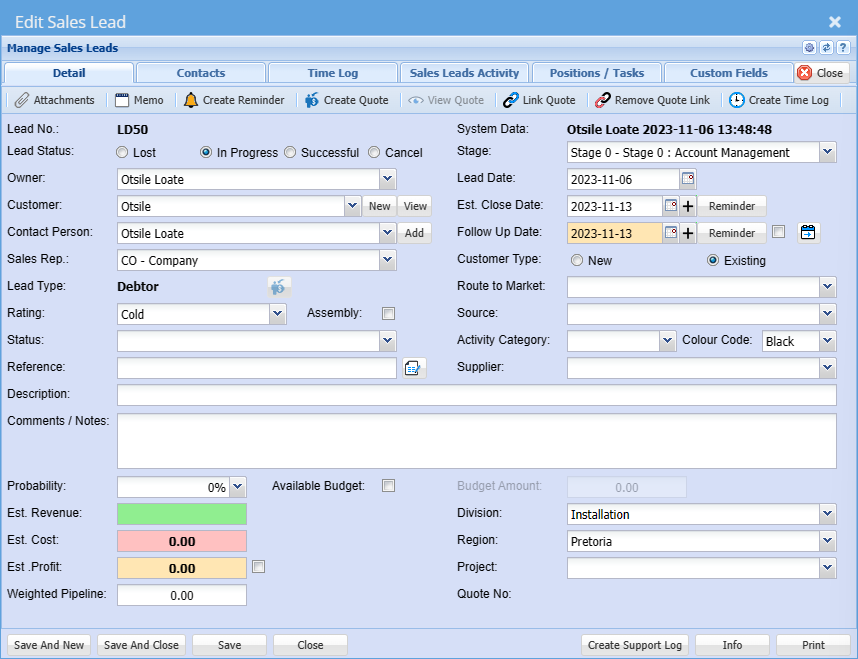
Should you want to capture other details on the sales lead screen go to Sales Lead Process
Alert
You can create alerts on the system that will notify you when a new client is adding a new document or editing a document for a debtor/ customer.
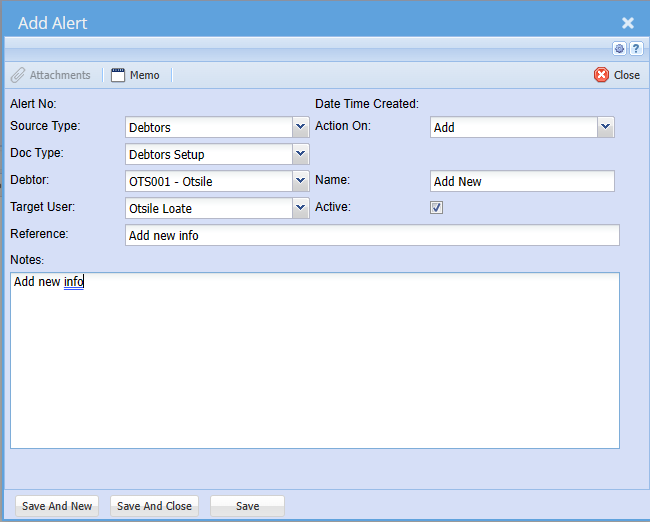
| Alert Number | After clicking save the alert number will be generated by the system |
| Source Type | Select a debtor/ customer type on the drop down |
| Document Type |
Select the document type on the drop down This is where you indicate where you want the alert to be |
| Debtor | Select debtor/ customer on the drop down |
| Target User | Enter the user that should receive the alert when adding or editing a debtor/ customer document |
| Reference | A note that will assist you to recall what the alert |
| Notes | A detailed note to remind you why you put the alert |
| Date Time Created | Date and time will be generated by the system after you click save |
| Action On |
This is when should the system send you and alert. When adding or deleting something on the selected source and document type |
| Name | The name of the person adding the alert |
| Active | Put a tick on if alert is active and do not put tick if the alert is not active |
Targets
Managing debtor/ customer budgets within Huge ERP system is crucial for maintaining healthy cash flow, reducing the risk of bad debt and ensuring that the debtor/customer credit policies are consistently enforced. It allows you to strike a balance between extending credit to debtors/ customers and minimising financial risk.
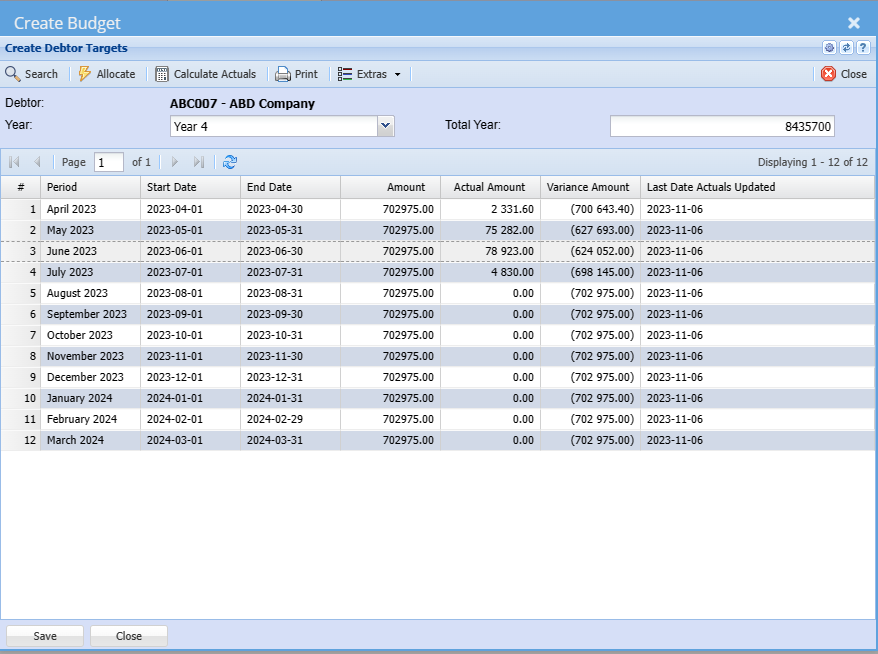
| Period | This reflects the month of budget |
| Start Date | The start date of the targeted budget |
| End Date | The end date of the targeted budget |
| Amount | The budgeted Amount |
| Actual Amount | The actual amount made in that period |
| Variance Amount | The budget amount minus the actual amount equals to variance amount (Difference between amount and actual amount) |
| Last Date Actuals Updated | This shows the last date the budget was updated. |
Time Logging Budget
Time log budgets within Huge ERP allow you to effectively manage time-related resources, control costs, and achieve operational excellence. Time logging budgets are designed to enhance your efficiency and profitability through smart time management.

| Description | Add a short heading describing the why you are creating a time logging budget |
| Date From | Add the start date of the project |
| Date To | Add the end date of the project |
| Budget Qty | Add the budget amount agreed on with the debtor/ customer |
| Budget Value | Add budget value agreed on with the debtor/ customer |
| Adjustments | If there are any adjustments to the budget add them here |
| Adjustment Date | This is the date when the adjustments were made between the two parties |
| Incl Travel | Put a tick on if the budget amount or value includes traveling |
| Incl Toll Fees | Put a tick on if the budget amount or value includes Toll fees |
| Incl Disbursements | Put a tick on if the budget amount or value includes disbursements |
| Incl Non-Bill Qty | Put a tick on if the budget amount or value includes Non-Bill Qty |
Contracts
You can view all service-level agreements or contract maintenance for a debtor/ customer.
View Recurring Transactions
Debtors module> Configuration>Debtors Setup > View Recurring Transactions
Recurring transactions provide convenience and predictability, reducing the need for manual financial management.
When you click recurring transactions, it will take you to the screen below. To see a list of recurring transactions you need to click on search and the list will appear.
View a detailed manual on recurring transactions here
Mobile Sync Activate All
Mobile to sync activate all, adds all debtors/ customers to the webatar mobile application.
Mobile Sync Deactivate All
Mobile sync deactivates all erases all debtors/ customers from the webatar mobile application
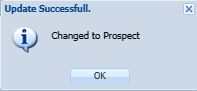
Change to Prospect
Change to Prospect allows you to update a debtor/ customer or opportunity to a prospect
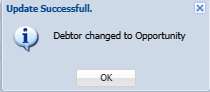
Change To Opportunity
Change to opportunity allows you to change the selected debtor/customer or prospect to opportunity
Update Debtors
You can change debtor/ customer details mentioned below under the functions drop down without having to open up the details screen
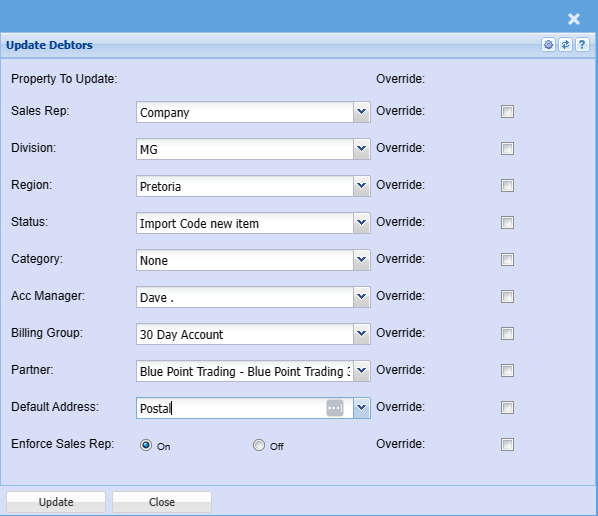
| Sales Rep |
If you want to run a report by a specific sales rep, then you will need to select the sales rep on the drop-down menu. If you leave the sales rep on all the report will run by all sales rep.
|
| Division | If you have set up divisions for your debtors, you can pull the report for all your debtors or you can select a specific Division from the drop-down menu. |
| Region | You can pull the report for all your debtors, or you can select a specific Region from the drop-down menu if you have set up Regions for your debtors. |
| Status | If you select all the report will pull all statuses. If you want to view report by status, select the status on the drop-down menu |
| Category | To generate the report, the user has to select the category from the drop-down menu |
| Acc Manager | You can pull the report for all your debtors, or you can select a specific Account manager from the drop-down menu if you have set up Account Managers for your debtors. |
| Billing Group | Select the billing group update on the dropdown |
| Partner | Select the partner update on the dropdown |
| Default Address | Select the default address on the dropdown |
| Enforce Sales Rep | Select Yes to enforce sales rep or select No if you don't want to enforce sales rep |
| Override | Put a tick on override if you want to override a selection made on the dropdown |
No Comments