
Additional Debtor Property Import
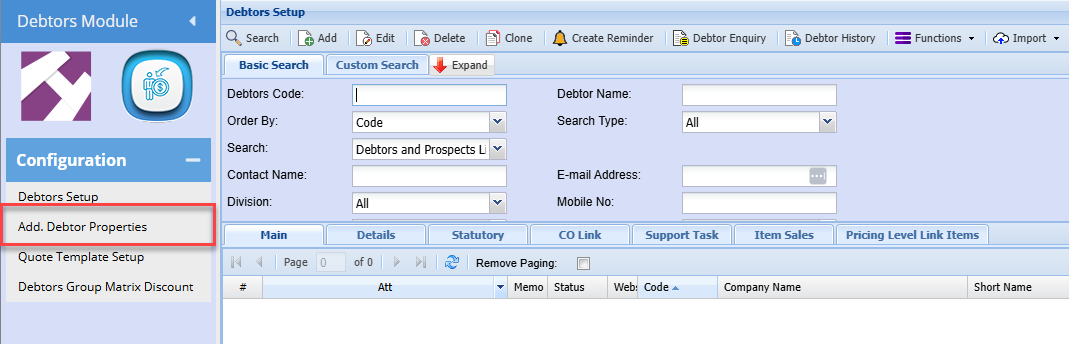
Debtors Module> Configuration> Add. Debtor Properties
Populate your data in Excel into the below template:
.png)
The input in the Division, Region, Status and Category fields is always the respective field code, not the description on the field setup. (this is the code on the setup above)
Once the file has been compiled, save the file as a CSV (comma Delimited) file
Upload Process:
Log onto the company
Go to Debtors Module> Configuration> Debtor Setup
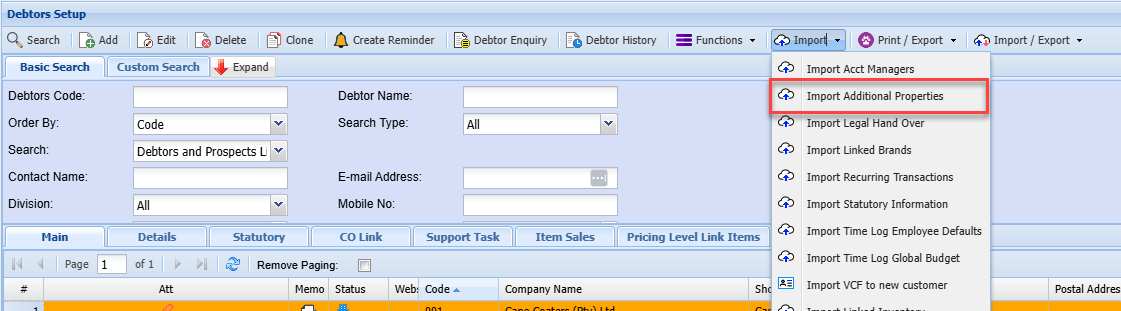
Click on the Import Tab dropdown arrow
Select “Import Additional Properties”
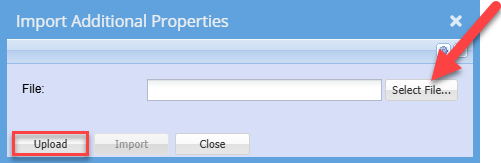
Search for the file that you saved earlier
Click Upload
The below Message will be displayed (assuming the import file is correctly formatted)
.png)
Click OK
Click Import
.png)
The system will verify the details on your file, e.g. All account codes exist, and all category codes exist
If all is OK, the file will be imported and all respective debtor accounts updated accordingly.
If errors are received, these will be listed.
Make the necessary corrections on your import file and resave the file
Then retry the import as per the above process
No Comments