
Sales Item Map
For every stock item you can choose which account it can post to
If you have ten items on an invoice and 1 is selected with sales item mapping it will not follow the posting of an invoice but it will follow the setup done on item mapping
This manual shows one how to set up Sales Item Mapping
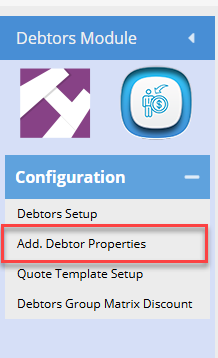
Go to Debtors Module > Configuration > Add. Debtor Properties
Click on the tab for Sales Item Map and click on Search to check the current setup of Sales Item Mappings.
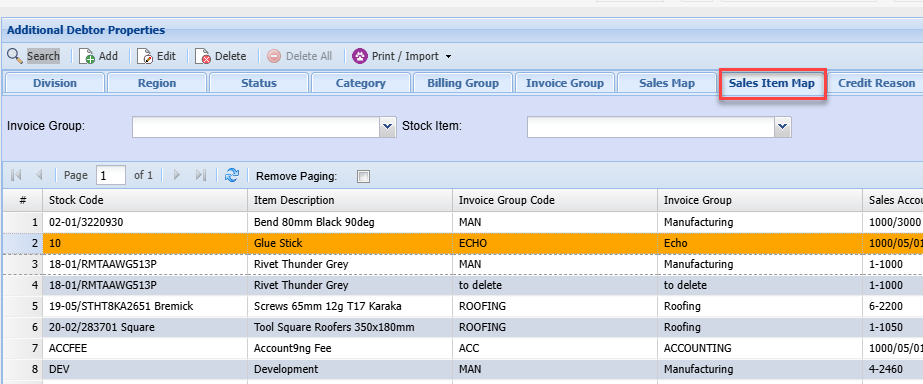
If Mapping does not exist or a new one is to be created
Click on the Add button to add a new Sales Item Map
Input the relevant field mappings required
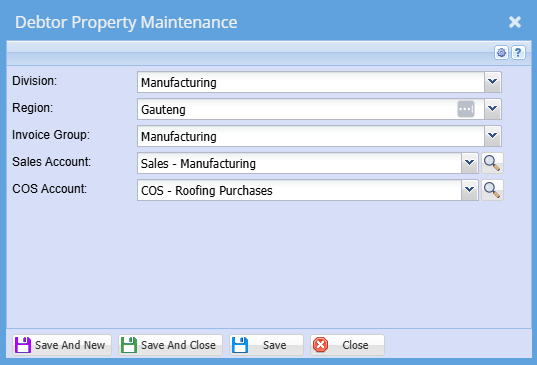
Field definitions
| Invoice Group |
Select the relevant Invoice group category This can also be found under the Invoice Group Tab |
| Stock Item | This is the service line item which is shown on the lines of the invoice |
| Sales Account | Insert the relevant sales ledger account |
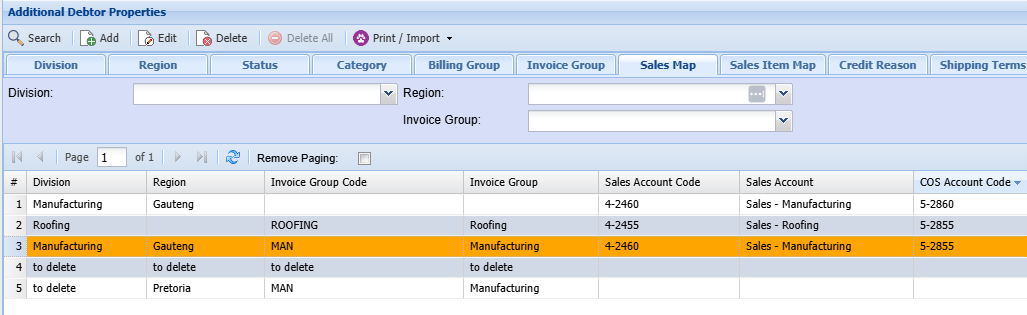
Once Setup the Mappings will appear on the grid
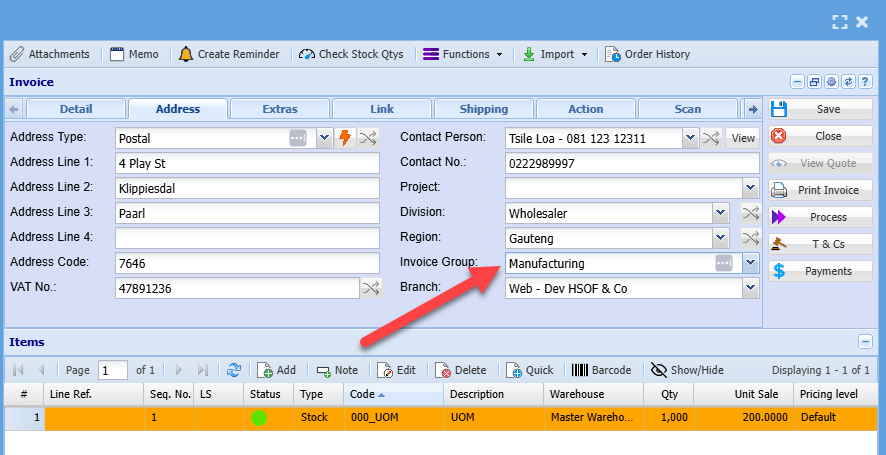
The Invoice layout shows you which data the system looks at to execute the mapping rule
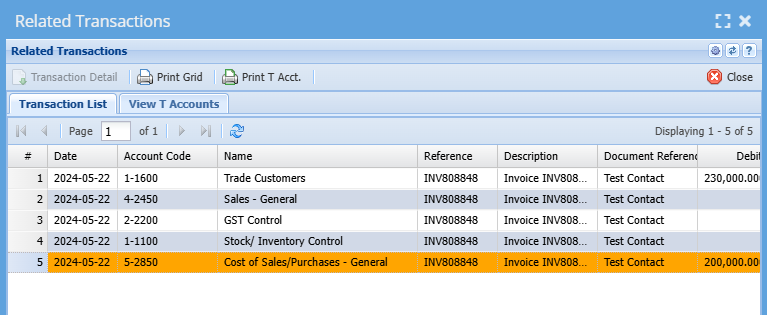
Therefore, the result will be as follows
Troubleshooting Revenue Unallocated
This happens when there is no Sales Item Mapping Link
You can check in the following places
- Invoice line detail
- Related Transactions
- Income Statement detail lines
|
Invoice line detail |
Check the invoice lines and then check on the Sales Item Mapping section to see if you have matches. If not, you will need to setup |
| Related Transactions | When this occurs one must check the invoice line details |
| Income statement (Financial Performance) reports | Run the report and print to screen |
If you have amounts in the Revenue – Unallocated GL ledger, it means there are sales mappings missing
Therefore, the system will default to the default GL Links setup account.
Check the details of the invoices that make up the Revenue – Unallocated by clicking on the name to get the details.
You will now see all the invoices that make up the value of the sales revenue posting.
Now click on the Reference line of one of the invoices to see the details of the invoice
Go and check the following information on the invoice
Invoice Group + Service Code = GL Account (Sales Mapping setup)
Go and check the Sales Item Mapping grid to see if the Map exists, if not create a new one.
Once mapping is setup, next import or manual invoice will follow the sales item mapping rule.
Existing Revenue – unallocated posting in books. You must clear this account with a General Ledger Journal and allocate the values to the relevant Sales Revenue accounts.
One needs to check on a monthly basis that this account does not have any values.
No Comments