
Purchase Orders
Creditors >Reports > Report List
Shows a report on different statuses of Purchase Orders. This includes what has been ordered, received, processed and balances. The criteria for this can be chosen by Creditors or date and stock.
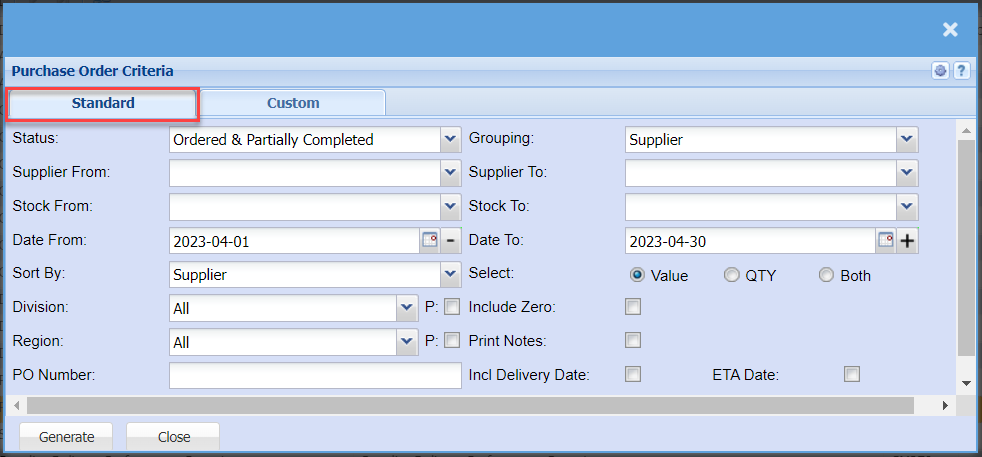
| Status | If you select all the report will pull all statuses. If you want to view report by status, select the status on the drop-down menu, some choices are Closed, Created, Authorised, Ordered, Completed etc. |
| Supplier From / Supplier To | Select a Suppliers/Creditors you wish to view the report from. Select the Suppliers/Creditors you wish to see up to in the report. |
| Stock From / Stock To | Select Stock from and Stock to fields from the drop-down menus to limit what will be displayed on the report. |
| Date From / Date To | Choose the date range for which you want to view the report from / Select a date range of when you want to see up to on the report. |
| Sort By | Choose from the drop-down menu how you would like your report sorted, your options are by Supplier, Purchase Order Number, Date |
| Division | If you have set up divisions for your debtors, you can pull the report for all your debtors or you can select a specific Division from the drop-down menu. |
| Region | You can pull the report for all your debtors, or you can select a specific Region from the drop-down menu if you have set up Regions for your debtors. |
| PO Number | Add the Purchase Order number if you know it |
| Grouping | Select a group you want to have your report reflect, you can have Suppliers, Stock Items, Transaction Dates on None. |
| Select | Select whether you want your report to reflect the Value, Quantity or both |
| Include Zero | By ticking this box, your report will include Zero balance purchase orders. |
| Print Notes | By ticking this box, the report will have an extra column with the Notes against the purchase orders if they have not. |
| Incl Delivery Date | By ticking this box, the report will have an extra column with the Delivery Dates |
| ETA Date | By ticking this box, the report will have an extra column with the ETA |
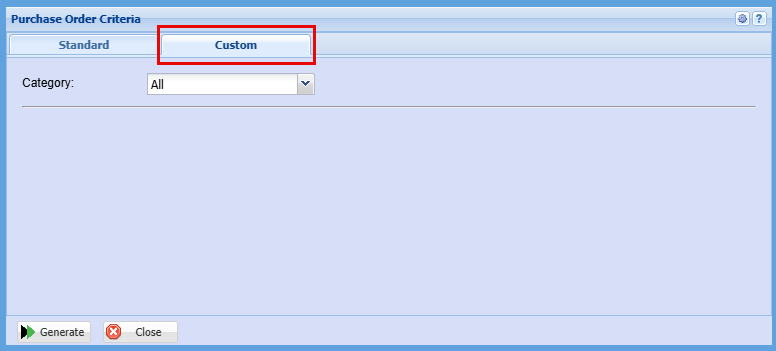
| Category | To generate the report, the user has to select the category from the drop-down menu. These custom fields can be created in the Configuration module to filter the report. |
No Comments