
Detailed Age Analysis
Creditors >Reports > Report List
Shows the detail of unallocated transactions of Creditors in a list in detail per document
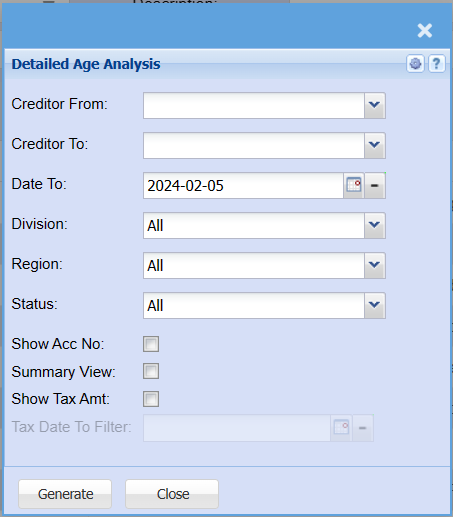
| Creditor From / Creditor To | Select a Suppliers/Creditors you wish to view the report from. Select the Suppliers/Creditors you wish to see up to in the report. |
| Date To | Limit the report by selecting the date to |
| Division | If you have set up divisions for your debtors, you can pull the report for all your debtors or you can select a specific Division from the drop-down menu. |
| Region | You can pull the report for all your debtors, or you can select a specific Region from the drop-down menu if you have set up Regions for your debtors. |
| Status | If you select all the report will pull all statuses. If you want to view report by status, select the status on the drop-down menu |
| Show Acc No. | By ticking Show Acc No. the report will add a column that will have the Creditors account number. |
| Summary View | If you put the tick on the report will only pull limited information |
| Show Tax Amt | If you put the tick on the report will show the tax amount in a separate column. |
| Tax Date To Filter | If you have ticked show Tax Amt you will be able to select a date to filter up to. |
| Generate | Click the "Generate" button to open the report. You will have options to copy, email, or print the report. To view the report in an Excel document, copy the report and paste it into an Excel file. |
No Comments