
Document History
Creditors >Reports > Report List
Shows a full report of Creditors Documents which have been posted. Report is filtered by Document type and date.
This is a full report of posted documents of a selected creditor
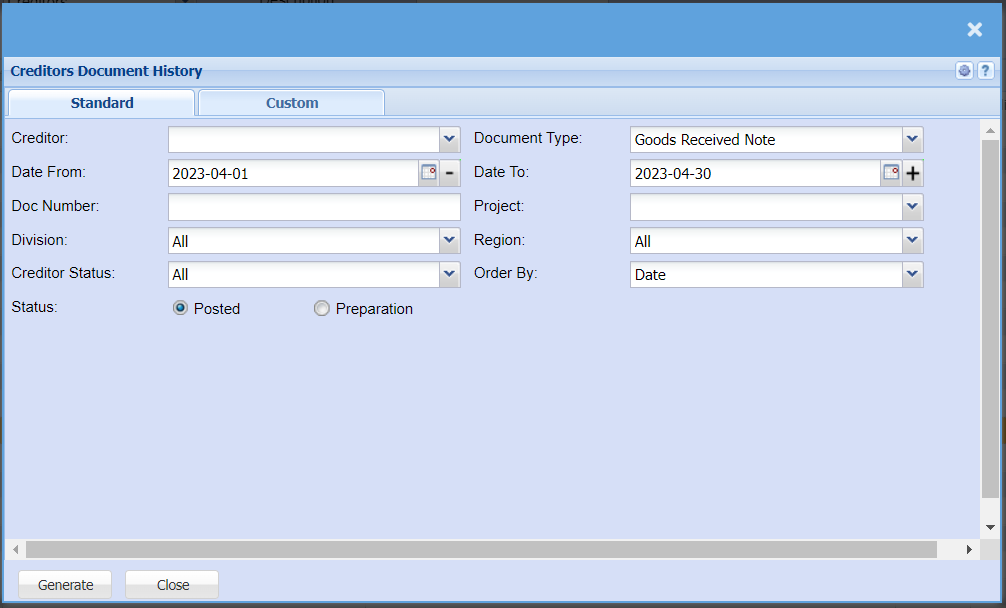
| Creditor | Select a creditor/supplier from the drop-down menu that you would like to pull a report for. |
| Date From / Date To | Choose the date range for which you want to view the report from / Select a date range of when you want to see up to on the report. |
| Doc number | Enter document number if you know it |
| Division | If you have set up divisions for your debtors, you can pull the report for all your debtors or you can select a specific Division from the drop-down menu. |
| Creditor Status | Select the status from the drop-down arrow |
| Status | If you select all the report will pull all statuses. If you want to view report by status, select the status on the drop-down menu |
| Document Type | Select the Document Type from the drop-down menu that you would like to pull document history for. you can select from Goods Received Notes, Stock Return, Purchase Order, Delivery Note or GRV and Stock Return. |
| Project | If this report is for a specific project, select this project from the drop-down menu. |
| Region | You can pull the report for all your debtors, or you can select a specific Region from the drop-down menu if you have set up Regions for your Creditor. |
| Order By | Select how you would like your report to be order by from the drop-down menu, you can choose from Date, Creditors Name, Reference, Doc Number, Description, Currency, Project, tax Total or tax include or exclude. |
| Generate button | Click the "Generate" button to open the report. You will have options to copy, email, or print the report. To view the report in an Excel document, copy the report and paste it into an Excel file. |
No Comments