
Creditors Inventory Filter
Creditors >Reports > Report List
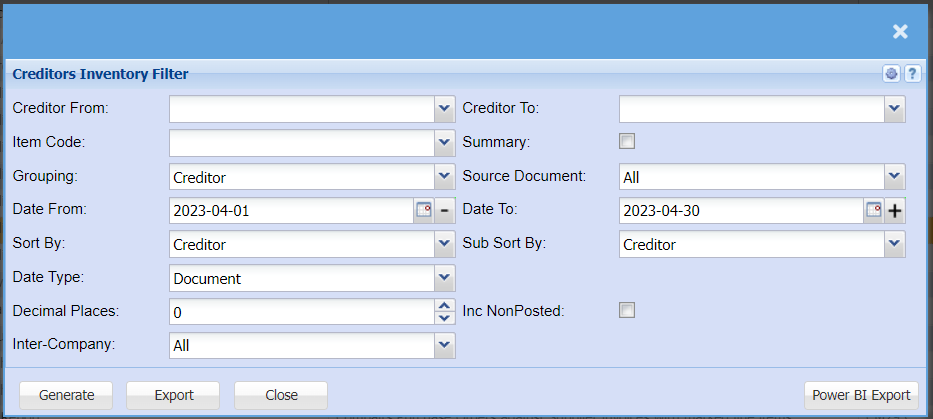
| Creditor From / Creditor To | Select a Suppliers/Creditors you wish to view the report from. Select the Suppliers/Creditors you wish to see up to in the report. |
| Item Code | Select an item from your inventory list that you would like to pull the report for |
| Grouping | Select from the drop-down menu how you would like your report grouped, you can choose from Creditor, Source Document or Stock Type. |
| Date From / Date To | Choose the date range for which you want to view the report from / Select a date range of when you want to see up to on the report. |
| Sort By | Choose from the drop-down menu how you would like your report sorted, your options are by Creditor, Date, Job Number, Reference or Source Document |
| Date Type | Select if you would like the report to be pulled by Document Date or Inventory Movement Date. |
| Decimal Places | It is advisable to set decimals to two places. You can View the report with any number of decimal places. |
| Inter-Company | This will allow you to include or exclude internal invoices between branches that would not be considered a GST Sale but to correct the cost centre. |
| Summary | If you put the tick on the report will only pull limited information |
| Source Document | Select if you would like the report for Goods Received Notes or Stock Returned Notes. |
| Sub Sort By | Sub Sort the report by selecting one option from the drop-down menu allows the user to pull a report with a secondary criteria that will be sorted by either, Creditor, Date, Job Number, Reference or Source Document |
| Inc Non Posted | By ticking this box, the report will include transactions that have not yet been posted |
| Generate | Click the "Generate" button to open the report. You will have options to copy, email, or print the report. To view the report in an Excel document, copy the report and paste it into an Excel file. |
| Export | This allows you to export the report to an Excel file |
| Power BI Export | This allows you to export the report into a Power BI Format |
No Comments