
Age Analysis
Creditors >Reports > Report List
Gives a report of all Creditors monies due and aged by period from the date specified. This criterion allows a selection of a single Creditor.
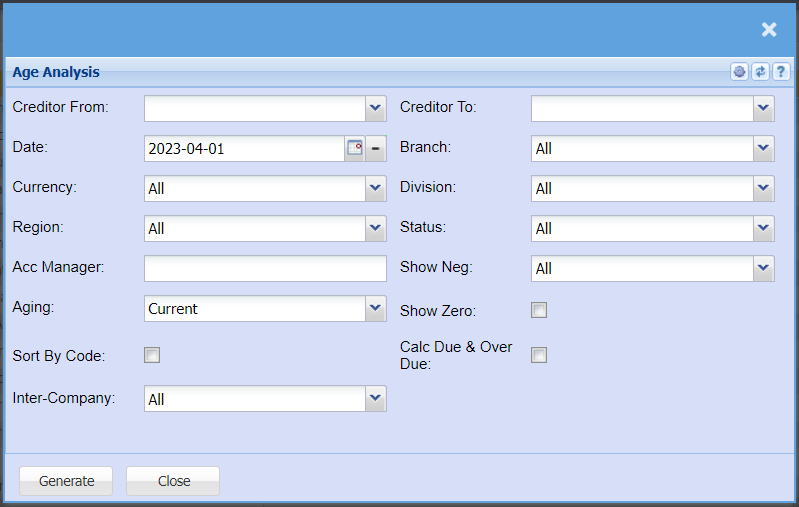
| Creditor From / To | Select a Customer/Debtor you wish to view the report from. Select the Customer/Debtor you wish to see up to in the report. |
| Date | Choose the date range for which you want to view the report for |
| Currency | If you use multi-currency, you can select to pull the report for a specific currency. |
| Region | You can pull the report for all your debtors, or you can select a specific Region from the drop-down menu if you have set up Regions for your debtors. |
| Acc Manager | You can pull the report for all your debtors, or you can select a specific Account manager from the drop-down menu if you have set up Account Managers for your debtors. |
| Aging | Select the period you want to pull the age analysis for. |
| Sort By Code | Tick the box if you would like to add a column to your report for Creditor code which you can sort by. |
| Inter-Company | This will allow you to include or exclude internal invoices between branches that would not be considered a GST Sale but to correct the cost centre. |
| Branch | When working with multiple branches this drop-down allows the user to select a specific branch to pull a report for. |
| Division | If you have set up divisions for your debtors, you can pull the report for all your debtors or you can select a specific Division from the drop-down menu. |
| Status | If you select all the report will pull all statuses. If you want to view report by status, select the status on the drop-down menu |
| Show Neg | Select from the drop-down menu if you want negative balances to be included or excluded from your report. |
| Show Zero | Tick this box if you would like creditors with Zero balances to be included in your report |
| Calc Due and Overdue | Tick this box if you would like to add two columns for the due and overdue amounts |
No Comments