
SES Report
Creditors >Reports > Report List
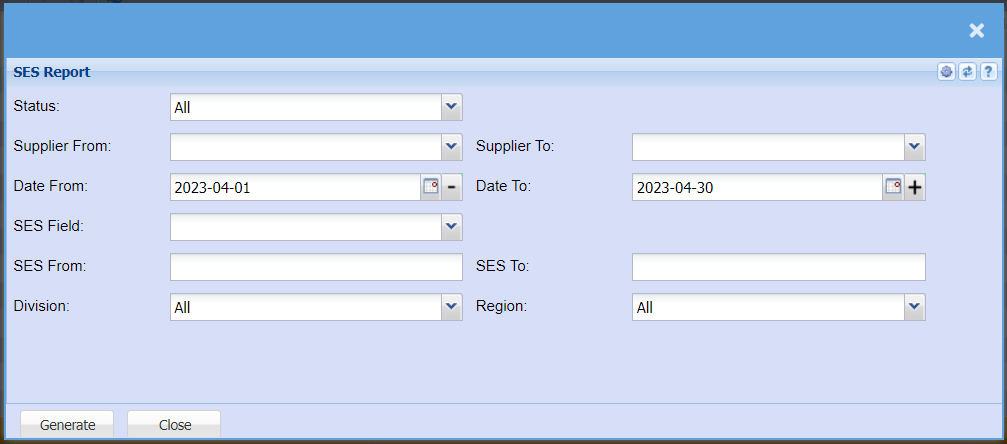
| Status | If you select all the report will pull all statuses. If you want to view report by status, select the status on the drop-down menu, some choices are Closed, Created, Authorised, Ordered, Completed etc. |
| Supplier From / Supplier To | Select a Suppliers/Creditors you wish to view the report from. Select the Suppliers/Creditors you wish to see up to in the report. |
| Date From / Date To | Choose the date range for which you want to view the report from / Select a date range of when you want to see up to on the report. |
| SES Field | |
| SES From / SES To | |
| Division | If you have set up divisions for your debtors, you can pull the report for all your debtors or you can select a specific Division from the drop-down menu. |
| Region | You can pull the report for all your debtors, or you can select a specific Region from the drop-down menu if you have set up Regions for your debtors. |
| Generate | Click the "Generate" button to open the report. You will have options to copy, email, or print the report. To view the report in an Excel document, copy the report and paste it into an Excel file. |
No Comments