
New Job Button
New Job Button

When this option is selected, a new job is started “on the fly,” allowing users to quickly set up and begin working on a job straight away.
- Direct Job Creation – Create a job immediately without needing an existing quote
- Automatic Background Process – The system will automatically create a blank quote in the background
- Linked Records – This quote is linked to the job and can be accessed later under the Quotes section
- Flexible Workflow – Ideal for situations where work needs to begin quickly without following the full quote-to-job process
Creating a New Job Process:
- Click New Job
- Complete relevant forms
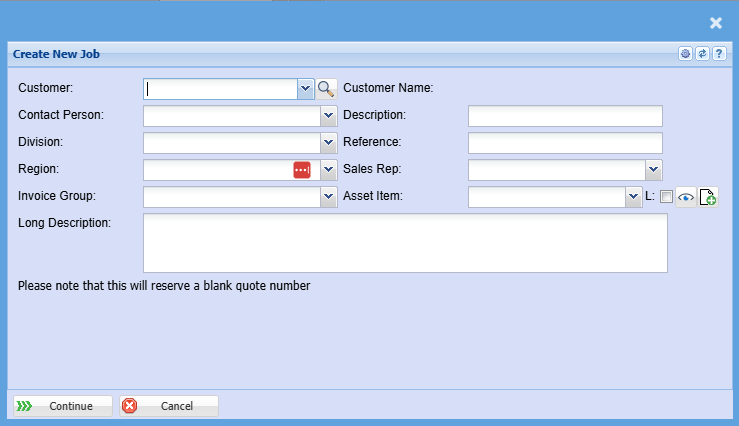
|
Customer
|
Select the customer the job is for
|
|
Customer Name
|
Displays the name of the selected custome
|
|
Contact Person
|
Choose the relevant contact for the job
|
|
Description
|
Enter a short description or title for the job
|
|
Division
|
Assign the job to a specific business division
|
|
Reference
|
Add a reference number if applicable (e.g., customer reference)
|
|
Region
|
Select the region or branch responsible for the job
|
|
Sales Rep
|
Assign the job to a sales representative
|
| Invoice Group |
Specify how the job will be grouped for invoicing
|
|
Asset Item
|
Link the job to a specific asset if required
|
|
Long Description
|
Enter a more detailed description of the job
|
Once you have added your information, select how you would like to proceed.
- Continue – Proceeds to the next step and creates the job
- Cancel – Exits without saving
This screen appears after clicking Continue when creating a new job. It is used to finalise and approve the job setup, converting the automatically created quote into an active job.
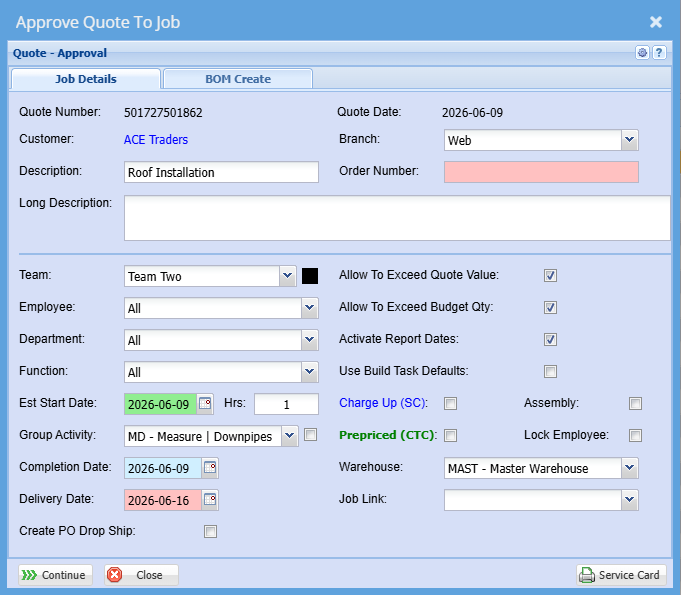
Job Details Section
This screen displays and confirms the key information for the job:
- Quote Number / Quote Date – Auto-generated by the system when the job was created
- Customer – The customer linked to the job which is Auto populated
- Branch – The branch the job is assigned to
- Description / Long Description – The job description entered earlier
-
Order Number (Compulsory Field) – The Order Number must be entered before proceeding. The system will not allow you to continue or complete the job setup until this field has been filled in.
Job Setup Options
These fields allow you to define how the job will be managed:
- Team – Assigns the job to a specific team
- Employee / Department / Function – Further allocation of responsibility
- Estimated Start Date & Hours – Defines when the job will begin and initial time allocation
- Group Activity – Assigns the job to a specific workflow or activity group
- Completion Date – Expected job completion
- Delivery Date – When the job is due for delivery
Additional Settings (Tick Boxes)
These options control how the job behaves:
- Allow to Exceed Quote Value – Permits costs to go over the quoted amount
- Allow to Exceed Budget Qty – Allows quantities to exceed planned amounts
- Activate Report Dates – Enables tracking of reporting dates
- Use Build Task Defaults – Applies predefined task templates
- Charge Up (SC) – Enables charge-up costing
- Prepriced (CTC) – Indicates the job uses predefined pricing
- Assembly / Lock Employee – Controls job structure and assignment restrictions
Other Fields
- Warehouse – Select the warehouse linked to the job
- Job Link – Links this job to another job if required
- Create PO Drop Ship – Option to create purchase orders for direct delivery
- Continue – Confirms and completes the job creation
- Close – Exits without proceeding
No Comments