
Creating a New Quote
Video training manual 2020 - Click Here
Video training manual 2016 - Click Here
Job Costing Module > Activity > New Quote
A job can be created from a Quote
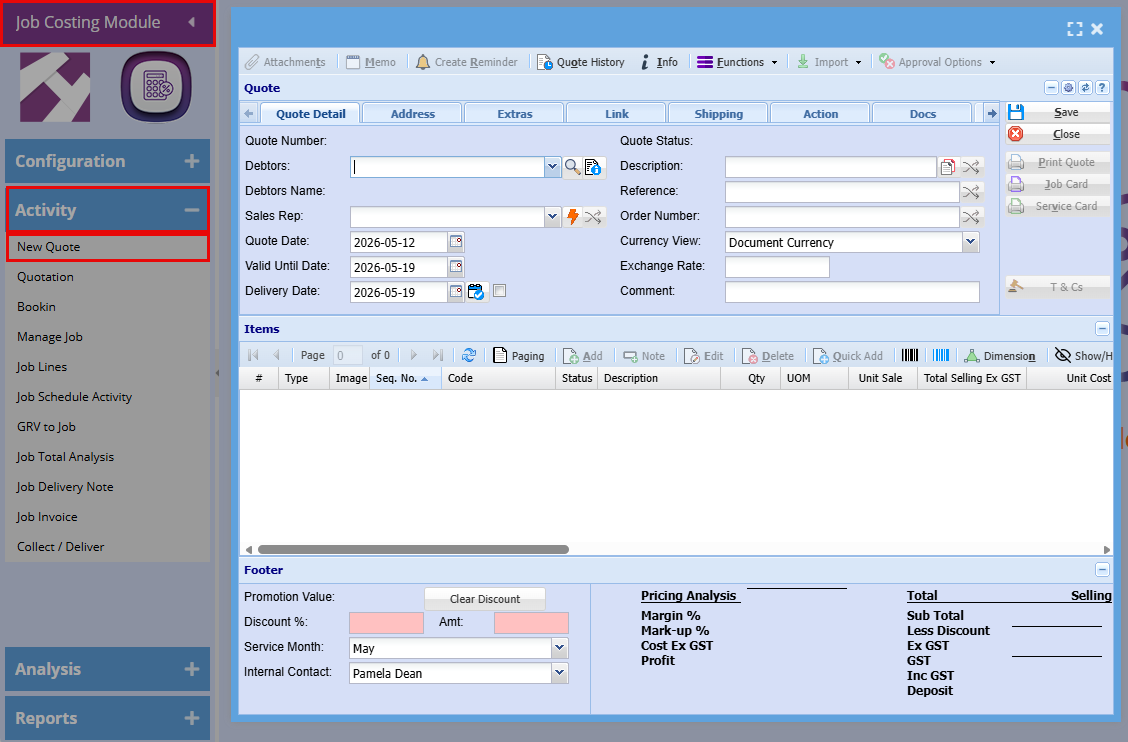
Quote Details Tab
| Quote Number | Quote number will populate when the Quote is saved |
|
Debtors |
Search and select the appropriate Account (company) or Contact (individual) from the list.
|
| Debtors Name | Debtors Name will populate when the Quote is saved |
| Sales Rep | Select a Sales if required |
| Quote Date | Select Date |
| Valid Until Date |
Select the date until which the quote is valid. |
| Delivery Date |
Select he date when the goods or services are expected to be delivered to the customer.
|
| Quote Status |
Automatically updates as the quote progresses through the approval process.
|
| Description |
A free-text field used to clearly identify the quote.
|
| Reference |
A customer-provided identifier used to track or link the quote
|
| Order Number |
A customer-provided number used to identify and track the order
|
| Currency View |
Displays the system’s default currency, with the option to switch between currencies if multi-currency is enabled.
|
| Exchange Rate |
The rate used to convert amounts from one currency to another
|
| Comments |
A free-text field used to add notes or additional information about the quote
|
Address tab
| Address Type |
The default address is automatically selected, but you can change it for the current quote if needed.
|
| Contact Person |
The default contact is automatically selected, but you can change it for this quote. To edit the contact’s details, click the view button.
|
|
Project |
Select the relevant project associated with the quote, if applicable.
|
| Division |
The default division is automatically selected, but you can change the customer’s division within the company if needed.
|
| Region |
The default region is automatically selected, but you can change the customer’s region if needed.
|
| Invoice Group |
Select the customer’s invoice group.
|
Extras tab
| Completion Date |
The date when the job is expected to be completed.
|
| Job No. |
Assign a job number to the quote in advance.
|
| Attach Spec To Email |
Allows you to include the specification document when sending the quote via email.
|
| Print Custom Fields |
Includes custom fields in the printed quote (see Custom Fields tab).
|
| Please select the stock type |
Select the type of stock for the item.
|
| Markup % |
The percentage added to the cost price to determine the selling price.
|
| Text field |
A free-text field used to enter additional details or information.
|
| Set Markup % Button | Allows the user to change the mark-up on selected stock type lines. |
| Remove lines button |
Allows you to remove quote lines based on the selected stock type
|
| Zero Sell, Price |
Allows you to set the selling price of the selected stock type lines to zero.
|
| Long Description |
A detailed overview providing additional information about the quote.
|
| Custom Fields |
Allows you to add and manage additional fields on the quote as needed.
|
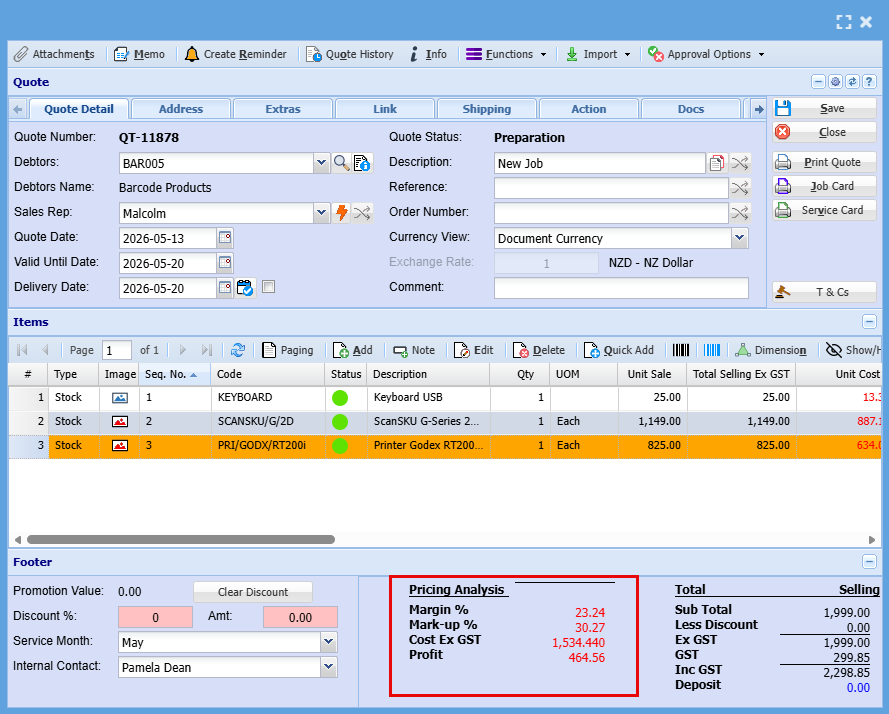
Overall Quote View
You will notice the bottom of the window the selling price, costs and profit that will be made on the job.
Printing and Emailing of Quote
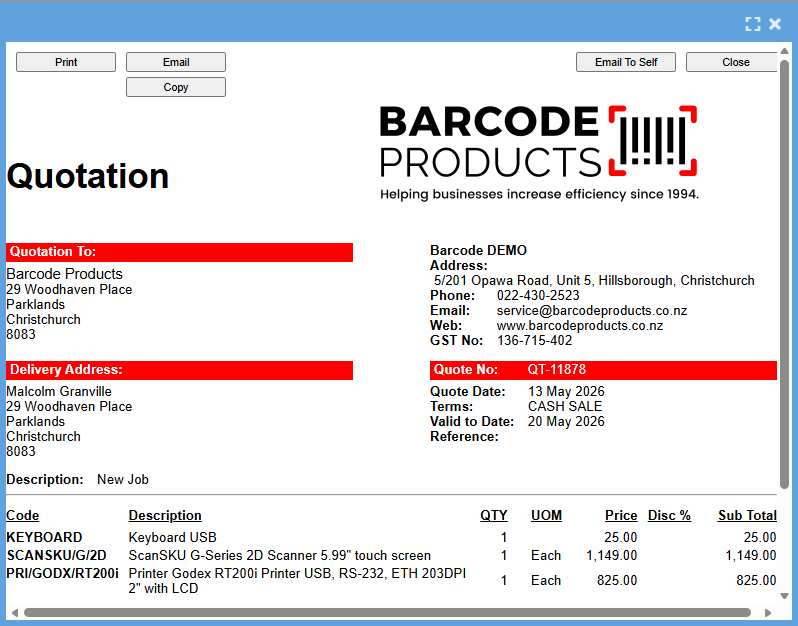
You can email the quote off to the client or print out.
- Click Print Quote
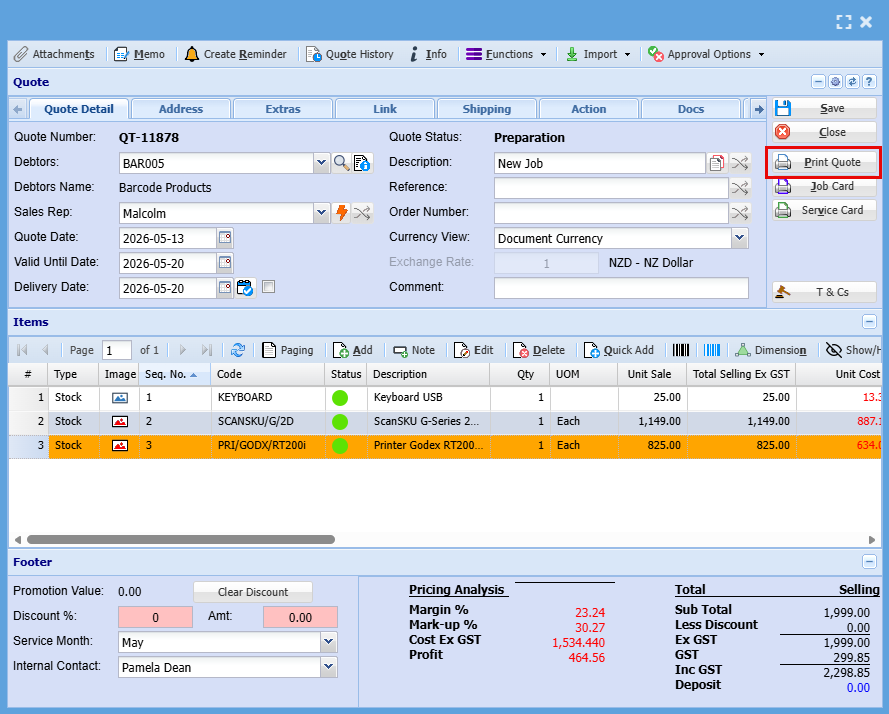
The below window will provide you with options on what you want your quote to look like.
Click "Continue"
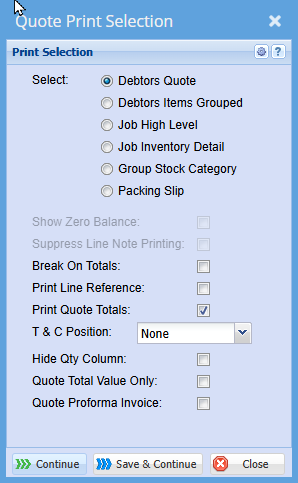
You can choose to send the quote, email it to yourself to include in an outbound message, or print a copy for your records.
No Comments