
Job Bill of Materials Process (BOM)
The Job Bill of Material (BOM)
This process enables you to produce a BOM resultant item using a job, ensuring accurate control of the final item cost, including all applicable labour and service costs.
Process Steps:
Quote
Create and prepare the initial job quote.
Create and prepare the initial job quote.
Manage Job
Convert the approved quote into an active job and manage it accordingly.
Convert the approved quote into an active job and manage it accordingly.
Add Labour and Service Costs
Include any relevant labour or additional service costs to ensure the total job cost is accurate.
Include any relevant labour or additional service costs to ensure the total job cost is accurate.
Process Job BOM and Close
Process the Job BOM to generate the resultant item, then close the job.
Process the Job BOM to generate the resultant item, then close the job.
Job Bill Of Material (BOM) Process
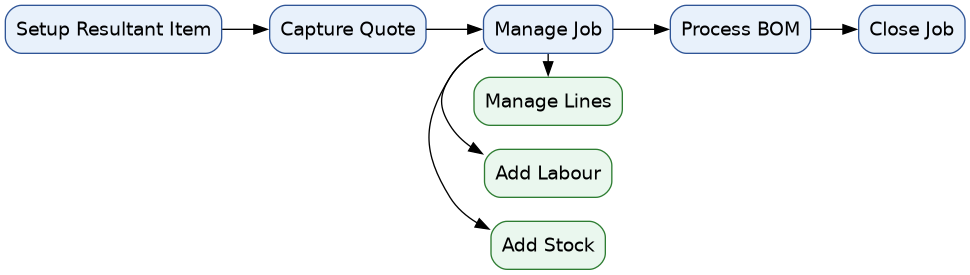
Resultant Item Setup
Go to Inventory > Configuration > Inventory Setup
- Click Add
- Enter an Item Code (ensure it aligns with your existing inventory coding convention)
- Enter the required Item Description
- Select the correct Group Code
- Click Save
- Navigate to the Bill of Material tab
.png)
- Select the BOM Item checkbox
- Click Save and Close
.png)
Setup the BOM item
Go to setup the Bill of Materials item
.png)
Capture Quote - Job Costing
Job Costing > Activity >Quotation
- Enter the GST Production Account Code
- Enter the Description and Reference
- Enter the Order Number
- Click the Address tab
.png)
- Enter the required Division
- Enter the required Region
- Enter the Invoice Group (if applicable)
.png)
- Click Save
- Select the Add tab
- Choose the Stock Code or enter the description for the resultant item to be produced
- Enter the required Quantity
- Enter the estimated Cost Price - Do not enter a selling price
.png)
- Click Save and Close
- Click the Approval Options dropdown
- Select Customer Approval – this must be selected to ensure correct reporting
- Select Approve to Job
.png)
Once Approve to Job has been selected, this screen will appear
Ensure the appropriate options are selected based on how you want to control and manage the job
.png)
Ensure the Exceed Quantities and Value options are selected.
(This allows quantities and values to exceed the original job budget where required)
- Click Continue
- Click OK
.png)
Manage Job
Job Costing > Activity > Manage Job
- Enter the Job Number
- Select the required Production Job
- Click Manage Job
- Click the Cost to Company button
.png)
- Enter the Item Code of the stock item being used to produce this BOM item
- Enter the required Quantity
- Click Save and New to add another item
.png)
.png)
You can check stock on hand for both the component items and the resultant item by navigating to:
Inventory > Analysis > Stock Enquiry
Inventory > Analysis > Stock Enquiry
.png)
- Manage the stock items added to the job
- Double-click the relevant line and enter the quantity used
.png)
Once all stock items have been processed, review the job lines to ensure they are accurate and have been correctly managed
.png)
Ensure all timesheets from relevant staff have been submitted and are ready for capture, or have already been entered into the system
.png)
- Check the costing analysis of the job
- Open the job
- Select the Print tab
- Click the Job Total Analysis button
.png)
Click the Managed Totals tab
.png)
- Click the View Details Button
.png)
Review the details to ensure everything is accurate.
Once all lines have been verified and the job is ready to be completed:
- Close all open windows
- Return to the Job Search screen
- Search for the job, then click the Extras dropdown
- Select the Job BOM button
.png)
- Enter the Resultant Item Code
- Enter the Quantity to be produced
- Click Save
- Click Process
.png)
.png)
- Verify the BOM Item Stock
.png)
You will notice that the resultant item stock on hand has now been updated and increased accordingly
No Comments