
Quote Creation
Quote Creation
Job Costing > Activity > Quote
Before adding your line items to your quote, take a moment to review the key tabs across the top of your page, some of these tabs may contain important options you may want to configure or define first for a basic Quote.

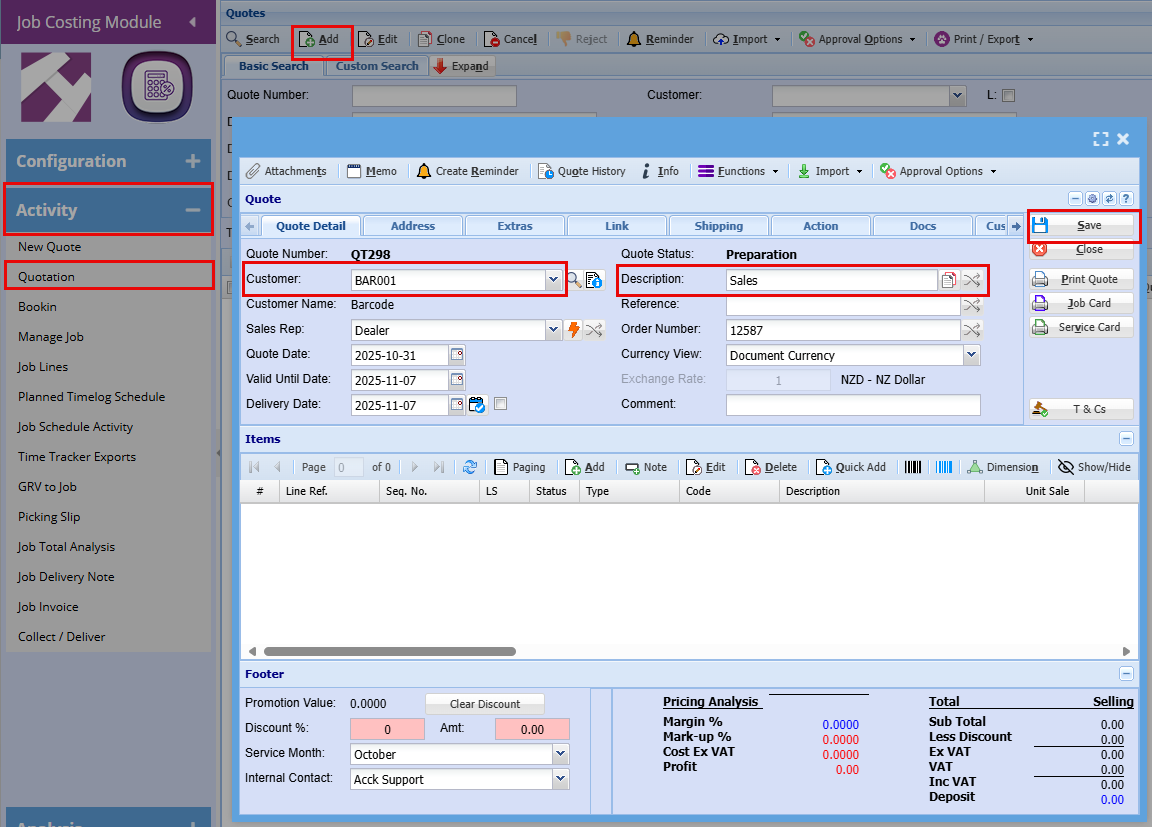
Quote Detail Tab:
- Click "Add"
- Enter the Customer name and Description.
- Click "Save"(By clicking save you activate the button allowing you to "Add" a line item.)
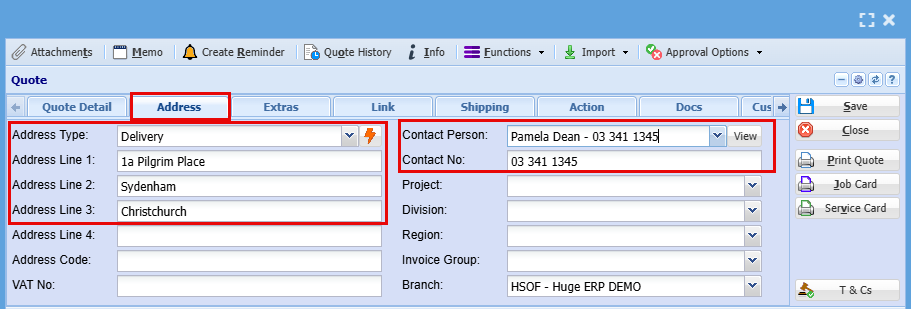
Address Tab:
- Use this tab to update the job address if required.
- Select the contact person for the quote from the dropdown list.
- If the contact does not exist yet, click the View button to add a new contact on the fly
Note: if details are edited on the quote, this will only apply to the specific quote and not update the debtor setup unless the debtor setup is access and updated as well.
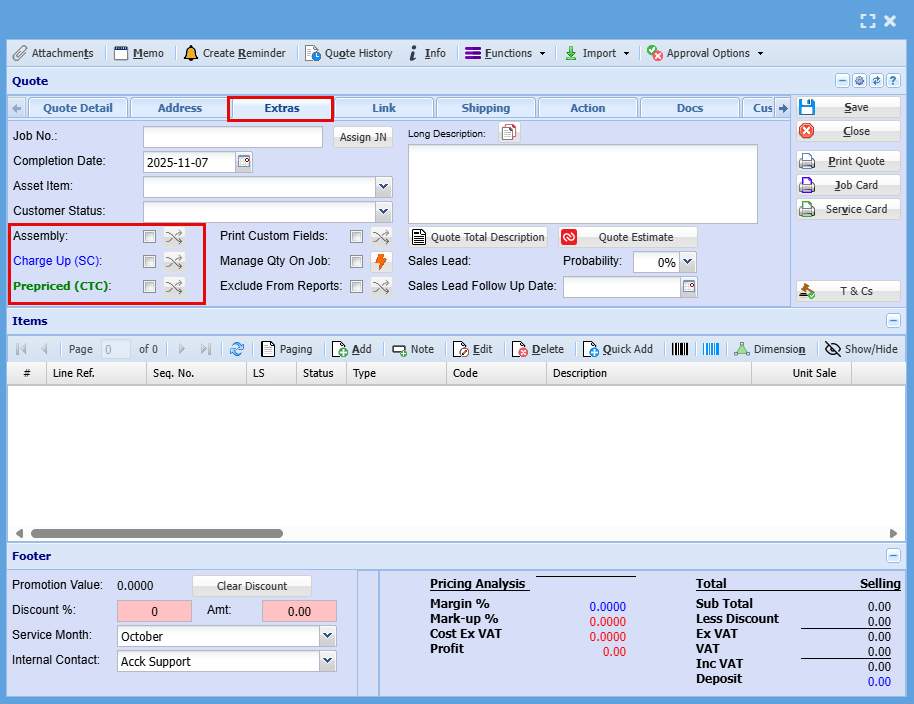
Extras Tab:
Select the billing method that applies to this job
Among the top tabs, click on the "Extras" tab.
- Tick the box that applied to your customer.
- Click "Save"
| Assembly | “Assembly” refers to an internal process where components or materials are prepared, combined, or staged before installation or delivery. It’s not billed separately to the customer but contributes to your overall job cost. |
| Charge Up (SC) | Charge Up (SC)” means the customer is billed for actual time and materials used, including any extras beyond the initial scope. Charge Up allows you to invoice for additional costs incurred during the job. |
| Prepaid (CTC) |
"Prepaid” refers to the quoted amount for the job, the fixed charge agreed to by the customer. You can’t invoice beyond this amount, so any extra time, materials, or costs that exceed the quote become your internal expense, or ‘Cost to Company (CTC) |
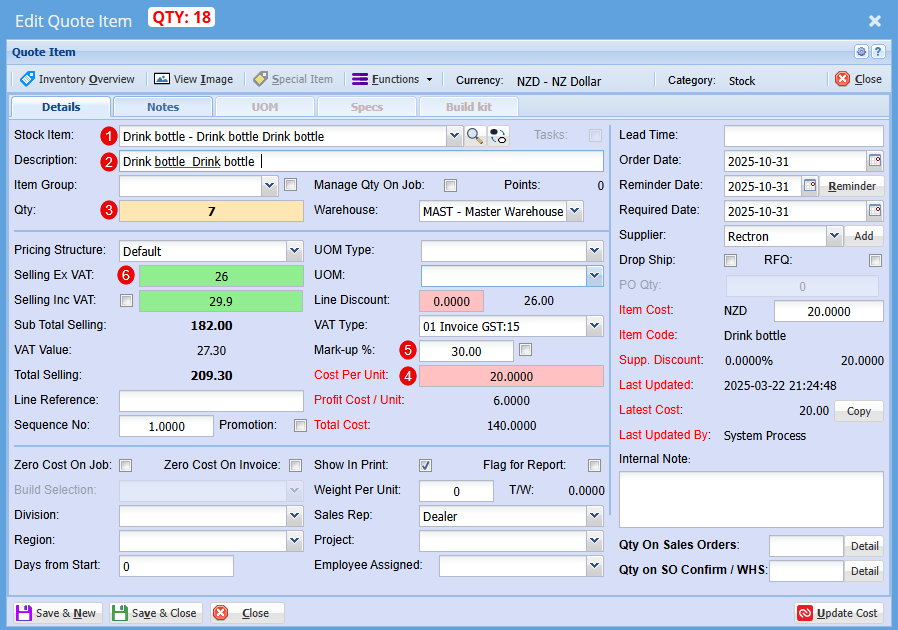
Adding Line Items to a Quote.
- Click the "Add" button located halfway down the page

- From the dropdown menu, choose the relevant item (Stock, Service, or Custom Items.)

- Once selected, check the basic fields:
1 Select Item
2 Check description as this can be changed at this point
3 Add Quantity
4 Check Cost of Item
5 Check your markup
6 Check Sell Price - click Save & Close to confirm your choice
- Add as many as items as needed
| Stock Item |
Select your stock item from the drop-down menu |
| Description |
At this stage you can change the Description if needed |
| Qty |
Add the Quantity you require of this item |
| Cost Per Unit |
Check the cost of this item |
| Mark up % |
At this stage you can increase your profit % |
| Selling Ex GST |
Price does not include the 15% Goods and Services Tax. You add GST on top of the listed amount. |
You can now submit this quote for customer approval.
At the top of the quote, you'll find Approval Options. From here, you can either send the quote for internal approval before forwarding it to the customer, or send it directly to the customer. Once customer approval is received, use the same dropdown menu to promote the quote to a Job.
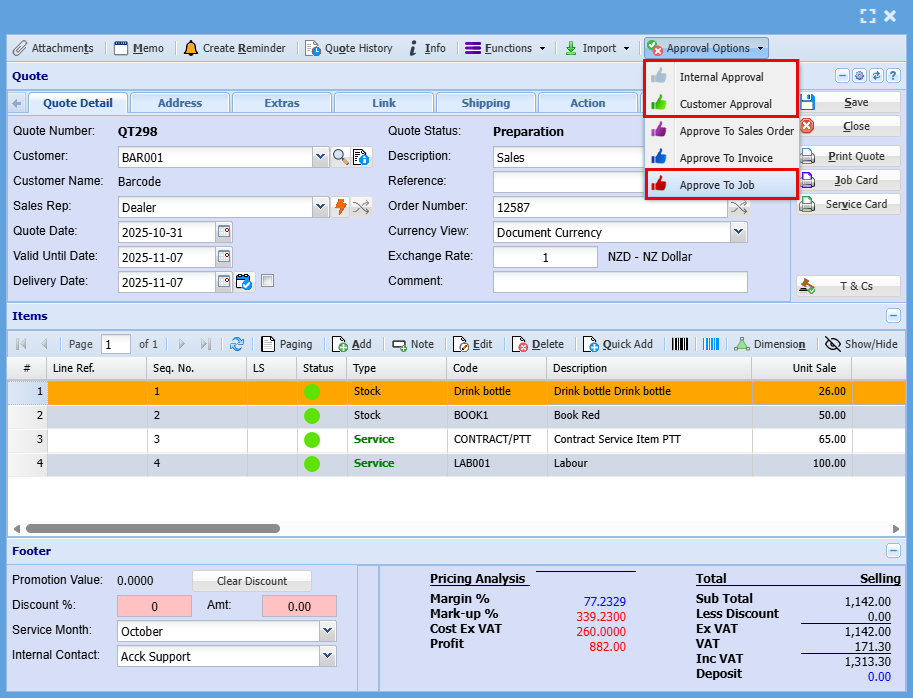
Once you click Approve to Job you will have the below Approve Quote to Job screen pop us.
You will always need an Order number, here you will also make sure you have selected weather this is a Charge Up (Scope Creep) or a prepriced (Cost to company) job.
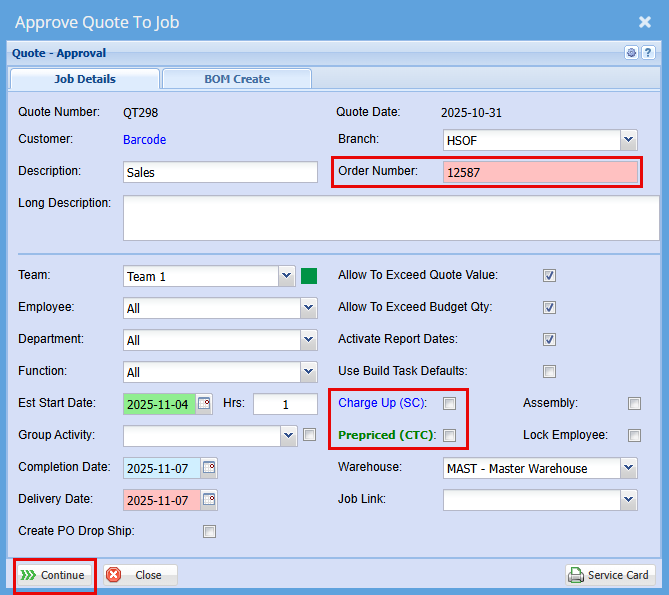
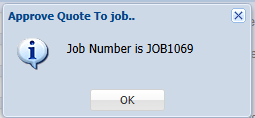
- Click Continue to create the job
No Comments