# New Job Button
##### **New Job Button**
The **New Job** button is used to create a job directly, without first creating or promoting a quote.
[](https://hugeerp10.co.za/hsofmanual/uploads/images/gallery/2026-06/ZAOimage.png)
When this option is selected, a new job is started “on the fly,” allowing users to quickly set up and begin working on a job straight away.
- **Direct Job Creation** – Create a job immediately without needing an existing quote
- **Automatic Background Process** – The system will automatically create a blank quote in the background
- **Linked Records** – This quote is linked to the job and can be accessed later under the **Quotes** section
- **Flexible Workflow** – Ideal for situations where work needs to begin quickly without following the full quote-to-job process
##### Creating a New Job Process:
- Click **New Job**
- **Complete relevant forms**
[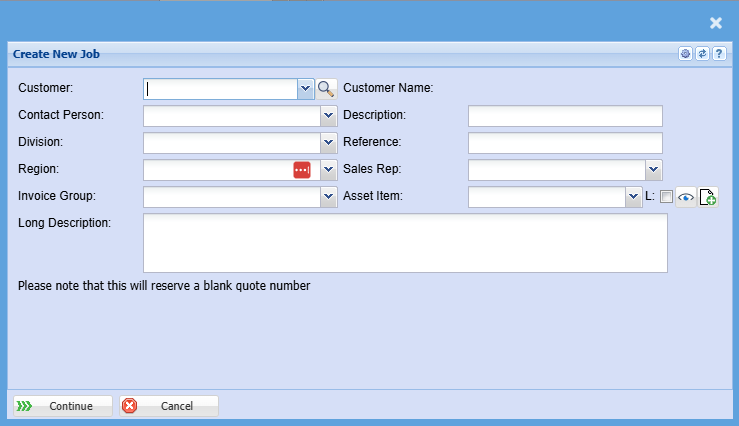](https://hugeerp10.co.za/hsofmanual/uploads/images/gallery/2026-06/RYuimage.png)
**Customer** | Select the customer the job is for |
**Customer Name** | Displays the name of the selected custome |
**Contact Person** | Choose the relevant contact for the job |
**Description** | Enter a short description or title for the job |
**Division** | Assign the job to a specific business division |
**Reference** | Add a reference number if applicable (e.g., customer reference) |
**Region** | Select the region or branch responsible for the job |
**Sales Rep** | Assign the job to a sales representative |
| **Invoice Group** | Specify how the job will be grouped for invoicing |
**Asset Item** | Link the job to a specific asset if required |
| Enter a more detailed description of the job |
Once you have added your information, select how you would like to proceed.
- **Continue** – Proceeds to the next step and creates the job
- **Cancel** – Exits without saving
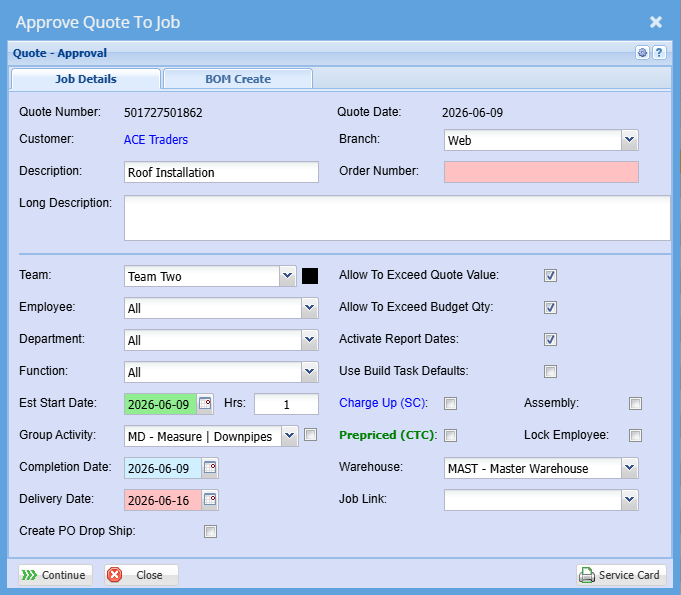
This screen appears after clicking **Continue** when creating a new job. It is used to **finalise and approve the job setup**, converting the automatically created quote into an active job.
[](https://hugeerp10.co.za/hsofmanual/uploads/images/gallery/2026-06/SLzimage.png)
**Job Details Section**
This screen displays and confirms the key information for the job:
- **Quote Number / Quote Date** – Auto-generated by the system when the job was created
- **Customer** – The customer linked to the job which is Auto populated
- **Branch** – The branch the job is assigned to
- **Description / Long Description** – The job description entered earlier
-
**Order Number (Compulsory Field)** – The **Order Number** must be entered before proceeding. The system will not allow you to continue or complete the job setup until this field has been filled in.
**Job Setup Options**
These fields allow you to define how the job will be managed:
- **Team** – Assigns the job to a specific team
- **Employee / Department / Function** – Further allocation of responsibility
- **Estimated Start Date & Hours** – Defines when the job will begin and initial time allocation
- **Group Activity** – Assigns the job to a specific workflow or activity group
- **Completion Date** – Expected job completion
- **Delivery Date** – When the job is due for delivery
**Additional Settings (Tick Boxes)**
These options control how the job behaves:
- **Allow to Exceed Quote Value** – Permits costs to go over the quoted amount
- **Allow to Exceed Budget Qty** – Allows quantities to exceed planned amounts
- **Activate Report Dates** – Enables tracking of reporting dates
- **Use Build Task Defaults** – Applies predefined task templates
- **Charge Up (SC)** – Enables charge-up costing
- **Prepriced (CTC)** – Indicates the job uses predefined pricing
- **Assembly / Lock Employee** – Controls job structure and assignment restrictions
**Other Fields**
- **Warehouse** – Select the warehouse linked to the job
- **Job Link** – Links this job to another job if required
- **Create PO Drop Ship** – Option to create purchase orders for direct delivery
**Action Buttons**
- **Continue** – Confirms and completes the job creation
- **Close** – Exits without proceeding