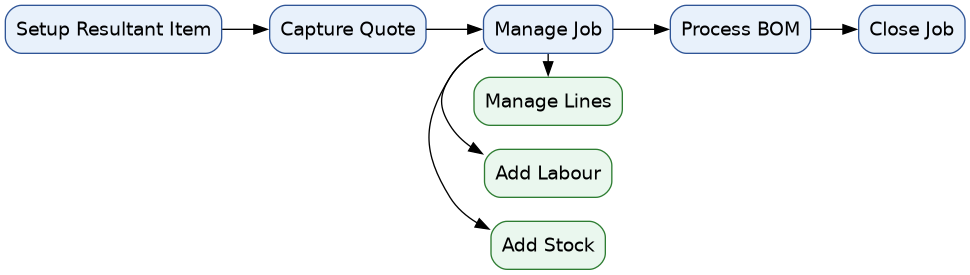
# Job Bill of Materials Process (BOM)

#### **<span class="ts2">The Job Bill of Material (BOM)</span>**

<div id="bkmrk-this-process-enables">This process enables you to produce a BOM resultant item using a job, ensuring accurate control of the final item cost, including all applicable labour and service costs.</div><div id="bkmrk-"></div><span class="ts0">Process Steps:</span>

<div id="bkmrk-quotecreate-and-prep">**Quote**  
Create and prepare the initial job quote.</div><div id="bkmrk-manage-jobconvert-th">**Manage Job**  
Convert the approved quote into an active job and manage it accordingly.</div><div id="bkmrk-add-labour-and-servi">**Add Labour and Service Costs**  
Include any relevant labour or additional service costs to ensure the total job cost is accurate.</div><div id="bkmrk-process-job-bom-and-">**Process Job BOM and Close**  
Process the Job BOM to generate the resultant item, then close the job.</div><div id="bkmrk--1"></div><div id="bkmrk--2"></div><div id="bkmrk--3"></div><div id="bkmrk--4"></div>#### <span style="color: rgb(35, 111, 161);">**Job Bill Of Material (BOM) Process**</span>

<div id="bkmrk--5"></div>![job_bom_updated.png.png](https://hugeerp10.co.za/hsofmanual/uploads/images/gallery/2026-06/embedded-image-9vrwbxfz.png)

#### <span class="ts4">Resultant Item Setup</span>

<span style="color: rgb(45, 194, 107);">Go to **Inventory &gt; Configuration &gt; Inventory Setup**</span>

<div id="bkmrk-click-add-enter-an-i">- Click **Add**
- Enter an **Item Code** (ensure it aligns with your existing inventory coding convention)
- Enter the required **Item Description**
- Select the correct **Group Code**
- Click **Save**
- Navigate to the **Bill of Material** tab

</div><span class="ts0"> </span><span class="ts12"> </span>![](https://hugeerp0.co.za/csp/webhelp/topics/images/image(2458).png)

- Select the **BOM Item** checkbox
- Click **Save and Close**

<div id="bkmrk--7"></div><span class="ts12"> </span>![](https://hugeerp0.co.za/csp/webhelp/topics/images/image(2459).png)

#### <span class="ts0"> </span><span class="ts4">Setup the BOM item</span>

<span class="ts0">Go to setup the Bill of Materials item</span>

<span class="ts0"> </span>![](https://hugeerp0.co.za/csp/webhelp/topics/images/image(2476).png)

<span class="ts0"> </span>

#### <span class="ts4">Capture Quote - Job Costing</span>

<span style="color: rgb(45, 194, 107);"><span class="ts0"> </span><span class="ts0">J**ob Costing &gt; Activity &gt;Quotation**</span></span>

- Enter the **GST Production Account Code**
- Enter the **Description** and **Reference**
- Enter the **Order Number**
- Click the **Address** tab

![](https://hugeerp0.co.za/csp/webhelp/topics/images/image(2460).png)

- Enter the required **Division**
- Enter the required **Region**
- Enter the **Invoice Group** (if applicable)

![](https://hugeerp0.co.za/csp/webhelp/topics/images/image(2461).png)

- Click **Save**
- Select the **Add** tab
- Choose the **Stock Code** or enter the description for the resultant item to be produced
- Enter the required **Quantity**
- Enter the estimated **Cost Price -** Do **not** enter a selling price

![](https://hugeerp0.co.za/csp/webhelp/topics/images/image(2462).png)

- Click **Save and Close**
- Click the **Approval Options** dropdown
- Select **Customer Approval** – this must be selected to ensure correct reporting
- Select **Approve to Job**

<span class="ts0"> </span>![](https://hugeerp0.co.za/csp/webhelp/topics/images/image(2463).png)

<div id="bkmrk-once-approve-to-job-">Once **Approve to Job** has been selected, this screen will appear</div><div id="bkmrk--12"></div><div id="bkmrk-ensure-the-appropria">Ensure the appropriate options are selected based on how you want to control and manage the job</div><div id="bkmrk--13"></div><span class="ts0"> </span>![](https://hugeerp0.co.za/csp/webhelp/topics/images/image(2464).png)

<div id="bkmrk-ensure-the-exceed-qu">Ensure the **Exceed Quantities** and **Value** options are selected.</div><div id="bkmrk-%28this-allows-quantit">  
*(This allows quantities and values to exceed the original job budget where required)*</div><div id="bkmrk--14"></div>- Click **Continue**
- Click **OK**

<span class="ts0"> </span>![](https://hugeerp0.co.za/csp/webhelp/topics/images/image(973).png)

#### <span class="ts4">Manage Job</span>

<span style="color: rgb(45, 194, 107);">**<span class="ts11">Job Costing &gt; Activity &gt; Manage Job</span>**</span>

- Enter the **Job Number**
- Select the required **Production Job**
- Click **Manage Job**
- Click the **Cost to Company** button

![](https://hugeerp0.co.za/csp/webhelp/topics/images/image(2465).png)

- Enter the **Item Code** of the stock item being used to produce this BOM item
- Enter the required **Quantity**
- Click **Save and New** to add another item

<span class="ts0"> </span>![](https://hugeerp0.co.za/csp/webhelp/topics/images/image(2466).png)

<div id="bkmrk-continue-adding-all-"><div class="fai-CopilotMessage__content r1izxv8h ___7qar2c0 fcthzvy" dir="auto" id="bkmrk-continue-adding-all--1"><div><div dir="auto"><div class="___1vve6yh f22iagw f1vx9l62 f122n59 f3bhgqh f1mnxvew fly5x3f"><div class="___j4vmuw0 f22iagw f1vx9l62 f1869bpl fly5x3f fbc6vix"><div data-fui-focus-visible="" data-testid="loading-message" tabindex="-1"><div><div><div class="___1yop6mf f336tjw f9ijwd5 fz7g6wx fod5ikn f1s184ao" id="bkmrk-continue-adding-all--2"><div class="___1y7j18r f10pi13n ftgm304"><div aria-hidden="true" class="___1j4t0a1 f1lmfglv f1abmfm4" data-message-type="Chat" data-testid="markdown-reply" dir="auto"><div class="___1obcdld f22iagw f1vx9l62 f1i1t7jz fk15e71 f1k953kz f137keqj f1rncccw f1stllg3 f1w4kmmc f1tric3v f10dk5ic fx8cdsv f16nlwsl f1eookvz fhjrts3 fqugt2f f18d18k8 f1v1vhmp f1hdmul3 f198vjnp f2dshw1 fjpjndq fnmj2pj ffrrb40 f1mon110 fhajzam fimndk6 fxv4dng fb1rn9k f59wlhv f1xmfh30 f18yf5o5 fmr6chf fw8qy2q ff161sd f1qr7t77 f1yyogn1 foogchg fp5872b f1tpb8gf f1hdgrc8 f1vatr43 frkxccd f9pdzkb f158oiaz ft5kggy f5l4ui7 f13j03li f18xdoka f8off4e f1go6zfc f128n2ra f1jpxw2j f1lwd9n0 fy0b8hm f1g2633v fx4kvgi fkvolse f1gxrt3a f1os76ua f1js9cnw f1g87ej0 freluf8 f1yggaq6 f2i3chp f1151osp florpoh f35kzfz ftp9m57 f1e288vi fz62hnz fixvuys f1nmofwh fc1c6mv f18a2er7 fhvkrdl fhxnn68 f1oce4bo fvhlfan f7tc0t0 f1ngf1n2 ffrzq6x f1yjiq2m f1aqdgql f1huvaf f10ij78l f1k94sa4 fkmfumq f1jvzkyl f1eu24ob f1xbfc1f fmf0lwf f107dsy8 f3w566c f4648sl f13zpkng f7unjfp f8p1rz fzu6h1w f1i1bi6h f1smo7hi f1sk1xod f1kgogdq f1gjktkp ft608jz f19dd9cz fg3xr24 fhd155k f1b8gl2e fg4b9ou flb4lo fdicbfk fgwcyh1 f1jbds0d f1fb9uea f1stuka4 fcrtu6g fwqh0xn f11w66yg f6e0e65 f1vvgu0 f1607507 fgct6un f1ec1nbe f1m9bycv f1ntoah8 f1b694rt faql4r2 fpjuhzh fmavl6h f1d9bsk fmzhlt0 f145l92p fwkyaqm f129obh1 f19la9g f127w39w fr0ux9m fxhidck f1cu4h9j f1wnbo7v f1eueg4z fy9c24f f1h2o91j f1iw08fq">- Continue adding all items required to produce the resultant item

</div></div></div></div></div></div></div></div></div></div></div></div><div class="fai-CopilotMessage__footnote r1bn3aft ___7qar2c0 fcthzvy">  
</div></div><span class="ts0"> </span>![](https://hugeerp0.co.za/csp/webhelp/topics/images/image(2467).png)

<div id="bkmrk-you-can-check-stock-">You can check stock on hand for both the component items and the resultant item by navigating to:  
<span style="color: rgb(45, 194, 107);">**Inventory &gt; Analysis &gt; Stock Enquiry**</span></div><div id="bkmrk--16"></div><span class="ts0"> </span>![](https://hugeerp0.co.za/csp/webhelp/topics/images/image(2468).png)

- Manage the stock items added to the job
- Double-click the relevant line and enter the **quantity used**

![](https://hugeerp0.co.za/csp/webhelp/topics/images/image(2469).png)

Once all stock items have been processed, review the job lines to ensure they are accurate and have been correctly managed

<span class="ts0"> </span>![](https://hugeerp0.co.za/csp/webhelp/topics/images/image(2470).png)

Ensure all timesheets from relevant staff have been submitted and are ready for capture, or have already been entered into the system

<span class="ts0"> </span>![](https://hugeerp0.co.za/csp/webhelp/topics/images/image(2471).png)

- Check the costing analysis of the job
- Open the job
- Select the **Print** tab
- Click the **Job Total Analysis** button

<span class="ts0"> </span>![](https://hugeerp0.co.za/csp/webhelp/topics/images/image(2472).png)

Click the **Managed Totals** tab

<span class="ts0"> </span>![](https://hugeerp0.co.za/csp/webhelp/topics/images/image(2473).png)

- <span class="ts0"> </span><span class="ts0">Click the **View Details** Button</span>

<span class="ts0"> </span>![](https://hugeerp0.co.za/csp/webhelp/topics/images/image(2474).png)

<div id="bkmrk-review-the-details-t">Review the details to ensure everything is accurate.</div><div id="bkmrk--18"></div><div id="bkmrk-once-all-lines-have-">Once all lines have been verified and the job is ready to be completed: - Close all open windows
- Return to the **Job Search** screen
- Search for the job, then click the **Extras** dropdown
- Select the **Job BOM** button

</div><span class="ts0"> </span>![](https://hugeerp0.co.za/csp/webhelp/topics/images/image(2475).png)

- Enter the **Resultant Item Code**
- Enter the **Quantity** to be produced
- Click **Save**
- Click **Process**

<span class="ts0"> </span>![](https://hugeerp0.co.za/csp/webhelp/topics/images/image(2477).png)

<span class="ts12"> </span>

<span class="ts12"> </span>![](https://hugeerp0.co.za/csp/webhelp/topics/images/image(989).png)

- <span class="ts12"> Verify the BOM Item Stock</span>

<span class="ts12"> </span>![](https://hugeerp0.co.za/csp/webhelp/topics/images/image(990).png)

You will notice that the **resultant item stock on hand** has now been updated and increased accordingly

<span class="ts12"> </span>![](https://hugeerp0.co.za/csp/webhelp/topics/images/image(990).png)