
Cashbook Split Line
Inserting a split line
Split Transactions are used to show a series of costs as one entry in the cashbook
Click on the Add Split button as shown below
.png)
Enter a description for your split transaction and save
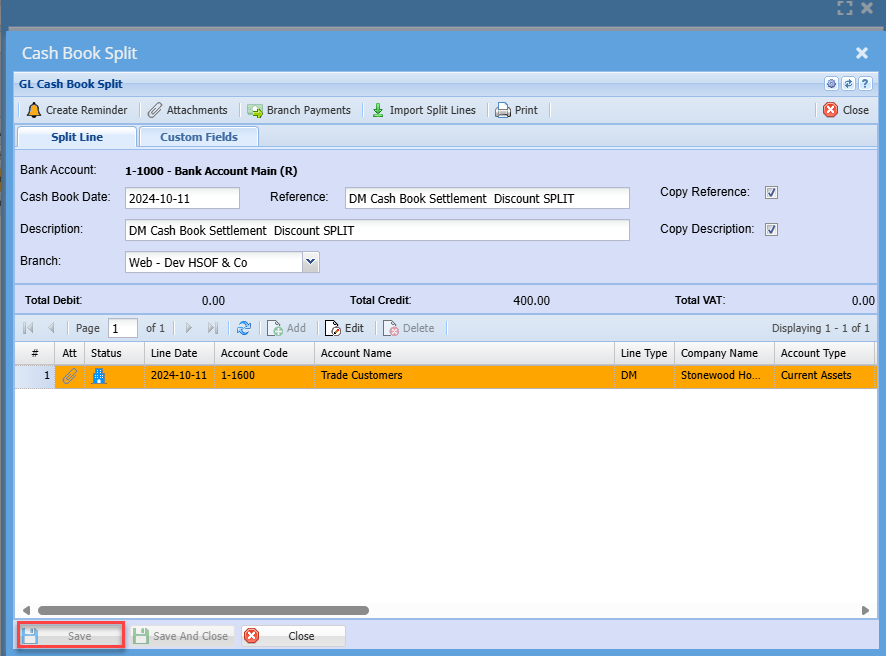
You will now have access to add the split transaction lines
Enter all the transactions relating to this payment or deposit (see explanation of each type below)
when you close and save, the totals will be shown on the cashbook line.
.png)
Select the entry type:
a. Payment / Credit
This is when one is paying money out of the bank account
Debit – Bank and Credit – Ledger Account
b. Deposit / Debit
This is when one is depositing money into the bank account
Credit – Bank and Debit – Ledger account
| Description | Enter the name of the company you are paying or deposited from. |
Click on save
After saving one will notice the Add, Amend and Delete buttons become available.
In the split line the Date, Entry Type is disabled as they need to match the full entry.
Select the Account
There are three ways to search for an account:
| a. | Short Search | just type in part of the code or name and hit enter on the keyboard and select the account. |
| b. | Tree Search | Clicking on the square with three dots allows you to find the account via the Tree view. |
| c. | Long Search | Clicking on the Arrow button opens a new window where you can search on the code or name. |
| Entry Amount | enter the amount including VAT that affects the bank. |
| Tax Account | you will notice that if one selects the Payment entry type the VAT control ledger account comes up with the Tax Type being 4 Cashbook VAT. If one selects the Deposit entry type the VAT control ledger comes up with No Tax, therefore not allocating to Vat control account. |
| Description | Enter the name of the company you are paying or deposited from. |
| Additional Comments | Enter comments for later information needed. |
| Job | assign this cost to a Job |
| Projects | assign this cost to a Project |
Click on Save and Close
OR Click on Save and New to enter another entry.
Click on Close and you will be brought back to the main batch
Branch Payments

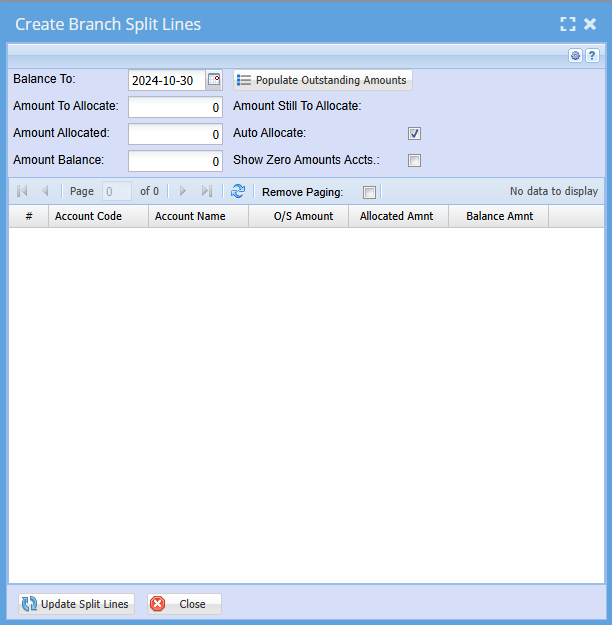
Import Split Lines

No Comments