
Bank Reconciliation
General Ledger>Activity>Bank Reconciliation
A bank reconciliation is performed to verify that transactions recorded in the cash book accurately match those shown on the bank statement.
To complete the reconciliation process, you will need a current bank statement.
If you are using BankIT to import your bank transactions, the reconciliation process will be significantly faster and easier, as many transactions will already be matched automatically.
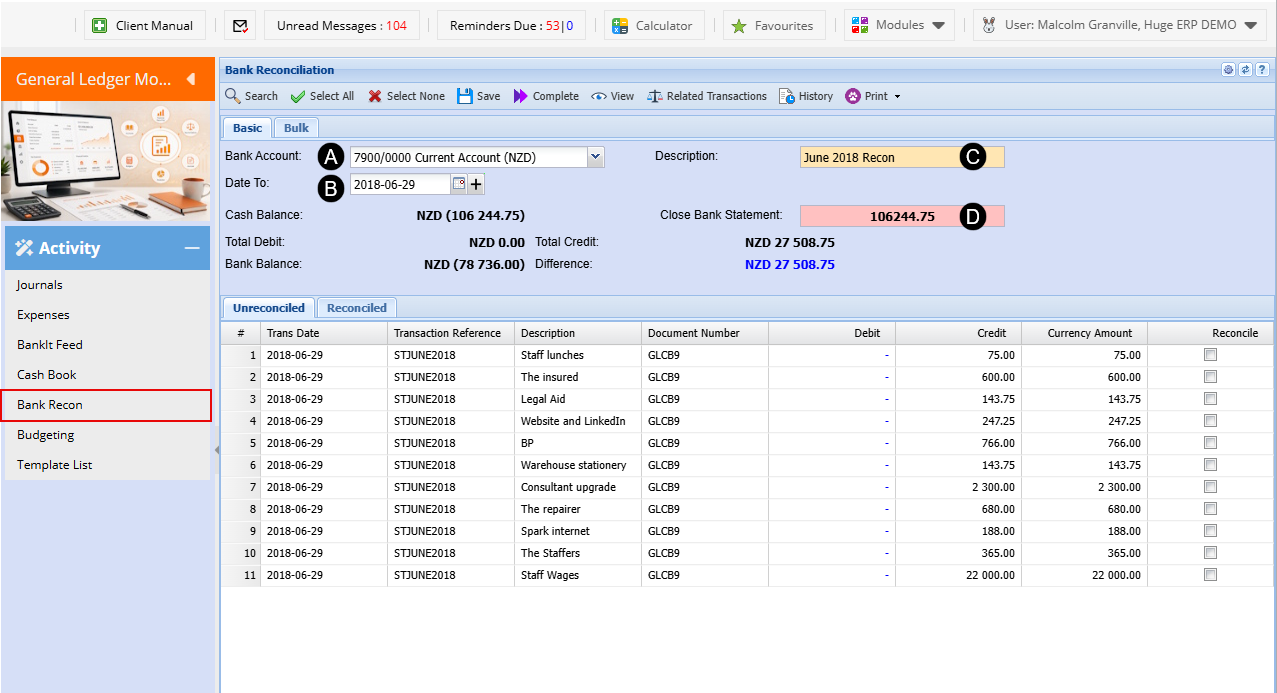
| Action | Description |
| Bank account | Select the bank account that you will be reconciling |
| Bank reconciliation date | Select the date two based on your bank statement |
| Description | Enter a description for the bank reconciliation |
| Closing Bank statement | Enter the closing value of your bank statement based on the date that you selected |
Bank Reconciliation Process
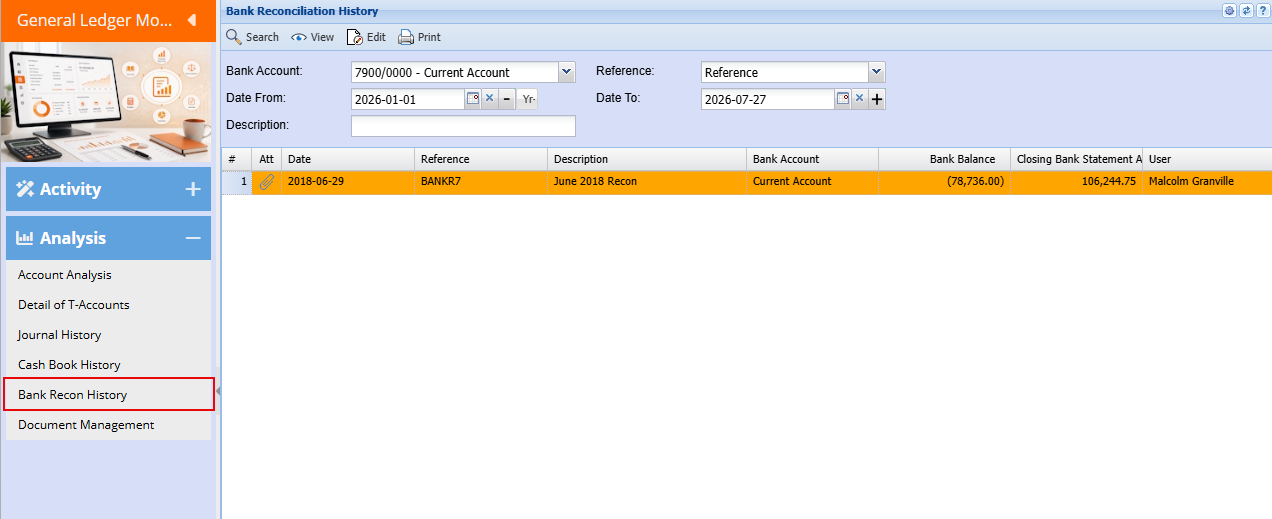
The quickest way to verify that your bank reconciliation balances is to click Select All. This will automatically select all visible transactions in the reconciliation window.
If the reconciliation is correct, the difference between the Cash Book Balance and the Bank Balance will be $0.00. A zero difference confirms that the bank reconciliation has been completed successfully.
Once the reconciliation balances, click Save and then Complete Bank Reconciliation to finalize the process.
All reconciled transactions will be moved to the Reconciled tab, where they can be reviewed at any time.
After completing one month's reconciliation, proceed to the following month and repeat the process until all outstanding periods have been reconciled.
For the most efficient and accurate results, it is recommended that reconciliations are completed one month at a time.
Bank Reconciliation History
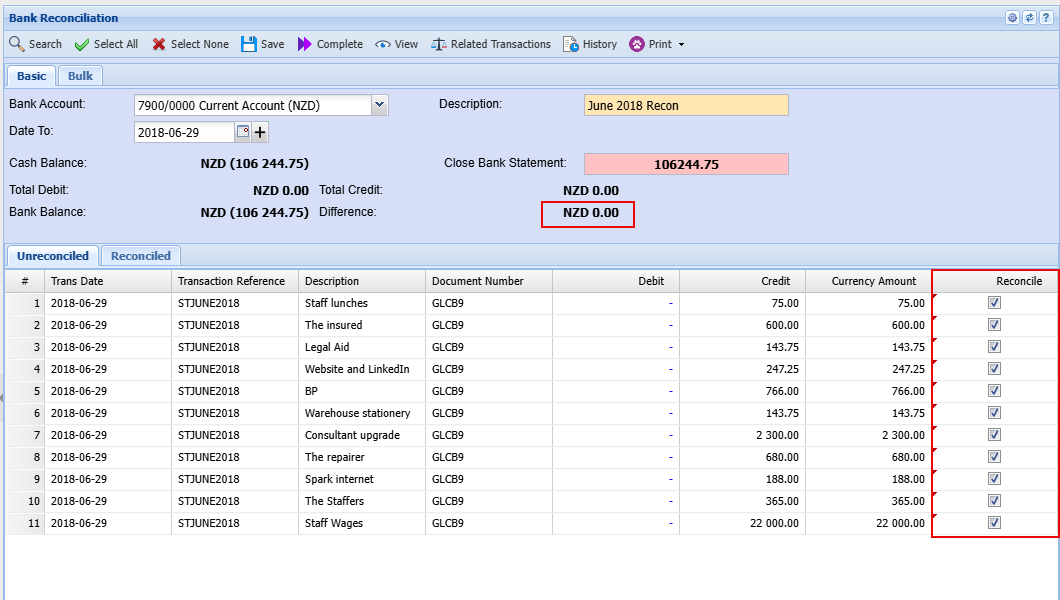
To view your bank reconciliation history, navigate to:
General Ledger → Analysis → Bank Reconciliation History
From this screen, you can view and print completed bank reconciliations for any period.
For audit and record-keeping purposes, it is recommended that you attach a copy of the corresponding bank statement to each reconciliation. Doing so provides supporting documentation and allows auditors to quickly verify that the bank statement and cash book balances have been reconciled accurately.
Maintaining these attachments creates a clear audit trail and simplifies future reviews and compliance checks.
Resolving Bank Reconciliation Differences
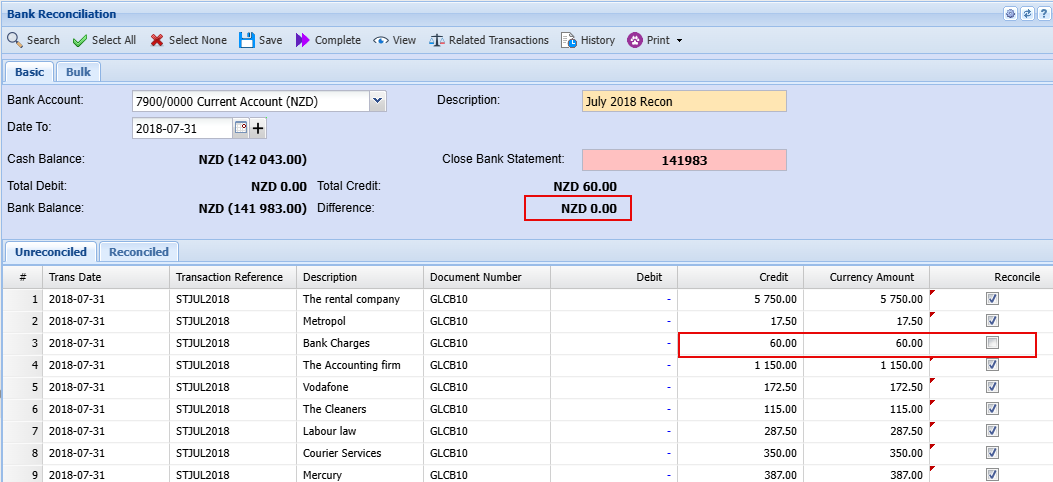
In this example, after clicking Select All, a difference remains between the Cash Book Balance and the Bank Balance. This indicates that one or more transactions have been incorrectly selected or require further investigation.
If the discrepancy is obvious, simply untick the incorrect transaction(s) until the reconciliation balances.
If the source of the difference is not immediately apparent, the reconciliation should be completed manually. To do this, click Select None to clear all selections and use your bank statement as a reference.
Work through the bank statement transaction by transaction, ticking each matching entry in the cash book. As you do so, compare the running bank balance to ensure it agrees with the balance shown on the statement. This method helps identify any missing, duplicated, or incorrect entries.
Once you have processed all transactions on the bank statement, any remaining unticked entries are typically transactions that have been recorded in the cash book but have not yet appeared on the bank statement.
This commonly occurs at month-end when transactions have been entered into the accounting system but have not yet been processed by the bank. These outstanding items will usually appear on the following month's bank statement.
When you perform the next month's reconciliation, these outstanding transactions can then be matched and cleared as part of the normal reconciliation process.
Completing the Reconciliation
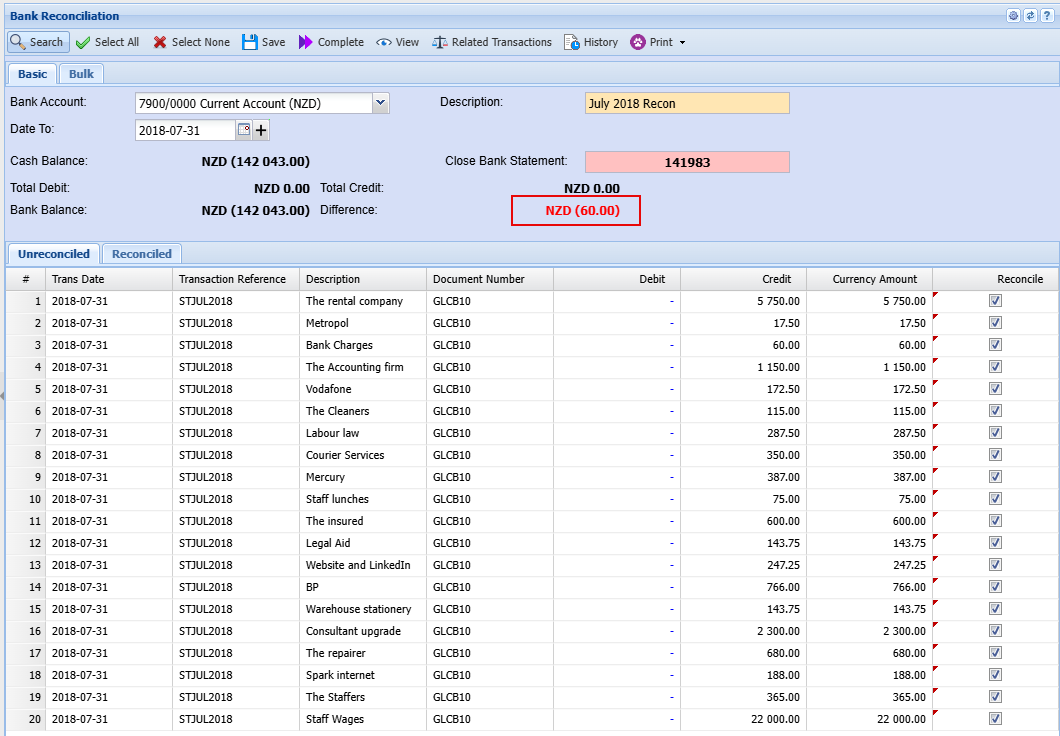
In this example, the Bank Entry Not Found amount remains as an outstanding item, and the bank reconciliation balances successfully.
Once the Difference is $0.00 and the reconciliation is balanced, click Save to store your work.
To finalize the process, click Complete Bank Reconciliation. This will move all reconciled transactions to the Reconciled tab and close the reconciliation period.
At this point, the bank reconciliation is complete and the cash book has been successfully reconciled to the bank statement
No Comments