
GL Budgeting
Set up Budgets for each month for your income and expense accounts.
General Ledger>Activity>Budgeting
This will help you track progress throughout the year.
The budgeted amount is highlighted in blue under the budgeted column.
Manually insert this month by month or insert the total amount and allocate, this amount will be allocated equally throughout the months.
For your convenience this can also be imported.
Includes
| 1. | Budget replacement for months that don’t have actuals |
| 2. | Budget per month |
| 3. | Budget compare from previous year |
| 4. | Budget variance percentage |
| 5. | Operational and non-operational Income statement / Profit and loss |
| 6. | Budget template import for budget and revised budget |
.png)
A budget is a financial document used to project future income and expenses.
Basic Search Tab
| Financial Year | to search by selecting the financial year from the drop-down arrow and entering the total year amount |
| Account | to search by selecting the account from the drop down arrow |
| Allocate button | to apportion funds for a specific purpose for a selected financial year |
Reports
Run your Profit and Loss report by period to establish a clear baseline for your budget.
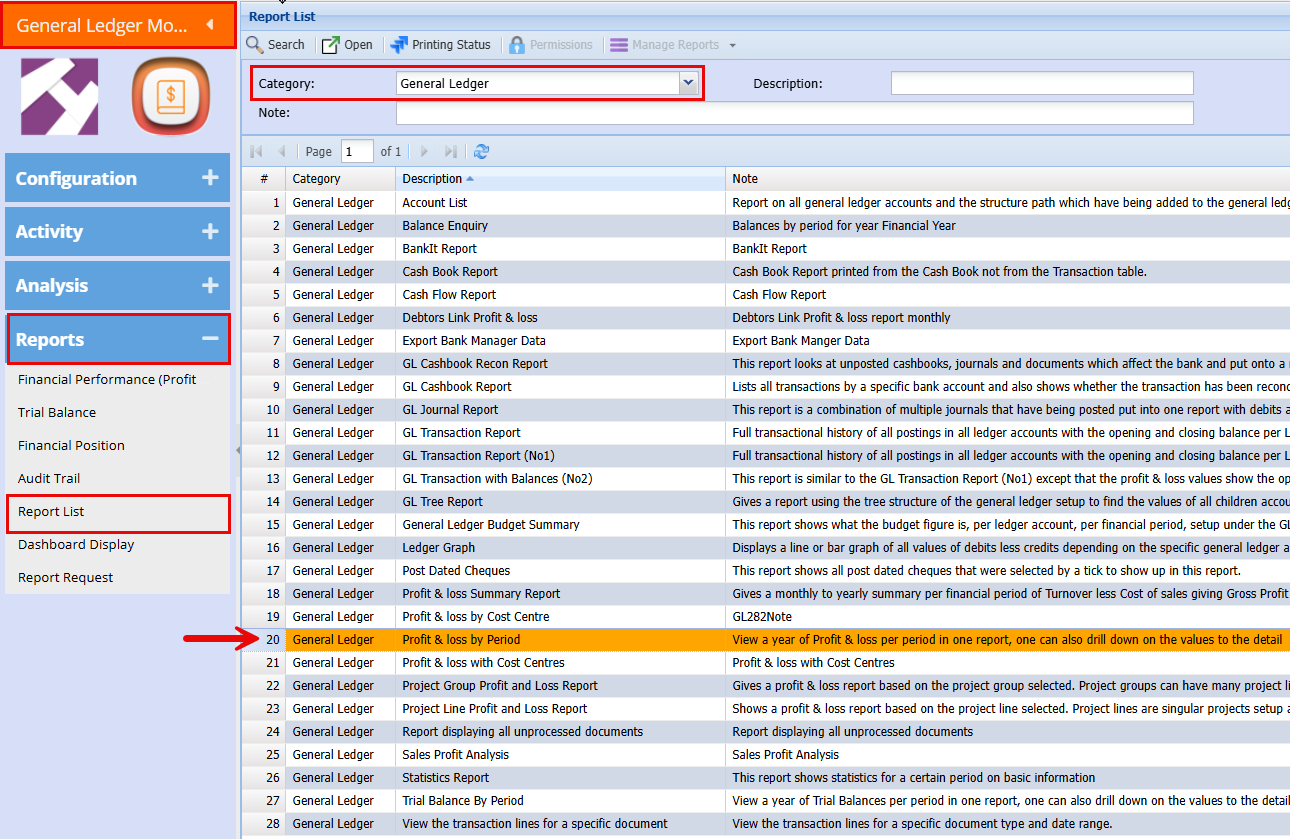
General Ledger > Reports > Report List
- Select the General Ledger category to refine the list
- Then click the Profit and Loss by Period report
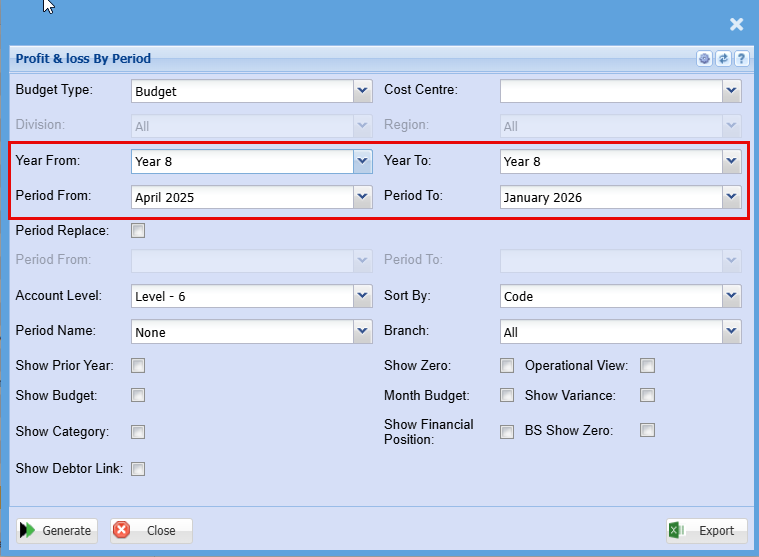
- Select the "Year From" and "Year To" for your report
- Click "Generate" to run the report
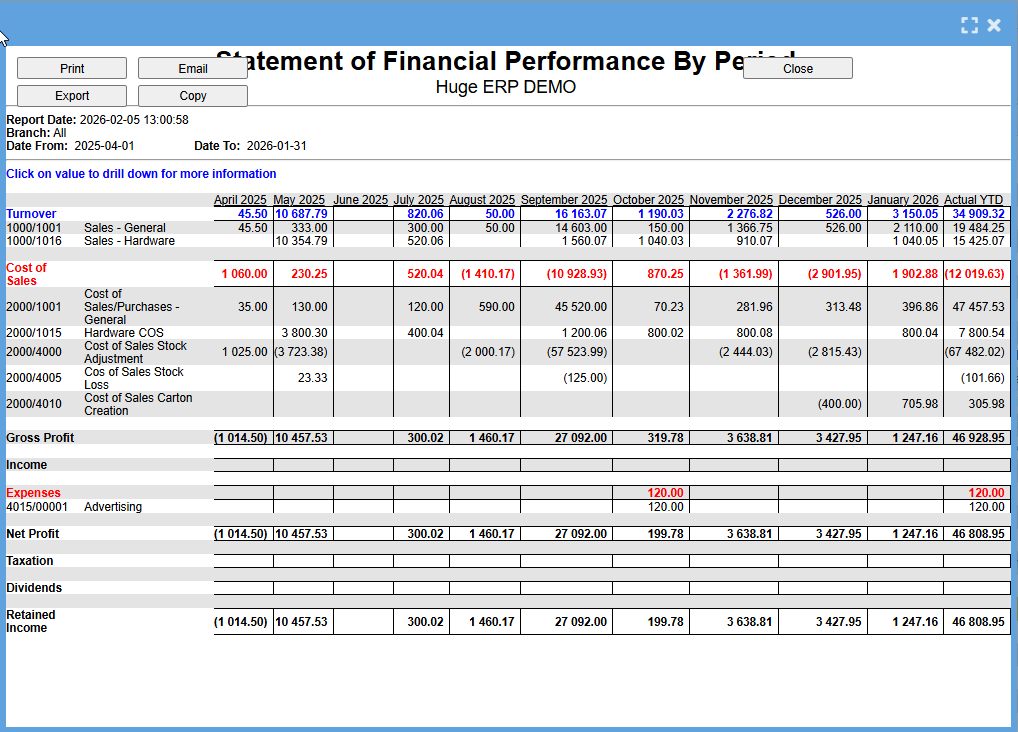
With this report, you’ll be able to see your monthly expenses by cost centre for the previous financial year.
Import / Export Template
General Ledger > Activity > Budgeting
“Here you can generate an export of the selected accounts for the previous financial year.
- Click on the "Budget Import Export"
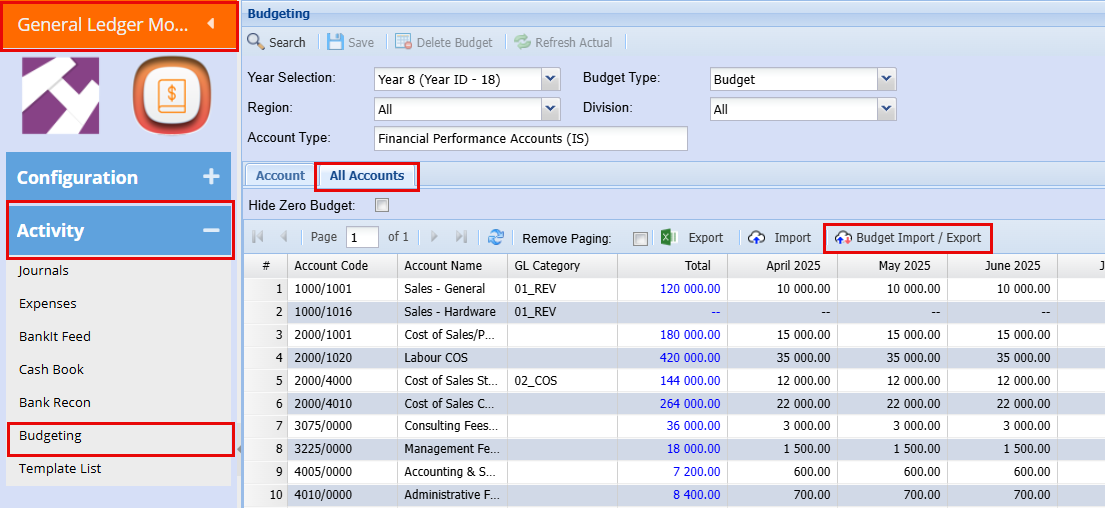
- Click "Export"
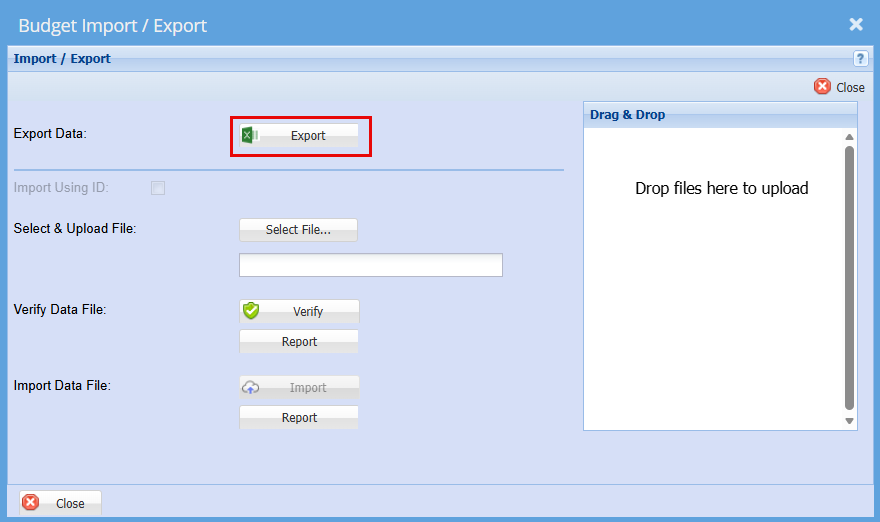
- Select the accounts you want to export a template for
- Click "Continue"
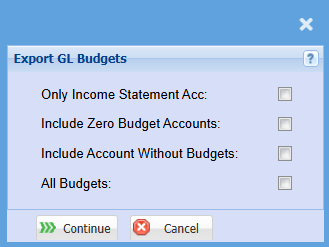
| Only Income Statement Acc | This will only export the accounts from your Income Statement |
| Include Zero Budget Accounts Tick |
By ticking this box, accounts with a budget but no spending for the financial year will also be included in your export with a zero value.
|
| Include Accounts Without Budgets Tick |
By ticking this box, accounts that had no budget created in the past will also be included in your export and shown with a zero value. |
| All Budgets | This will include all Cost Centre Accounts |
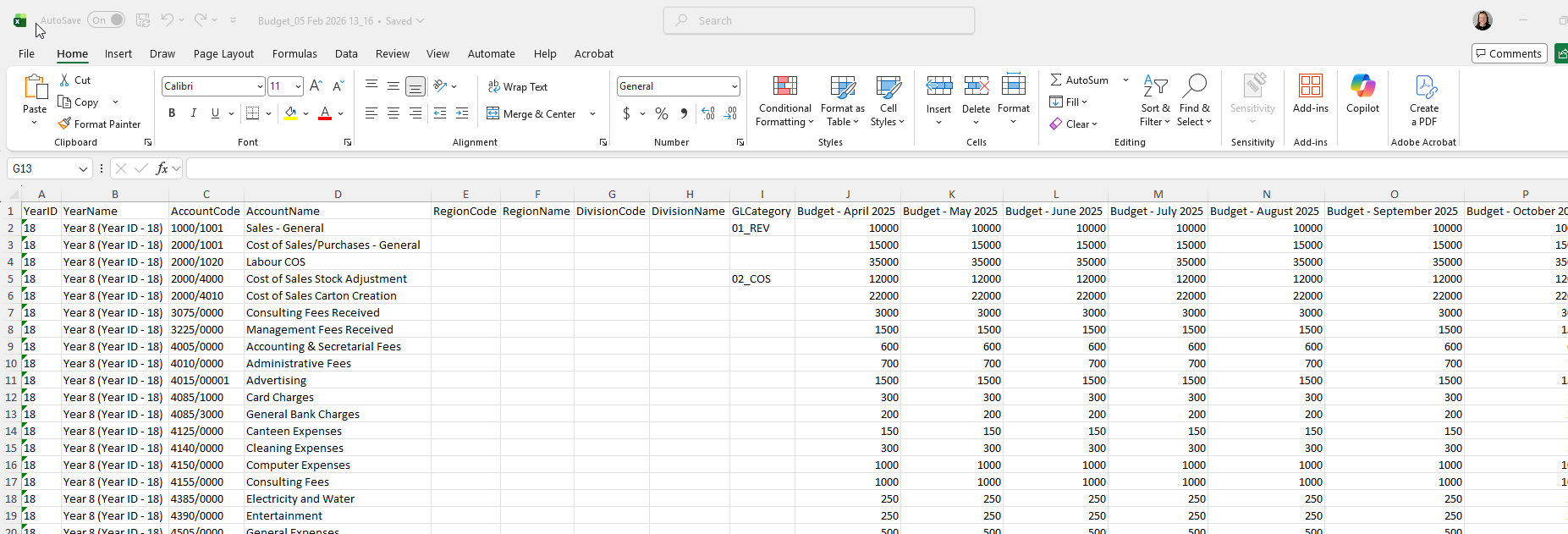
This will generate an export of the selected accounts for the previous financial year.
Import
Once you’ve updated your budget and are satisfied with the results, you can import the Excel file back into the system.
General Ledger > Activity > Budgeting
- Click on the "Budget Import Export"
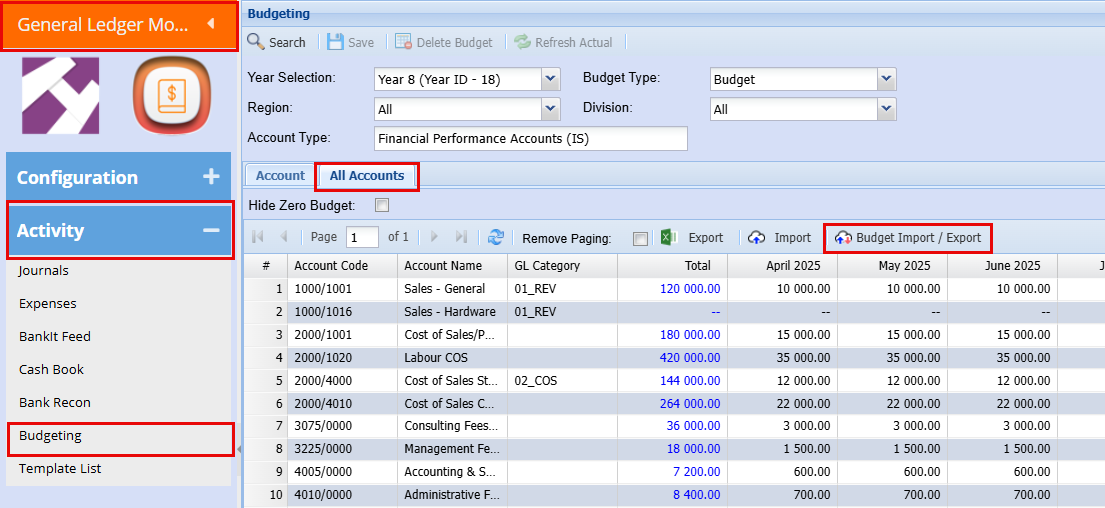
- Click Select File and choose the file to import
- When it shows Success, click Verify
- After verification is successful, click Import.
- Click "Close"
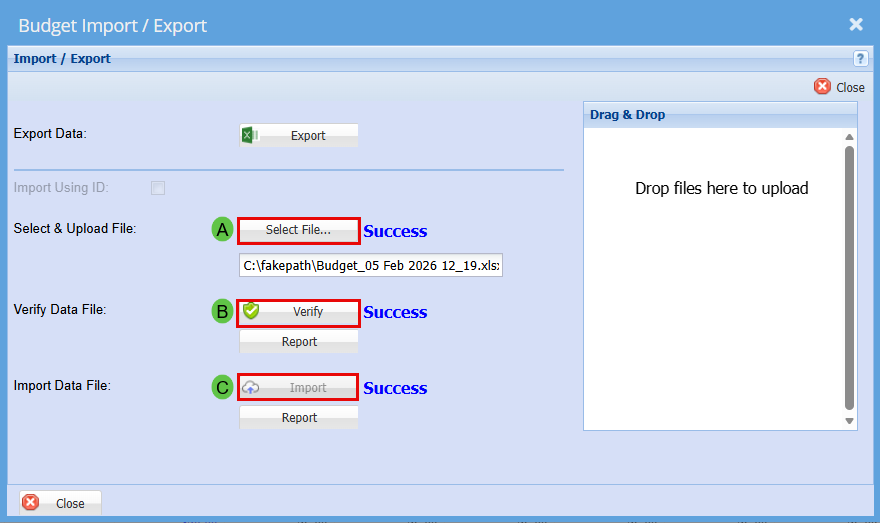
You have now imported your new budget for the next financial year
Video manual 2021 - Click Here
No Comments