
GST Submission
Steps to prepare for submission
General Ledger Module > Reports >Report List
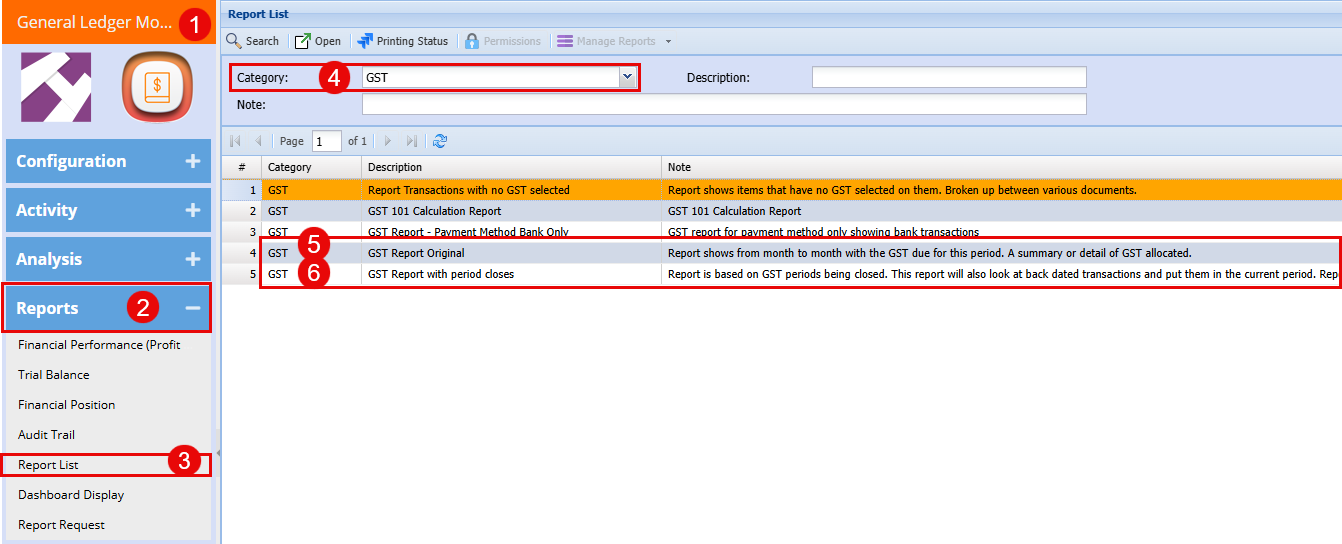
Double click on the "GST Report Original"
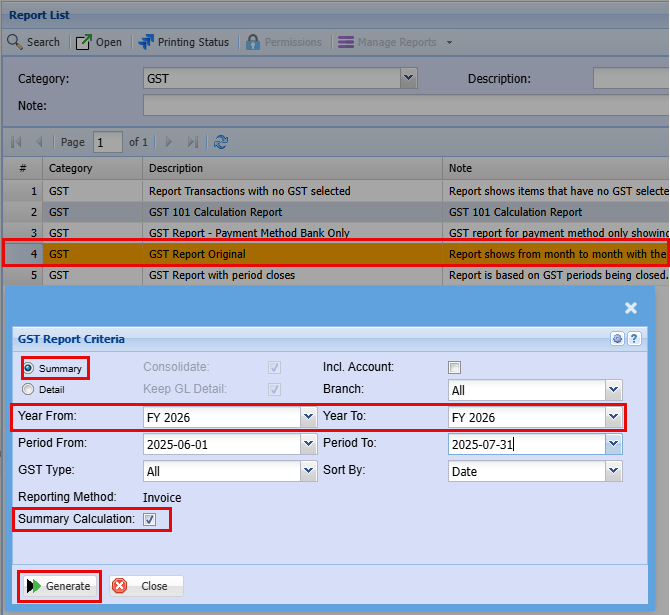
Run the Summary report
- Please choose the appropriate date range for your bi-monthly GST filing.
This ensures your submission reflects the correct reporting period and meets compliance requirements.
- Make sure the "Summary Calculation" box is ticked as this will help with the total to complete during submission
Note: Accurate date selection is essential for correct tax period calculation.
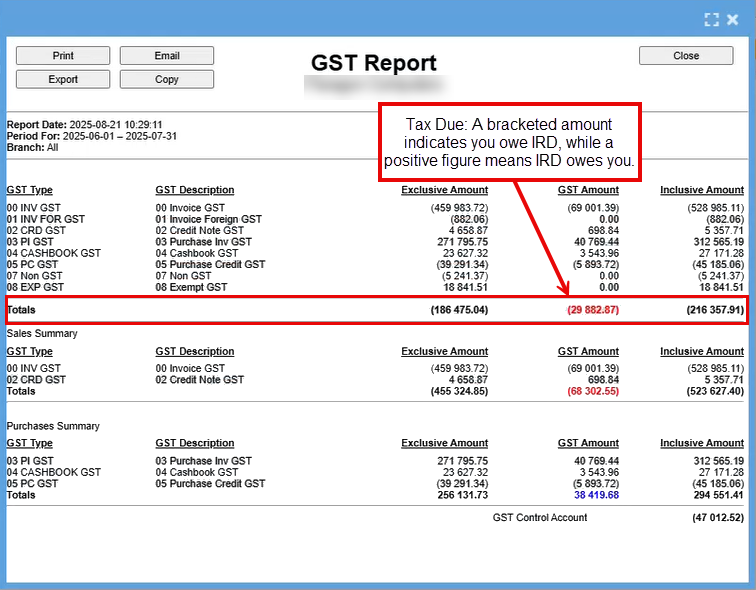
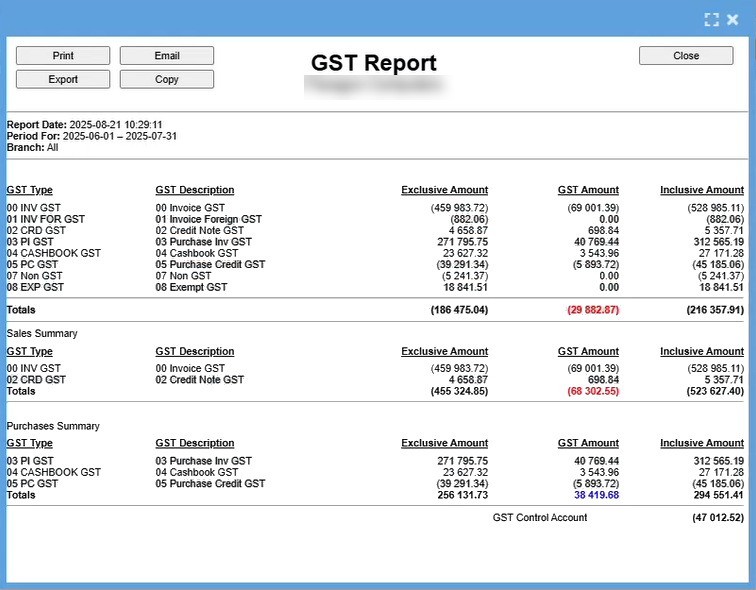
After clicking "Generate," a report will be produced, as shown below.
The figures displayed at the top represent your actual reported values, while the bottom section is formatted to assist with your IRD submission.
Print this document as a PDF and name it "GST Summary" add the date or month and year to easily identify this period.
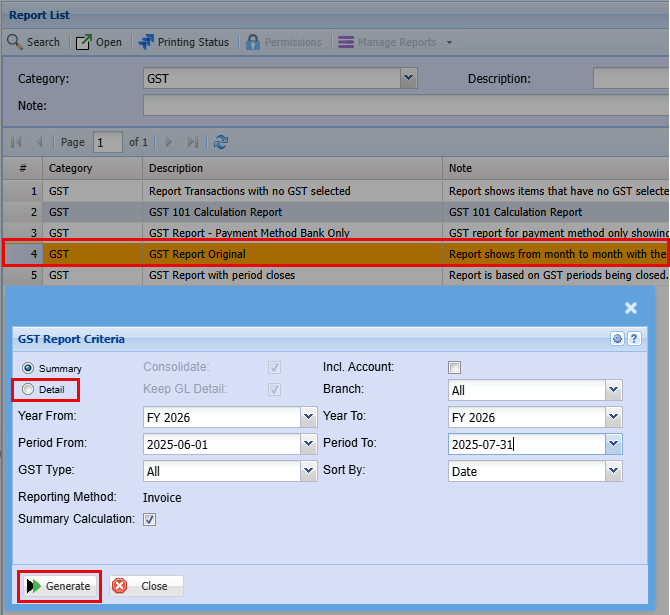
Run the detailed report
Run the detailed report for the same period
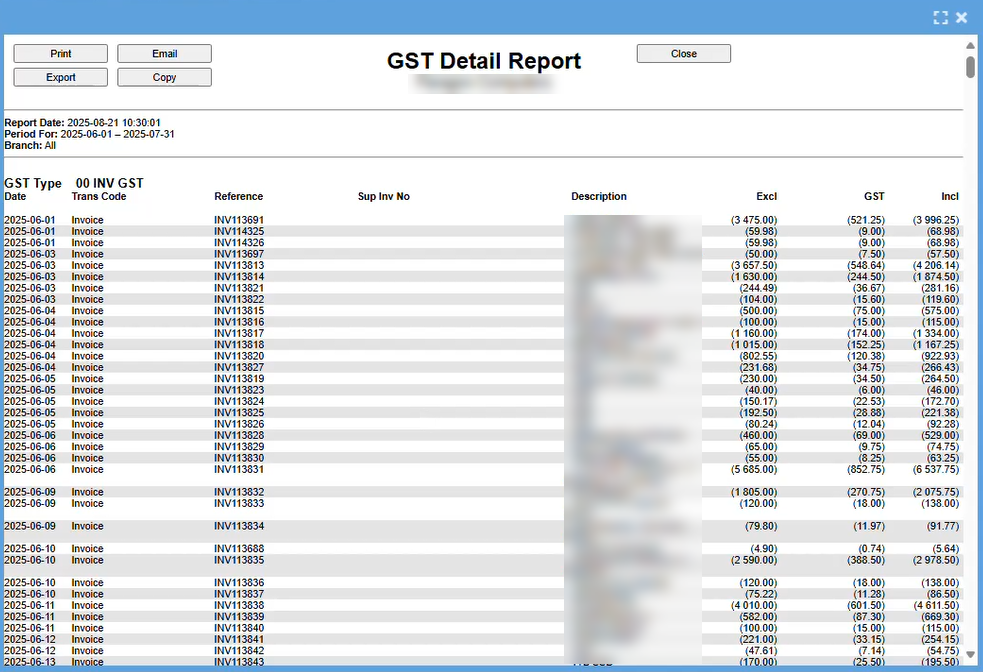
After clicking "Generate," a report will be produced, as shown below.
This report will give you every line of the invoice and is grouped by the different categories.
Review the report by scrolling through, and under the "Invoice" category, verify that all entries appear consistent and there are no irregularities.
The next section covers non-GST invoices.
IRD requires visibility into the total value of transactions where GST was not applied, to ensure accurate reporting and compliance.
Again, verify that all entries appear consistent and there are no irregularities.

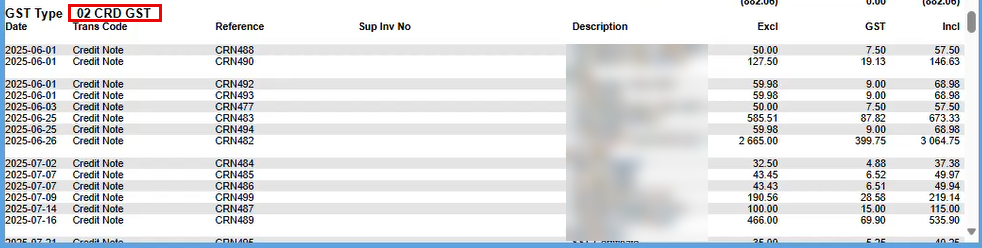
The next section covers credit notes.
Again, verify that all entries appear consistent and there are no irregularities.
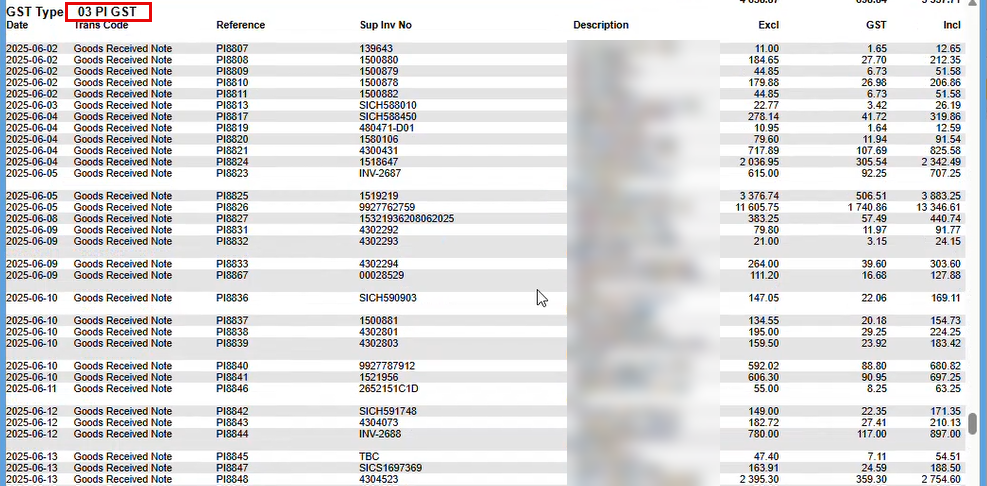
The next section covers Goods Received.
Again, verify that all entries appear consistent and there are no irregularities.
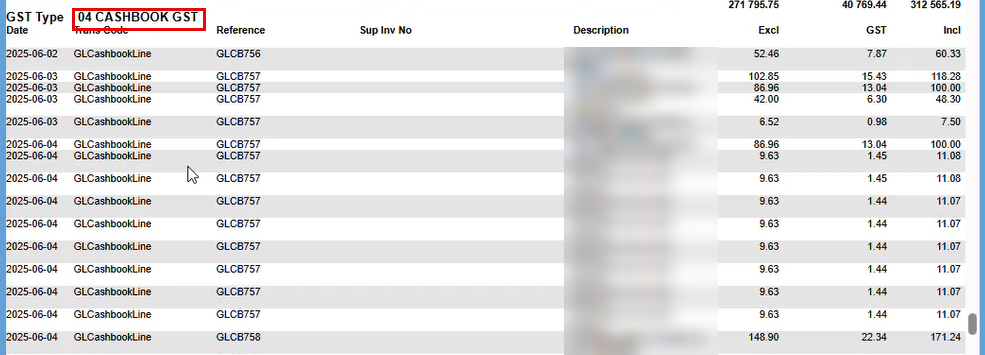
The next section pertains to the Cashbook.
As with previous sections, ensure all entries are consistent and free from anomalies.
Note: In some workflows, 'Goods Received' and 'Cashbook' may overlap, while in others they are maintained as distinct records.
Once you are happy with your report Print this document as a PDF and name it "GST Detailed" and again add the date or month and year to easily identify this period.
Once you have saved this report we need to expert the data out to a spreadsheet.
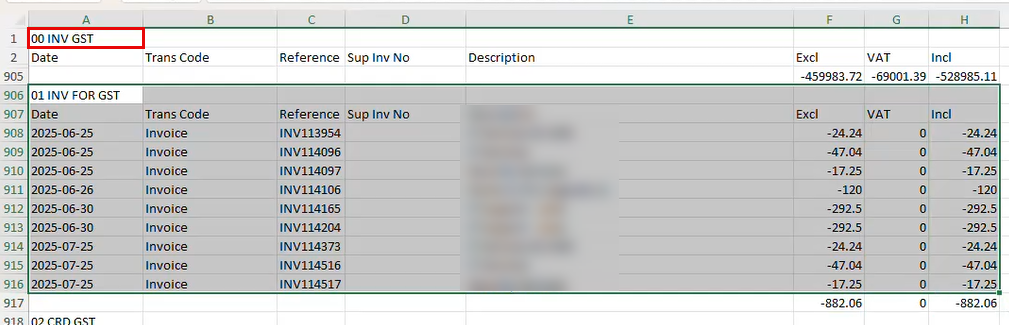
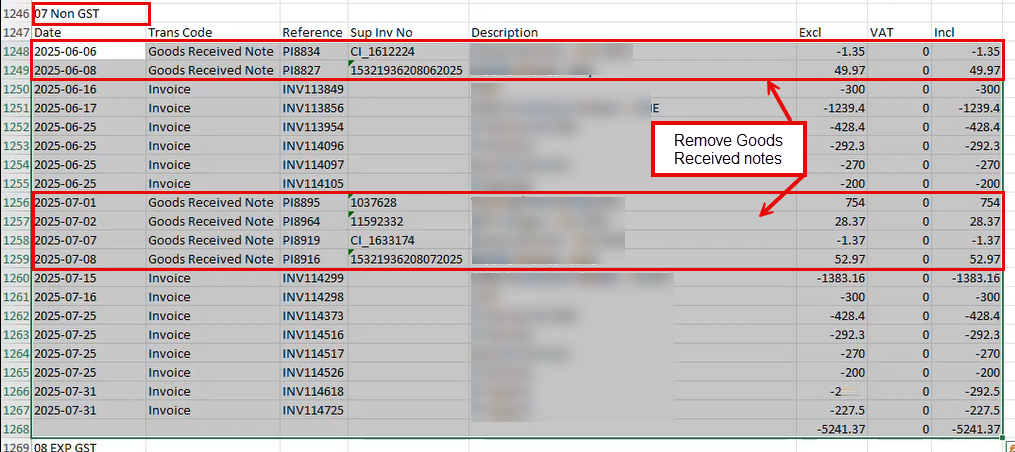
We are interested in the below section of the data:
Copy the below and save it to another Tab (Tab 2) and delete the "Good Received Note" lines
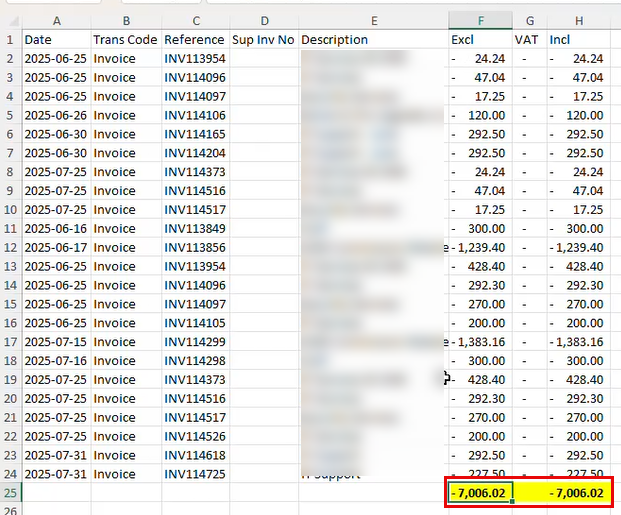
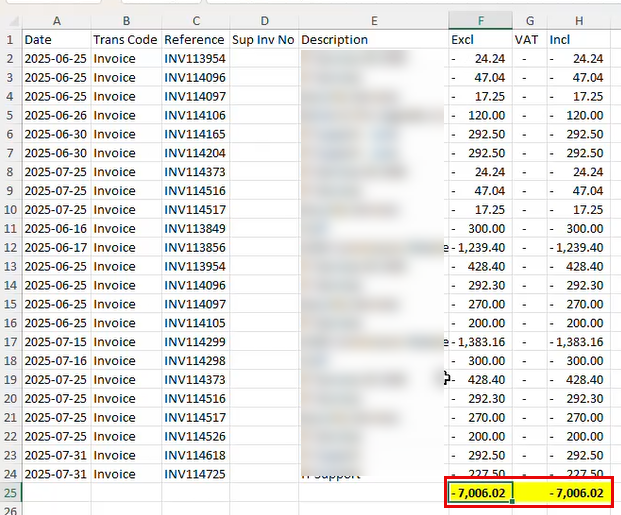
In the second tab consolidate the totals from both sections.
This summary is used to present IRD with the total value of transactions where GST was not applied.
Submission
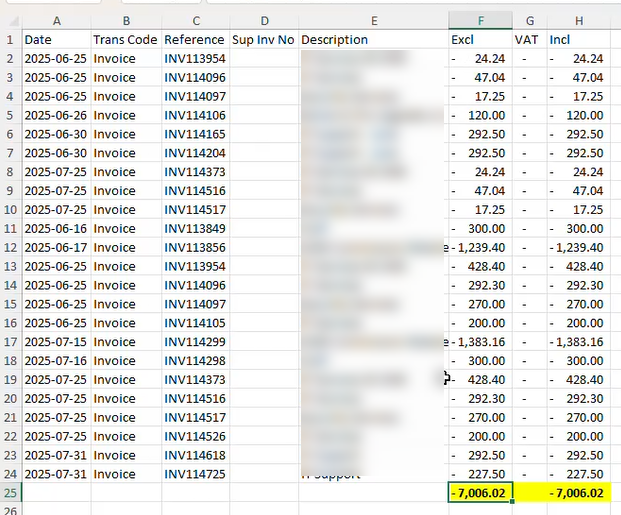
Once you have completed the above steps to get the information needed you will now need the below two screens to complete the submission
- Consolidated Totals for IRD Reporting (GST-Exempt Transactions) and
- GST Summary Report
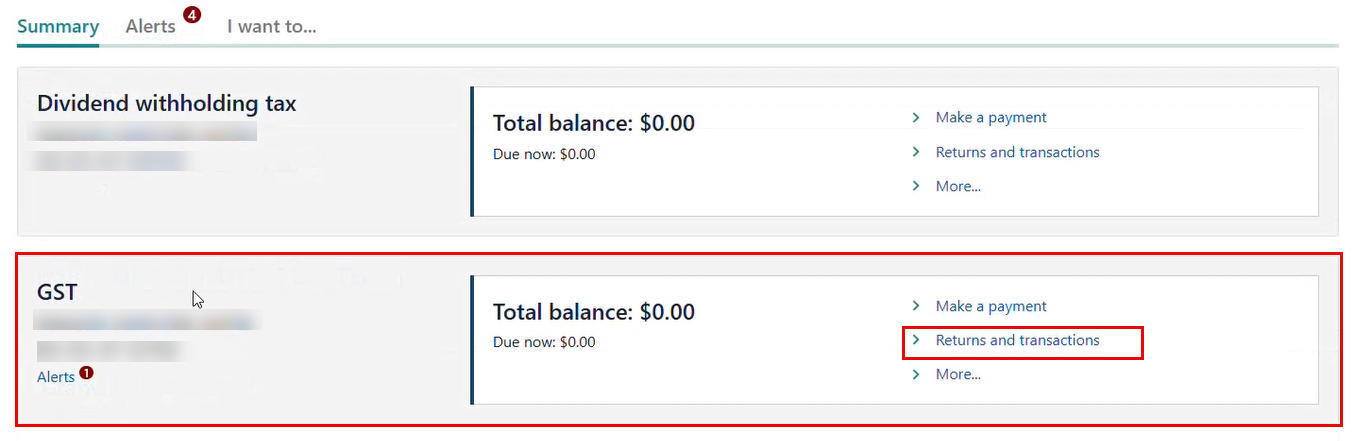
Login to IRD
- GST
- Returns and Transactions
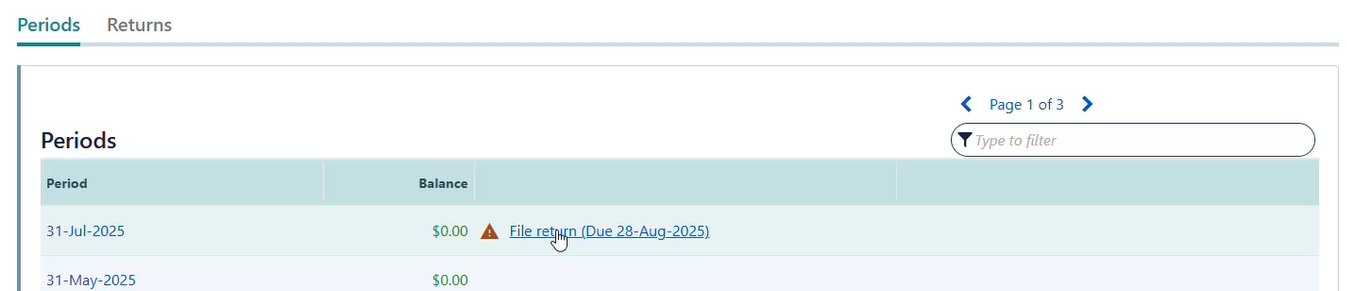
Open the File return due
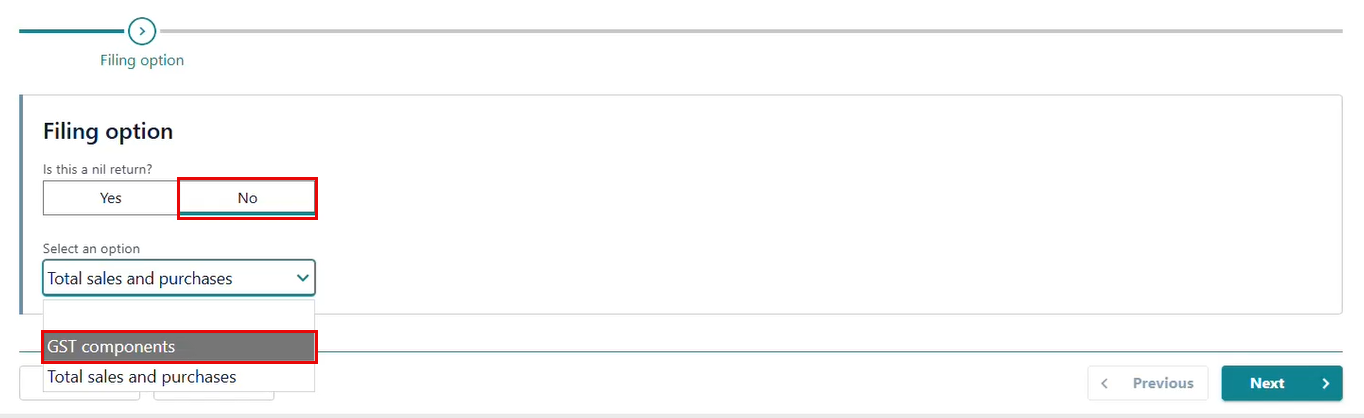
Filing Options
Always select "No," as GST submissions are made on behalf of a registered company.
Ensure "GST Components" is selected to guarantee the submission is calculated precisely to the cent.
Click "Next" to proceed.
Sales and Income
Complete the following fileds:
- Total GST Collected on sales and income
- Zero Rated Supplies
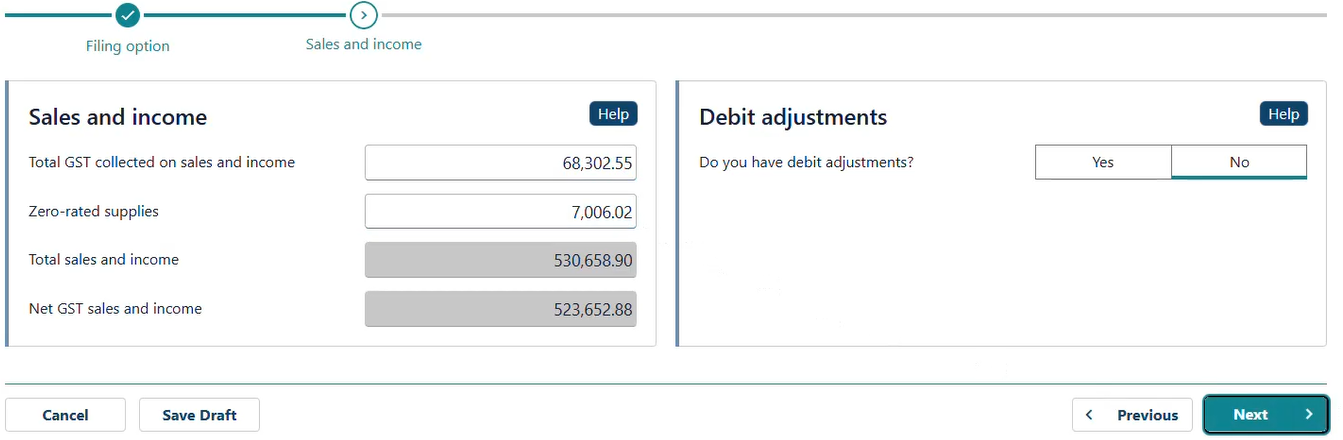
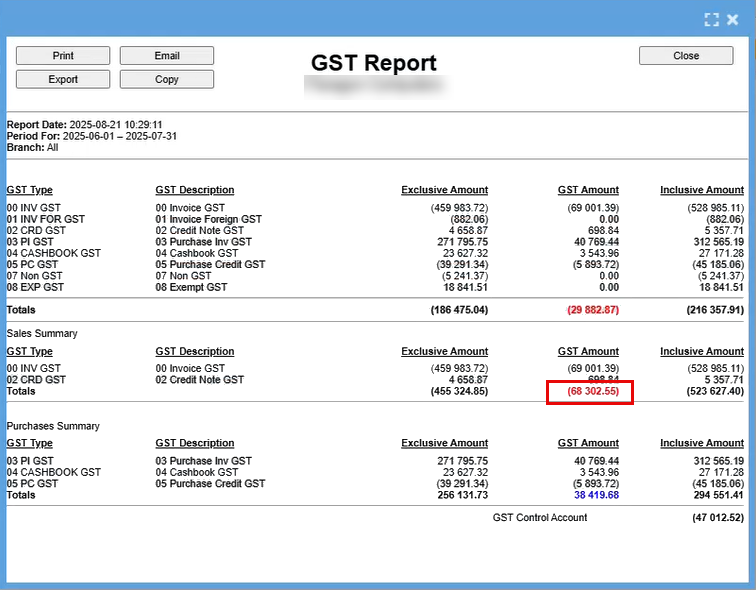
Total GST Collected on sales and income - this will be found on the GST Summary Report as shows below
Zero Rated Supplies will be what you calculated in your Consolidated Totals for IRD Reporting (GST-Exempt Transactions) as shown below:
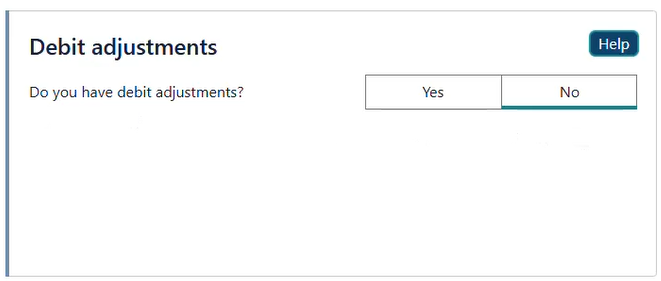
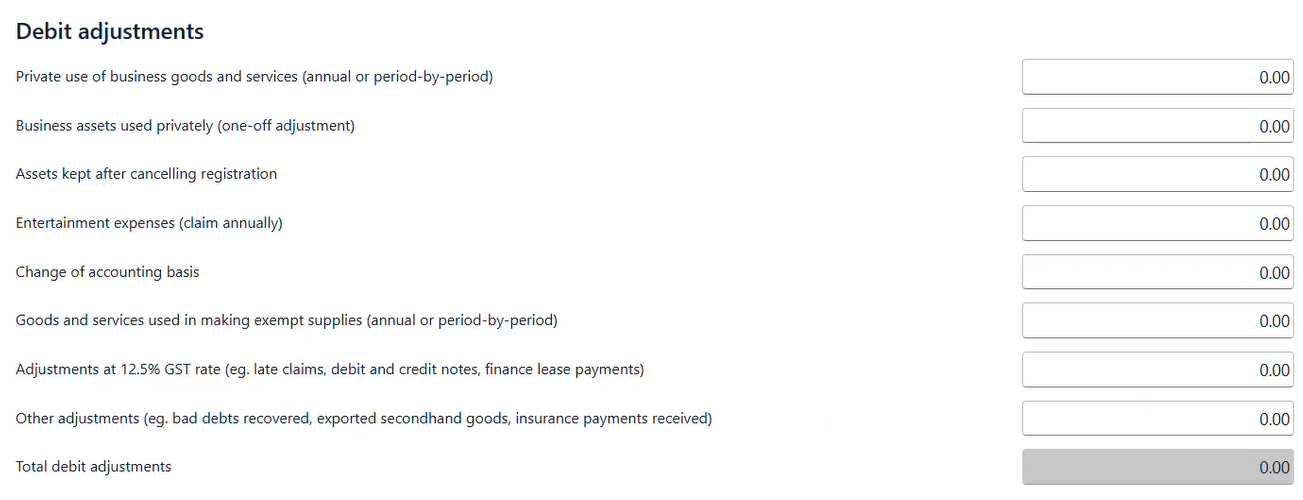
The "Debt Adjustment" section applies only if you're claiming GST back from the IRD based on the scenarios listed below.
If there's nothing to claim, simply select "No."
Click "Next" to continue.
Purchase and Expenses
Here the IRD whats to know what purchased you made and what GST you paid on these purchases.
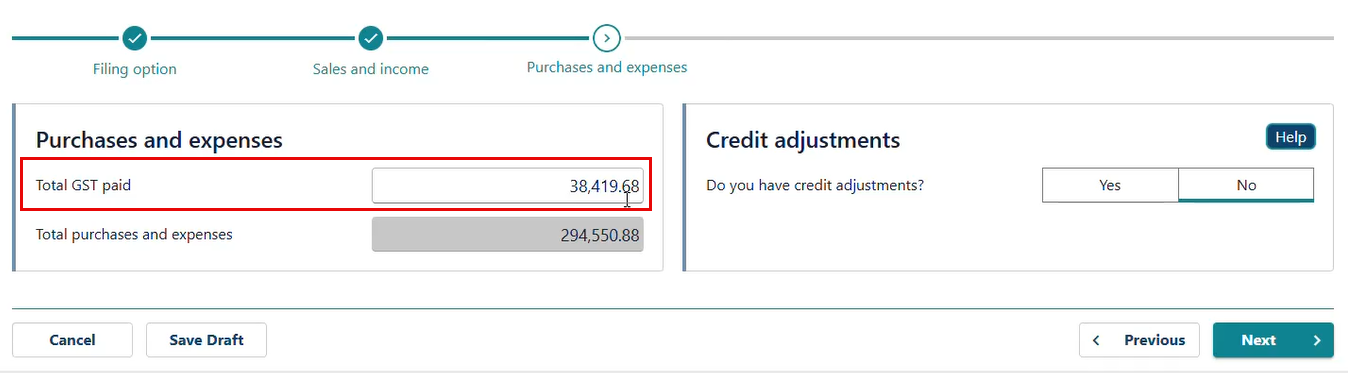
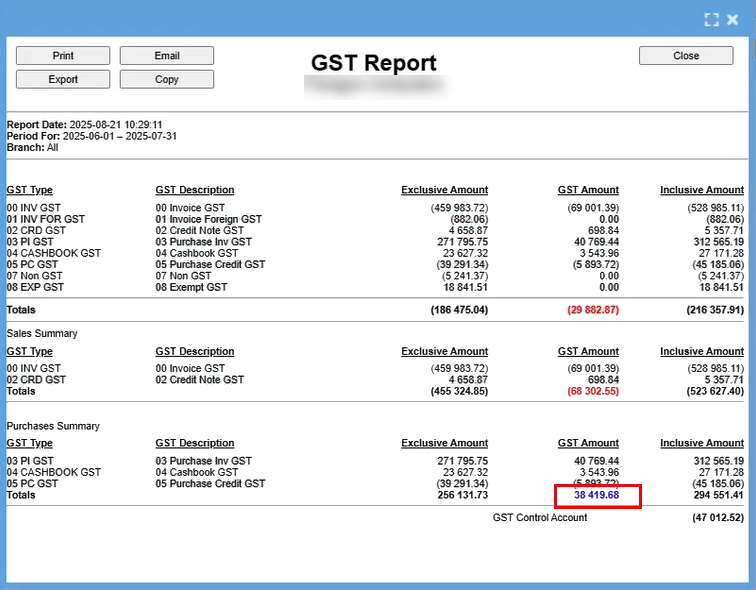
This figure you will again find in your "GST Report"
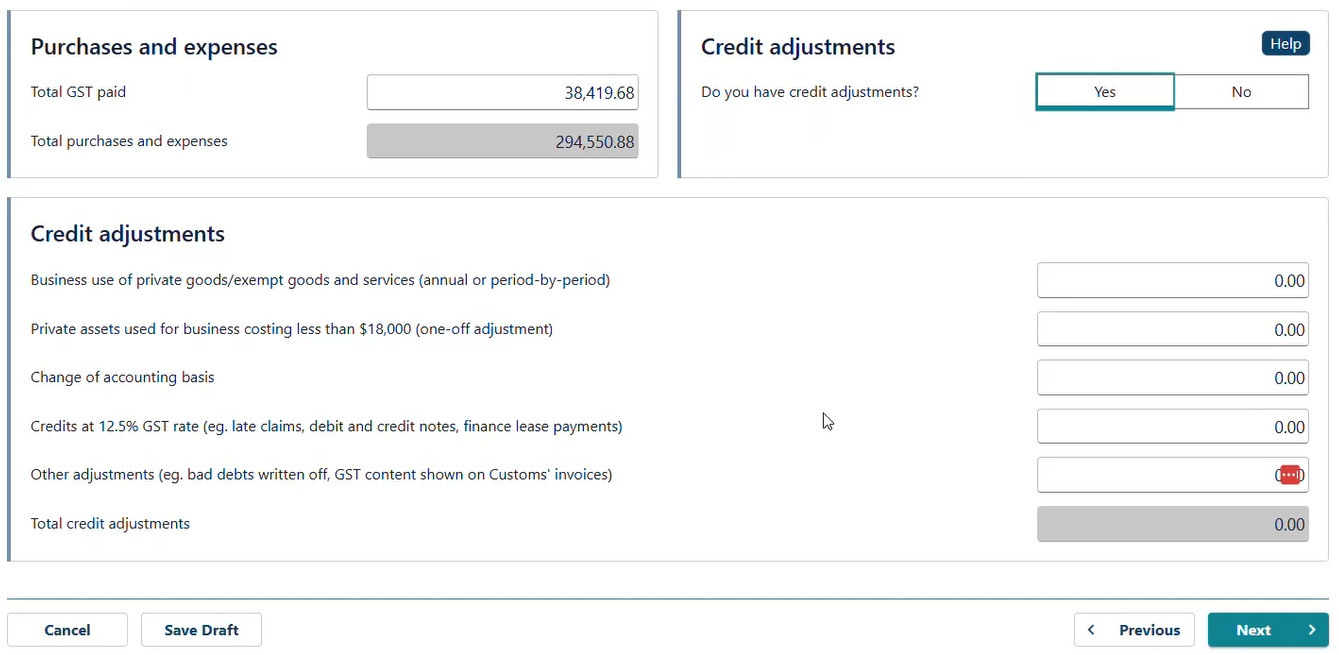
Credit Adjustments
Credit adjustments will apply
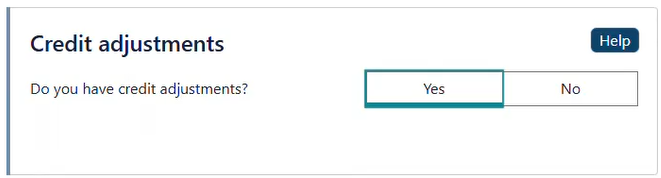
Use the "Debt Adjustment" section only when you're claiming GST credits from the IRD under the applicable scenarios listed below.
If no credit applies, select "No."
Click "Next" to proceed.
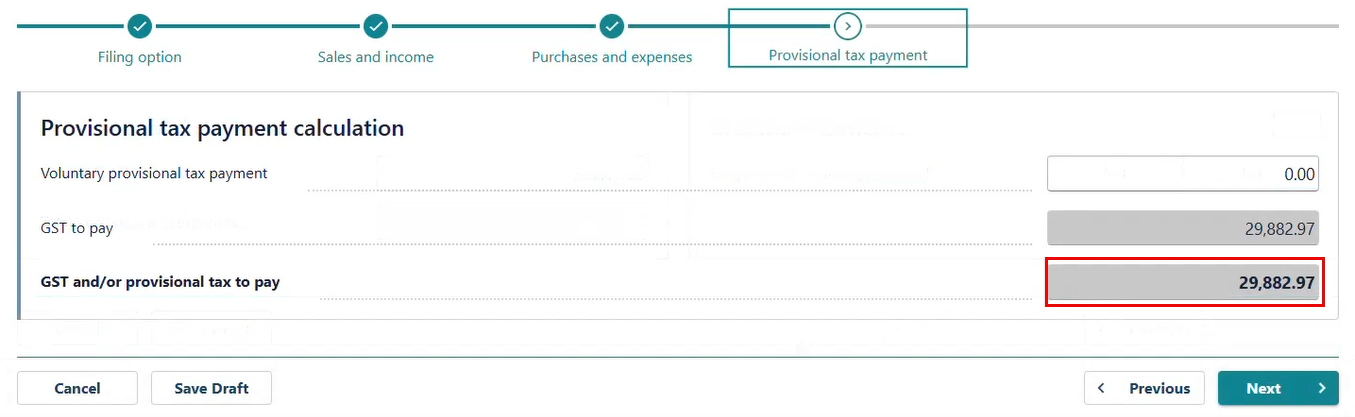
Provisional Tax Payments Calculation
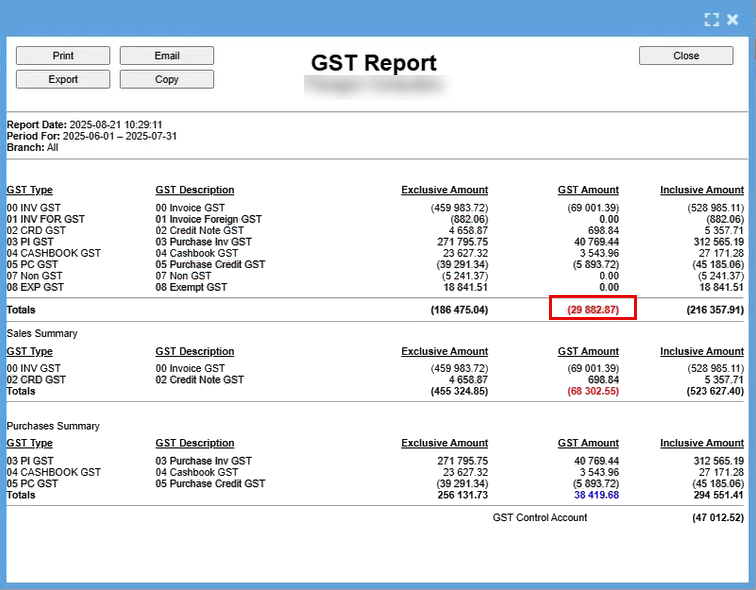
Your GST to pay should match that of your "GST Report" as shown below
This should be accurate. If the figures don’t reconcile, you’ll need to backtrack through the entries to identify where the discrepancy occurred.
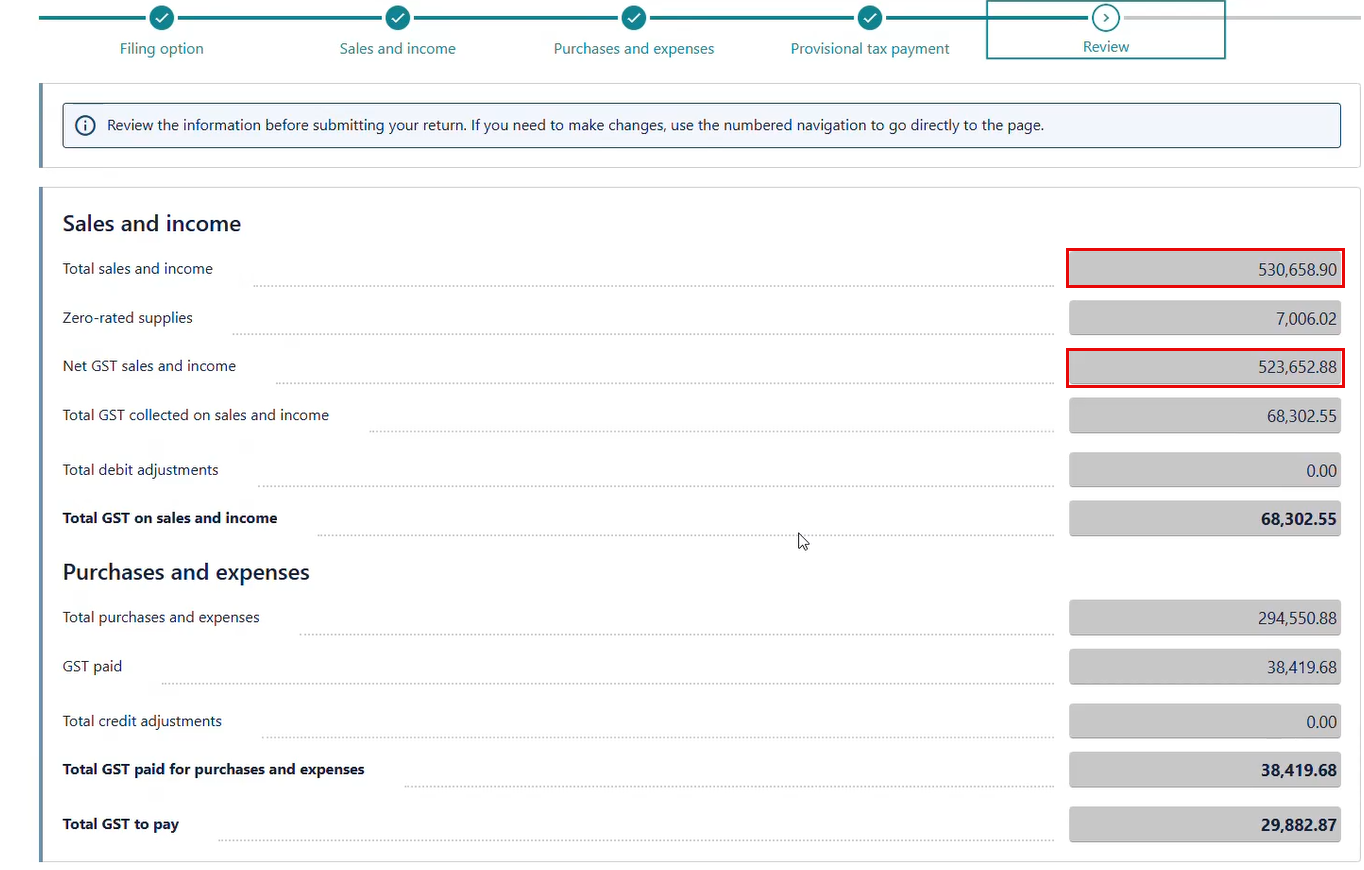
Review
During the review, you may notice slight discrepancies between figures such as Total Sales and Income, and Net GST Sales and Income, compared to your GST Report.
This is why it's important to select the "GST Components" option at the outset—it ensures greater accuracy and alignment with your official report.
The final GST payable amount will match the report exactly
Once you've completed your review and are satisfied with the GST return, tick the Declaration box to confirm that the information provided is true and correct.
Then, click ‘Next’ to proceed.
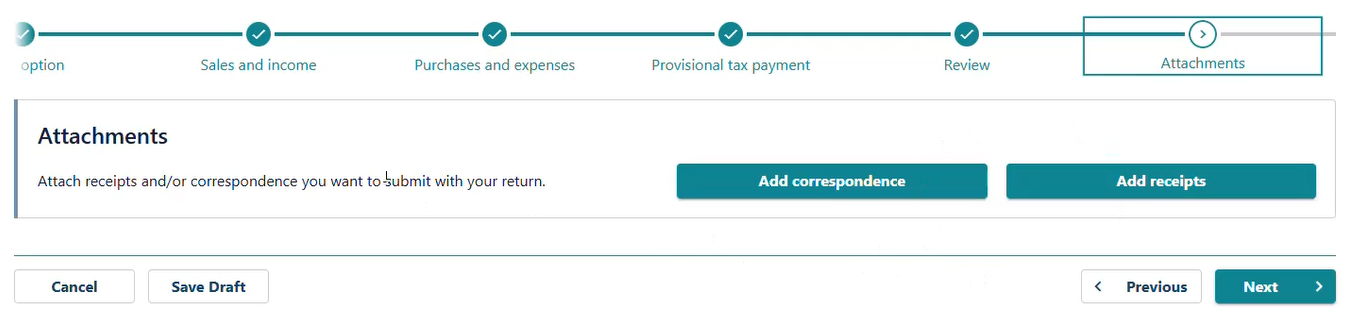
Attachments
If you have any big claims or adjustments, you can now attach any supporting documentation.
Then, click ‘Next’ to proceed.
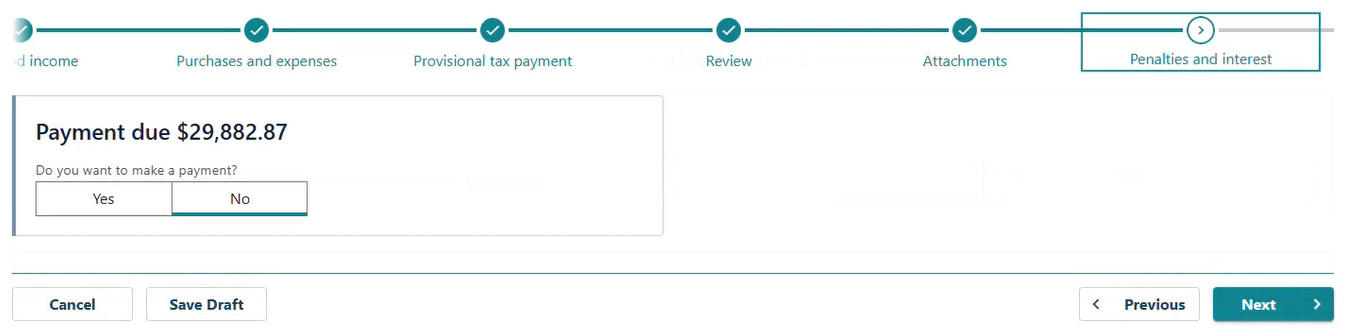
Payment
At this step, you can choose to make the payment immediately. If you prefer to pay on the due date, simply select “No.” and click ‘Next’ to proceed.
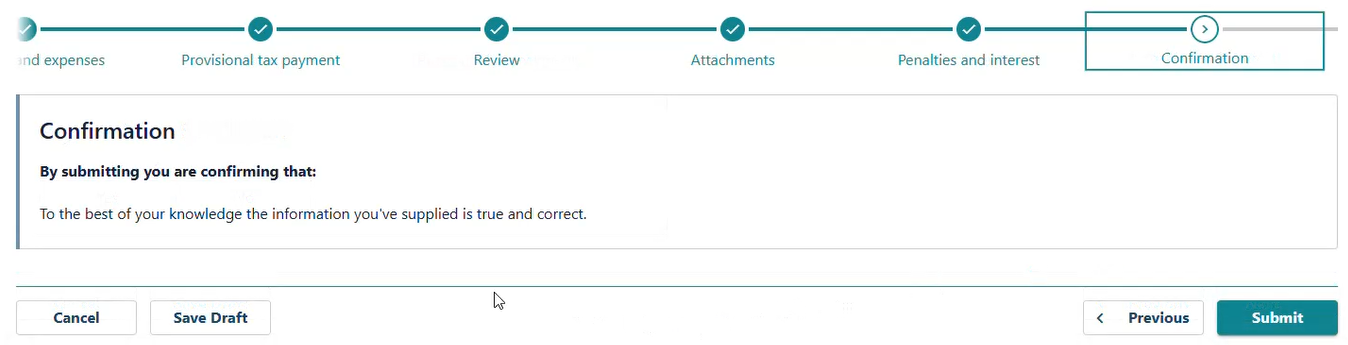
Confirmation
By clicking Submit you are finalize this submission.
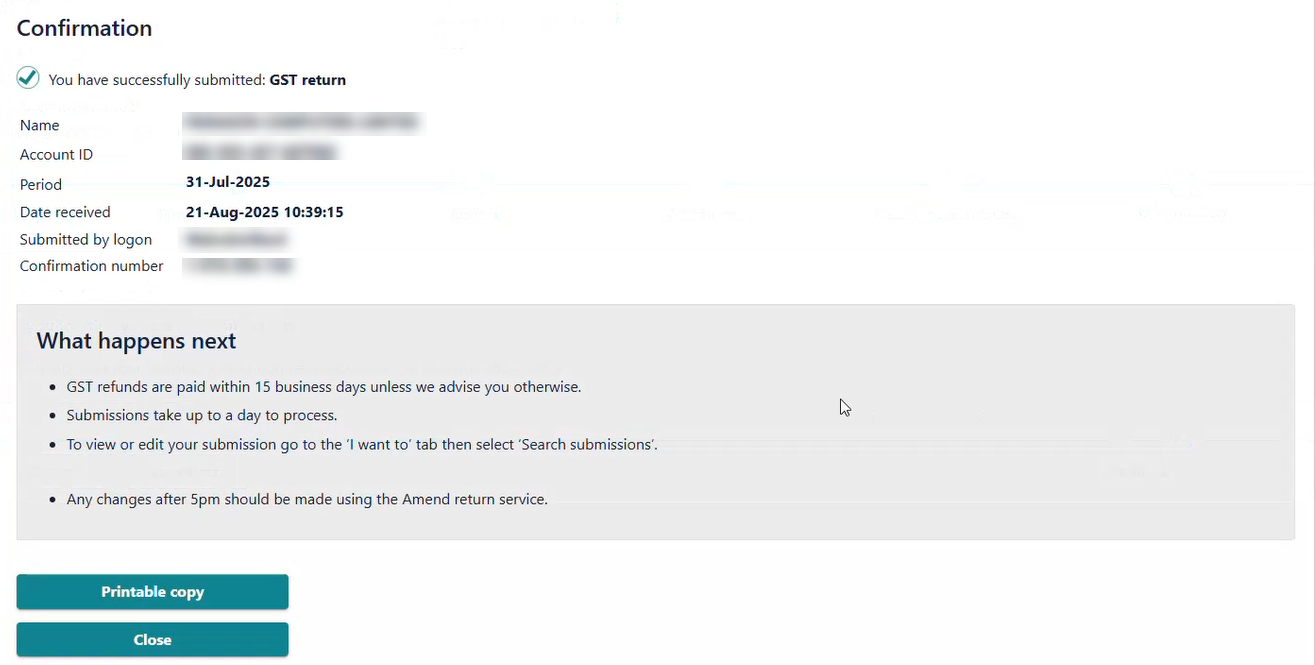
From here you can save a printable copy for your records which you can save along with your earlier reports and spreadsheet.
No Comments