
Inventory Analysis of Movement by Group Codes etc.
Inventory Analysis of Movement Grouped by Group Codes, Inventory / Debtor or Creditor
This is a report on inventory analysis of movement grouped by group code, inventory/ debtor or
creditor
Inventory module> Reports> Reports List
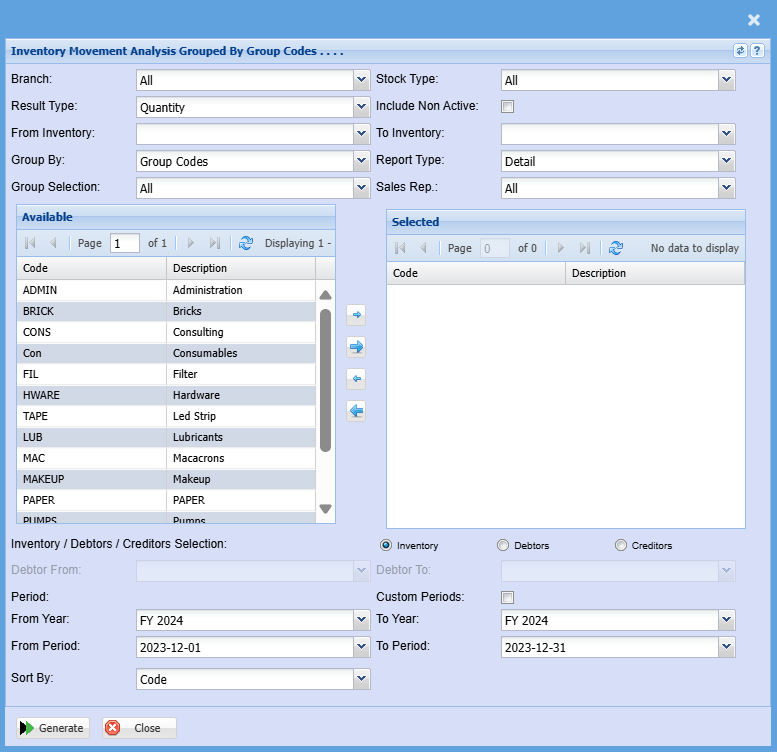
| Branch | When working with multiple branches this drop-down allows the user to select a specific branch to pull a report for. |
| Result Type | To select the results type from the drop-down menu, your options are Quantity, Sales Value or Sales Cost. |
| From Inventory / Inventory To | If you leave the stock item fields blank, all stock items will be displayed on the report. If you choose specific stock items, the report will sort information by stock item code from and to the selected codes rather than description. |
| Group By | Select from the drop-down menu if you want to pull your report by a specific group, you can choose from Group Code or Group Code / Inventory item. |
| Group Selection | Double click on the code from the list to move the group codes you wish to filter your report by to the selected window. |
| Stock Type | Select the stock type from the drop-down menu |
| Include Non Active Tick | Put a tick on to include all inactive stock items |
| Report Type | Report Type allows the user to select either detail or summary from the drop-down arrow. |
| Sales Rep |
If you leave sales rep on all the report will run by all sales rep If you want to run a report by a specific sales rep, then you will need to select the sales rep on the drop-down menu selection |
| Inventory / Debtor / Creditor Selection | This allows you to choose if you want to run a report by debtor/customer or by supplier/creditor |
| Debtor From / Debtor To |
Select a Customer/Debtor you wish to view the report from. Select the Customer/Debtor you wish to see up to in the report. |
| Year From / Year To | Select the year From and Year To Dates from the drop-down menus will show results specific to the period you have selected. |
| Period From / Period To | Select the period From and the period to from the drop-down menu |
No Comments