
Upgrade instructions for ScanSKU G-Series barcode scanners
Click on the below link and follow the instruction to update the firmware for the Scansku G-Series Scanner
G-Series - ScanSKU Flash Tool.zip
- Download and extract all or unzip the software from the shared link. Move folder “ScanSKU Flash Tool” to the root folder directory C:
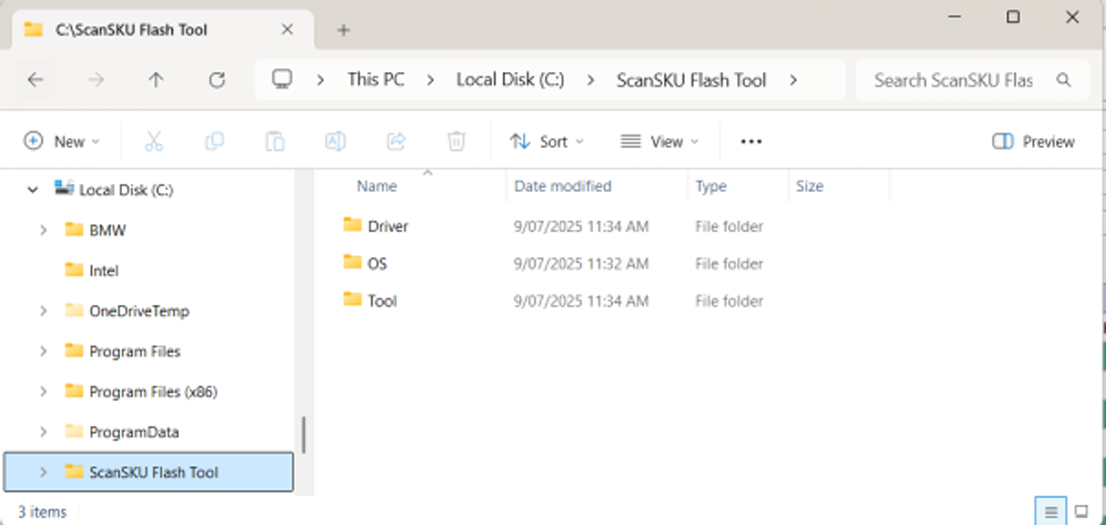
2. Go to the “Tool” directory, click on the “Flash_tool.exe”. If the file is hidden, use the search tool.
3. The first time the Flash Tool opens, the “Scatter-loading File” is blank. Select Choose, search in the “OS” directory and select the “MT6765_Android_scatter.txt” file.
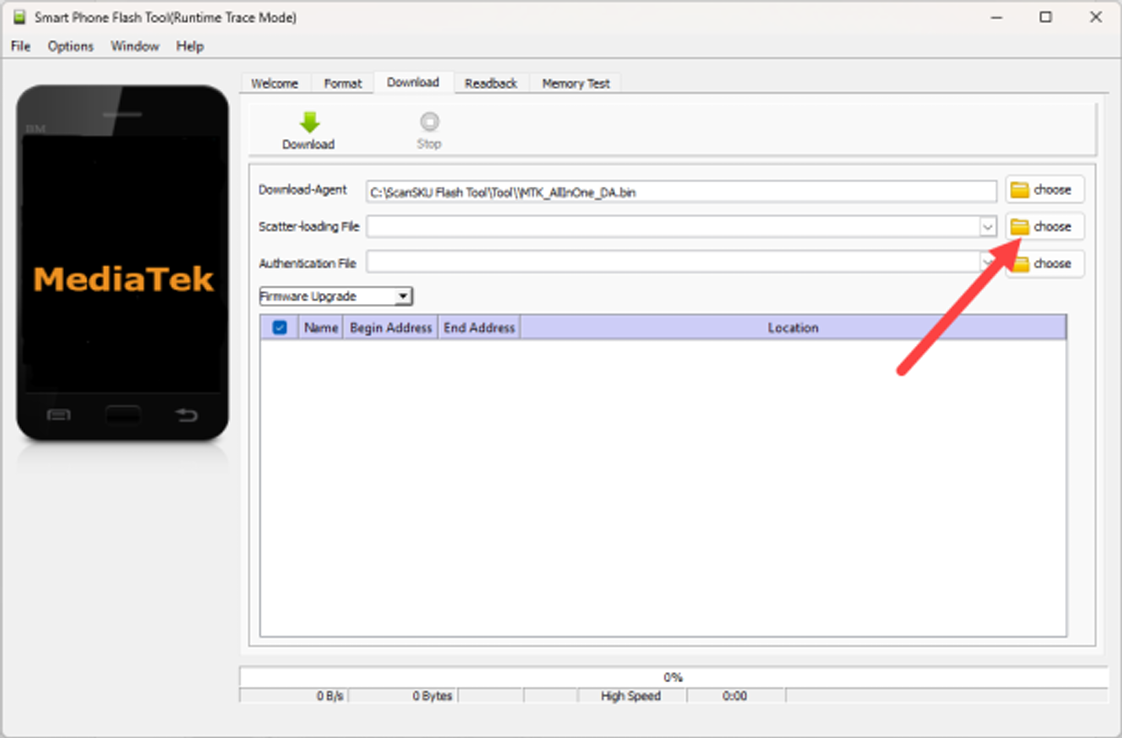
4. The window below will appear with all the files selected.
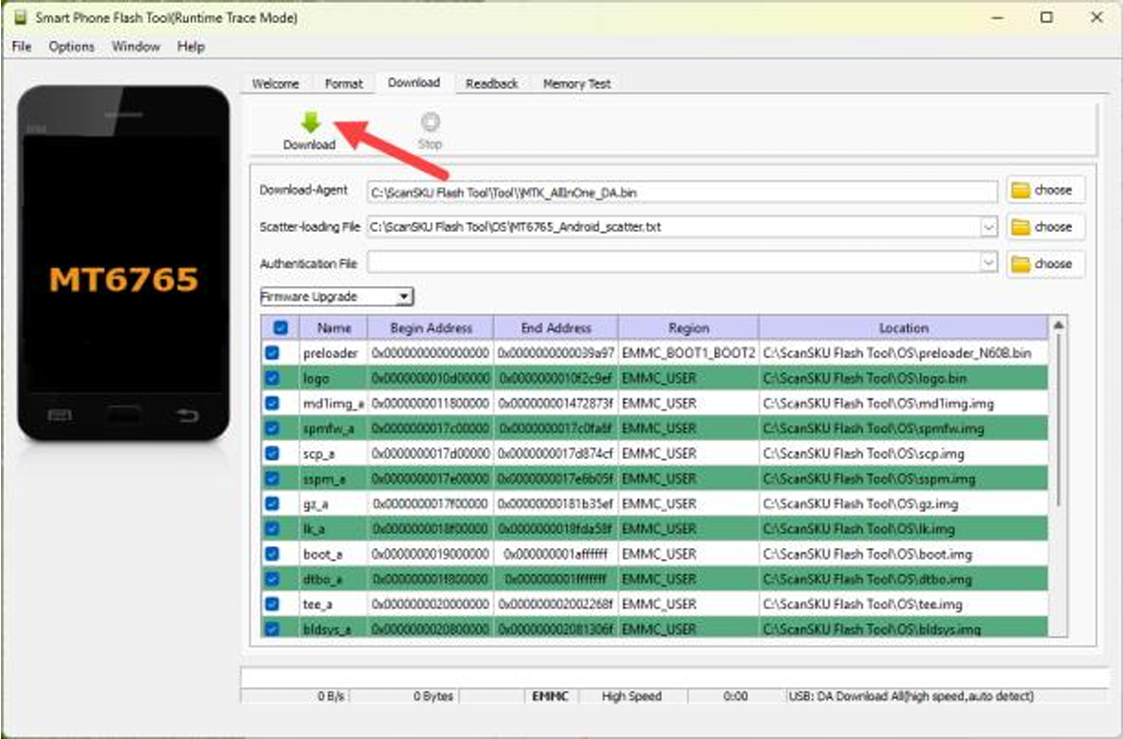
5. Click the “Download” arrow.
6. The window will grey out, and the app is ready to download the software
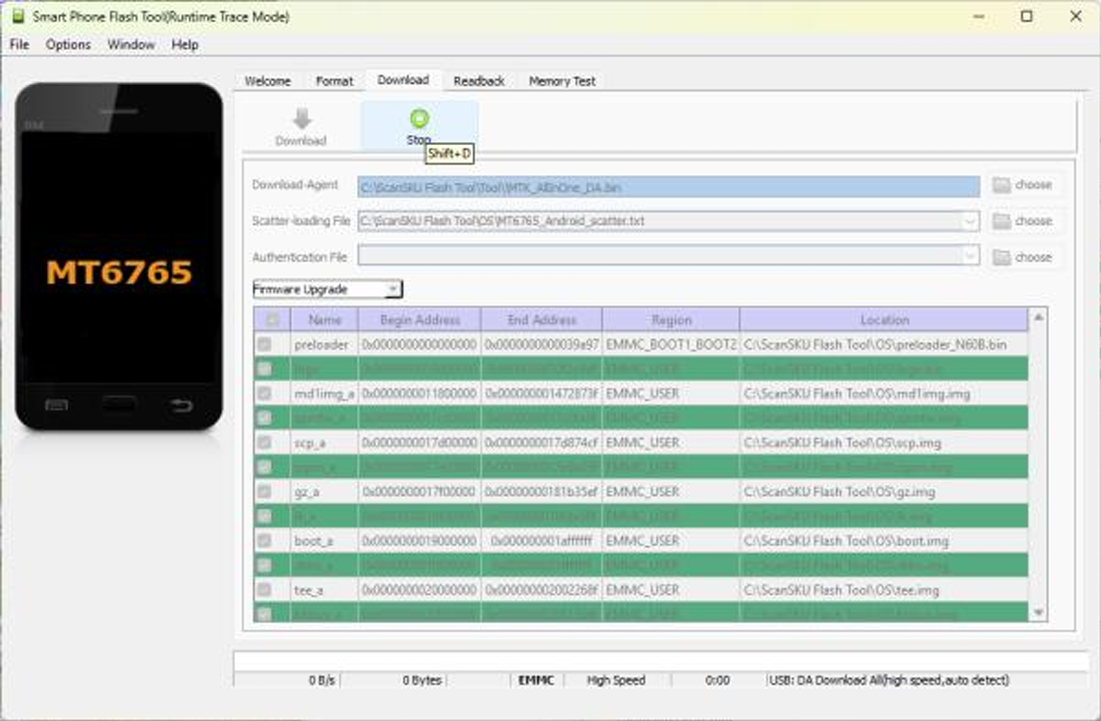
7. Power off the scanner.
8. Press and hold the "Volume Up" & "Left Scan" buttons simultaneously.
9. Plug in the USB cable that is connected to the workstation running the Upgrade App.
10. Keep holding buttons for 2-3 sec.
11.Upgrade activity should be seen below the green and white area.
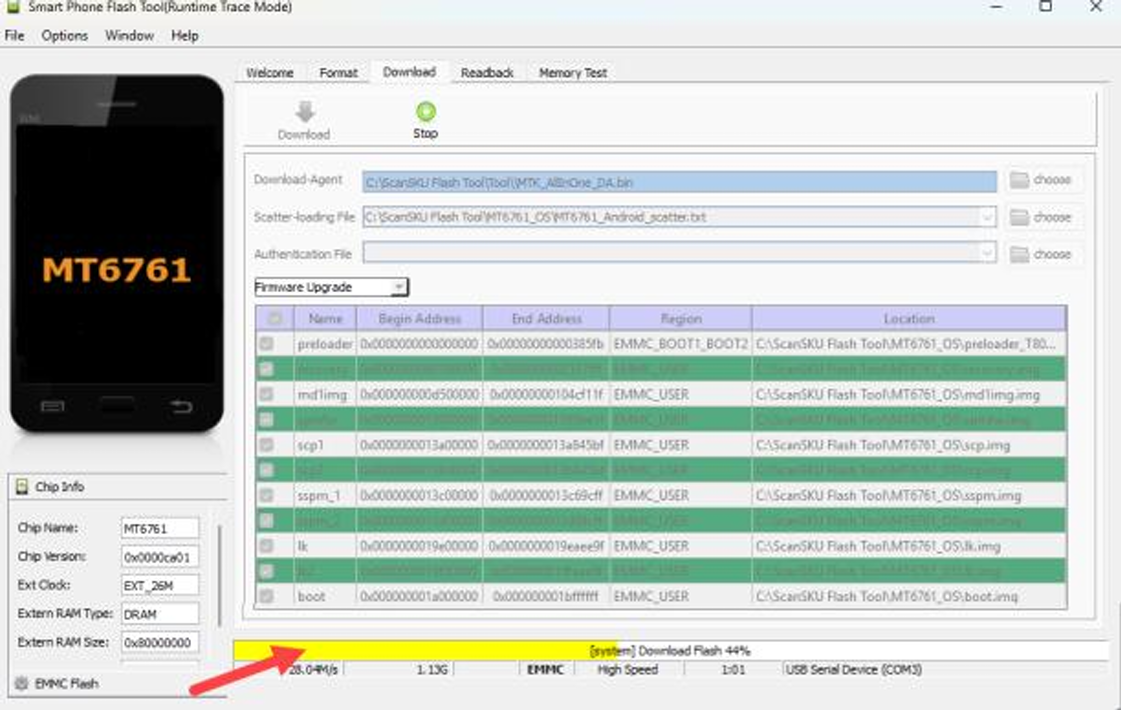
12. Wait until it is finished downloading.
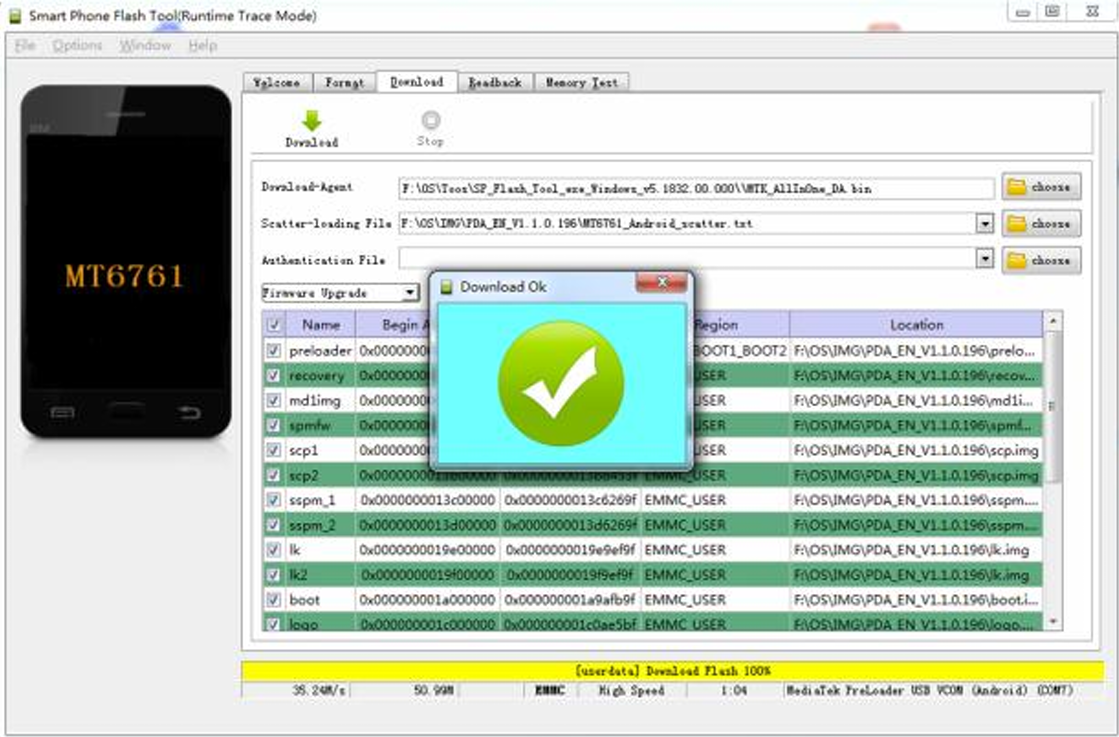
13.Click the white X in the red box to close Download Ok.
14.Unplug the USB cable.
15. Power on the scanner to boot.
16. Set up the scanner from scratch.
To upgrade another scanner, go to step 5
No Comments